> For the complete documentation index, see [llms.txt](https://docs.notionapps.com/llms.txt). Markdown versions of documentation pages are available by appending `.md` to page URLs; this page is available as [Markdown](https://docs.notionapps.com/screens-and-components/customize-a-screen/add-new-component-to-screen.md).
# Add new component to screen
Components allow you to customize the appearance and functionality of a screen in NotionApps. By adding a component, you can show or update specific fields in a more visually appealing and user-friendly way. Here's how you can add a component to a screen:
1. Go to a secondary screen, such as View Item, by clicking on a row in a List screen OR by clicking the "Go To Screen" button in the screen configuration section.
2. Once you're on the secondary screen, click on the plus (+) button in the screen configuration section.
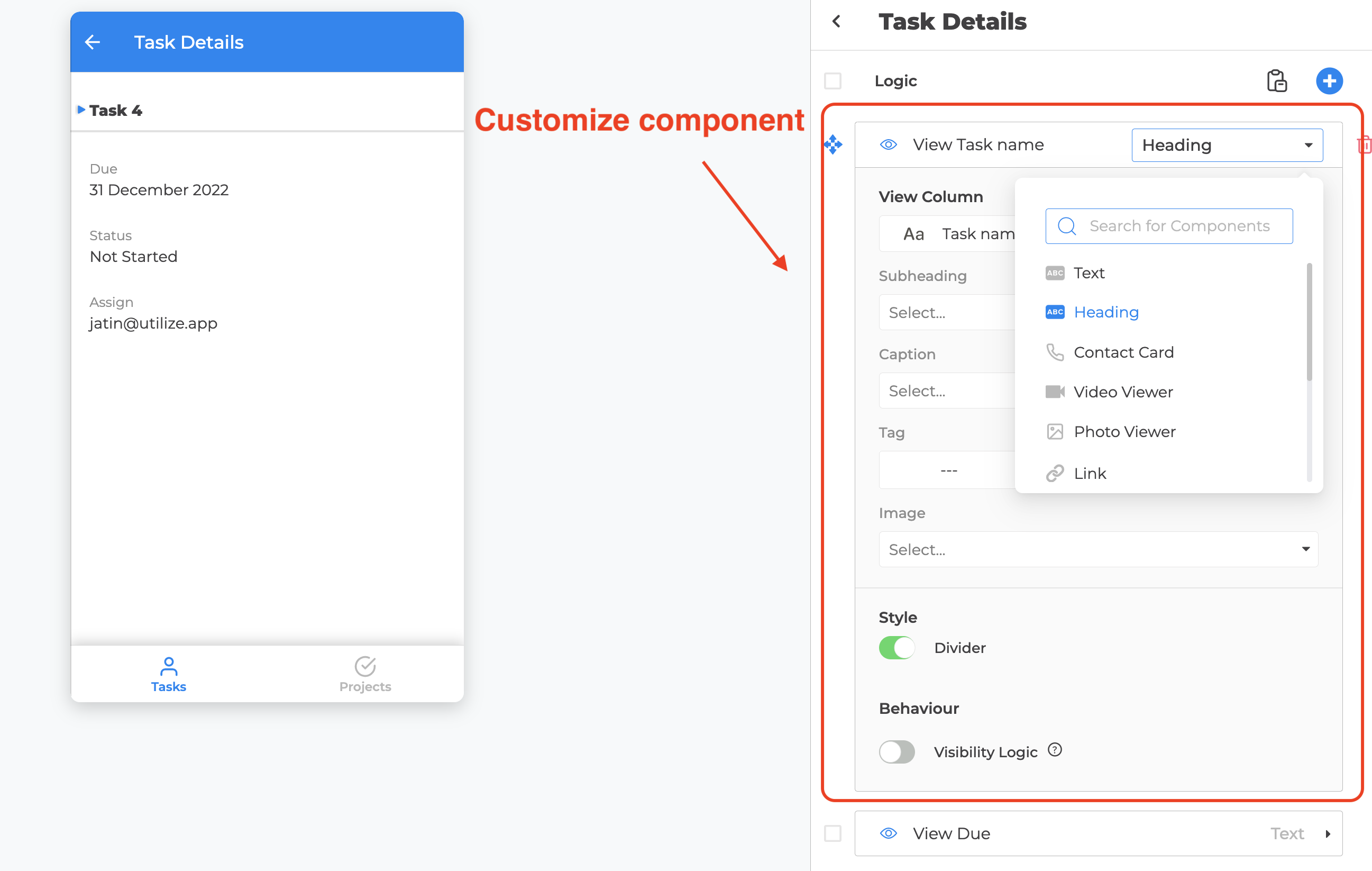
3. In the panel that opens up, you can either select a logic based on the field you want to show, and a default component will be added to the screen (which you can customize later). Alternatively, you can select a specific component from the "Components" section and change its field to the desired field.
4. Customize the component as per your preferences. You can adjust its appearance, layout, and functionality by using the customization options available.