Application Messaging Foundation Guide
Application Messaging Foundation Guide
Section titled “Application Messaging Foundation Guide”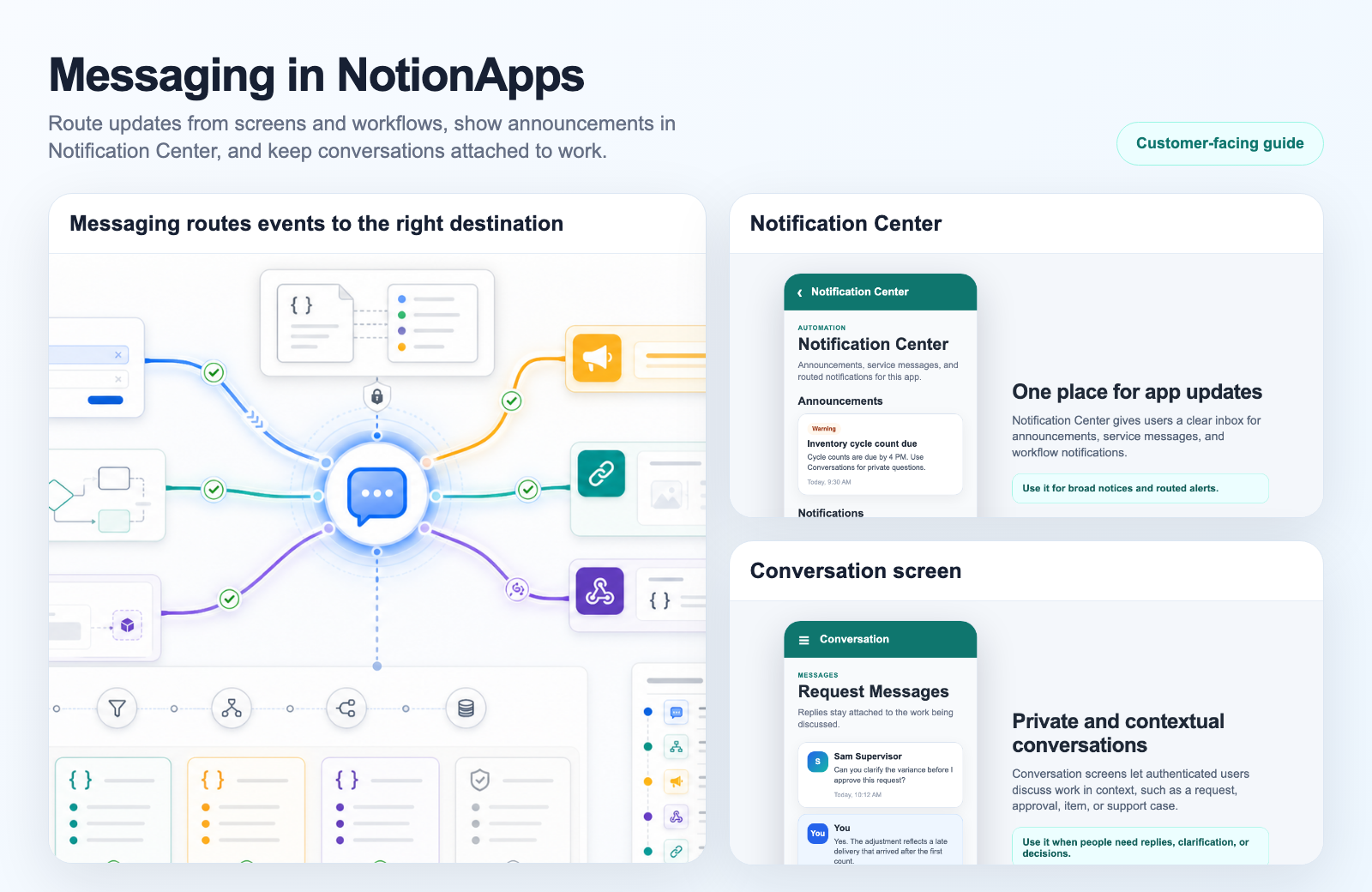
Support visual: this image shows Messaging as the app-level event routing layer. Screens, workflows, broadcasts, linked apps, webhooks, and activity logs all connect through a structured message hub.
Current state: Messaging is part of Automation. This guide explains the Messaging engine; product, pricing, live demo, template provisioning, and entitlement language should follow the NotionApps Automation Current State Guide.
Application Messaging is the communication layer inside NotionApps. It lets an application send structured messages from one part of the app to another part of the app, to Workflow Foundation, to linked applications, to webhooks, and to admin-visible activity logs.
Use this guide when you need to decide whether Messaging is the right tool, configure it end to end, explain entitlement levels, connect it to Workflow Foundation, or troubleshoot a route that is not behaving as expected.
For a broader support-ready explanation of Automation, Workflow, Messaging, entitlements, examples, and troubleshooting, see the Automation, Workflow, and Messaging Support Handbook.
Short Answer
Section titled “Short Answer”Messaging helps when an app event should be routed somewhere else.
Examples:
- A button click should start a workflow.
- A form submission should notify a manager.
- A workflow should tell another workflow that a step is complete.
- An app admin should broadcast a service announcement to every screen.
- A customer portal should send an approval request to an operations app.
- A record status change should trigger a webhook.
- A workflow should wait for a reply before it continues.
- A builder should dry-run a route before allowing live delivery.
The simple model is:
Source publishes message -> Messaging validates and routes it -> Subscriber receives messageWorkflow Foundation decides what work should happen. Messaging moves the event, payload, request, reply, or announcement to the right destination.
The maker-facing setup model is even simpler:
Describe the business outcome -> Review what NotionApps will build -> Answer only the missing route questions -> NotionApps builds the route -> Dry-run before live useThis is the same product direction as Workflow Foundation: the maker should not have to understand every low-level object before they can build a useful app behavior.
Approval Management is the third Automation capability that sits beside Workflow and Messaging. Messaging can carry approval requests, replies, and conversation history, but it does not unlock Decision screens, Work Queue screens, or workflow approval setup. Those approval-specific surfaces require Approval Management entitlement.
What Messaging Is
Section titled “What Messaging Is”Messaging is an application-level message bus. A message has a channel, an optional topic, optional contract information, a payload, and routing metadata. Messaging validates the message, finds matching subscribers, records activity, and delivers or previews the route depending on the builder action.
Messaging is most valuable when a NotionApps application needs a reliable, auditable way to coordinate app behavior without hard-wiring every button, workflow, screen, and external integration directly to every other object.
What Messaging Is Not
Section titled “What Messaging Is Not”Messaging is not a replacement for Workflow Foundation. Workflow Foundation is where builders model decisions, record updates, waits, notifications, branches, and multi-step business processes.
Messaging is not just a notification UI. It can power announcements, but it also supports event routing, request/reply flows, workflow triggers, linked app coordination, and external API intake.
Messaging is not automatically an email or push notification service by itself. It creates the structured event and delivery path. A subscriber, workflow step, webhook, or future delivery provider can turn that event into an email, push notification, external API call, or in-app update.
Messaging is also not the entitlement gate for approval work. If a builder wants a reviewer to claim work, approve/reject a request, or use an approval work queue, the application needs Approval Management in addition to any Workflow or Messaging access used by the route.
Where To Manage It
Section titled “Where To Manage It”Open an application in the builder and select Messaging in the left sidebar.
The Messaging builder area contains these pages:
| Page | Use it for |
|---|---|
| Overview | The progressive messaging home. New work starts with the business outcome; existing work shows setup, testing, failure review, or management. |
| Guided setup | The deeper setup workspace for route details, source/destination questions, route objects, and dry-runs. |
| Announcements | Service messages that appear automatically on every end-user screen in the app. |
| Channels | Message lanes and allowed topics for the application. |
| Contracts | Payload schemas, examples, and published versions. |
| Publishers | Sources that can send messages and subscribers that can receive them. |
| Activity | Route preview, test publishing, recent messages, and delivery inspection. |
Messaging is also controlled from the admin panel. Admins can enable or limit it by subscription plan, account, or individual application.
Approval-heavy apps usually need three admin checks before launch:
- Workflow Foundation is enabled for the route that does the work.
- Messaging Foundation is enabled for requests, replies, conversations, or announcements.
- Approval Management is enabled for Decision screens, Work Queue screens, and workflow approval setup.
Outcome-First Guided Setup
Section titled “Outcome-First Guided Setup”Messaging can still be managed through channels, topics, contracts, publishers, subscribers, and Activity. Those objects are necessary because they make routes auditable, testable, and supportable.
However, makers should usually start in Overview, not in the manual pages.
Overview asks the maker to describe the business outcome first. Examples:
Notify a supervisor when a form is submitted.Broadcast an outage message to everyone using this app.Start a conversation between a requester and reviewer.Send a record-created event to a webhook.NotionApps then recommends a pattern, asks the minimum follow-up questions, fills in the underlying Messaging objects, and creates the route when the maker chooses Build this messaging route.
Overview Progressive Path
Messaging Overview shows one current required step:
- Start with the outcome: type the business result or choose a starter pattern.
- What NotionApps will build: review the route plan after an outcome exists.
- Create the messaging route: create or reuse the channel, contract, publisher, subscriber, and dry-run path.
- Test the route: preview delivery when live publish access allows it.
- No required action right now: manage existing messaging work, failures, announcements, or activity.
Secondary tools such as Continue work, Announcements, Manual objects, and Manage / monitor appear only after there is messaging work to manage. This keeps first-time setup self-serving while leaving advanced tools available.
Guided Setup Steps
| Step | What the maker sees | What NotionApps prepares |
|---|---|---|
| 1. Describe what should happen | A business-language textarea and a recommended route pattern. | The likely route family, channel, topic, contract name, source type, subscriber type, fields, and payload example. |
| 2. Answer the numbered questions | Context-aware fields for the source, destination, and payload. | Real app-aware IDs for screens, forms, controls, workflows, data sources, and saved objects. |
| 3. Review the route plan | Plain-language steps and missing-item warnings. | A safe creation plan that explains what will be created or reused. |
| 4. Build and test | A single Build this messaging route action. | Channel, contract, published contract, publisher, subscriber, and dry-run route preview. |
Current Recommended Patterns
| Pattern | Generated channel/topic | Common use |
|---|---|---|
| Notify the right person | notifications / work.notification.requested |
Supervisory review, exception alerts, assignments, escalations. |
| Broadcast an announcement | announcements / announcement.published |
Maintenance notices, service messages, policy updates. |
| Start or continue a conversation | conversations / conversation.message.sent |
Direct chat, group chat, approval comments, support threads. |
| Send an event to another system | integrations / external.event.created |
Webhooks, linked apps, external API handoffs. |
The recommended pattern does not remove power-user control. Advanced builders can still edit the generated values or use the manual pages directly. The important product behavior is that a normal maker can build a route by describing the result and selecting friendly app objects, without starting from channel names, contracts, or raw IDs.
Why The Objects Still Matter
The route objects are what make Messaging safe and operationally visible:
- Channels and topics make the route understandable.
- Contracts validate the payload shape.
- Publishers restrict what can send messages.
- Subscribers define what receives messages.
- Activity shows what happened, what matched, and what failed.
The outcome-first UI keeps those objects behind a guided process so normal makers can build without thinking like engineers.
The Core Concepts
Section titled “The Core Concepts”Channel
A channel is a named lane for messages in one application.
Use channels for broad areas of communication:
notificationsapprovalstasksordersannouncementsintegrationsChannel names should be short, lowercase, and stable. The backend accepts letters, numbers, underscores, and hyphens.
Topic
A topic is an optional label inside a channel. Topics let one channel carry different message types.
Examples:
task.assignedtask.completedapproval.requestedapproval.decidedorder.createdorder.cancelledadmin.broadcastUse dot-separated topics. Prefer noun.action or domain.event.
Topics that perform work
Section titled “Topics that perform work”A topic is the event name on a channel. Publishers, Wait steps, Decision outcomes, and Conversation screens only match when they use the same string. Prefer the Publish Message / Wait for message dropdown. Do not invent a nearby name.
Allow every topic you use on the channel. A publish or reply with a topic the channel does not list is dropped.
| Topic | What it does | Inbox item |
|---|---|---|
client.review.requested |
Decision card in Needs Review | decision |
client.intake.submitted |
Task card in the Agency / Work Queue | task |
supervisor.review.requested |
Decision card for supervisor review | decision |
checklist.ready |
Task when a related checklist is ready | task |
client.decision.approve |
Client approved — wakes Wait | — |
client.decision.changes_requested |
Client requested changes — wakes Wait | — |
client.decision.reject |
Client rejected — wakes Wait | — |
supervisor.decision.approve |
Supervisor approved — wakes Wait | — |
supervisor.decision.escalate |
Supervisor escalated — wakes Wait | — |
The three client.decision.* topics are the set Use all client decision topics writes onto a Wait step.
Same channel, two item types: publish client.review.requested as decision for the Decision screen; publish client.intake.submitted as task for the Work Queue.
Publish client.review.requested (decision) → Decision screen → outcome publishes client.decision.approve | changes_requested | reject → Wait for message on those exact topics wakesWait for message listens for the reply topics, not the request topic. Notification Center is the ping; turning a preference off does not remove the queue card.
Maker page: Topics that perform work.
Publisher
A publisher is the source that sends a message.
Supported source types:
| Source type | Common use |
|---|---|
screen |
A screen-level runtime event publishes to Messaging. |
button |
A button click publishes a message. |
form |
A form submission publishes a message. |
record |
Record create, update, or status change publishes a message. |
workflow |
A workflow step publishes, requests, or replies. |
api |
An authenticated API caller publishes. |
linked_app |
Another approved app publishes into this app. |
Subscriber
A subscriber is the destination that receives a matching message.
Supported subscriber types:
| Subscriber type | Common use |
|---|---|
workflow |
Start or resume a workflow when a message arrives. |
screen |
Route a message to a screen-level experience. |
control |
Target a specific control or component. |
builder_monitor |
Make activity visible for builder/admin monitoring. |
webhook |
Send the message to an external URL or integration alias. |
linked_app |
Deliver the message to another approved application. |
Contract
A contract defines the expected payload shape for a message. Contracts are strongly recommended because they let builders and subscribers trust what the message contains.
A contract includes:
- Channel
- Optional topic
- Name
- Version
- Field definitions
- Example payloads
- Status, such as draft or published
Published contracts should be treated as stable. If the payload changes, create a new version, such as 1.1.0 or 2.0.0.
Message
A message is the actual event, command, request, reply, system event, or admin broadcast that moves through Messaging.
Message types:
| Type | Meaning |
|---|---|
event |
Something happened. Subscribers may react, but no reply is required. |
command |
A sender asks a receiver to do something. |
request |
A sender asks for a response and provides reply information. |
reply |
A receiver responds to a request. |
system |
A platform/system-originated message. |
admin |
An admin-originated message, such as an application announcement. |
Delivery
A delivery is Messaging’s attempt to route one message to one subscriber.
Delivery statuses include:
acceptedvalidatedqueueddeliveringdeliveredpartially_deliveredacknowledgedfaileddead_letteredexpiredcancelledIf one message matches three subscribers, it can produce three deliveries.
Payload Visibility
Subscribers can choose how much payload data they receive or expose.
| Visibility | Meaning | Recommended use |
|---|---|---|
redacted |
Sensitive contract fields are hidden. | Default for most routes. |
metadata_only |
Only routing metadata is visible. | Monitoring, logs, or receivers that only need to know that something happened. |
full |
Full payload is visible. | Only use when the receiver truly needs it and the entitlement allows sensitive payload access. |
When Messaging Helps
Section titled “When Messaging Helps”Service Announcements
Use Messaging > Announcements when an application admin needs to show an important notice inside the live app.
Best for:
- Scheduled maintenance notices
- Feature rollout notices
- Temporary service interruption banners
- “Action required today” reminders
- Internal operating notices for field teams or client portals
Announcements appear automatically on every screen through the app shell. The builder does not need to add a banner component to every screen.
Button Driven Actions
Use Messaging when a button should do more than its built-in action.
Examples:
- “Request approval” publishes
approval.requested. - “Escalate” publishes
ticket.escalated. - “Notify manager” publishes
notification.manager_requested. - “Generate report” publishes
report.requested.
The button remains simple for the app user, while subscribers decide what work happens next.
Form Submission Routing
Use Messaging when one form submission should start multiple outcomes.
Examples:
- A client intake form starts onboarding, sends a notification, and records an audit event.
- A time-off request starts an approval workflow.
- A support ticket form routes to the correct team based on priority.
- A vendor registration form triggers review, status changes, and external webhook delivery.
The form publishes one event. Workflows and subscribers handle the rest.
Record Lifecycle Events
Use Messaging when record creation or updates should notify other parts of the app.
Examples:
- A task is assigned.
- A contract status changes to approved.
- A payment record is marked overdue.
- A project stage changes from discovery to delivery.
- A record is created by an external intake process.
Pair this with contracts so every downstream workflow knows which fields are available.
Workflow To Workflow Coordination
Use Messaging when one workflow needs to trigger or inform another workflow.
Examples:
- A nightly digest workflow publishes
digest.ready. - A fulfillment workflow publishes
shipment.created. - A compliance workflow publishes
review.required. - A parent workflow sends a request and waits for a child workflow to reply.
This keeps workflows smaller and easier to reason about.
Linked Application Coordination
Use Messaging when separate apps should coordinate without becoming one large app.
Examples:
- A customer portal sends an approval request to an internal operations app.
- A field service app sends incident data to a manager dashboard app.
- A vendor portal sends onboarding completion to an admin app.
- A sales intake app sends handoff data to a delivery app.
Linked app routing requires inter_app_enabled.
External API Intake
Use Messaging when an external system should publish structured data into NotionApps.
Examples:
- A checkout system publishes
order.created. - A CRM publishes
lead.qualified. - A scheduling tool publishes
meeting.booked. - An external automation tool publishes
webhook.received.
External API publishing requires external_api_enabled.
External Webhook Delivery
Use Messaging when NotionApps should notify an outside system.
Examples:
- Send approval decisions to a CRM.
- Notify a data warehouse of a completed workflow.
- Trigger an external reporting pipeline.
- Post updates to a support or ticketing system.
Use metadata_only or redacted unless the external receiver truly needs the full payload.
Builder Monitoring And Audit
Use Messaging when you need visibility into what happened and where it went.
Examples:
- Dry-run a route before publishing.
- Confirm a contract validated successfully.
- See how many subscribers matched a message.
- Diagnose a failed delivery.
- Verify that a workflow received the expected payload.
Use Messaging > Activity for this work.
Request And Reply Flows
Use request/reply when the sender cannot continue until another workflow, app, or integration responds.
Examples:
- A purchase request waits for manager approval.
- A client onboarding flow waits for compliance review.
- A field report waits for supervisor confirmation.
- A customer portal waits for internal fulfillment status.
Request/reply becomes especially powerful when combined with Workflow Foundation’s wait_for_message step.
For app-facing conversations, prefer one stable conversation or correlation value per business object:
timecard idsupport ticket idapproval request idworkflow run idlinked app exchange idNative Conversation screens use that value to keep replies together. They should show normal language to the end user, such as a conversation title, “Write a reply,” and “Send,” rather than raw channel, topic, source, target, or correlation IDs. If more than one conversation is available, the screen should feel like a chat inbox: one conversation opens by default, and the user can switch only when needed.
Participant fields are important for privacy. Include fields such as employee_email, supervisor_email, requester_email, reviewer_email, recipient_email, or assignee_email when publishing private conversation messages. Those fields let NotionApps show older and newer replies to the correct users without turning the screen into a public feed.
When a participant is already on a Conversation screen, new messages are delivered through the automation screen stream. The frontend receives refreshed screen state over server-sent events and falls back to 30-second polling if the stream is unavailable.
When Not To Use Messaging
Section titled “When Not To Use Messaging”Do not use Messaging when:
- A single button only needs to navigate to another screen.
- A form only needs to save a record and show a success message.
- A one-step workflow can directly perform the action without routing.
- The message payload would duplicate sensitive data without a subscriber need.
- The route is temporary and easier to run manually once.
Messaging is worth using when the event should be reusable, observable, validated, delivered to multiple places, or connected to workflows/apps outside the immediate screen.
Entitlements
Section titled “Entitlements”Messaging access is controlled by entitlement level and scope.
The entitlement level decides what the app can do. The scope explains where that decision came from.
Entitlement Levels
Entitlement levels are hierarchical. Higher levels include the capabilities of lower enabled levels.
| Level | Builder visible | Configure drafts | Dry-run/live publish | Same-app routes | Linked app routes | External API | Admin operations |
|---|---|---|---|---|---|---|---|
disabled |
Maybe, if the menu is visible | No | No | No | No | No | No |
removed |
Maybe, for historical/support state | No | No | No | No | No | No |
builder_draft_only |
Yes | Yes | No | No live delivery | No | No | No |
intra_app_enabled |
Yes | Yes | Yes | Yes | No | No | No |
inter_app_enabled |
Yes | Yes | Yes | Yes | Yes | No | No |
external_api_enabled |
Yes | Yes | Yes | Yes | Yes | Yes | No |
admin_enabled |
Yes | Yes | Yes | Yes | Yes | Yes | Yes |
Capability Flags
The backend returns these flags in the Messaging Overview entitlement panel:
| Flag | What it means |
|---|---|
enabled |
The entitlement is active and not disabled or removed. |
builder_enabled |
Builders can use the Messaging builder surface. |
live_publish_enabled |
Dry-runs and live publishes are allowed. This starts at intra_app_enabled. |
intra_app_enabled |
Messages can route inside the same application. |
inter_app_enabled |
Messages can route to approved linked applications. |
external_api_enabled |
Authenticated external API publishing is allowed. |
admin_operations_enabled |
Admin-only messaging operations are allowed. |
Scope And Source
Entitlements can be applied at different places:
| Scope | Meaning |
|---|---|
application |
This application has a specific override. |
account |
The builder account has an override that applies to its apps. |
subscription |
The plan policy controls access. |
default |
The system default controls access. |
none |
No effective entitlement exists. |
If a builder says “Messaging is visible but I cannot publish,” check both level and scope in Overview. A plan may allow the feature while an account or application override still disables it.
Limits And Retention
Entitlements can also include operational limits:
| Field | Meaning |
|---|---|
channel_limit |
Maximum channels allowed for the entitlement. |
message_limit |
Maximum messages allowed for the entitlement window. |
retention_days |
How long message records should be retained. |
payload_retention_days |
How long full payload data should be retained. |
allow_sensitive_payload_view |
Whether sensitive contract fields can be viewed in full. |
retention_ends_at |
Date after which retained data is no longer available. |
Use shorter payload retention for sensitive apps. Use redacted subscriber visibility unless a receiver truly needs full payload data.
Which Entitlement Should I Use?
Use builder_draft_only when:
- A builder needs to model channels/contracts before launch.
- You want setup work without any live runtime delivery.
- You are testing the UI or preparing documentation.
Use intra_app_enabled when:
- The app only needs internal messages.
- Buttons, forms, records, screens, and workflows stay in the same app.
- You need application announcements.
Use inter_app_enabled when:
- One app needs to send messages to another NotionApps app.
- You want customer portal to operations app handoffs.
- You want an internal admin app to receive events from multiple runtime apps.
Use external_api_enabled when:
- External systems publish into NotionApps.
- NotionApps must route messages to webhooks.
- You need API-driven integration testing.
Use admin_enabled when:
- Admin operations must inspect or manage messaging globally.
- Support needs elevated messaging controls.
- Internal operators need access beyond normal app builders.
Messaging Versus Workflow Foundation
Section titled “Messaging Versus Workflow Foundation”Use this comparison when deciding where a behavior belongs.
| Need | Use Messaging | Use Workflow Foundation |
|---|---|---|
| Define an event name and payload | Yes | Sometimes |
| Validate payload shape | Yes, with contracts | Sometimes, with workflow validation |
| Find matching destinations | Yes | No |
| Record message routing activity | Yes | No |
| Run multi-step business logic | No | Yes |
| Create or update Notion records | No | Yes |
| Branch based on conditions | No | Yes |
| Wait for time or response | No, but it carries replies | Yes |
| Show UI actions like open screen or refresh data | No | Yes |
| Connect apps, webhooks, and workflows | Yes | Often via Messaging steps |
The best pattern is usually:
Messaging detects and routes the event.Workflow Foundation performs the work.Messaging records replies, follow-up events, and cross-app delivery.Workflow Foundation Integration
Section titled “Workflow Foundation Integration”Messaging and Workflow Foundation become powerful together because each tool does one job well.
Workflow Foundation can start from a message, publish a message, send a request, send a reply, or wait for a message.
Relevant workflow trigger:
message_receivedRelevant workflow steps:
publish_messagesend_message_requestsend_message_replywait_for_messagePattern 1: Message Starts A Workflow
Use this when a button, form, API call, linked app, or record event should start a workflow.
Messaging setup:
Channel: tasksTopic: task.assignedContract: task_assignment@1.0.0Publisher: button btn_assign_taskSubscriber: workflow wf_notify_assigneePayload visibility: redactedWorkflow setup:
{ "trigger_definition": { "type": "message_received", "config": { "channel": "tasks", "topic": "task.assigned", "contract_name": "task_assignment", "contract_version": "1.0.0" } }}What happens:
- The user clicks the button.
- The button publisher emits
tasks/task.assigned. - Messaging validates the payload.
- The workflow subscriber matches.
- Workflow Foundation starts
wf_notify_assignee.
Use this pattern when an event should fan out to workflow logic.
Pattern 2: Workflow Publishes A Message
Use this when a workflow reaches a meaningful point and other systems should know about it.
Workflow step:
{ "type": "publish_message", "name": "Publish digest ready", "config": { "channel": "notifications", "topic": "digest.ready", "contract_name": "digest_ready", "contract_version": "1.0.0", "payload": { "digest_id": "digest_2026_06_24", "recipient_email": "manager@example.com", "summary": "3 tasks need review" } }}Possible subscribers:
- A builder monitor for audit.
- A webhook for an external notification service.
- A linked app that displays manager work queues.
- Another workflow that handles delivery preferences.
Use this pattern when workflow progress should become an event other parts of the system can observe.
Pattern 3: Request And Reply Between Workflows
Use this when one workflow needs another workflow, app, or integration to answer before it can continue.
Sender workflow step:
{ "type": "send_message_request", "name": "Request manager approval", "config": { "channel": "approvals", "topic": "approval.requested", "contract_name": "approval_request", "contract_version": "1.0.0", "reply_to": { "channel": "approvals", "topic": "approval.decided" }, "timeout_seconds": 86400, "payload": { "approval_id": "approval_123", "requested_by": "owner@example.com", "amount": 4250, "reason": "Software renewal" } }}Receiver workflow trigger:
{ "type": "message_received", "config": { "channel": "approvals", "topic": "approval.requested" }}Receiver workflow reply step:
{ "type": "send_message_reply", "name": "Reply with approval decision", "config": { "reply_status": "completed", "payload": { "approval_id": "approval_123", "decision": "approved", "reviewed_by": "manager@example.com", "review_note": "Approved for renewal" } }}Sender workflow wait step:
{ "type": "wait_for_message", "name": "Wait for approval decision", "config": { "correlation_id": "payload.envelope.correlation_id", "timeout_seconds": 86400, "timeout_step_id": "step_escalate_if_no_reply" }}What makes this powerful:
- The sender does not need to know exactly how the receiver works.
- The receiver can be a workflow, linked app, or external integration.
- The request and reply stay auditable in Messaging activity.
- The wait step can time out and continue down an escalation path.
Pattern 4: Workflow Controls UI After A Message
Use this when a message should trigger immediate runtime UI actions.
Example:
- A user submits a form.
- The form publishes
request.created. - A workflow starts from
message_received. - The workflow evaluates priority.
- The workflow returns UI actions:
show_messageopen_screenrefresh_screen_dataset_control_visibilityblock_interaction
This lets the app feel responsive while keeping the decision logic in Workflow Foundation.
Pattern 5: Cross-App Handoff With Internal Processing
Use this when one application should hand work to another application while each app keeps its own screens and workflows.
Example:
Customer Portal form submitted -> Messaging message customer.requested
Operations App linked_app subscriber receives customer.requested workflow creates internal review task workflow publishes customer.review_started
Customer Portal linked_app subscriber receives customer.review_started screen or workflow updates customer-visible status
This pattern is cleaner than trying to force every team into one oversized app.
Pattern 6: External Intake With Internal Workflow
Use this when an external tool sends data into NotionApps and the app needs to turn it into an internal process.
Example:
External checkout -> API publisher -> orders/order.createdMessaging contract validates payloadWorkflow creates Notion recordWorkflow branches based on order totalWorkflow publishes order.ready_for_fulfillmentWebhook subscriber notifies fulfillment systemThis makes NotionApps the operational workspace while still accepting external events.
End-To-End Setup Recipes
Section titled “End-To-End Setup Recipes”Recipe 1: Publish A Service Announcement
Use this when app admins need to show a message on every app screen.
- Open Messaging > Announcements.
- Enter a clear title.
- Enter the message body.
- Choose severity:
infofor general notices.warningfor action-needed notices.criticalfor incidents or blocking issues.
- Optionally enter a CTA label and URL.
- Optionally set
starts_atandexpires_at. - Leave Show on every screen enabled for app-wide broadcasts.
- Click Publish broadcast.
Example:
Title: Scheduled maintenanceSeverity: infoMessage: We will perform maintenance tonight from 9-10 PM Eastern.CTA label: View statusCTA URL: https://status.example.comStarts at: 2026-06-25T21:00:00-04:00Expires at: 2026-06-25T22:30:00-04:00Behind the scenes, announcements use this standard route:
Channel: announcementsTopic: admin.broadcastContract: service_announcement@1.0.0Message type: adminAnnouncement lifecycle:
| Action | Meaning |
|---|---|
| Save draft | Store the announcement without showing it. |
| Publish broadcast | Make it active when the time window allows it. |
| Pause | Temporarily hide it. |
| Resume | Show it again. |
| Archive | Retire it. |
Users can dismiss a banner in their browser. Dismissal is remembered locally for that app.
Recipe 2: Button Click Starts A Workflow
Use this when a button should start business logic.
Channel:
Name: approvalsTopic: approval.requestedContract:
Name: approval_requestVersion: 1.0.0Contract fields:
[ { "key": "record_id", "label": "Record id", "type": "record_reference", "required": true }, { "key": "requested_by_email", "label": "Requested by", "type": "email", "required": true }, { "key": "amount", "label": "Amount", "type": "number", "required": false }]Publisher:
Source type: buttonSource: Button: Request approvalChannel: approvalsTopic: approval.requestedContract name: approval_requestContract version: 1.0.0Subscriber:
Subscriber type: workflowDestination: Workflow: Manager approvalChannel: approvalsTopic: approval.requestedContract name: approval_requestContract version: 1.0.0Payload visibility: redactedTest payload:
{ "record_id": "rec_123", "requested_by_email": "owner@example.com", "amount": 4250}Verification:
- Activity dry-run shows one workflow subscriber.
- Live publish creates one recent message.
- The workflow run is created.
- Failed deliveries remain zero.
Recipe 3: Form Submission Notifies Multiple Destinations
Use this when one form submission should trigger several outcomes.
Channel: intakeTopic: request.submittedContract: intake_request@1.0.0Publisher: form form_client_intakeSubscribers: workflow wf_create_review_task webhook webhook_customer_success builder_monitor monitor_intake_eventsWhy this is useful:
- The form only publishes one event.
- Each subscriber can evolve independently.
- A dry-run can show all matched destinations before live delivery.
- The webhook can receive redacted data while the workflow receives full data if allowed.
Recipe 4: External API Publishes Into NotionApps
Use this when an outside system should send a structured event to an app.
Required entitlement:
external_api_enabledEndpoint:
POST /v1/application/{applicationId}/messaging/messagesExample body:
{ "channel": "orders", "topic": "order.created", "contract_name": "order_created", "contract_version": "1.0.0", "message_type": "event", "dry_run": true, "payload": { "order_id": "ord_1001", "customer_email": "customer@example.com", "total": 149.99 }, "metadata": { "source": "external_checkout" }}Use dry_run: true until the route preview matches the intended subscribers. Set dry_run: false only after contract validation and destination matching are correct.
Recipe 5: Workflow Waits For A Reply
Use this when a process should pause until another party decides something.
Sender:
Workflow step: send_message_requestChannel: approvalsTopic: approval.requestedReply channel: approvalsReply topic: approval.decidedTimeout seconds: 86400Receiver:
Workflow trigger: message_receivedChannel: approvalsTopic: approval.requestedWorkflow step: send_message_replySender continuation:
Workflow step: wait_for_messageCorrelation id: payload.envelope.correlation_idTimeout step: Escalate approvalUse this for approvals, confirmations, compliance review, fulfillment status, or any process that should wait for an answer.
Guided Setup
Section titled “Guided Setup”Use Automation Home first when a maker wants a guided route from a business outcome. Use Messaging > Overview when the builder already knows they are creating a Messaging route but still needs the self-serving progressive path. Use Messaging > Guided setup when support or an advanced builder needs the full setup workspace for channel, contract, publisher, subscriber, and dry-run details.
The recommended premium setup path is:
Automation Preflight checks-> Automation Plain-language setup-> Automation Guided testing preview-> Generate objects-> Messaging Overview for self-serving route setup-> Messaging Guided setup or advanced Messaging pages only when deeper route tuning is neededAutomation preflight is especially useful because it tells the maker whether Messaging entitlement, live publish, external API, linked-app routing, app context, and activity visibility are ready before they touch manual Messaging configuration.
The wizard walks through:
- Create a channel.
- Create and publish a contract.
- Attach a source.
- Attach a destination.
- Dry-run the route.
Recommended starter setup:
Channel: notificationsTopic: button.clickedContract name: button_clickContract version: 1.0.0Source type: buttonSubscriber type: workflowPayload visibility: redactedExample payload:
{ "record_id": "example-record-id", "message": "A user clicked the button", "actor_email": "user@example.com"}Example contract fields:
[ { "key": "record_id", "label": "Record id", "type": "string", "required": false }, { "key": "message", "label": "Message", "type": "string", "required": true }, { "key": "actor_email", "label": "Actor email", "type": "email", "required": false }]How Automation And Messaging Guided Setup Differ
| Need | Start here |
|---|---|
| “I want to notify someone when this happens.” | Automation |
| “I want to broadcast to all app users.” | Automation |
| “I know the channel, topic, source, and subscriber I need.” | Messaging Overview, then Guided setup if full route details are needed |
| “I need to inspect delivery attempts or contract validation.” | Messaging Activity |
| “I need to edit the exact publisher/subscriber route.” | Messaging Publishers |
If the route was generated from Automation, the support bundle and Route map should be reviewed before changing manual Messaging objects.
Context-Aware Source And Target Pickers
Section titled “Context-Aware Source And Target Pickers”Messaging asks for source IDs and target IDs, but builders should not need to hunt through raw IDs manually.
When a source or destination field appears, start typing. The picker searches the application context and suggests matching objects.
Examples:
Button: Send notificationForm: New requestWorkflow: Notify assigneeScreen: Task detailsControl: ApproveData source: TasksCurrent app: Operations PortalSelecting a result fills the raw ID automatically.
You can still paste a manual ID when:
- The target is outside the current application context.
- The target is a webhook alias.
- The target is a linked application not currently loaded in the builder.
- Support has given you a specific internal ID.
Best practice:
- Select from suggestions whenever possible.
- Use stable aliases for webhook targets.
- Do not use display labels as IDs unless the system guarantees they are stable.
Native Automation Screens And Message-Aware Surfaces
Section titled “Native Automation Screens And Message-Aware Surfaces”Messaging can feed native app screens, not only workflows and webhooks. The builder can add screens such as Work Queue, Decision, Workflow Status, Conversation, Exception Resolution, Notification Center, Automation Launcher, Linked App Exchange, and Operator Console.
When a builder adds one of these screens:
- The screen-selection page uses distinct icons for each screen type so makers can tell queue, decision, status, conversation, notification, launcher, exchange, and console screens apart.
- The selected data source is only an app-context anchor for automation-native screens. Live screen content comes from workflow, messaging, announcement, queue, and operational runtime state.
- Source binding fields are context-aware. Builders search by friendly names instead of memorizing screen IDs, workflow IDs, channel names, topic names, conversation IDs, or linked application IDs.
- Hidden/internal screens are intentionally included. A hidden screen may still be a valid workflow or messaging destination when a route opens it during approval, support, onboarding, or service-announcement flows.
- Action routing fields are context-aware. Actions such as Claim, Complete, Approve, Reject, Acknowledge, Dismiss, Escalate, and Launch workflow can be pointed at screens or workflows by selecting friendly names.
- Simulation fields are context-aware. Builders can search app objects, recent messages, generated recipes, workflow runs, or paste runtime-only IDs when testing a native screen.
Use native automation screens when a message should become a durable user-facing surface:
| Need | Recommended screen |
|---|---|
| A user needs a personal or team task inbox | Work Queue |
| A user must approve, reject, or request changes | Decision |
| A user or owner needs to see run progress | Workflow Status |
| A message route needs a private per-record discussion | Conversation |
| Failed automation needs a manual recovery surface | Exception Resolution |
| App-wide announcements should remain available | Notification Center |
| A user should manually start approved automations | Automation Launcher |
| Two linked apps exchange requests or payloads | Linked App Exchange |
| Owners need operational visibility | Operator Console |
The rule of thumb is simple: Messaging routes the event, Workflow performs the work, and native automation screens make the state understandable inside the application.
For detailed setup and troubleshooting for each screen type, see the Native Automation And Operational Screen Guides.
Manual Setup
Section titled “Manual Setup”Use manual setup when you already understand the route you want.
Step 1: Create A Channel
Open Messaging > Channels.
Good channel names:
notificationstasksordersapprovalsintegrationsGood topics:
task.assignedtask.completedapproval.requestedorder.createdorder.cancelledLeave topics blank when the channel can accept any topic.
Step 2: Create A Contract
Open Messaging > Contracts.
Example:
Channel: tasksTopic: task.assignedName: task_assignmentVersion: 1.0.0Fields:
[ { "key": "task_id", "type": "record_reference", "required": true }, { "key": "task_title", "type": "string", "required": true }, { "key": "assignee_email", "type": "email", "required": true }, { "key": "due_date", "type": "date", "required": false }]Example payload:
{ "task_id": "rec_123", "task_title": "Review proposal", "assignee_email": "manager@example.com", "due_date": "2026-07-01"}Publish the contract before relying on it for live routes.
Step 3: Create A Publisher
Open Messaging > Publishers.
Button publisher example:
Source type: buttonSource: Button: Assign taskChannel: tasksTopic: task.assignedContract name: task_assignmentContract version: 1.0.0Workflow publisher example:
Source type: workflowSource: Workflow: Daily digestChannel: notificationsTopic: digest.readyContract name: digest_readyContract version: 1.0.0API publisher example:
Source type: apiSource: external_checkoutChannel: ordersTopic: order.createdContract name: order_createdContract version: 1.0.0Step 4: Create A Subscriber
Open Messaging > Publishers and use the Create subscription panel.
Workflow subscriber:
Subscriber type: workflowDestination: Workflow: Notify assigneeChannel: tasksTopic: task.assignedContract name: task_assignmentContract version: 1.0.0Payload visibility: redactedWebhook subscriber:
Subscriber type: webhookDestination: webhook_crm_task_assignedChannel: tasksTopic: task.assignedContract name: task_assignmentContract version: 1.0.0Payload visibility: metadata_onlyLinked app subscriber:
Subscriber type: linked_appDestination: app_operations_portalChannel: approvalsTopic: approval.requestedContract name: approval_requestContract version: 1.0.0Payload visibility: redactedStep 5: Test In Activity
Open Messaging > Activity.
Use dry-run first.
Dry-run verifies:
- Payload is valid JSON.
- Payload matches the contract.
- Channel and topic are valid.
- Matching subscribers are found.
- Route preview is correct.
- No live delivery happens.
Then publish a live test message.
Production readiness checklist:
- Contract is published.
- Publisher is active.
- Subscriber is active.
- Dry-run route preview matches the intended destinations.
- Live test creates a recent message.
- Failed deliveries remain zero.
- Payload visibility is set to the minimum needed level.
Contract Design
Section titled “Contract Design”Contracts are the long-term agreement between publishers and subscribers.
Supported field types:
stringnumberbooleandatedatetimeemailurlenumobjectarrayrecord_referencescreen_referenceapplication_referenceuser_referenceRecommended field rules:
- Mark fields required only when every publisher can always provide them.
- Use
emailfor emails, notstring. - Use
record_referencefor NotionApps record IDs. - Use
enumwhen only a few values are allowed. - Mark sensitive fields as sensitive so redaction can work.
- Add examples that look like real payloads.
Versioning recommendations:
| Change | Version suggestion |
|---|---|
| Add optional field | 1.1.0 |
| Add required field | 2.0.0 |
| Rename field | 2.0.0 |
| Remove field | 2.0.0 |
| Add enum option | 1.1.0 if subscribers tolerate it, otherwise 2.0.0 |
| Change field type | 2.0.0 |
Do not edit a published contract in a way that breaks existing subscribers. Create a new version instead.
Naming Recommendations
Section titled “Naming Recommendations”Channels:
- Use short lowercase names.
- Prefer broad lanes, not one channel per tiny action.
- Use plural nouns when possible.
- Examples:
tasks,orders,approvals,notifications.
Topics:
- Use dot-separated event names.
- Prefer
noun.actionordomain.event. - Examples:
task.assigned,order.created,approval.requested.
Contracts:
- Use snake case.
- Keep names specific to payload meaning, not the current UI.
- Version with semantic-style numbers.
- Examples:
task_assignment@1.0.0,order_created@2.1.0.
Publishers:
- Name or choose the real source object when possible.
- Keep one publisher per meaningful source route.
- Avoid creating duplicate publishers for the same source/channel/topic.
Subscribers:
- Use one subscriber per receiver.
- Keep payload visibility conservative.
- Pause subscribers instead of deleting them when testing route changes.
Operations And Lifecycle
Section titled “Operations And Lifecycle”Channels
| Status | Meaning |
|---|---|
active |
Channel can be used. |
paused |
Channel is temporarily unavailable. |
archived |
Channel is retired. |
Contracts
| Status | Meaning |
|---|---|
draft |
Editable and not yet stable. |
published |
Stable version available for validation. |
deprecated |
Still known, but builders should move to a newer version. |
archived |
Retired. |
Publishers And Subscribers
| Status | Meaning |
|---|---|
active |
Route participant is available. |
paused |
Temporarily disabled without deleting configuration. |
archived |
Retired. |
Messages And Deliveries
Use Activity to inspect:
- Message ID
- Channel and topic
- Contract name and version
- Status
- Route preview
- Matched subscribers
- Delivery attempts
- Delivery errors
- Dead-lettered messages
Security And Privacy
Section titled “Security And Privacy”Use these defaults unless you have a specific reason not to:
- Use
redactedpayload visibility for subscribers. - Mark sensitive contract fields as sensitive.
- Use
metadata_onlyfor monitoring subscribers. - Give external webhooks only the fields they need.
- Keep payload retention shorter than message metadata retention.
- Use
external_api_enabledonly when the app needs inbound API publishing. - Use
admin_enabledonly for admin/support operations.
For private end-user apps, runtime announcement delivery follows the existing end-user auth path. Public apps can display announcements without end-user auth.
Troubleshooting
Section titled “Troubleshooting”Messaging Is Visible But Access Is Disabled
Check Messaging > Overview.
Common causes:
- Entitlement level is
disabled. - Entitlement level is
removed. - Scope is not the scope you expected.
- The account has an override that disables the plan policy.
- The application has an override that disables the account policy.
- The account is on a different plan than the policy that was enabled.
Builders Can Configure But Cannot Publish
Most likely entitlement is builder_draft_only.
This means:
- Builder UI is enabled.
- Draft setup is allowed.
- Live publish is not allowed.
- Dry-run may also be blocked because route preview uses publish validation.
Enable intra_app_enabled or higher for live delivery.
Also check Automation Preflight. If the maker started from a recipe, Preflight will show whether the route is blocked by Messaging access, Workflow access, app context, missing generated objects, or missing testing visibility.
Announcements Do Not Show
Check:
- Entitlement has
live_publish_enabled. - Announcement status is
active. show_on_every_screenis true.starts_atis empty or in the past.expires_atis empty or in the future.- The user did not already dismiss the announcement in that browser.
- The app is loading the current runtime shell.
Route Preview Shows Zero Subscribers
Check:
- Subscriber status is
active. - Subscriber channel exactly matches the message channel.
- Subscriber topic is blank or exactly matches the message topic.
- Contract name and version match.
- Destination ID is selected or manually entered.
- The subscriber is in the same app unless linked app routing is enabled.
Contract Validation Fails
Check:
- Payload is a JSON object.
- Required fields are present.
- Field values match contract types.
- Enum values are allowed.
- Contract name and version match a published version.
- Sensitive fields are marked intentionally.
Button Messages Do Not Arrive
Check:
- Publisher source type is
button. - The selected source is the actual button being clicked.
- Publisher status is
active. - Channel and topic match subscriber configuration.
- Runtime user is authenticated if the app is private.
- Workflow subscriber is active and published.
Workflow Does Not Start From A Message
Check:
- Workflow trigger type is
message_received. - Messaging subscriber type is
workflow. - Subscriber destination points to the intended workflow.
- Workflow is active or published as required by the workflow builder.
- Message channel/topic match the workflow trigger configuration.
- Contract name/version match if specified.
Workflow Publishes But No One Receives
Check:
- Workflow step uses
publish_message,send_message_request, orsend_message_reply. - Step config includes the intended channel and topic.
- Contract is published if provided.
- Matching subscribers exist.
- Subscriber payload visibility is allowed by entitlement.
- Activity route preview shows the subscriber.
Request/Reply Does Not Resume
Check:
send_message_requestincludesreply_to.channel.- Receiver sends
send_message_reply. - Reply uses the same correlation ID, or leaves it blank so the trigger envelope is used.
- Sender’s
wait_for_messageis waiting for the correct correlation ID. - Timeout has not already moved the workflow to the timeout step.
Webhook Subscriber Does Not Receive
Check:
- Entitlement is
external_api_enabledor higher if external delivery/API is required. - Subscriber type is
webhook. - Destination alias or URL is correct.
- Payload visibility is not blocking required fields.
- External service is reachable.
- Delivery error details in Activity.
Linked App Route Does Not Work
Check:
- Entitlement is
inter_app_enabledor higher. - Application link is active.
- Source and target app IDs are correct.
- Channel mappings allow the route.
- Payload visibility policy allows the receiver to see what it needs.
Frequently Asked Questions
Section titled “Frequently Asked Questions”Should I Start With Guided Setup Or Manual Setup?
Use Overview for the first route in an app. Use Guided setup when you need the full route workspace. Use manual setup when you already know the channel, contract, source, and destination.
Do I Need A Contract?
Technically, no. Practically, yes for production routes.
Contracts prevent accidental payload drift and make workflow/webhook behavior predictable. Use no-contract messages only for experiments or very loose events.
Can One Message Go To Multiple Subscribers?
Yes. One message can match several subscribers. This is useful when one event should start a workflow, notify a webhook, and appear in builder monitoring.
Can One Subscriber Listen To Multiple Topics?
A subscriber can omit topic to listen to all topics on a channel, or specify a topic to listen only to that topic. Use broad subscribers carefully.
Can I Pause A Route Without Deleting It?
Yes. Pause publishers, subscribers, or announcements when you want to disable behavior temporarily. Archive when the route is retired.
Should A Workflow Publish Directly Or Should The Original Button Publish?
Use the button publisher when the button click itself is the meaningful event. Use a workflow publish_message step when the meaningful event happens after the workflow does some work, such as validation, branching, or record updates.
Do Approval Screens Require Messaging?
Not always. A Decision screen or Work Queue screen is controlled by Approval Management. Messaging is required when the approval experience also needs routed request/reply events, private conversation history, announcements, or channel-based notifications.
For a complete approval route, expect to use:
- Workflow Foundation for the process.
- Approval Management for claim, decision, and approval setup surfaces.
- Messaging Foundation when the process needs conversations, routed approval messages, announcements, or app-wide notifications.
What Is The Difference Between An Event And A Request?
Use event when subscribers can react independently and no reply is required. Use request when the sender needs an answer and provides a reply target.
What Is The Difference Between Announcements And Messages?
Announcements are a simplified builder experience for app-wide service banners. They still publish through Messaging under the hood using the standard announcements/admin.broadcast route.
Normal messages are more flexible. They can route to workflows, screens, controls, webhooks, builder monitors, and linked apps.
Can Messaging Send Email?
Messaging can create the event that should result in an email. The email itself should be sent by a workflow notification step, webhook, or future delivery subscriber. This separation keeps routing and delivery logic clean.
Workflow Notify uses Email as its default delivery channel. If a cloned or older workflow step does not explicitly store channel, the workflow validator and runtime treat it as email, and the builder writes the explicit default when the workflow is saved or published.
Can Messaging Send Push Notifications?
Messaging provides the event and routing foundation. Push delivery should be a subscriber/provider capability layered on top of Messaging. App-wide in-app announcements are available now through the Announcements page.
How Do I Notify All Users Of An App?
Use Messaging > Announcements for in-app broadcasts. Publish the announcement with Show on every screen enabled.
How Do I Notify All Owners Or Builders Across Apps?
Use admin operations to identify the affected accounts/apps, then use app-level announcements for in-app broadcasts or workflow/webhook delivery for external email/push channels. Cross-account owner notification is an admin operation, not a normal per-app builder route.
How Do I Keep Sensitive Data Safe?
Use contracts, mark sensitive fields, use redacted or metadata_only subscriber visibility, limit payload retention, and avoid sending full payloads to external systems unless required.
Recommended First Production Route
Section titled “Recommended First Production Route”Start with one same-app workflow route:
Channel: notificationsTopic: button.clickedContract: button_click@1.0.0Publisher: button btn_send_notificationSubscriber: workflow wf_handle_button_clickPayload visibility: redactedThen verify:
- Entitlement is
intra_app_enabledor higher. - Contract is published.
- Publisher is active.
- Subscriber is active.
- Activity dry-run matches one subscriber.
- Live test creates one recent message.
- Workflow receives the expected payload.
- Failed deliveries remain zero.
Once this works, add more topics to the same channel or create a second channel for a genuinely separate message area.
Builder Checklist
Section titled “Builder Checklist”Use this checklist before turning on a live route:
- The use case truly needs routing, observability, or reuse.
- Channel and topic names are stable.
- Contract is published.
- Payload examples are realistic.
- Sensitive fields are marked.
- Publisher source is selected from the context-aware picker when possible.
- Subscriber destination is selected from the context-aware picker when possible.
- Payload visibility is
redactedormetadata_onlyunless full payload is required. - Dry-run route preview matches expectations.
- Live test succeeds.
- Workflow runs, webhook calls, or linked app deliveries are verified.
- Entitlement level matches the route type.
- Retention settings are appropriate for the data.
Admin Checklist
Section titled “Admin Checklist”Use this checklist when enabling Messaging:
- Choose the lowest entitlement level that supports the use case.
- Prefer
builder_draft_onlybefore launch. - Use
intra_app_enabledfor same-app workflows and announcements. - Use
inter_app_enabledonly when linked apps are needed. - Use
external_api_enabledonly when external publishing or webhook delivery is needed. - Use
admin_enabledonly for admin/support operations. - Confirm scope is correct: plan, account, or application.
- Set channel and message limits if needed.
- Set payload retention shorter than message retention when sensitive data is present.
- Decide whether sensitive payload viewing is allowed.
- Document why an override exists.