Conversation Screen
Current state: this native screen is part of Automation. It is entitlement-gated, uses NotionApps runtime state instead of ordinary Notion data controls, and should be tested with realistic workflow or messaging activity before a maker relies on it in production.
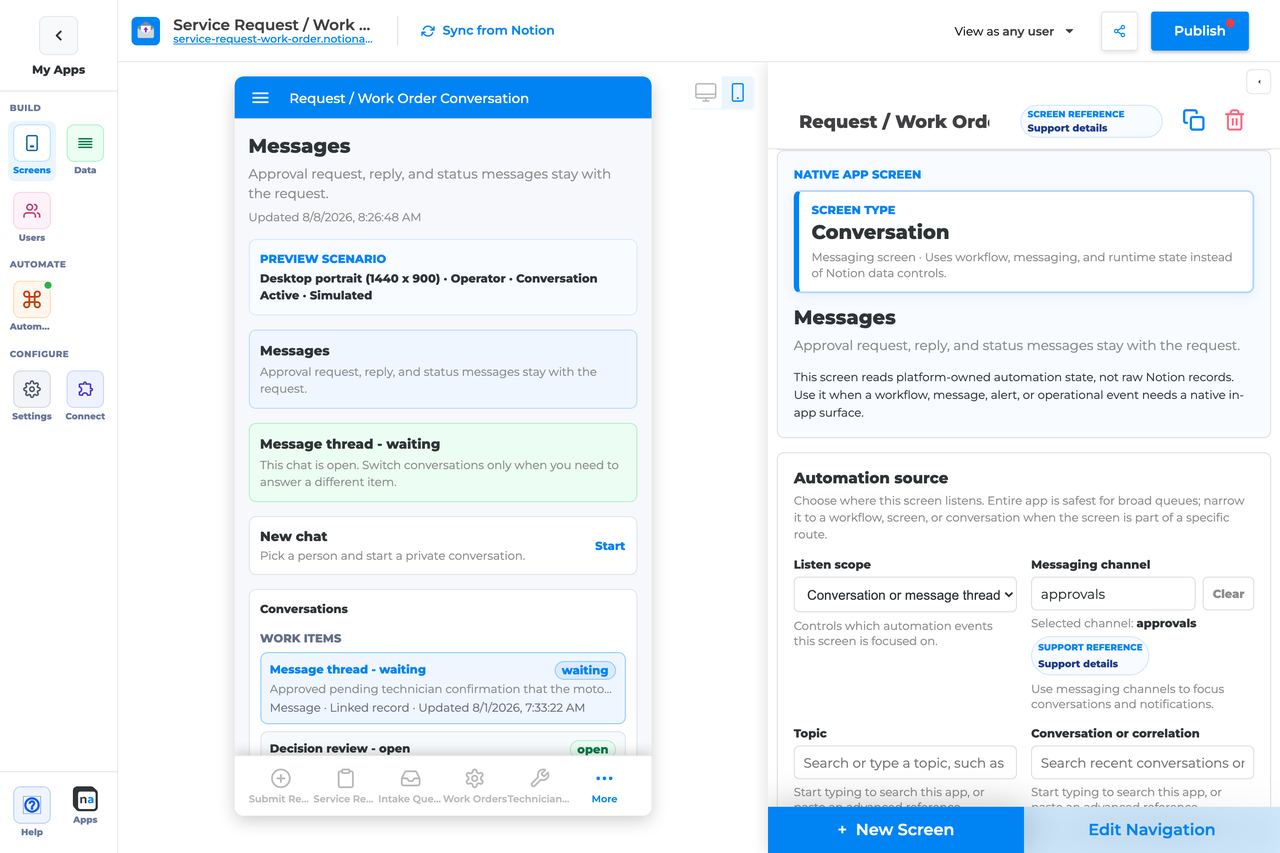
The Conversation screen is a workflow-aware message thread for comments, replies, and support exchanges tied to a record, route, or conversation.
Think of this screen as A chat surface backed by Messaging channels, topics, and correlation — not Notion page comments.
Who This Guide Is For
Section titled “Who This Guide Is For”This guide is for makers configuring a Conversation screen in the app builder. It lists every builder option available on the screen and explains how to use each one.
Use this guide when:
- Users need to discuss a request or work item in-app.
- Approvers need clarification before deciding.
- Support needs a durable thread tied to a workflow or record.
What The Screen Is For
Section titled “What The Screen Is For”Use Conversation when
Section titled “Use Conversation when”- Users need to discuss a request or work item in-app.
- Approvers need clarification before deciding.
- Support needs a durable thread tied to a workflow or record.
Do not use it when
Section titled “Do not use it when”- Durable announcements only — use Notification Center.
- Recording an approve/reject outcome — use Decision.
- Ordinary Notion comments on database pages.
What Users See In The Live App
Section titled “What Users See In The Live App”- Message thread for the bound conversation/correlation.
- Send reply composer when the reply action is enabled.
- Context from the linked workflow or record when available.
| Default | Value |
|---|---|
| Default listen scope | Conversation or message thread |
| Require claim before action | Off |
| Default preview persona / state | Operator / Conversation active |
| Empty title | No messages yet |
| Empty description | Messages appear when a workflow, user, or linked app starts a conversation. |
Required Foundations
Section titled “Required Foundations”| Requirement | Why it matters |
|---|---|
| Automation screen entitlement | Conversation appears in the Automation / Operational group. |
| Messaging, optional Workflow | Primary foundation for this screen’s runtime state. |
| Private app + Users database (recommended) | Role/tenant visibility and audience policy need user fields. |
Complete Builder Options Reference
Section titled “Complete Builder Options Reference”The sections below follow the builder order. Each option is explained in prose so makers can tell how the conversation is bound, who can participate, and how reply behavior should feel in the live app.
Header and screen type
Section titled “Header and screen type”This section gives the messaging surface its identity. Conversation screens work best when the title tells users what thread they are joining and the description tells them why that thread exists.
Screen type
Section titled “Screen type”What it does: Sets the native behavior to Conversation, which renders a runtime-backed thread instead of a general list or data screen.
How to use it: Keep the screen type as Conversation. If you need durable notices, use Notification Center instead; if you need structured approvals, use Decision.
Why / recommended default: Keeping the messaging job focused helps the thread stay understandable. Makers often get into trouble when they try to combine chat, approvals, and notifications in one place.
Category
Section titled “Category”What it does: Places the screen in the native Automation or Operational grouping.
How to use it: Keep the default grouping and use your app navigation to position the screen near related review or support flows.
Why / recommended default: Clear organization helps makers maintain message-driven surfaces over time.
What it does: Sets the end-user title shown for the thread.
How to use it: Use a label like Case conversation, Approval discussion, or Support thread so users know the purpose immediately.
Why / recommended default: A clear title prevents users from mistaking this for general app chat or ordinary Notion comments.
Description
Section titled “Description”What it does: Adds helper text beneath the title.
How to use it: Explain who should reply here and what kind of updates belong in the thread.
Why / recommended default: Good description text keeps the conversation focused and reduces off-topic replies.
Automation source
Section titled “Automation source”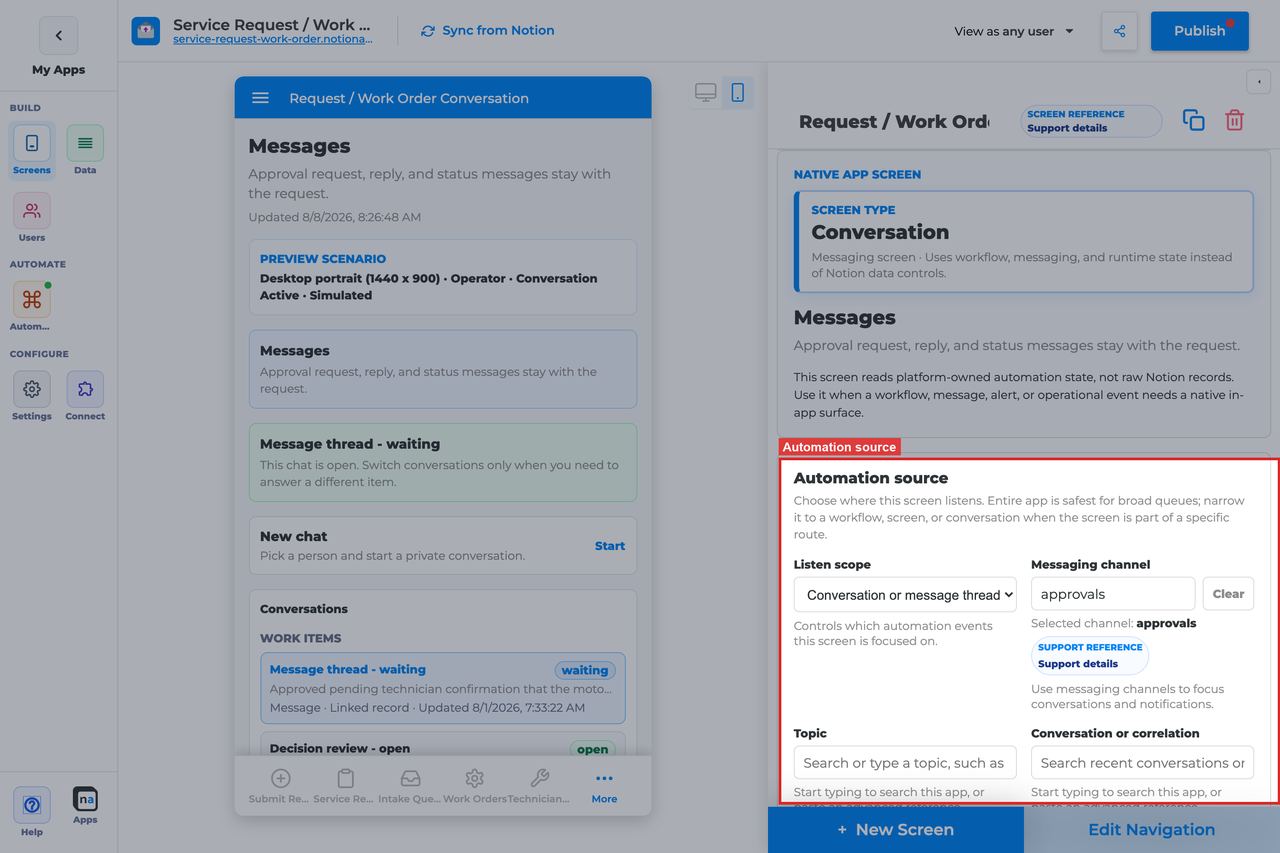
This section is the most important part of the screen because it decides which thread users are actually seeing. Conversation screens are very sensitive to source mismatches, especially around channel, topic, and correlation.
Listen scope
Section titled “Listen scope”What it does: Chooses the top-level runtime source for the thread.
How to use it: For most Conversation screens, start with Conversation or message thread. Use Specific workflow only when the thread is tightly coupled to one workflow, and use Entire app only for broad internal support or admin use cases.
Why / recommended default: The recommended default for this screen is Conversation or message thread because it matches how users think about a durable thread. A common mistake is choosing a broader scope and then expecting a single clean thread.
Source screen or form
Section titled “Source screen or form”What it does: Binds the conversation to one screen or form when that scope is selected.
How to use it: Choose the exact intake surface that starts the message flow if the thread should always originate there.
Why / recommended default: This is useful when each form submission should own its own discussion thread. Forgetting to update the binding after replacing the form is a common cause of empty conversations.
Workflow
Section titled “Workflow”What it does: Filters the thread to one workflow when Specific workflow is selected.
How to use it: Pick the published workflow that creates or participates in the conversation.
Why / recommended default: Workflow scope is useful when the thread is just one part of a larger process, but it is still broader than a direct conversation binding.
Messaging channel
Section titled “Messaging channel”What it does: Filters messages to a particular channel.
How to use it: Choose the channel used by the messaging route that should feed this thread. Use the exact channel name your runtime emits.
Why / recommended default: Channel is one of the first things to check when a thread looks empty. A near-match is still a mismatch.
What it does: Narrows the selected channel to a specific topic.
How to use it: Use topic values consistently, especially in environments where the same channel handles several message types.
Why / recommended default: Topic filtering is excellent for keeping one thread type clean, but it is also a common place for subtle configuration drift.
Conversation or correlation
Section titled “Conversation or correlation”What it does: Binds the screen to a specific conversation thread or correlation key.
How to use it: Use correlation when replies must stay attached to one case, request, or approval cycle. Leave it broader only if the screen is meant to show a wider inbox-like view.
Why / recommended default: This is usually the key setting that makes the screen feel like a real thread instead of a stream of unrelated messages.
Linked application
Section titled “Linked application”What it does: Binds the conversation to a linked external NotionApps app when the thread crosses app boundaries.
How to use it: Choose a linked app only when messages genuinely travel between apps.
Why / recommended default: Most conversation threads stay inside one app. Linked-app scope adds complexity and should be used only when the architecture needs it.
App audience and notification prefs
Section titled “App audience and notification prefs”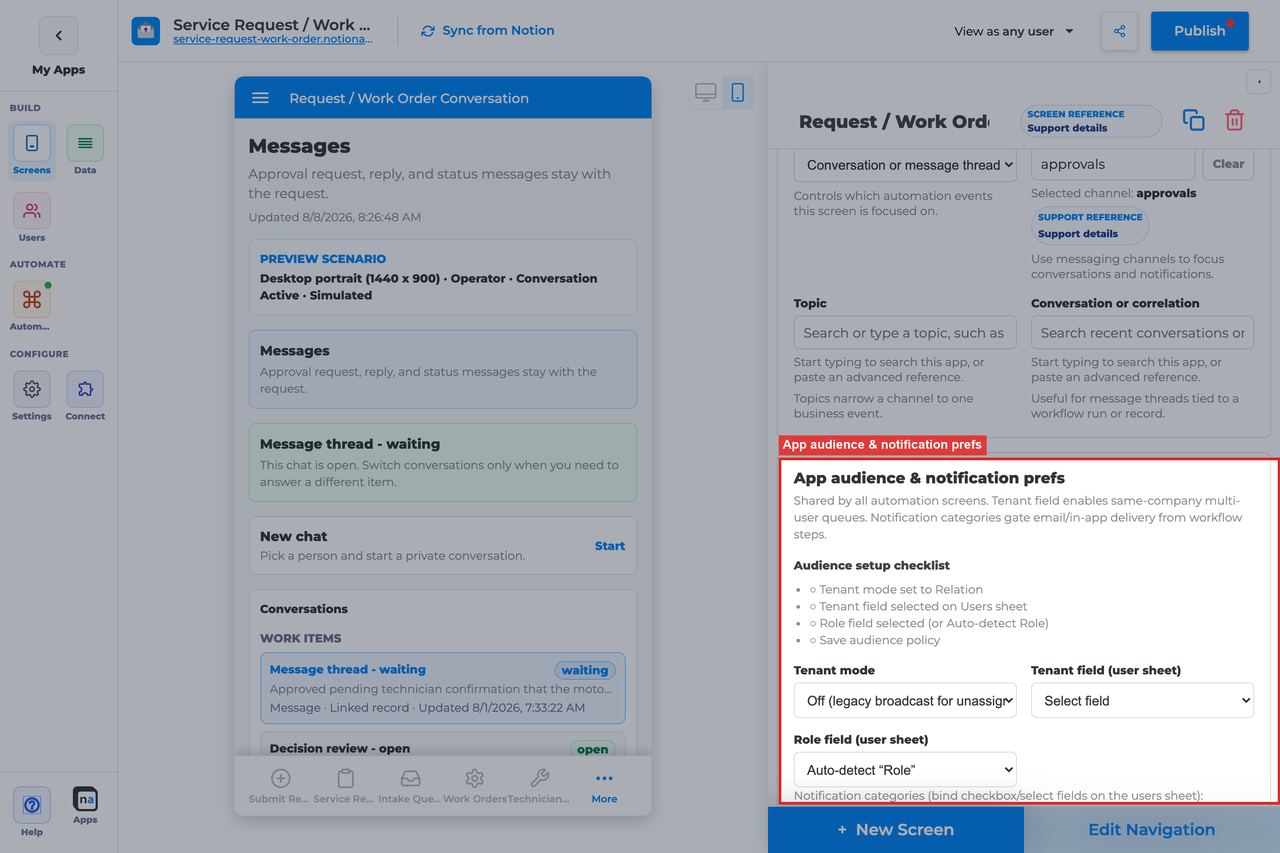
These app-level controls still matter for messaging because a conversation may be tenant-specific and may coexist with notification preference policy elsewhere in the app.
Tenant mode
Section titled “Tenant mode”What it does: Controls whether conversation visibility is isolated by tenant relationship.
How to use it: Use Relation when clients or departments should only see their own threads. Use Off only for simple single-tenant or fully internal apps.
Why / recommended default: Tenant-aware messaging is usually the safer default. A thread that crosses customer boundaries is a serious privacy problem.
Tenant field
Section titled “Tenant field”What it does: Selects the Users-sheet relation that defines tenant membership.
How to use it: Choose the same client, company, or workspace field used elsewhere in the app.
Why / recommended default: Consistency keeps access behavior predictable across screens.
Role field
Section titled “Role field”What it does: Tells the platform which field stores a user’s role if it is not the default Role.
How to use it: Set it only when your user model uses a different property name.
Why / recommended default: Correct role-field mapping is essential if support, approver, or requester audiences should see different threads.
Notification categories
Section titled “Notification categories”What it does: Maps message-related categories to preference fields so users can control what notices or follow-up signals they receive.
How to use it: Keep categories limited to real message types you plan to send around the conversation flow.
Why / recommended default: Cleaner category design makes it easier to explain why someone received a thread-related alert.
Add notification category
Section titled “Add notification category”What it does: Adds another category row.
How to use it: Add only categories with a real sender and a real user preference field behind them.
Why / recommended default: Unused categories create policy clutter without helping the conversation experience.
Save audience policy
Section titled “Save audience policy”What it does: Saves tenant and category policy at the app level.
How to use it: Save before testing with another persona or tenant.
Why / recommended default: Unsaved policy is a very common reason one user can see a thread while another cannot.
Template setup state
Section titled “Template setup state”This section is a quick health check after cloning or repairing an app.
Setup state indicator
Section titled “Setup state indicator”What it does: Reports whether the screen setup is provisioned, needs review, or has no setup report.
How to use it: Treat Needs review as a sign to re-check the conversation binding, especially channel, topic, and correlation.
Why / recommended default: Messaging routes are easy to remap incorrectly in templates, so this hint can save time.
Related context
Section titled “Related context”This read-only panel helps you discover nearby workflows, screens, and channels.
Related context panel
Section titled “Related context panel”What it does: Shows discovery counts and related runtime objects connected to the screen.
How to use it: Use it to locate the originating form, related Decision screen, or follow-up Workflow Status page before creating new duplicates.
Why / recommended default: Seeing the existing context helps makers keep thread-based experiences cohesive.
Visibility and access
Section titled “Visibility and access”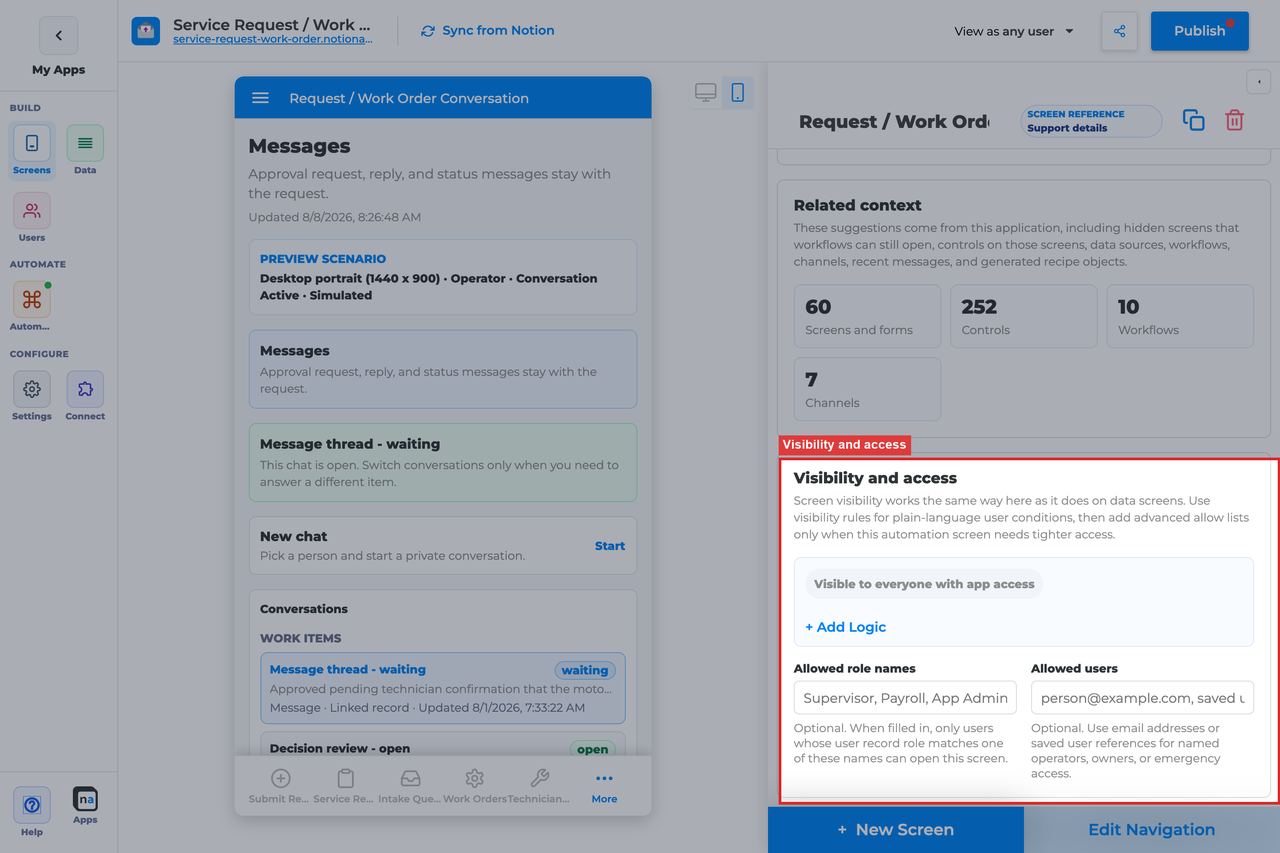
This section controls who can open the conversation at all. It should mirror the real participants in the workflow or support process.
Visibility rules
Section titled “Visibility rules”What it does: Applies condition-based screen visibility.
How to use it: Use role, tenant, team, or case-ownership conditions so only relevant participants can open the thread.
Why / recommended default: Messaging is often more sensitive than it looks. Broad access creates unnecessary exposure.
Allowed role names
Section titled “Allowed role names”What it does: Adds a direct role allow list.
How to use it: Use simple roles like Requester, Support, Approver, Admin when that matches the process.
Why / recommended default: A short role list is usually easier to maintain than a patchwork of per-user exceptions.
Allowed users
Section titled “Allowed users”What it does: Allows named people by email or user reference.
How to use it: Use sparingly for pilots, executive participants, or named escalation owners.
Why / recommended default: Per-user access is useful for edge cases, but it should not become the default access model.
Display and action policy
Section titled “Display and action policy”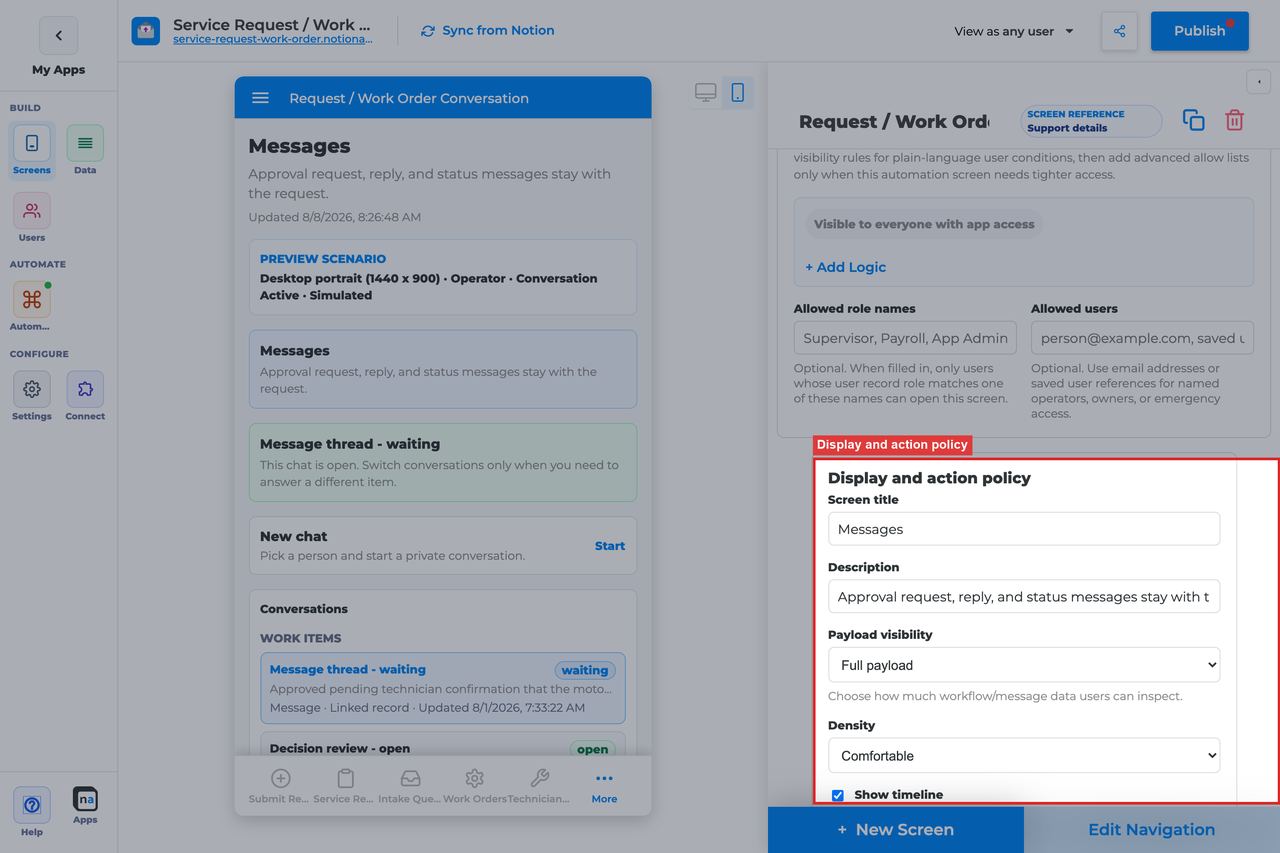
These settings shape how much thread context is visible and whether the screen behaves like a simple chat surface or a more audited workflow conversation.
Screen title override
Section titled “Screen title override”What it does: Refines the live thread title.
How to use it: Choose wording that matches the business context of the thread rather than technical channel names.
Why / recommended default: Users should never need to understand backend route labels to know where they are.
Description
Section titled “Description”What it does: Sets the helper copy beneath the title.
How to use it: Tell users what kind of message belongs in the thread and whether replies should move the process forward.
Why / recommended default: Clear description text reduces noise and off-thread coordination.
Payload visibility
Section titled “Payload visibility”What it does: Decides how much linked runtime context or payload detail is shown next to the conversation.
How to use it: Use Redacted preview for most internal threads, Metadata only for broader or customer-facing audiences, and Full payload only when trusted operators need raw detail.
Why / recommended default: Redacted preview is the common default because it gives context without overexposing backend details.
Density
Section titled “Density”What it does: Chooses comfortable or compact spacing for messages and surrounding context.
How to use it: Use Comfortable for most participant-facing threads. Use Compact only for high-volume support or operator views.
Why / recommended default: Comfortable spacing improves readability in message-heavy screens.
Show timeline
Section titled “Show timeline”What it does: Shows related audit and workflow activity alongside the thread.
How to use it: Turn it on when participants need to understand how the conversation relates to workflow state changes.
Why / recommended default: Timeline visibility is often helpful in approval or support flows, but it can be unnecessary for lightweight chat experiences.
Require claim before action
Section titled “Require claim before action”What it does: Exists in the shared policy section, but Conversation does not use claim behavior as part of its default reply flow.
How to use it: Leave it Off for standard conversation behavior.
Why / recommended default: Claim-based ownership is a queue concept, not a conversation concept, so turning this on usually adds confusion.
Available actions
Section titled “Available actions”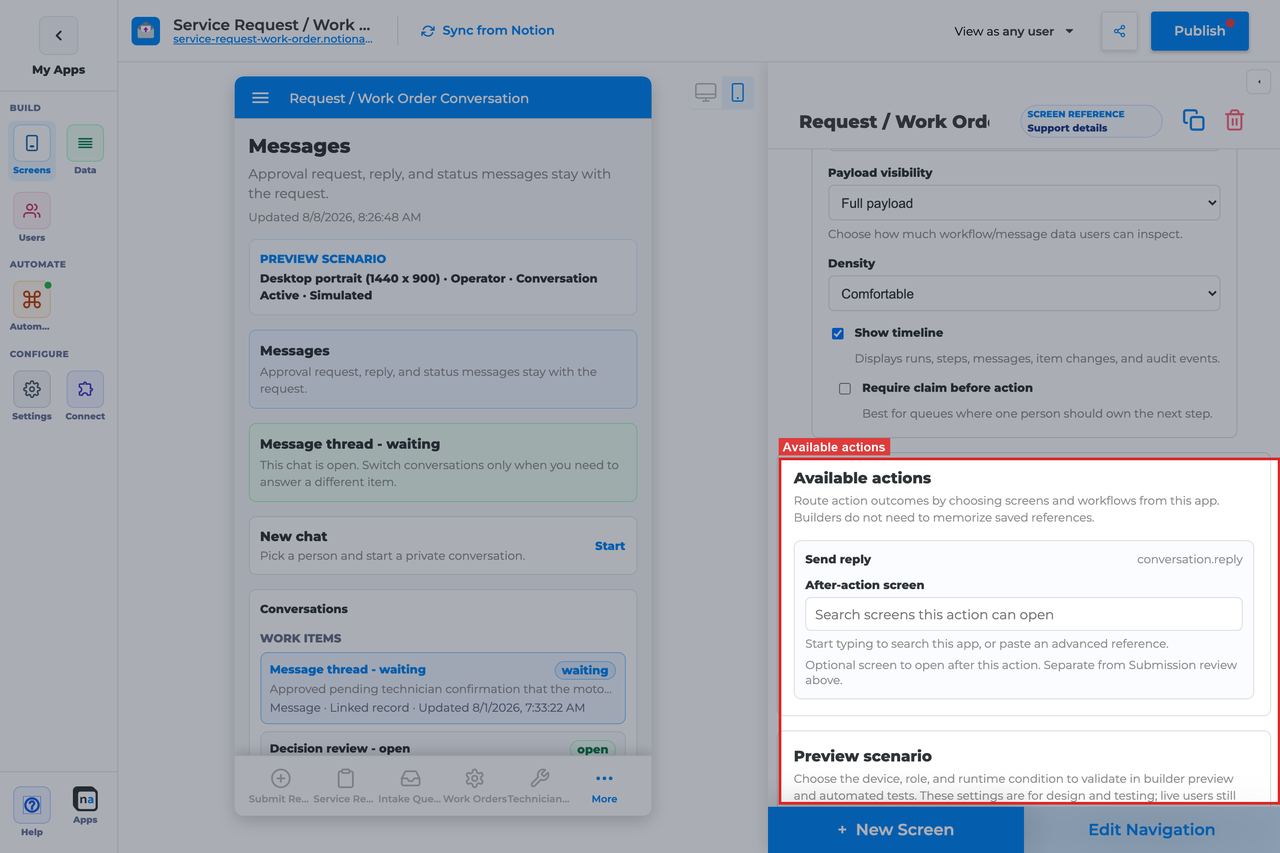
Conversation keeps the action model intentionally simple. The main question is whether users should be able to reply from this thread or only read it.
Send reply
Section titled “Send reply”What it does: Adds the composer action that lets users post into the active conversation thread.
How to use it: Keep Send reply enabled when the screen is meant to be interactive. Remove or avoid it only when the thread should be read-only for that audience.
Why / recommended default: Reply capability is usually the whole point of the screen. A common mistake is binding the thread correctly but forgetting to expose the reply action.
After-action screen
Section titled “After-action screen”What it does: Routes users to another screen after they send a reply.
How to use it: Most makers leave users on the Conversation screen, but you can route to Workflow Status or a related review screen when the process usually continues somewhere else.
Why / recommended default: Leaving people in the thread is often the least surprising default. Automatic redirects after a reply can feel abrupt.
Target workflow
Section titled “Target workflow”What it does: Supplies a workflow binding for custom launch or escalation actions if you add them later.
How to use it: Leave it empty for a standard Conversation screen focused on replies.
Why / recommended default: Extra workflow bindings are unnecessary unless you intentionally extend the action model.
Preview scenario
Section titled “Preview scenario”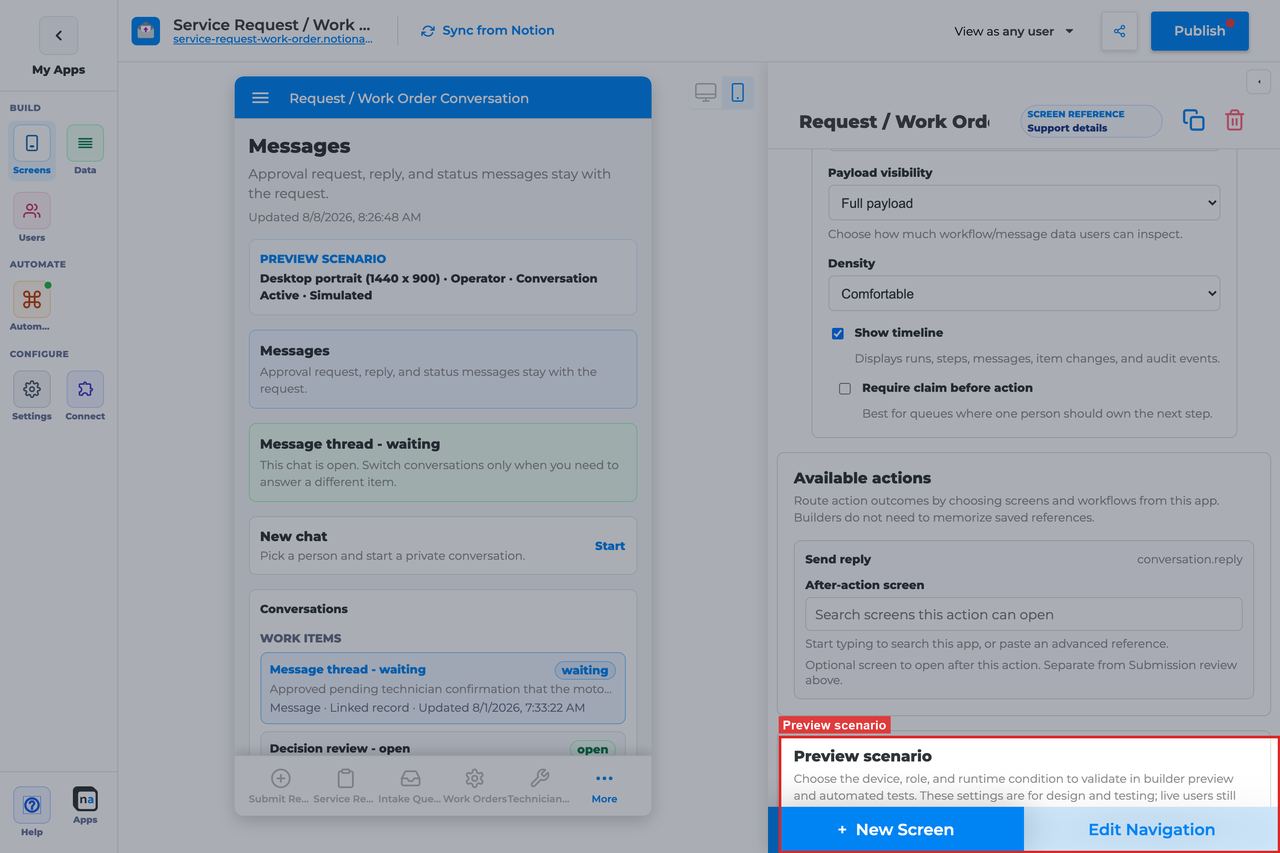
Preview controls are especially helpful for verifying thread readability and ensuring the right personas can actually reply.
Device and orientation
Section titled “Device and orientation”What it does: Changes the preview frame across desktop, tablet, and mobile sizes.
How to use it: Always check mobile because conversation threads are commonly used on phones.
Why / recommended default: Message composition is one of the first things to break on smaller layouts.
Test persona
Section titled “Test persona”What it does: Simulates the viewer role.
How to use it: Test as both the likely sender and the likely reader, such as requester and support agent or approver and submitter.
Why / recommended default: Reply permissions and payload visibility often vary by persona, so one-persona testing is not enough.
Preview state
Section titled “Preview state”What it does: Simulates states such as Conversation active, Empty, Loading, and Error.
How to use it: Check Conversation active for normal thread behavior and Empty to ensure the page does not look broken before the first message arrives.
Why / recommended default: The default preview state is Conversation active, which is right for testing the thread, but empty state quality matters just as much.
Test mode
Section titled “Test mode”What it does: Switches between simulated preview and live testing.
How to use it: Use live testing before publish to verify the real route, channel, topic, and correlation all match.
Why / recommended default: Messaging screens are notoriously easy to “almost configure” correctly. Live testing is what proves the binding is actually real.
Empty state and sample data
Section titled “Empty state and sample data”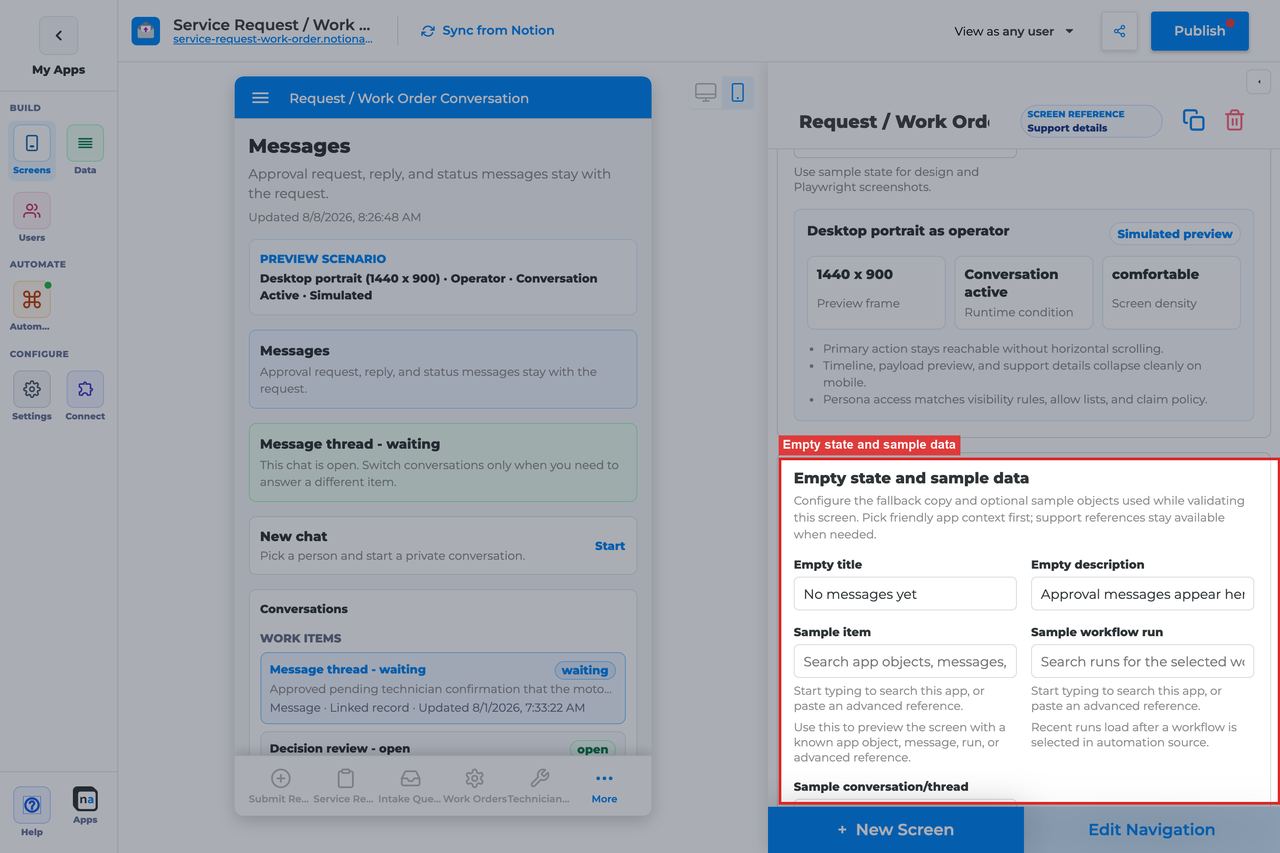
New or quiet threads should feel calm, not broken.
Empty title
Section titled “Empty title”What it does: Sets the empty-state headline.
How to use it: Keep the default No messages yet unless your audience uses more specific language like No conversation yet.
Why / recommended default: The default is short and familiar, which works well for most thread experiences.
Empty description
Section titled “Empty description”What it does: Explains when messages will appear.
How to use it: Keep or adapt the default Messages appear when a workflow, user, or linked app starts a conversation.
Why / recommended default: Helpful empty copy reduces false bug reports from users who are opening the thread before any route has posted.
Sample item, run, or conversation
Section titled “Sample item, run, or conversation”What it does: Supplies preview references for realistic screenshots and QA.
How to use it: Use a representative thread with several message turns so you can validate the layout, composer, and any linked context.
Why / recommended default: Thin sample data can make a conversation screen look fine right up until a real customer sends a long message or a thread picks up extra context.
Recommended Default Setup
Section titled “Recommended Default Setup”| Setting | Recommended value |
|---|---|
| Listen scope | Conversation or message thread (set channel + topic; optional correlation) |
| Visibility | Participants / Support / Approver roles |
| Payload visibility | Redacted preview |
| Show timeline | On if you want delivery/audit events |
| Actions | Send reply |
Common Configuration Patterns
Section titled “Common Configuration Patterns”Approval clarification thread
Section titled “Approval clarification thread”Channel/topic matching the approval messaging route; pair with Decision.
Support inbox thread
Section titled “Support inbox thread”Broader conversation scope for operators; redacted payload.
Testing Checklist
Section titled “Testing Checklist”- Start a messaging route and confirm the thread appears.
- Send a reply and confirm it is visible to the other persona.
- Confirm empty state copy when no thread exists.
Troubleshooting
Section titled “Troubleshooting”No messages
Section titled “No messages”Channel/topic/correlation do not match the messaging route, or listen scope is wrong.
Cannot reply
Section titled “Cannot reply”Send reply action missing, or user lacks access.
Best Practices
Section titled “Best Practices”Topics vs conversation threads
Section titled “Topics vs conversation threads”Conversation follows the workflow channel so replies stay on the asset. Work-creating topics (client.review.requested, client.intake.submitted) and wait-waking reply topics (client.decision.approve, client.decision.changes_requested, client.decision.reject) are a separate contract. Use the workflow channel topics listed here — do not add a duplicate topic for the same decision.
Named catalog: Topics that perform work.
- Configure Conversation for one clear user job.
- Prefer the narrowest listen scope that still shows the right work.
- Keep payload visibility conservative for broad audiences.
- Test as an allowed user and a blocked user before publish.
- Pair related screens (Decision + Conversation + Workflow Status + Notification Center) instead of overloading one screen.