Details (View One Item)
The Details (View One Item) screen shows one Notion record at a time. It is the destination users open from a List row when they need the full record, related fields, and optional edit/delete actions.
What the screen is for
Section titled “What the screen is for”Use Details when
Section titled “Use Details when”- Users open one record from a List
- You need a read-focused record page with optional Edit / Delete
- Field order and visibility matter more than bulk browsing
Do not use it when
Section titled “Do not use it when”- Users primarily create records: use Form (Add Item)
- Users edit in place across many rows: use List (Update Items) or Form (Update One Item)
- The page is marketing/help HTML: use Content
What users see in the live app
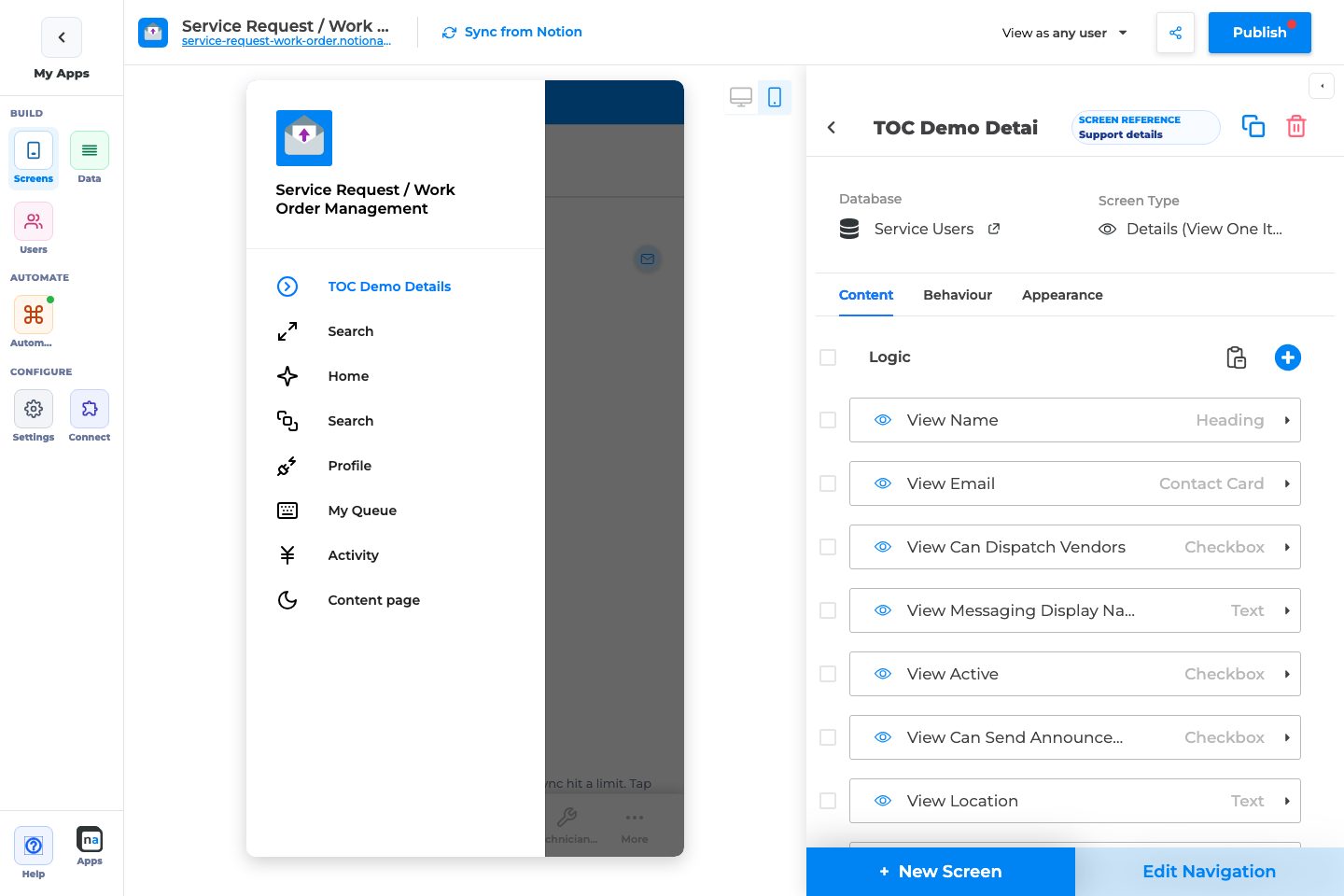
Section titled “What users see in the live app”- Field components in the order you configure under Logic
- Optional Edit control that opens an Update Form
- Optional Delete (when the screen is not primary and Allow Delete is on)
- Maker Filtering only applies when this Details screen is a primary screen
Add Details in the builder
Section titled “Add Details in the builder”- Screens → + New Screen → choose the database → Details (View One Item).
- Add and order fields under Content → Logic.
- On Behaviour, enable Allow Editing and point to an Update Form if users should edit.
- From the List screen, set Open Item On Click → Go to Screen to this Details screen.
- Publish and test list→details navigation.
Complete Builder Options Reference
Section titled “Complete Builder Options Reference”Content tab
Section titled “Content tab”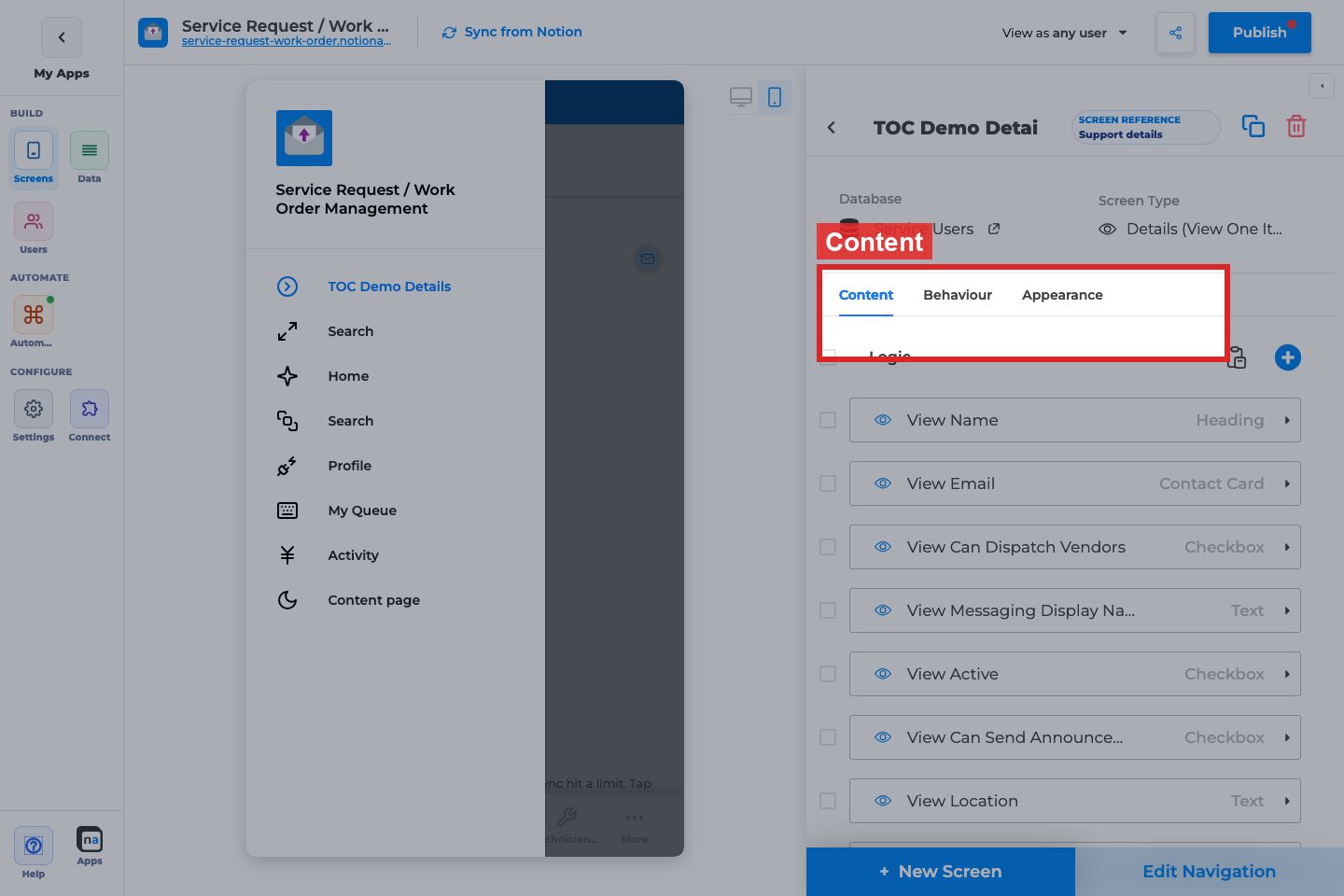
Field / component list
What it does:
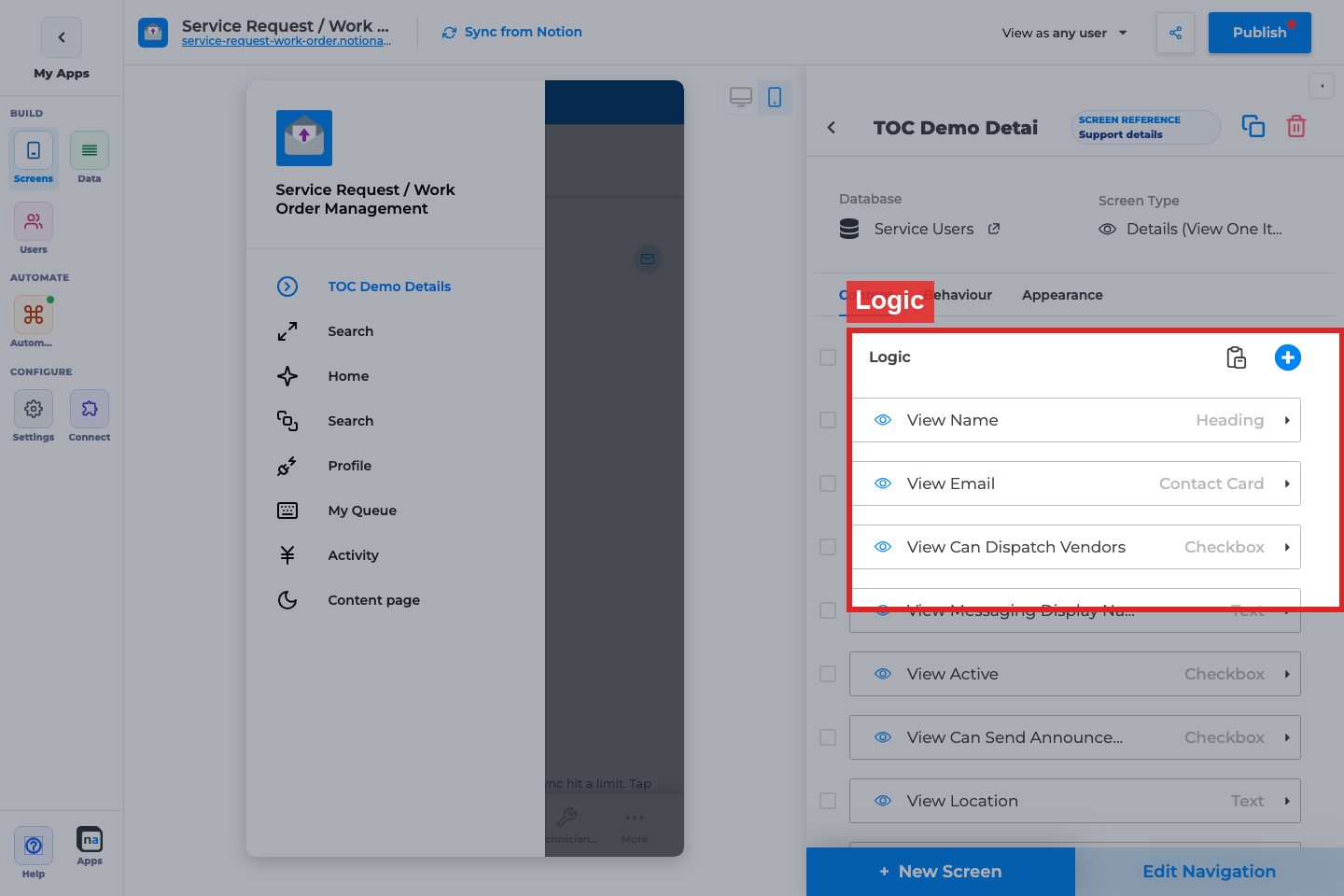
Defines which properties appear and in what order (add, reorder, remove comps).
How to use it:
Add only fields users need. Put identity fields first (title, status), then details, then attachments.
Why / recommended default:
A short, ordered Details page beats dumping every Notion property. Empty Logic shows “Add Logic to edit the screen”.
Filtering (primary screens only)
Section titled “Filtering (primary screens only)”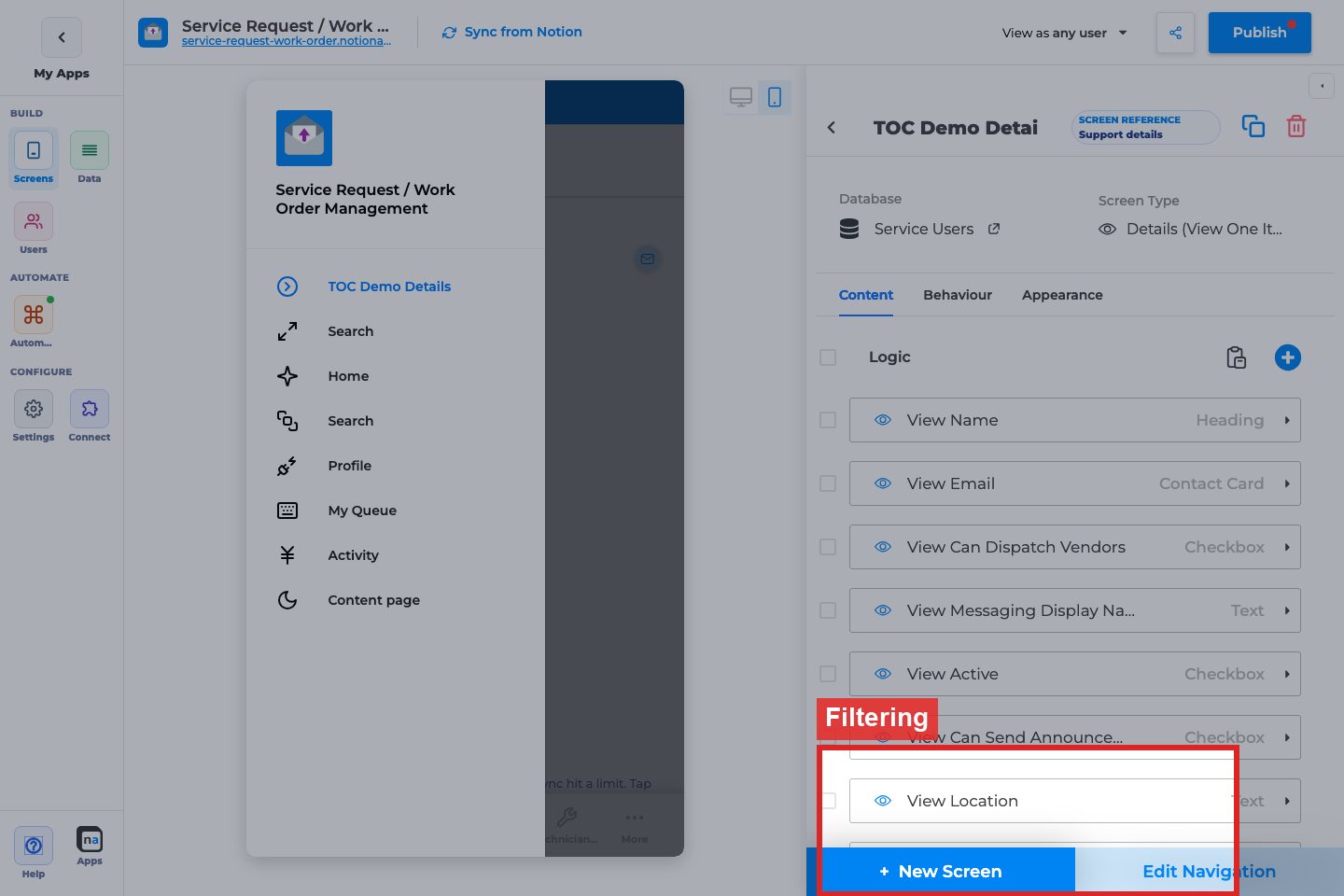
Filter rows
What it does:
Limits which records this primary Details screen can show when opened as a standalone primary route.
How to use it:
Usually leave empty when Details is only opened from a List with its own filters. Use when Details is primary and must be scoped.
Why / recommended default:
Off/empty for typical list→details apps. Prefer list Filtering for browse scope.
Behaviour tab
Section titled “Behaviour tab”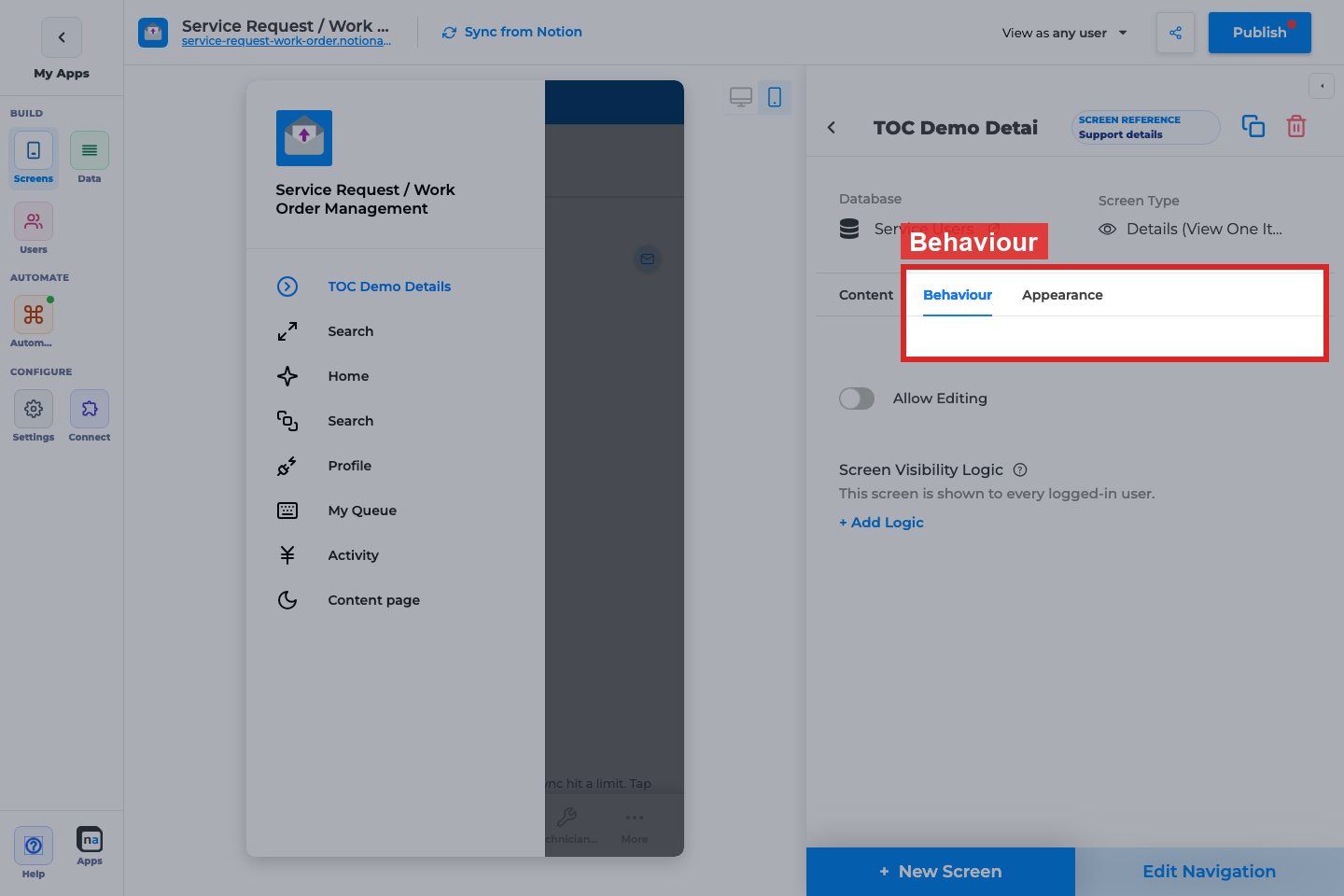
Allow Editing
Section titled “Allow Editing”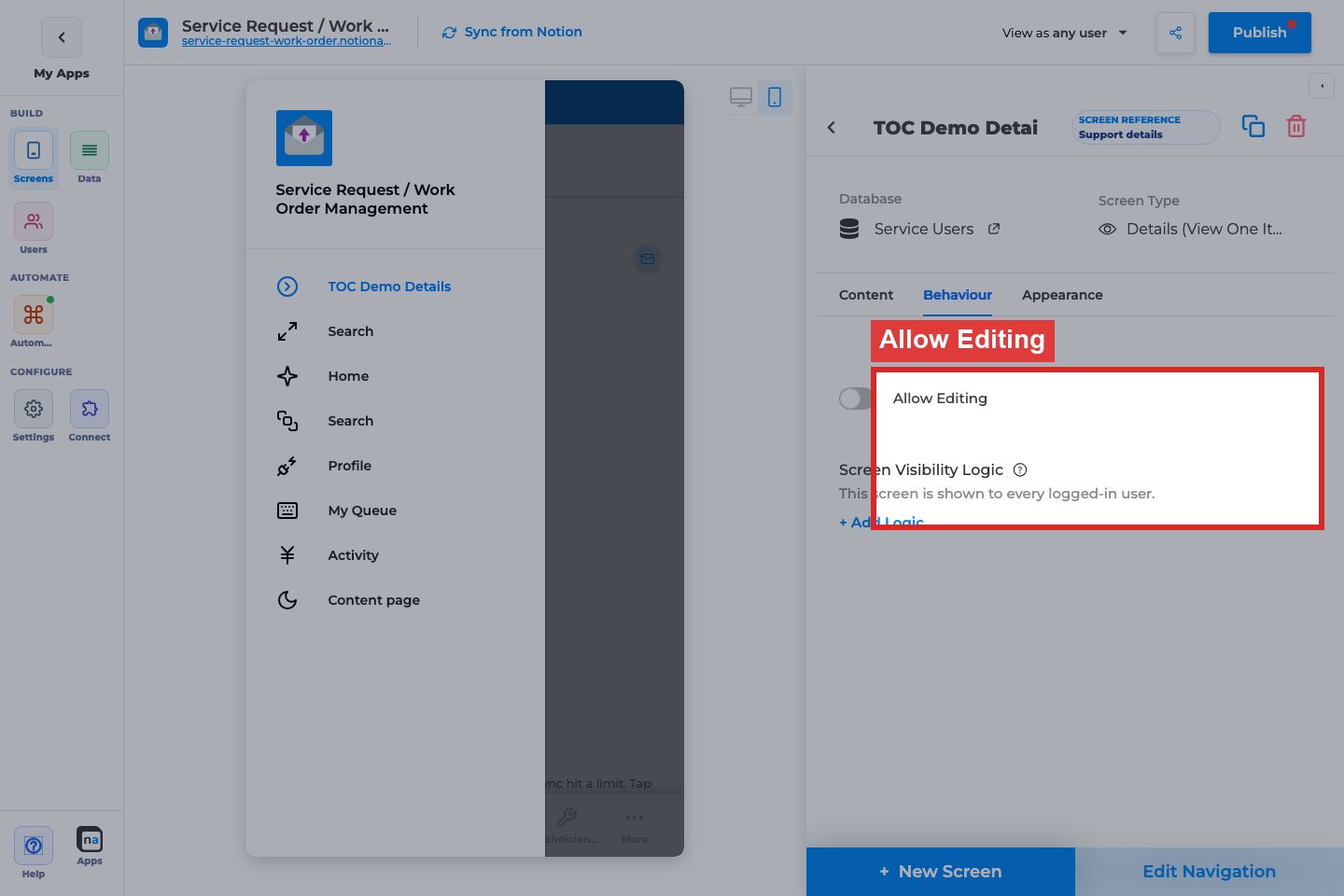
Allow Editing / Go to Update Screen
What it does:
Shows an edit path into a Form (Update One Item) for the same database.
How to use it:
Enable for staff/customer edit flows. Select the Update Form screen.
Why / recommended default:
On when users should change records; off for read-only portals.
Allow Delete (non-primary only)
Section titled “Allow Delete (non-primary only)”
Allow Delete / Button Text / Ask for confirmation / Delete Confirmation Text
What it does:
Lets users delete the open record. Available when the Details screen is not the app’s primary screen. Success message is typically hidden for Notion.
How to use it:
Enable only for trusted roles. Keep confirmation on. Use clear button text like “Delete request”.
Why / recommended default:
Off by default. Destructive actions should be rare and confirmed.
Screen Visibility Logic (primary)
Section titled “Screen Visibility Logic (primary)”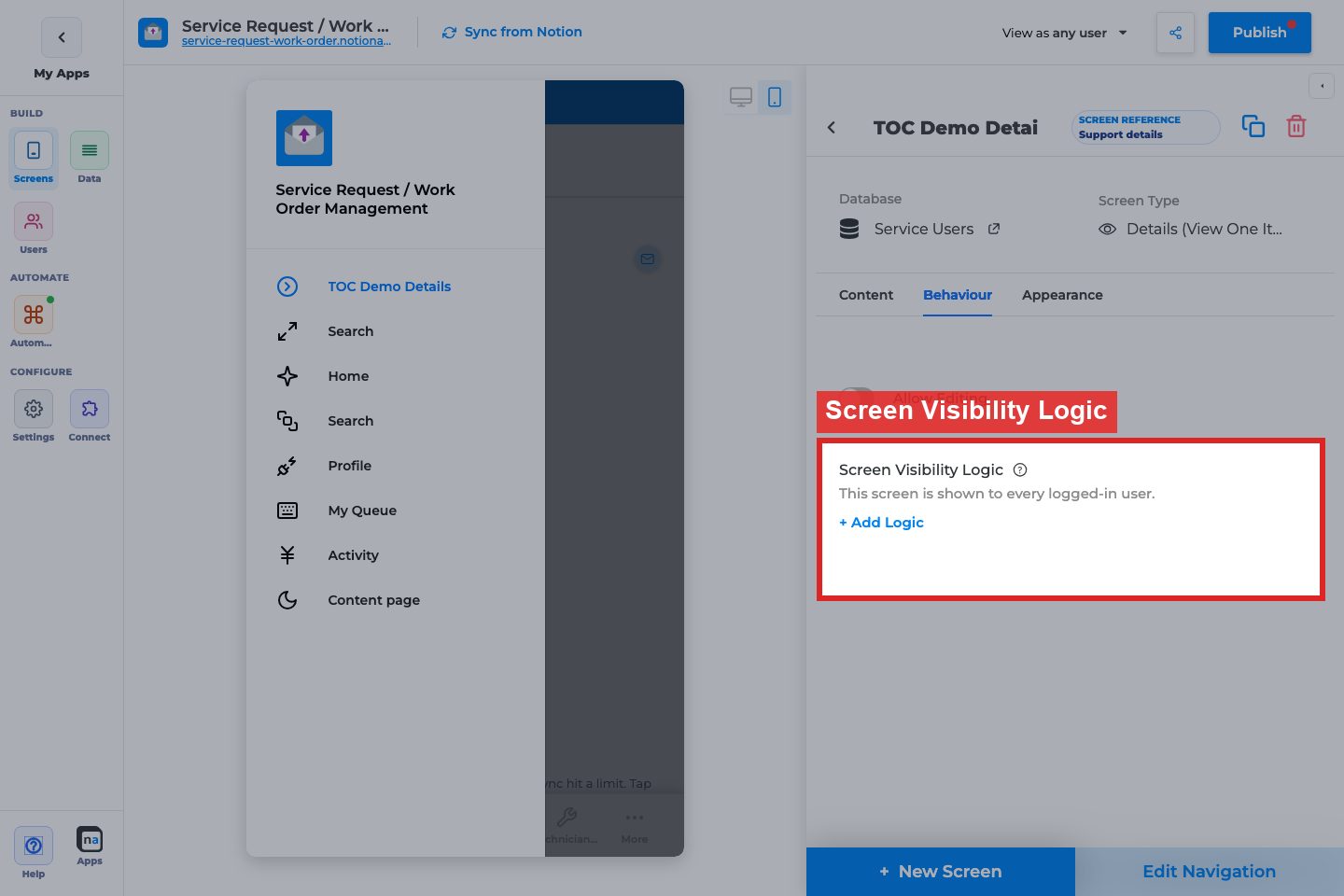
Visibility status / + Add Logic
What it does:
Controls who can open this Details screen when it is primary (Users-sheet logic on private apps).
How to use it:
Restrict when Details is a landing surface for a role. Otherwise leave unrestricted and rely on list navigation.
Why / recommended default:
Unrestricted for standard secondary Details screens.
Appearance tab
Section titled “Appearance tab”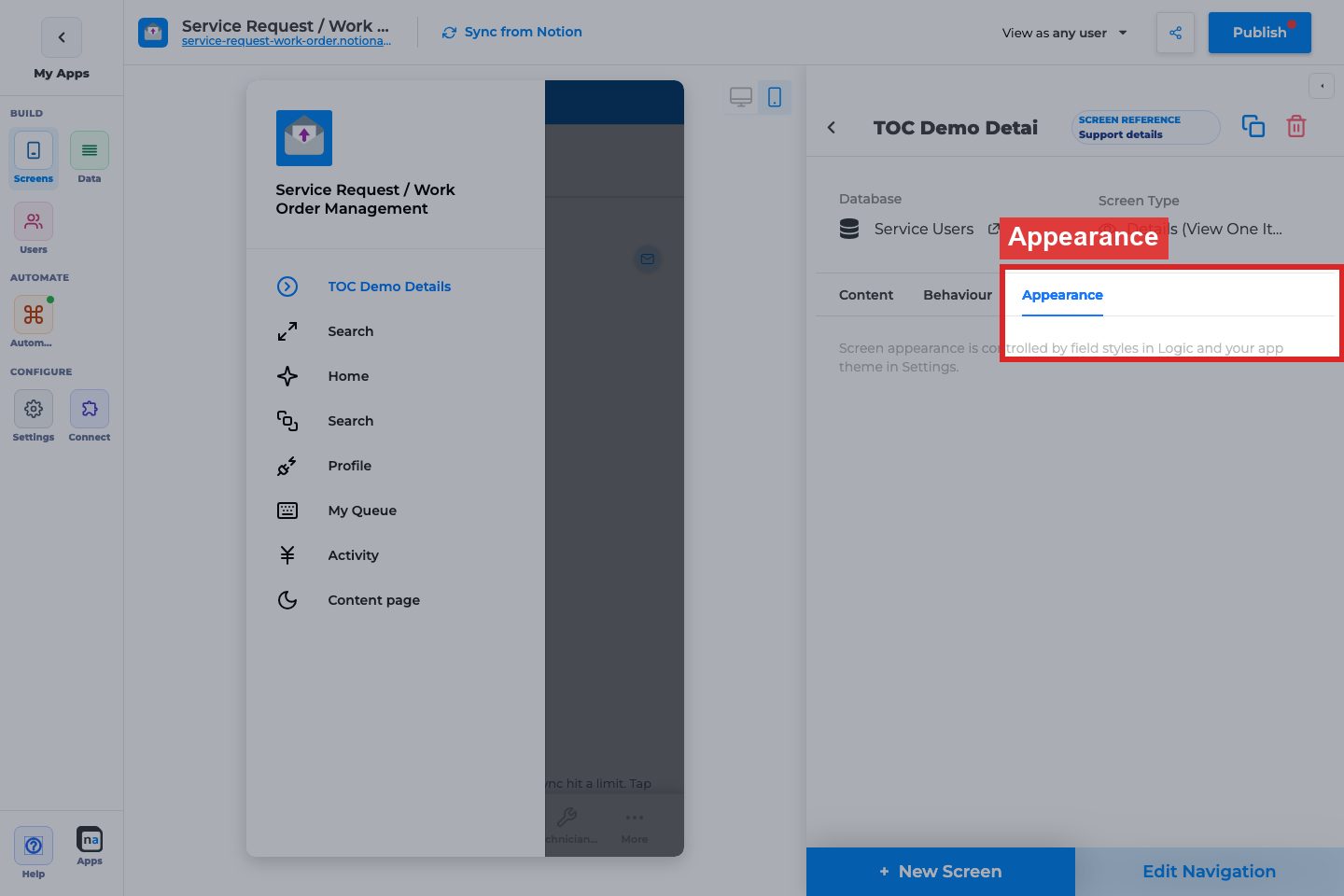
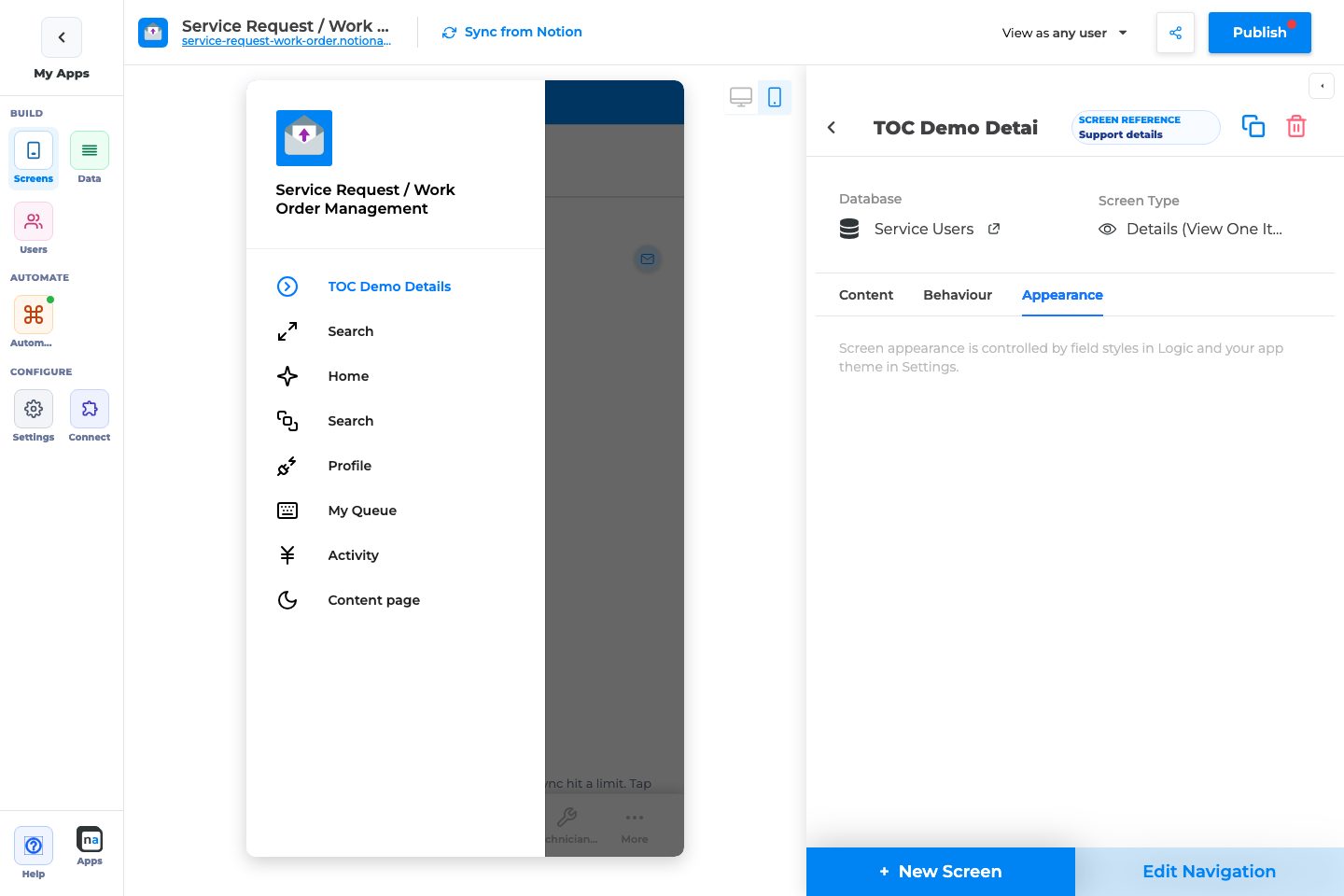
Details Appearance is intentionally empty: field styles live in the field inspector and app theme lives in Settings.
Field inspector (not screen tabs)
Section titled “Field inspector (not screen tabs)”When you select a field in Logic, makers commonly set:
- Label, Helper Text
- Visibility Logic (when the field shows)
- View/style options for read-only display
- For linked edit forms: required, validation, defaults (on the Update Form fields)
Why / recommended default:
Treat Details as layout + navigation; treat the field inspector as copy and visibility polish.
Related setup outside the inspector
Section titled “Related setup outside the inspector”List Open Item On Click
Section titled “List Open Item On Click”Wire the List Behaviour tab to this Details screen or users cannot open records.
Edit Navigation
Section titled “Edit Navigation”Details is often hidden from navigation and reached only from lists. Mark primary only if users should land here.
Recommended default setup
Section titled “Recommended default setup”| Setting | Recommended value |
|---|---|
| Logic fields | Title, status, key details, files |
| Allow Editing | On → Update Form (if edits allowed) |
| Allow Delete | Off unless trusted role + non-primary |
| Filtering | Empty for secondary Details |
| Navigation | Usually hidden; open from List |
Testing checklist
Section titled “Testing checklist”- List row opens this Details screen with the correct record
- Field order reads well on mobile
- Edit opens the Update Form with the same record
- Delete (if enabled) confirms and removes the Notion page
- Hidden fields respect visibility logic
-
View as userconfirms role-appropriate access
Troubleshooting
Section titled “Troubleshooting”| Symptom | Likely cause | What to check |
|---|---|---|
| List does not open Details | List Go to Screen wrong / Open Item off | List Behaviour |
| Blank Details | No Logic comps or wrong record context | Content → Logic |
| Edit missing | Allow Editing off | Behaviour |
| Delete missing | Screen is primary or Allow Delete off | Behaviour |
Best practices
Section titled “Best practices”- Keep Details scannable; push rare fields lower or hide with visibility logic.
- Always pair with List Open Item On Click.
- Prefer Update Form for editing instead of overloading Details.