Reorder Form Fields on the Builder Canvas
This guide is for app makers building in the NotionApps builder.
It explains how to drag and drop fields and components directly on the live preview canvas (Create Form, Update Form, and Details screens) instead of only reordering them in the Logic sidebar.
If you only remember one sentence:
On a paid plan, grab the ⠿ handle on the left of a field in the preview and drag it to a new place — the Logic list updates to match.
Who this is for
Section titled “Who this is for”Use this guide if you:
- Build or edit apps in the builder
- Want to rearrange form or details fields while looking at the real preview layout
- Prefer visual reorder over dragging rows in the Logic sidebar alone
You do not need this guide for:
- Reordering rows on a list or board screen for end users (that is list/board behaviour, not builder canvas reorder)
- Changing which Notion property a field writes to
- Hiding a field with Visibility Logic
Availability
Section titled “Availability”The idea in plain language
Section titled “The idea in plain language”Previously, makers mostly reordered form components from the Logic list on the right. That works, but it is harder to picture the final layout.
With canvas reorder:
- You look at the same preview your users will see
- You drag a field by its ⠿ handle
- Drop it where you want it
- The screen’s component order updates (and the Logic list stays in sync)
Clicking the field body still selects it for the inspector. Only the ⠿ handle starts a drag.
Before you start
Section titled “Before you start”- Open your app in the builder on a paid account.
- Open a Form (Add Item), Form (Update Item), or Details screen that has several components.
- Make sure you are in the builder preview (not the published end-user app).
You should see a small ⠿ grip on the left of each visible field/component in the preview.
Step-by-step
Section titled “Step-by-step”Step 1 — Open the form or details screen
Section titled “Step 1 — Open the form or details screen”- In the builder, go to Screens.
- Select the form or details screen you want to rearrange (for example Add Restaurant or Restaurant details).
- Keep the preview visible in the center.
Step 2 — Find the drag handle
Section titled “Step 2 — Find the drag handle”On each visible component in the preview, look for ⠿ on the left edge.
- Hover the handle — it highlights.
- Clicking the field label/input still opens the field settings (that is intentional).
Step 3 — Drag to reorder
Section titled “Step 3 — Drag to reorder”- Press and hold ⠿ on the component you want to move.
- Drag up or down in the preview.
- Drop it in the new position.
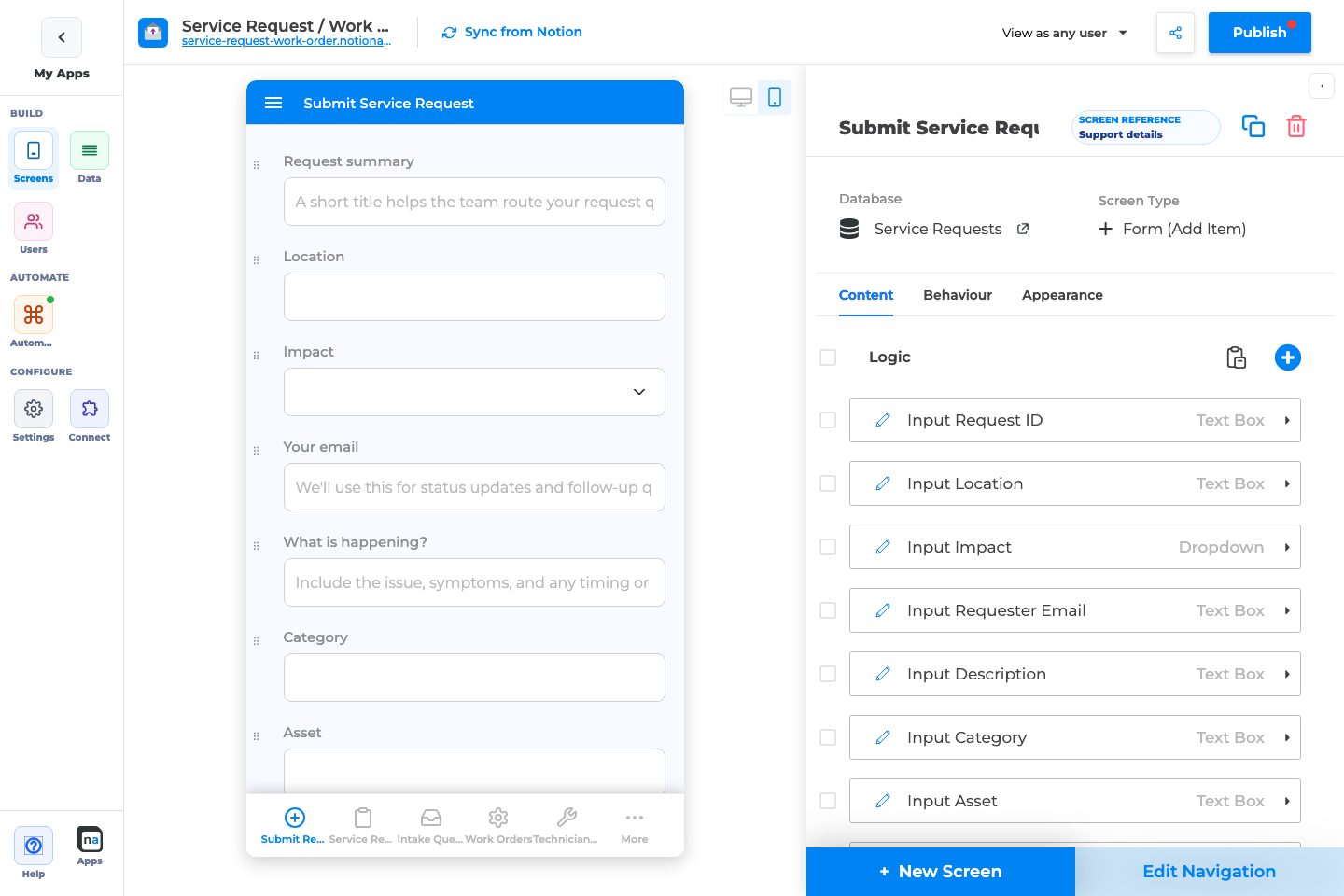
- Confirm the Logic list on the right shows the same new order.
Publish when you are ready for end users to see the change.
Forms that use Sections as steps
Section titled “Forms that use Sections as steps”If the form has Use sections as steps turned on:
- You only reorder components that belong to the current step in the preview.
- The Section header that opens the current step is pinned — you cannot drop a field above that Section.
- Dropping a field above its Section would move it into the previous step, so the builder blocks that drop and keeps the field on the current step.
Use Back / Next in the stepper to move between steps, then reorder within each step.
| Tip | Why it helps |
|---|---|
| Drag from ⠿, not the input | Avoids fighting click-to-select |
| Prefer canvas reorder for layout feel | Match what end users see |
| Use Logic list for precise “move to top/bottom” | Still available on all plans |
| Hidden fields stay out of the canvas list | Visibility-hidden comps are skipped so indices stay correct |
| Publish after rearranging | Draft order becomes live only after Publish |
Troubleshooting
Section titled “Troubleshooting”| What you see | Likely cause | What to do |
|---|---|---|
| No ⠿ handles in the preview | Account is on Free, or you are not in the builder preview | Upgrade to a paid plan, or reorder from the Logic sidebar |
| Field vanishes after drop near a Section | You were on a section-step form and the field left the active step (older builds) | Update to the latest builder; fields can no longer drop above the step’s Section |
| Drag feels “off” / wrong item moves | A previous build included hidden fields in the drag list | Refresh to the latest builder; hidden fields are excluded from canvas DnD |
| Cannot drag the Section header on a stepped form | Leading Section for the active step is pinned | Expected — reorder fields under the Section, not above it |
Quick checklist
Section titled “Quick checklist”- Account is on a paid plan (not Free)
- Form or Details screen open in the builder preview
- ⠿ handles visible on components
- Drag with the handle; click the body to edit settings
- On section steppers, reorder within the current step only
- Publish when the order looks right
Annotated builder screenshots
Section titled “Annotated builder screenshots”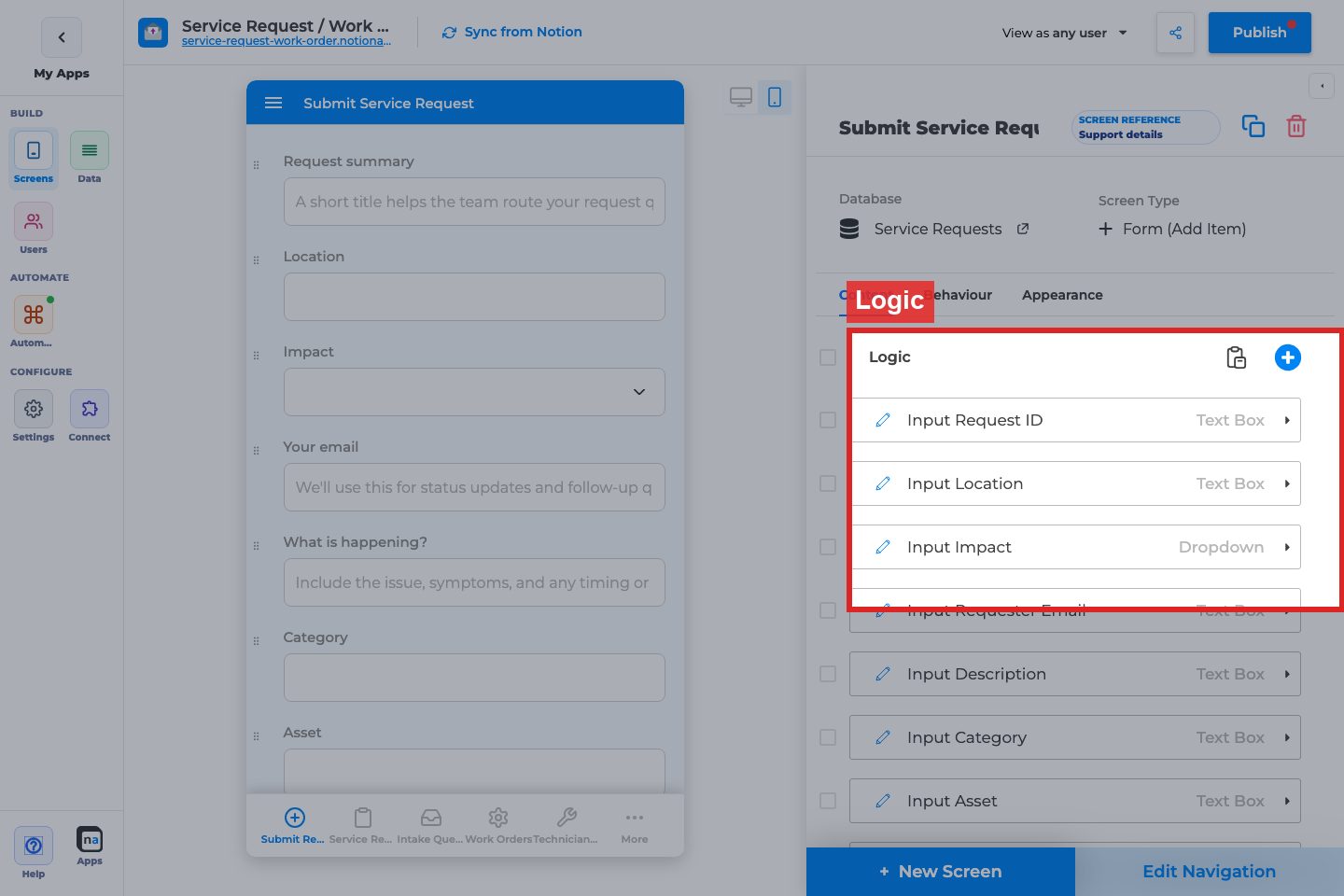
Complete Builder Options Reference
Section titled “Complete Builder Options Reference”Field order is edited on the builder canvas / Logic field list for Create and Update forms — not as a separate Appearance toggle.
Field order (drag on canvas)
Section titled “Field order (drag on canvas)”What it does: Changes the top-to-bottom order end users see.
How to use it: Drag fields in the preview/canvas list; publish to ship.
Why / recommended default: Put required identity fields first; group related inputs into sections.
Sections
Section titled “Sections”What it does: Groups fields under headings (and optional stepper steps).
How to use it: See Organize Create Forms with Sections.
Why / recommended default: Use sections once a form exceeds ~8 fields.