Validate Email and Phone on Form Fields
This guide is for app makers building in the NotionApps builder.
It explains how to require a valid email or phone format on a text field — so end users get a clear error when they leave a bad value, and submit is blocked until it’s fixed.
If you only remember one sentence:
On a text field’s Behaviour settings, turn on Validate input, then choose Email or Phone.
Who this is for
Section titled “Who this is for”Use this guide if you:
- Build or edit apps in the builder
- Have a Create Form or Update Form with a text (or long text) field
- Want that field to accept only a valid email address or phone number
You do not need this guide for:
- Making a field mandatory (that is still Is Required)
- Choosing which Notion property the field writes to (that is the field’s Input Property)
- Hiding a field for some users (that is Visibility Logic)
The idea in plain language
Section titled “The idea in plain language”Without validation, a “Email” text field can accept anything — hello, not-an-email, or a real address. The app will still save it.
With Validate input turned on and type Email:
user@example.com→ allowednot-an-email→ error when the user leaves the field, and submit stays blocked
Phone works the same way with type Phone.
Is Required and Validate input are independent:
| Is Required | Validate input | Empty value | Bad format (non-empty) |
|---|---|---|---|
| Off | Off | OK | OK |
| On | Off | Error (required) | OK |
| Off | On | OK | Error (invalid email/phone) |
| On | On | Error (required) | Error (invalid email/phone) |
Empty values never fail format validation. If the field is optional, users can leave it blank even when Validate input is on.
What end users see
Section titled “What end users see”When a value fails validation:
- After they leave the field (blur), a field error appears under the input
- Typical messages:
- Email: Please enter a valid email address
- Phone: Please enter a valid phone number
- Submit / Next stays blocked until the value is fixed or cleared (if the field is not required)
Fixing the value and leaving the field again clears the format error.
Before you start
Section titled “Before you start”- Open your app in the builder.
- Open a Form (Add Item) or Form (Update Item) that has a Text Box (or long text) field — for example a contact email or phone number field.
- Prefer a dedicated field (e.g. “Email”, “Phone”) rather than a general “Name” field, unless you truly want that field validated as email/phone.
Step-by-step
Section titled “Step-by-step”Step 1 — Open the form screen
Section titled “Step 1 — Open the form screen”- In the builder, go to Screens.
- Select the create or update form that contains the field (for example Add Contact or Add Restaurant).
- Keep the right-hand inspector open for that screen.
You should be editing a form, not a list or detail-only screen.
Step 2 — Select the text field
Section titled “Step 2 — Select the text field”- On the form inspector, stay on the Content tab
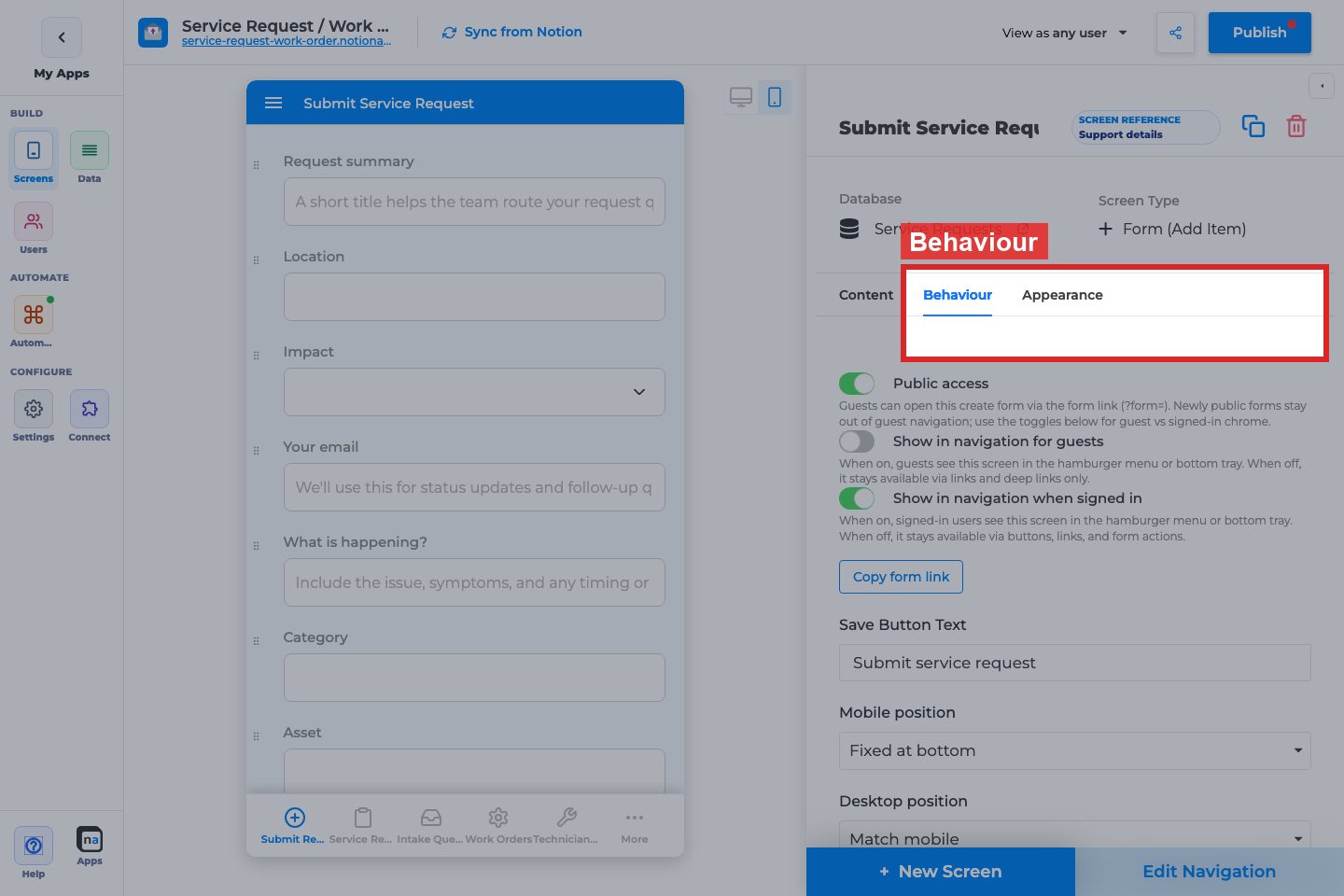
(field settings live here — not on the screen-level Behaviour tab, which is for submit button, success message, and similar form-wide options). - In the field list on the right, click the text field row (for example Input Email or Input Phone).
- The field’s settings expand: label, helper text, and Behaviour options for that field.
Step 3 — Turn on Validate input
Section titled “Step 3 — Turn on Validate input”In the field’s Behaviour section (below Is Required):
- Turn Validate input On.
- A Validation type dropdown appears.
- Choose:
- Email — value must look like a normal email address
- Phone — value must look like a real phone number: digits with optional
+, spaces, dashes, parentheses, or dots; after ignoring those separators, 10–15 digits
Defaults when you first turn the switch on: type is Email.
Publish when you’re ready so end users get the new behavior.
Step 4 — Decide whether the field is also required
Section titled “Step 4 — Decide whether the field is also required”| Goal | Settings |
|---|---|
| Optional email/phone; if filled, must be valid | Is Required Off · Validate input On |
| Must enter a valid email/phone | Is Required On · Validate input On |
| Must enter something, any text OK | Is Required On · Validate input Off |
Step 5 — Test in preview or the published app
Section titled “Step 5 — Test in preview or the published app”- Open the form as an end user (preview or published app).
- Enter a bad value (e.g.
not-an-emailor123) and tap outside the field → you should see the error. - Enter a good value (e.g.
user@example.com,1234567890, or(555) 123-4567) and leave the field → the error clears. - Try submit with a bad value still present → submit should stay blocked.
- With validation on and required off, clear the field → empty should be allowed.
Phone rules (what “valid” means)
Section titled “Phone rules (what “valid” means)”Phone validation accepts common ways people type numbers. Separators are allowed for entry; the app checks that the digits form a plausible length. The value is saved as typed (not rewritten).
Allowed: digits, optional leading +, spaces, -, (, ), .
Digit count after stripping separators: 10–15
| Example | Result |
|---|---|
1234567890 |
Valid |
(555) 123-4567 |
Valid |
555-123-4567 |
Valid |
+1 555 123 4567 |
Valid |
+44 7911 123456 |
Valid |
555.123.4567 |
Valid |
123 |
Invalid (too short) |
555-CALL-NOW |
Invalid (letters) |
Extensions (ext, x123), letters, and symbols other than the separators above are not accepted.
Email rules (what “valid” means)
Section titled “Email rules (what “valid” means)”Email validation uses the same pattern as elsewhere in NotionApps (standard name@domain shape).
| Example | Result |
|---|---|
user@example.com |
Valid |
not-an-email |
Invalid |
user@ |
Invalid |
Common mistakes
Section titled “Common mistakes”| Mistake | What happens | Fix |
|---|---|---|
| Looking under the screen Behaviour tab | You see submit button / success message, not field validation | Stay on Content, select the field, use the field’s own Behaviour section |
| Turning on Validate input but never publishing | Preview may show it; live users don’t | Publish the app |
| Expecting empty optional fields to error | Empty always passes format checks | Turn Is Required On if blank should be blocked |
| Validating a “Name” field as Email | Users can’t enter a normal name | Use Email/Phone type only on fields meant for those formats |
| Letters or extensions in the phone field | Value fails validation | Use digits and standard separators only (+, spaces, dashes, parentheses, dots) |
Quick checklist
Section titled “Quick checklist”- Form screen open in the builder
- Content tab → text field selected
- Validate input On
- Validation type = Email or Phone
- Is Required set for whether blank is allowed
- Helper text mentions the expected format (optional but helpful)
- Published and tested with a bad value, a good value, and (if optional) empty
Related settings (not this feature)
Section titled “Related settings (not this feature)”| Need | Where |
|---|---|
| Field must not be empty | Is Required on the same field |
| Barcode / QR into a text field | Show Scanner on the same field |
| Prefill from a URL | Default Value → URL param source |
| Hide the field for some users | Visibility Logic on the field |
| Form-wide submit button / success message | Screen Behaviour tab (not the field) |
Annotated builder screenshots
Section titled “Annotated builder screenshots”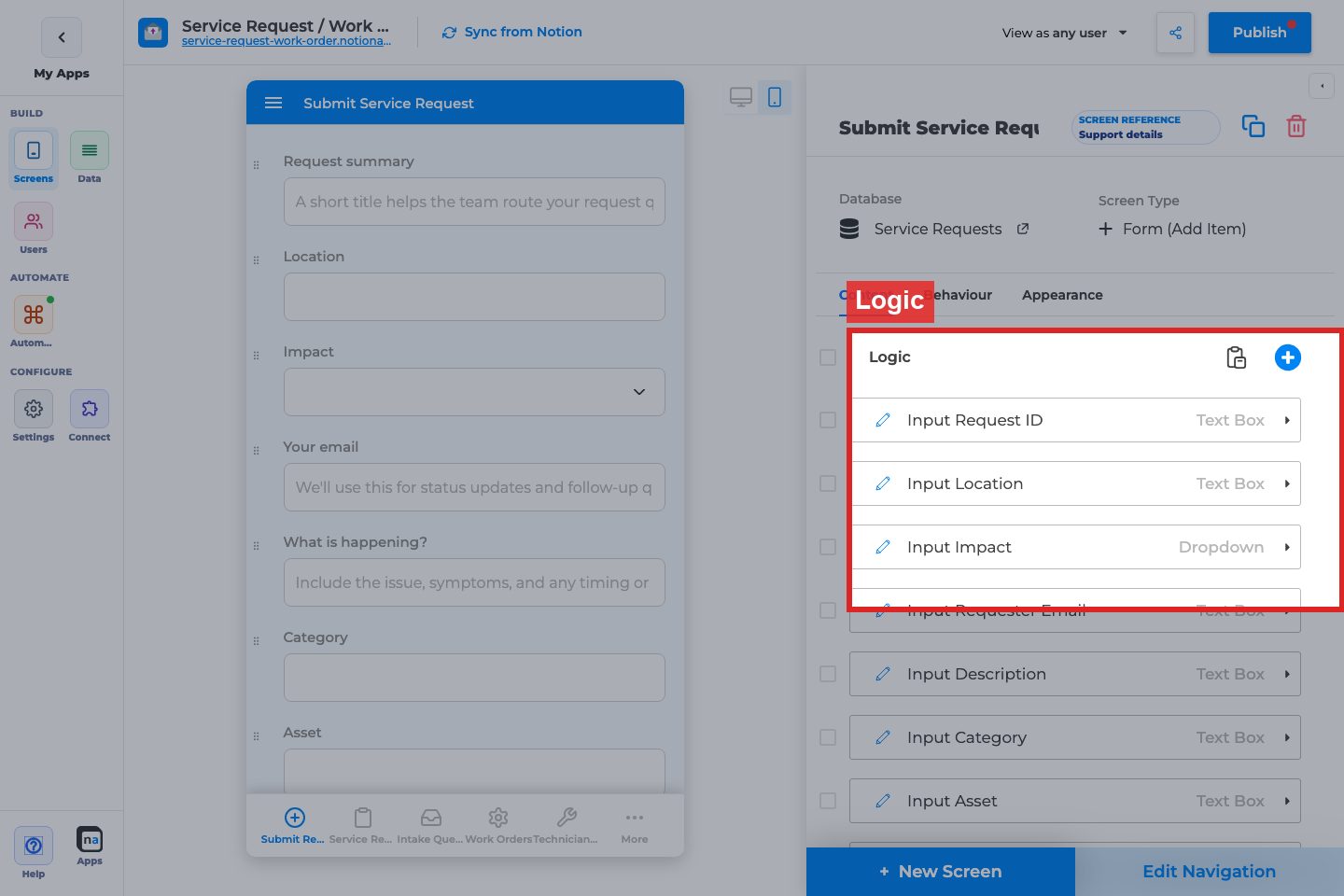
Complete Builder Options Reference
Section titled “Complete Builder Options Reference”Validation is configured on the field inspector Behaviour for text / long text fields on Create or Update forms. Screen-level inventory: Form (Add Item) and Form (Update One Item).
Field Behaviour
Section titled “Field Behaviour”Validate input
Section titled “Validate input”What it does: Turns on format checking for the field.
How to use it: Enable on email/phone fields, then choose Email or Phone.
Why / recommended default: On for contact fields that must be well-formed; off for free-text notes.
Validation type (Email / Phone)
Section titled “Validation type (Email / Phone)”What it does: Selects which format rules run on blur and submit.
How to use it: Match the Notion property purpose. Do not use Phone for OTP codes stored as text unless the format fits.
Why / recommended default: Email for email properties; Phone for phone properties.
Is Required (related)
Section titled “Is Required (related)”What it does: Blocks empty values. Independent from Validate input.
How to use it: Combine with Validate input when the field must be present and correctly formatted.
Why / recommended default: Required + Email for primary contact email.