Comments
The Comments feature lets builders add moderated discussion areas to published NotionApps pages. Visitors can add comments or replies, while builders can review, approve, schedule, pin, edit, hide, or remove comments before they appear publicly.
Use comments when you want lightweight feedback, discussion, testimonials, approvals, notes, or Q&A directly inside a published app.
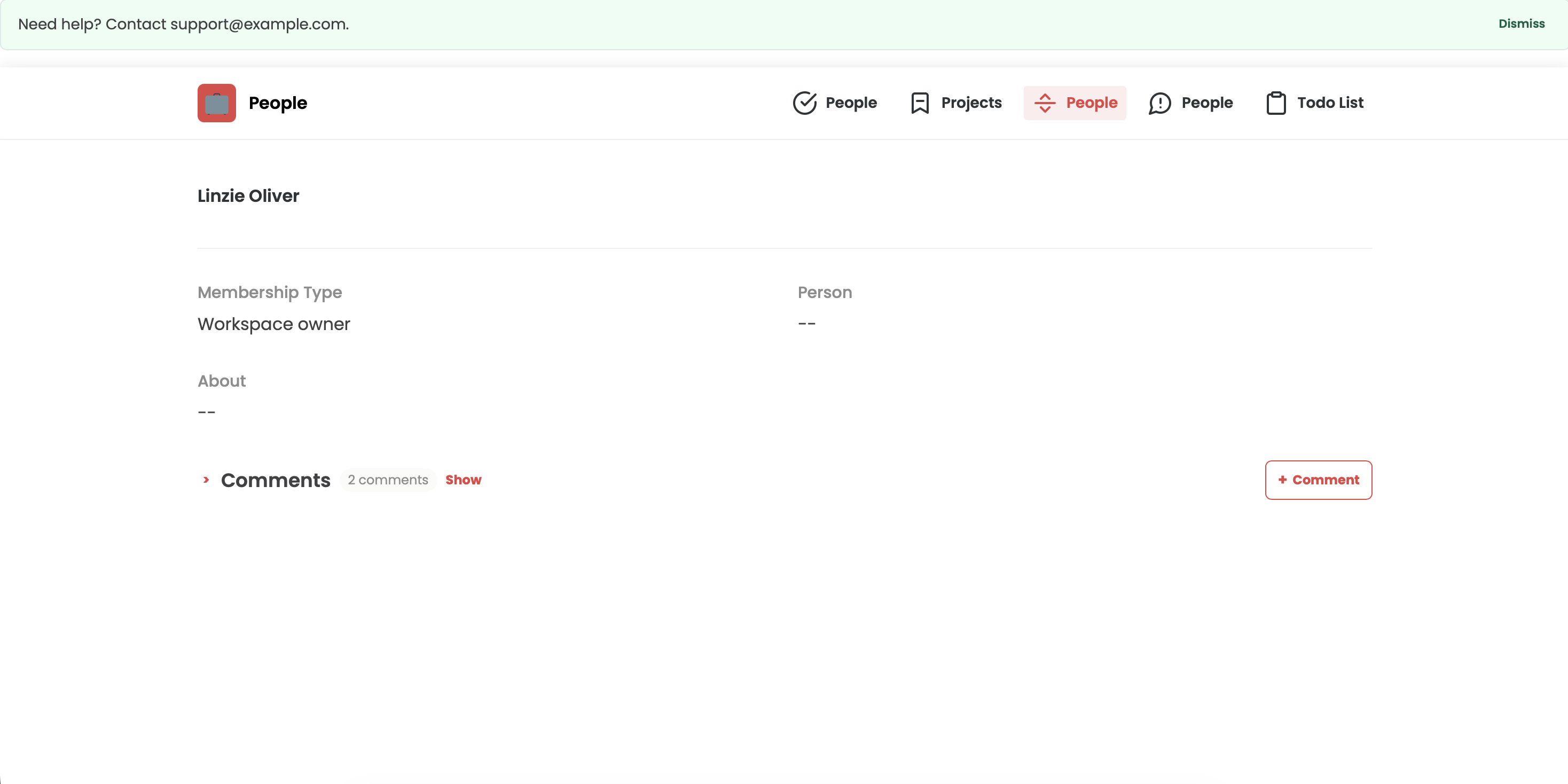
What Comments Includes
Section titled “What Comments Includes”Comments gives you three connected workflows:
- A Comments component that builders add to a screen.
- A published app experience where visitors add comments or replies.
- A moderation queue where builders review and manage submitted comments.
Add a Comments Component
Section titled “Add a Comments Component”1. Open your app in the NotionApps builder.
2. Go to the screen where you want visitors to leave comments.
3. Add a Comments component to the screen.
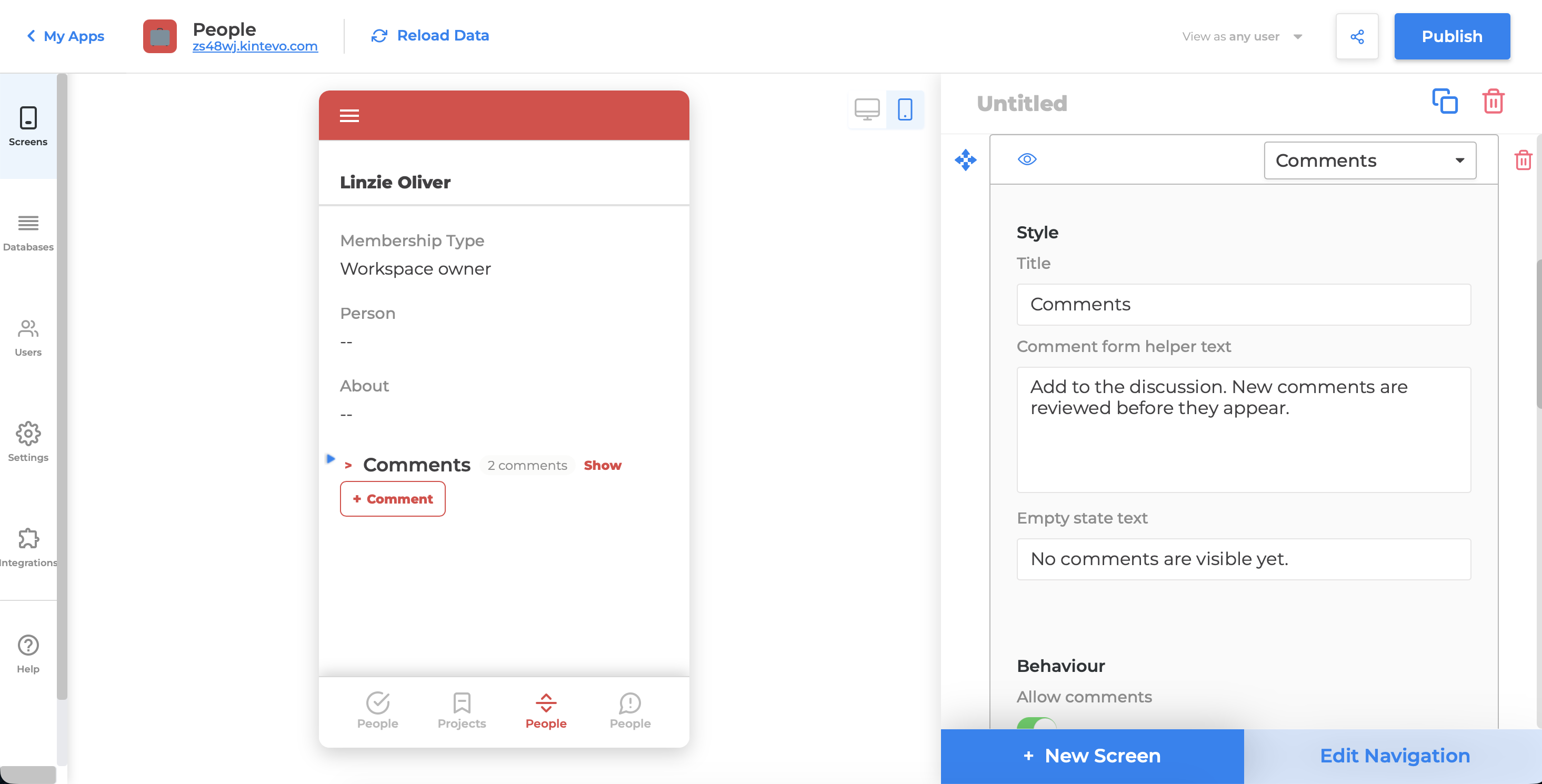
4. Select the component to open its settings.
5. Configure the comment behavior and display options.
6. Save and publish the app.
Configure Comment Behavior
Section titled “Configure Comment Behavior”When the Comments component is selected, use its settings to control how comments work in the published app.
Core Options
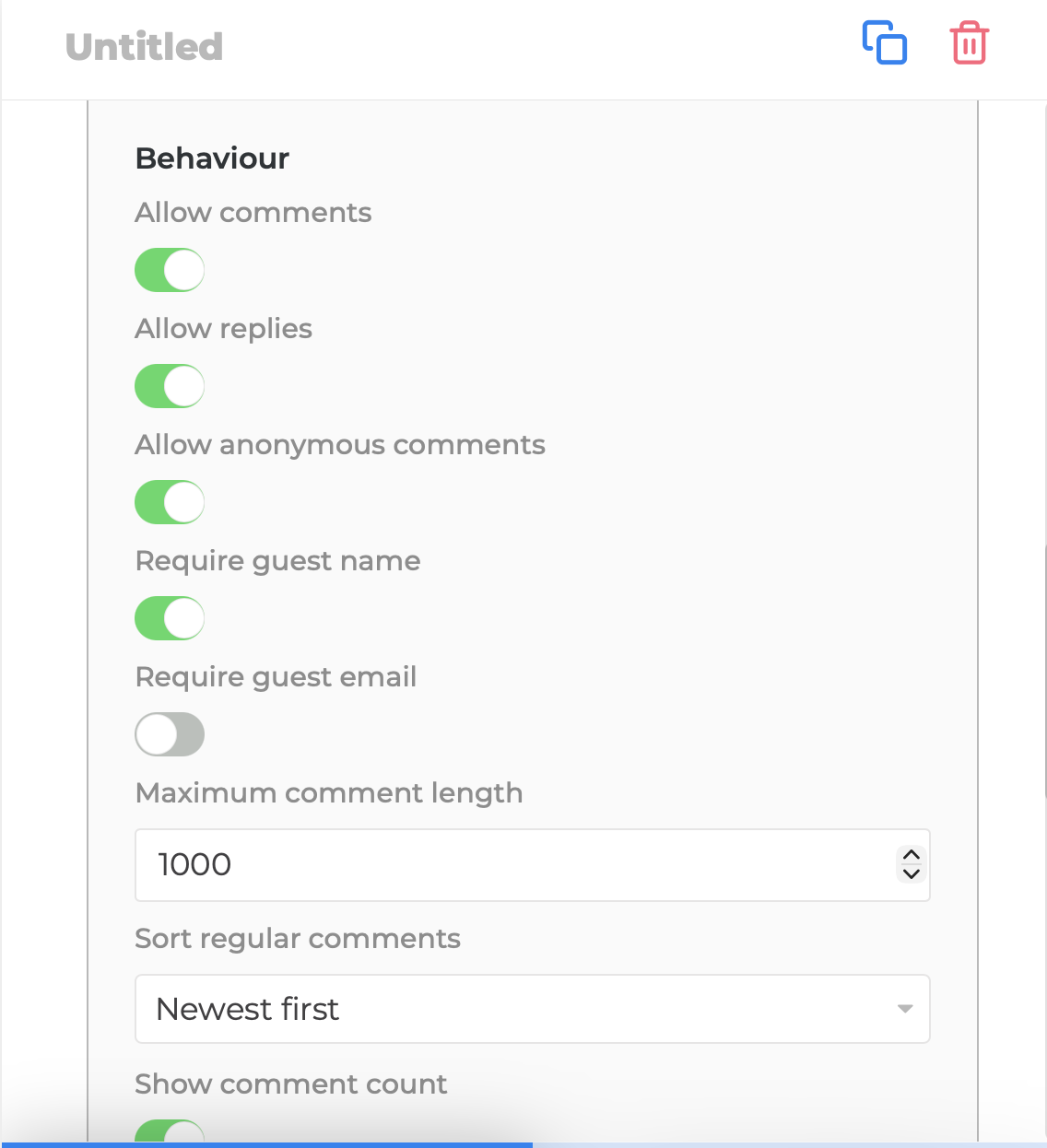
Section titled “Core Options”- Comments enabled: Allows visitors to submit new comments.
- Replies enabled: Allows visitors to reply to approved top-level comments.
- Allow anonymous comments: Allows visitors who are not signed in to comment.
- Required guest fields: Requires guest visitors to provide a name, email, or both.
- Maximum comment length: Limits the number of characters allowed in each comment.
- Sort order: Controls how public comments are ordered.
- Show comment count: Displays the number of visible comments in the published app.
- Show pending to author: Lets a comment author see their own pending comment while it waits for approval.
Published Display Options
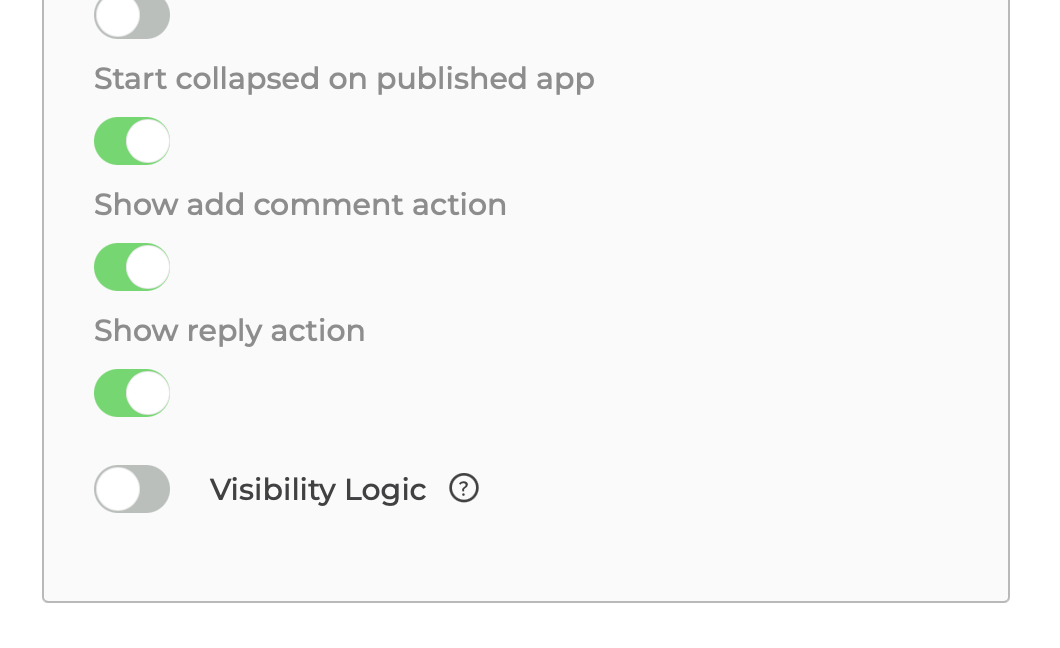
Section titled “Published Display Options”Use these settings to control the published app experience:
- Start collapsed on published app: Opens the published page with the Comments section minimized.
- Show add comment action: Shows or hides the
+ Commentaction. - Show reply action: Shows or hides the
+ Replyaction under approved comments.
Published App Experience
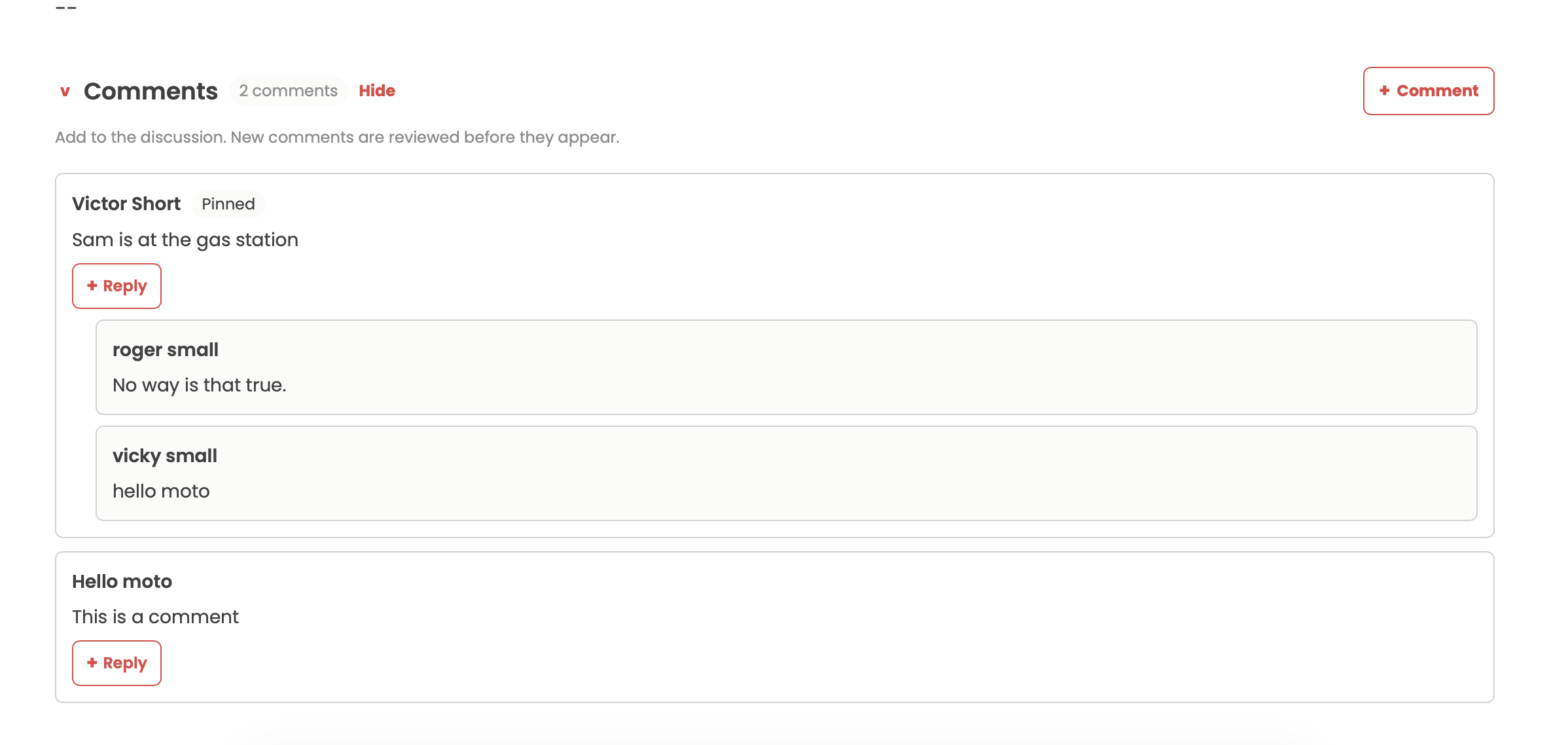
Section titled “Published App Experience”When a visitor opens a published app page with comments, the Comments section may appear collapsed or expanded depending on the builder setting.
1. Click the Comments header or Show control to expand it.
2. Click + Comment to open the comment form.
3. Enter the required guest information, if configured.
4. Submit the comment.
After submission, comments usually enter the moderation queue before appearing publicly.
Reply to a Comment
Section titled “Reply to a Comment”If replies are enabled, visitors can reply to approved top-level comments.
1. Expand the Comments section.
2. Find the approved comment.
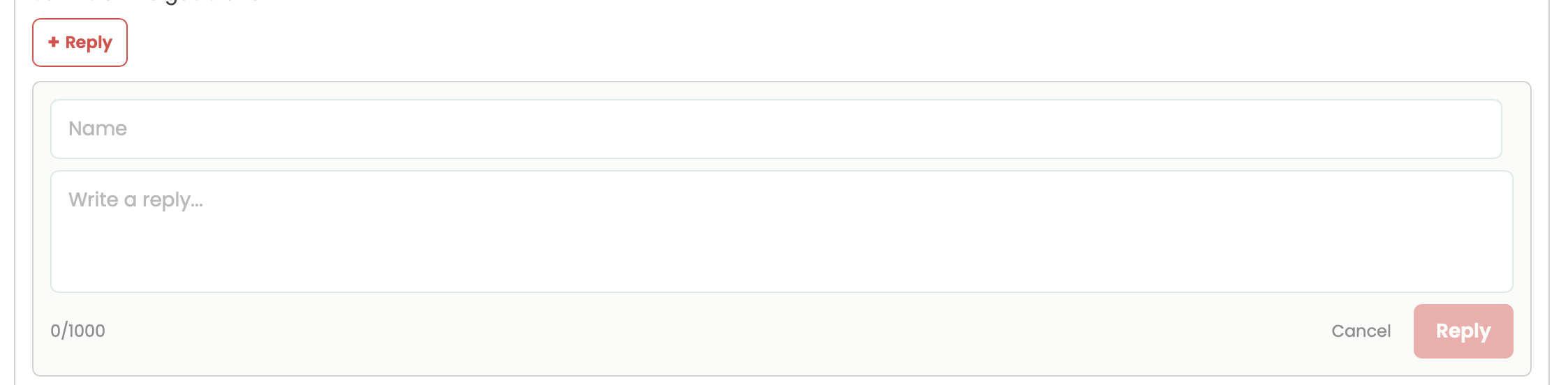
3. Click + Reply.
4. Enter the reply text and any required guest fields.
5. Submit the reply.
Replies are also moderated before they appear publicly, unless your workflow treats them differently through moderation status.
Moderate Comments
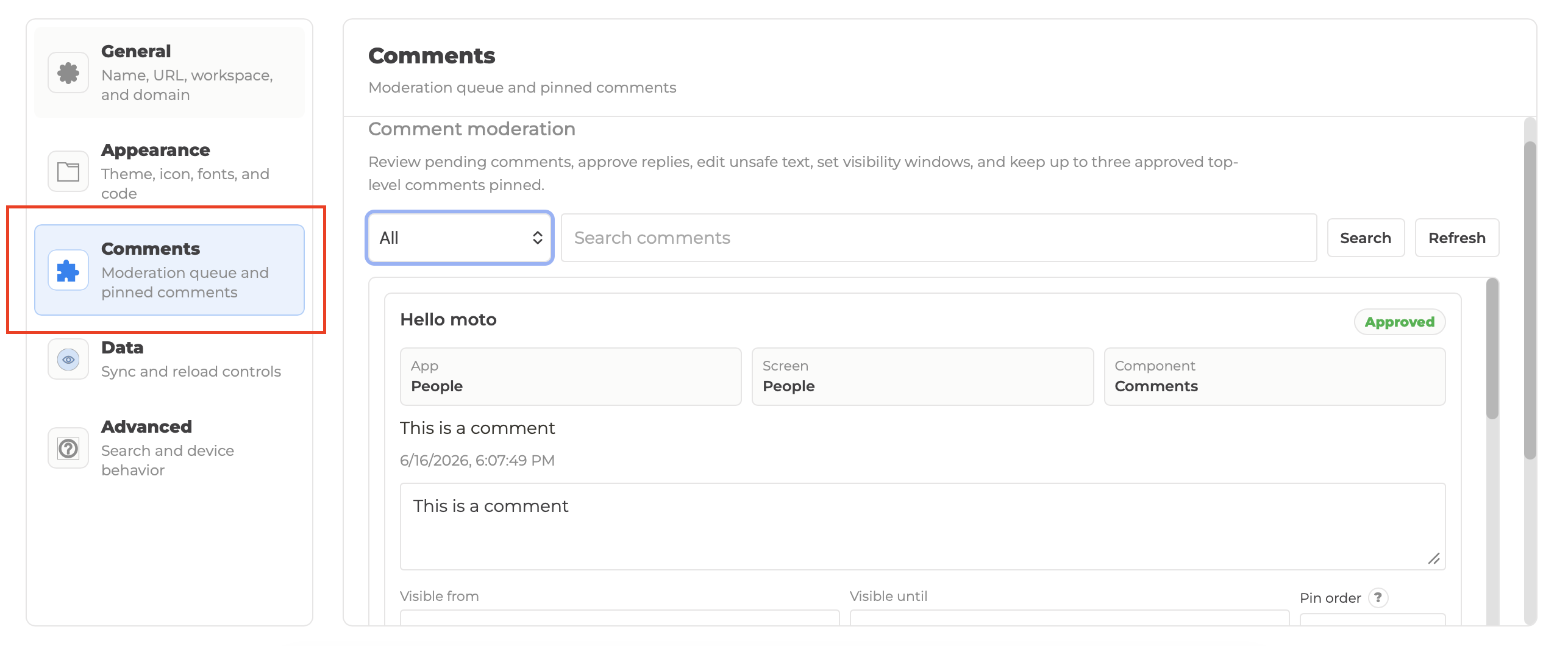
Section titled “Moderate Comments”Builders manage submitted comments from the app Settings area.
1. Open the app in the builder.
2. Go to Settings.
3. Open the Comments tool.
4. Review comments in the moderation queue.
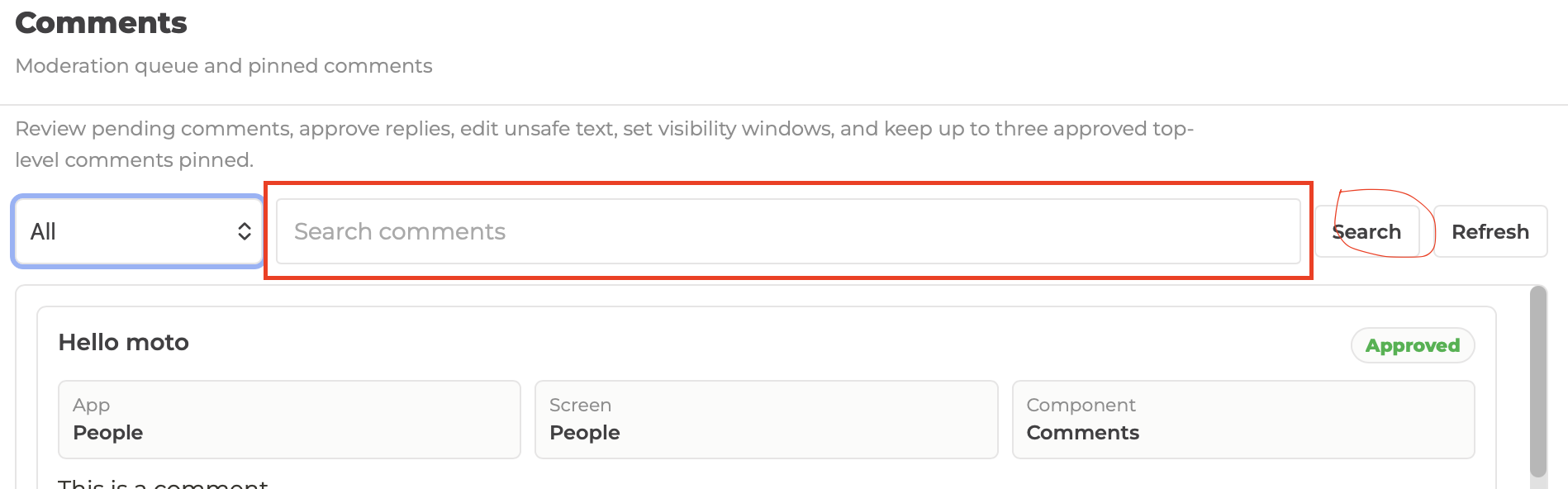
The moderation queue shows the comment body, author details, status, submitted time, and context for where the comment was submitted.
Understand Comment Context
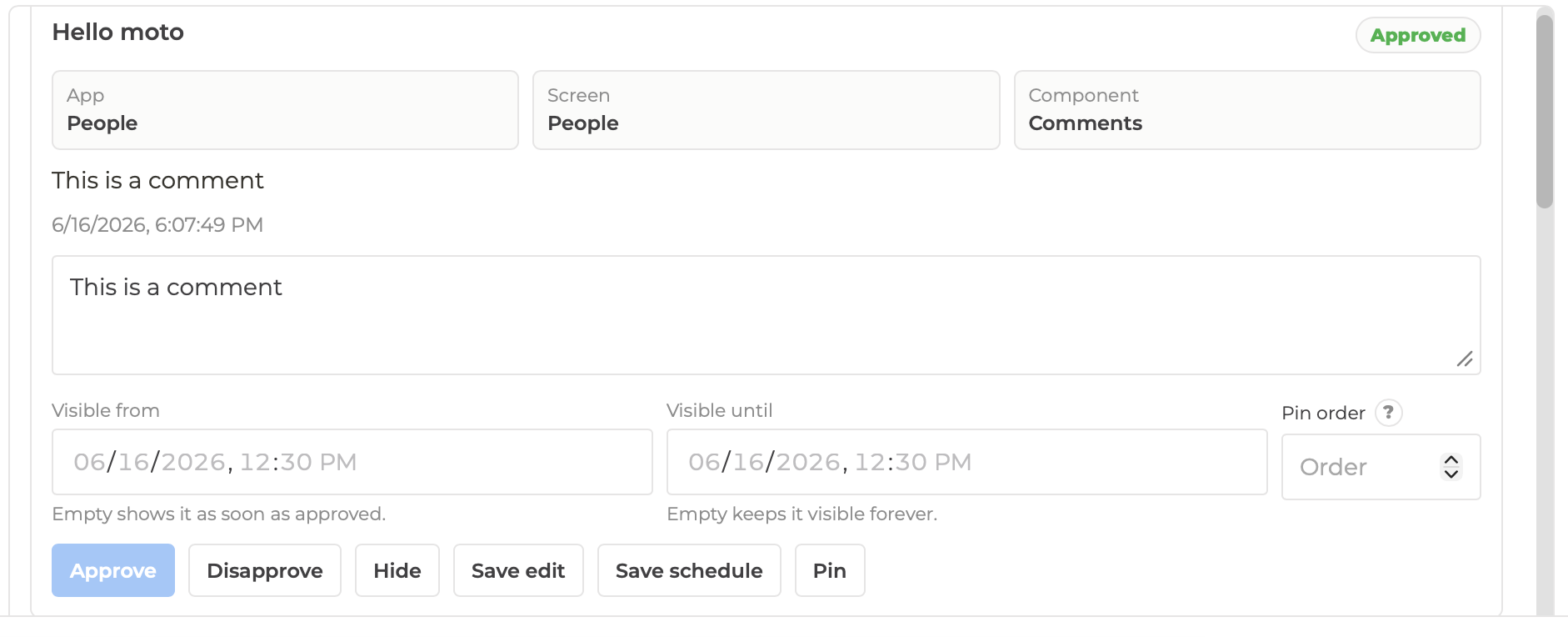
Section titled “Understand Comment Context”Each moderation row includes context fields so you can identify where the comment belongs:
- App: The app where the comment was submitted.
- Screen: The screen associated with the comment.
- Component: The specific Comments component associated with the comment.
- Parent comment: Shown when the item is a reply.
Filter and Search the Queue
Section titled “Filter and Search the Queue”Use the moderation toolbar to find comments quickly.
Available queue filters include:
- All
- Pending
- Approved
- Disapproved
- Hidden
- Deleted
- Scheduled
- Expired
You can also search comment text from the moderation queue.
Moderate a Comment
Section titled “Moderate a Comment”From each comment row, builders can take several actions:
- Approve: Makes the comment eligible to appear publicly.
- Disapprove: Rejects the comment.
- Hide: Removes the comment from public display without deleting it.
- Save edit: Saves changes to the comment text.
- Save schedule: Saves visibility dates.
- Pin: Pins an approved top-level comment.
- Unpin: Removes pinned status.

Schedule Comment Visibility
Section titled “Schedule Comment Visibility”Use visibility dates to control when an approved comment appears publicly.
- Visible from: The earliest date and time the comment can appear.
- Visible until: The date and time the comment stops appearing.
Leave Visible from empty to show the comment as soon as it is approved.
Leave Visible until empty to keep the comment visible forever.

Pinned comments appear before other approved top-level comments.
Use Pin order when you want more control over the order of pinned comments:
- Lower numbers appear first.
- Blank pin order uses pin time after ordered pins.
- Pinning is intended for approved top-level comments, not replies.
How Published Comments Appear
Section titled “How Published Comments Appear”A comment appears in the published app when all of the following are true:
- The comment belongs to the current app, screen, and Comments component.
- The comment status is Approved.
- The comment is not hidden or deleted.
- The current date is after Visible from, if one is set.
- The current date is before Visible until, if one is set.
If a comment is approved but does not appear, check the screen/component context, visibility schedule, and status.
Best Practices
Section titled “Best Practices”- Use one Comments component per discussion area.
- Use clear screen names so moderation context is easy to understand.
- Keep comments collapsed by default on long published pages.
- Require guest names when you need accountability.
- Use visibility windows for time-sensitive announcements or temporary feedback.
- Pin only the most important approved comments.
- Review the moderation queue regularly if comments are enabled on public apps.
Troubleshooting
Section titled “Troubleshooting”I approved a comment, but it does not show in the published app.
Check that the comment is associated with the same screen and Comments component you are viewing. Also confirm the comment is approved and inside its visibility window.
Visitors are asked for a name when replying.
The Comments component uses the same required guest fields for comments and replies. If Name is required, visitors must provide it before submitting either a comment or a reply.
I see an empty Comments section on one screen but comments on another.
Your app may have multiple Comments components. Each Comments component has its own thread and moderation context.
I do not want comments visible immediately when visitors land on the page.
Turn on Start collapsed on published app in the Comments component settings.