Add new component to screen
Components allow you to customize the appearance and functionality of a screen in NotionApps. By adding a component, you can show or update specific fields in a more visually appealing and user-friendly way. Here’s how you can add a component to a screen:
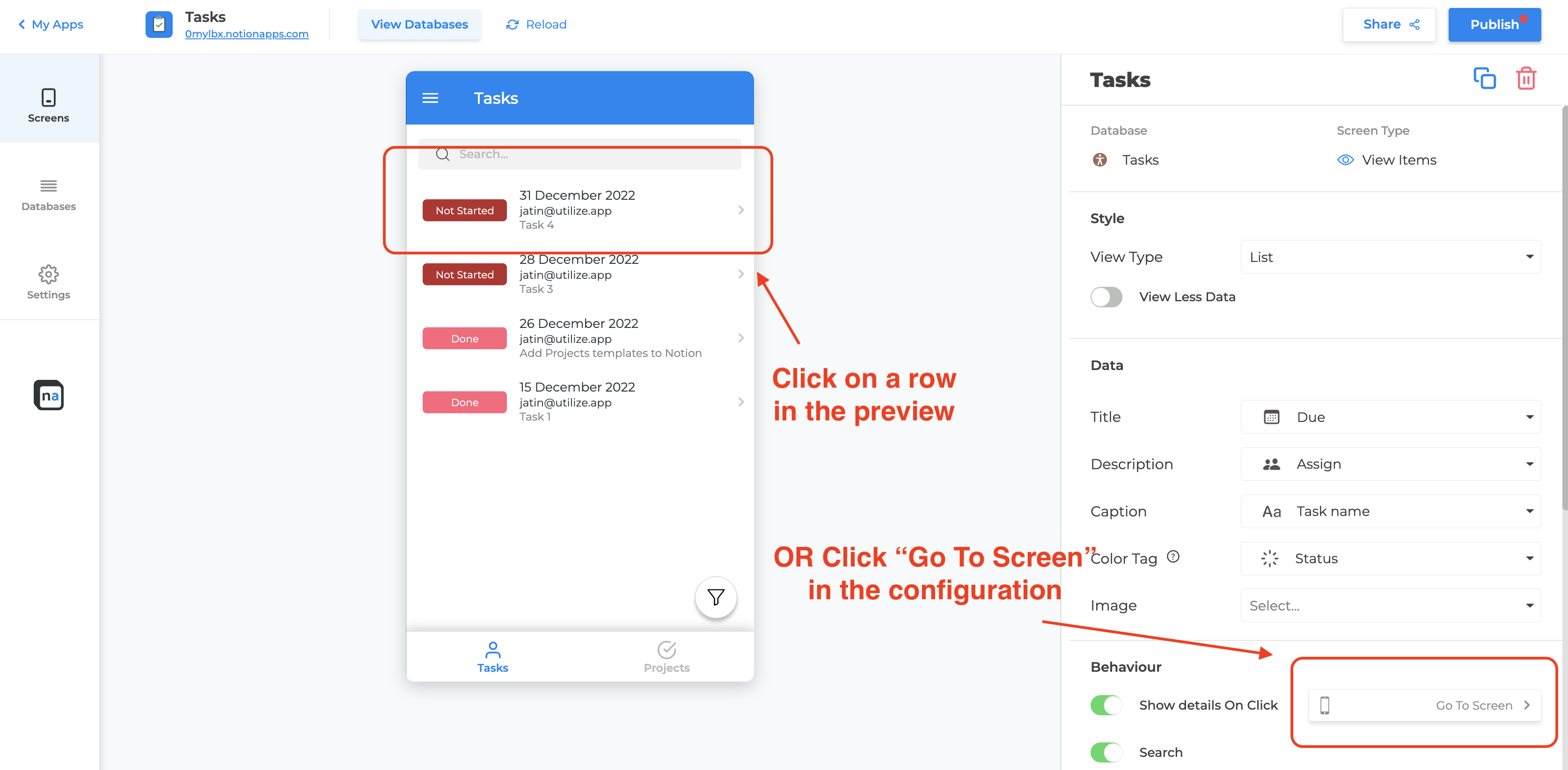
- Go to a secondary screen, such as View Item, by clicking on a row in a List screen OR by clicking the “Go To Screen” button in the screen configuration section.
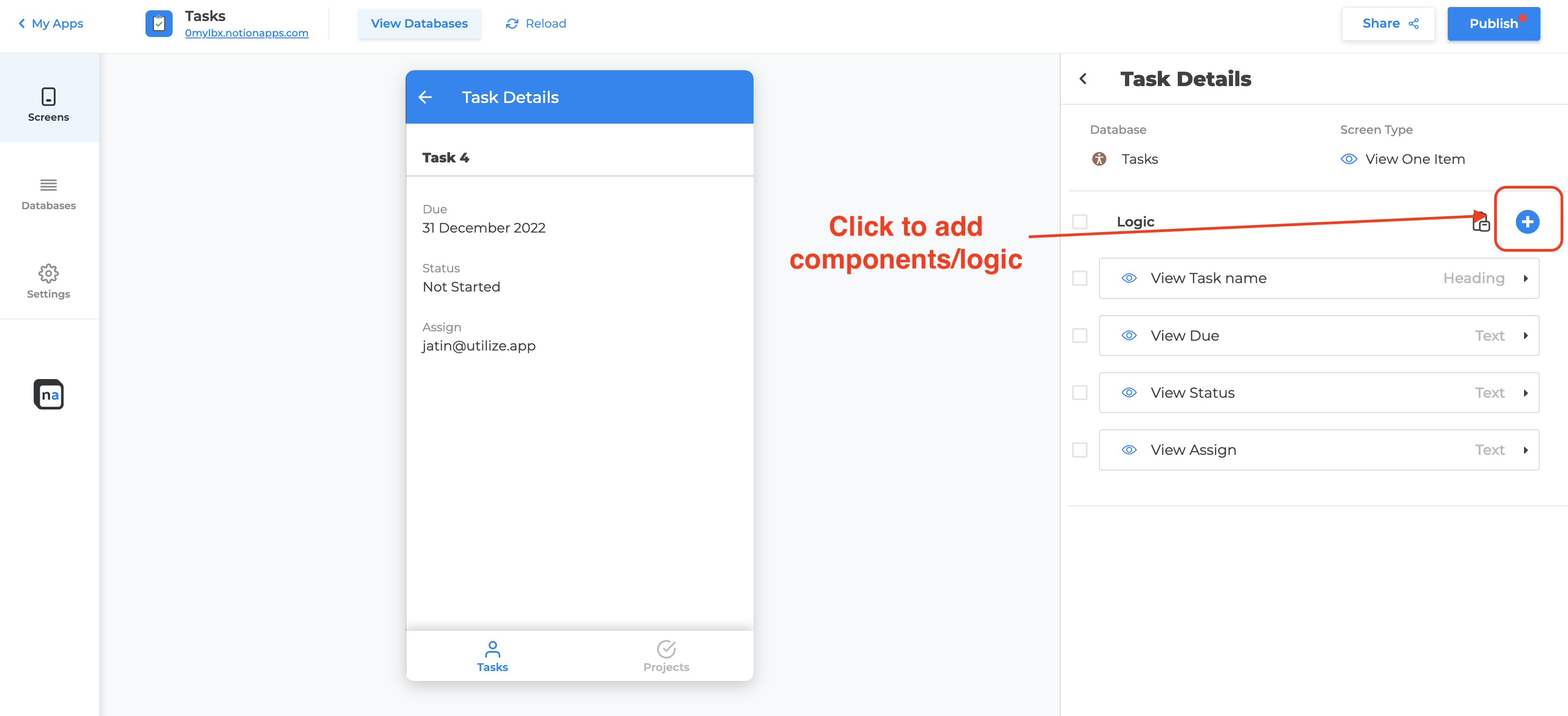
- Once you’re on the secondary screen, click on the plus (+) button in the screen configuration section.
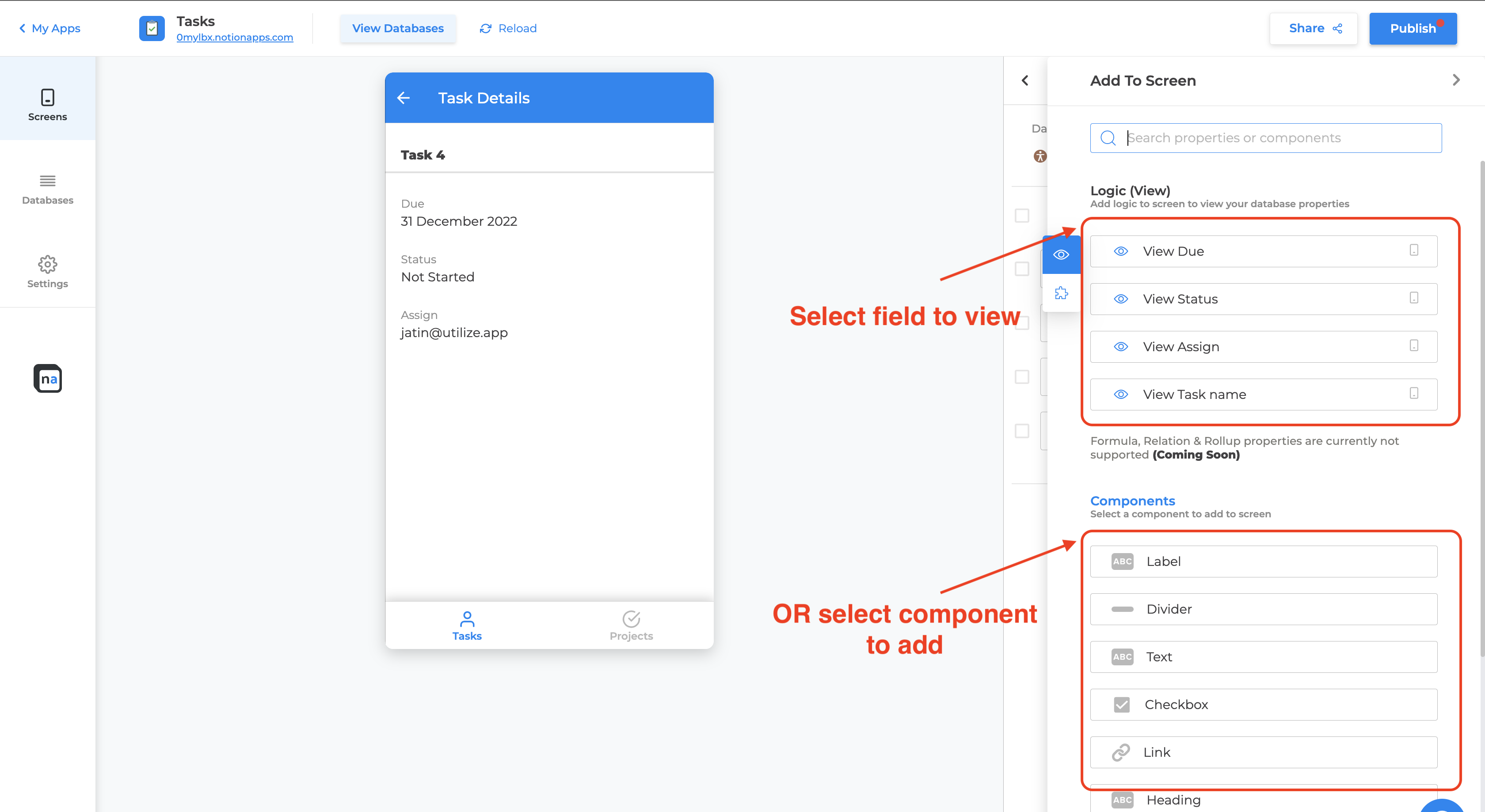
- In the panel that opens up, you can either select a logic based on the field you want to show, and a default component will be added to the screen (which you can customize later). Alternatively, you can select a specific component from the “Components” section and change its field to the desired field.
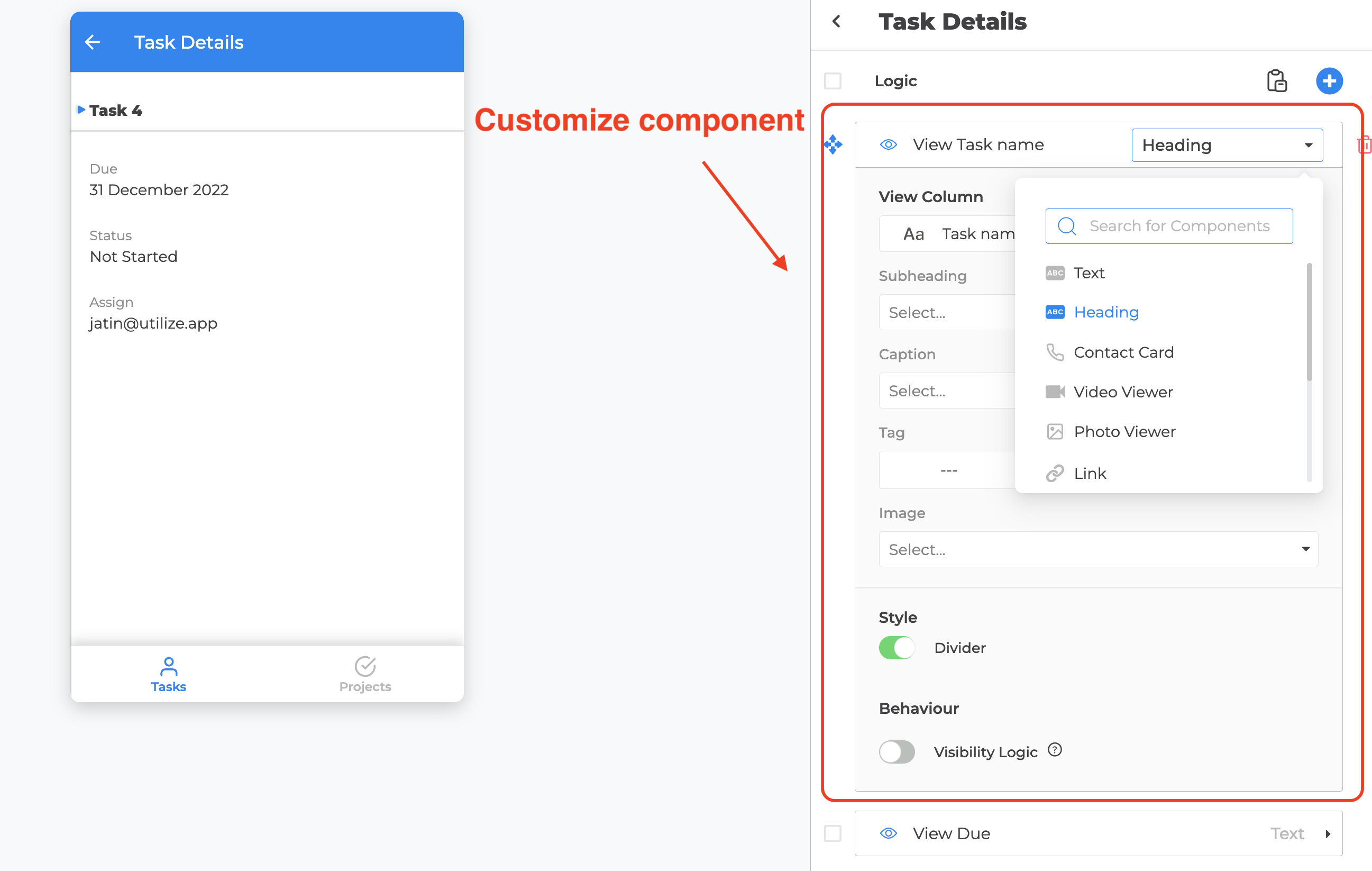
- Customize the component as per your preferences. You can adjust its appearance, layout, and functionality by using the customization options available.