Prefill Create Forms from a URL
Share a link that opens an Add New Item form and fills selected fields automatically — no custom JavaScript.
This guide walks through builder configuration with screenshots from a real Create Form (Submit Service Request), then shows how to share and test the published link.
What you get
Section titled “What you get”After you map fields to URL parameter names and publish, a link like this:
https://your-app.notionapps.com/submit-service-request?name=Sample&impact=Major&priority=Highwill:
- Open the Create Form whose screen name slugifies to
submit-service-request - Prefill Request summary with
Sample, Impact withMajor, and Priority withHigh
Users can still edit any unlocked field after the form loads.
Before you start
Section titled “Before you start”You need:
- A Create Form (Add Item) screen in the builder
- At least one supported field on that form (text, long text, number, toggle, single-select, date, multi-select/people, or relation)
- Permission to Publish the app so end users see the mapping
Step 1 — Open the Create Form in the builder
Section titled “Step 1 — Open the Create Form in the builder”- Open your application in the NotionApps builder.
- Select the Create Form screen you want to share (for example, Submit Service Request).
- Confirm the right panel shows Form (Add Item) / Create Form behaviour settings.

Step 2 — Map a field to a URL parameter
Section titled “Step 2 — Map a field to a URL parameter”For each field you want to fill from the link:
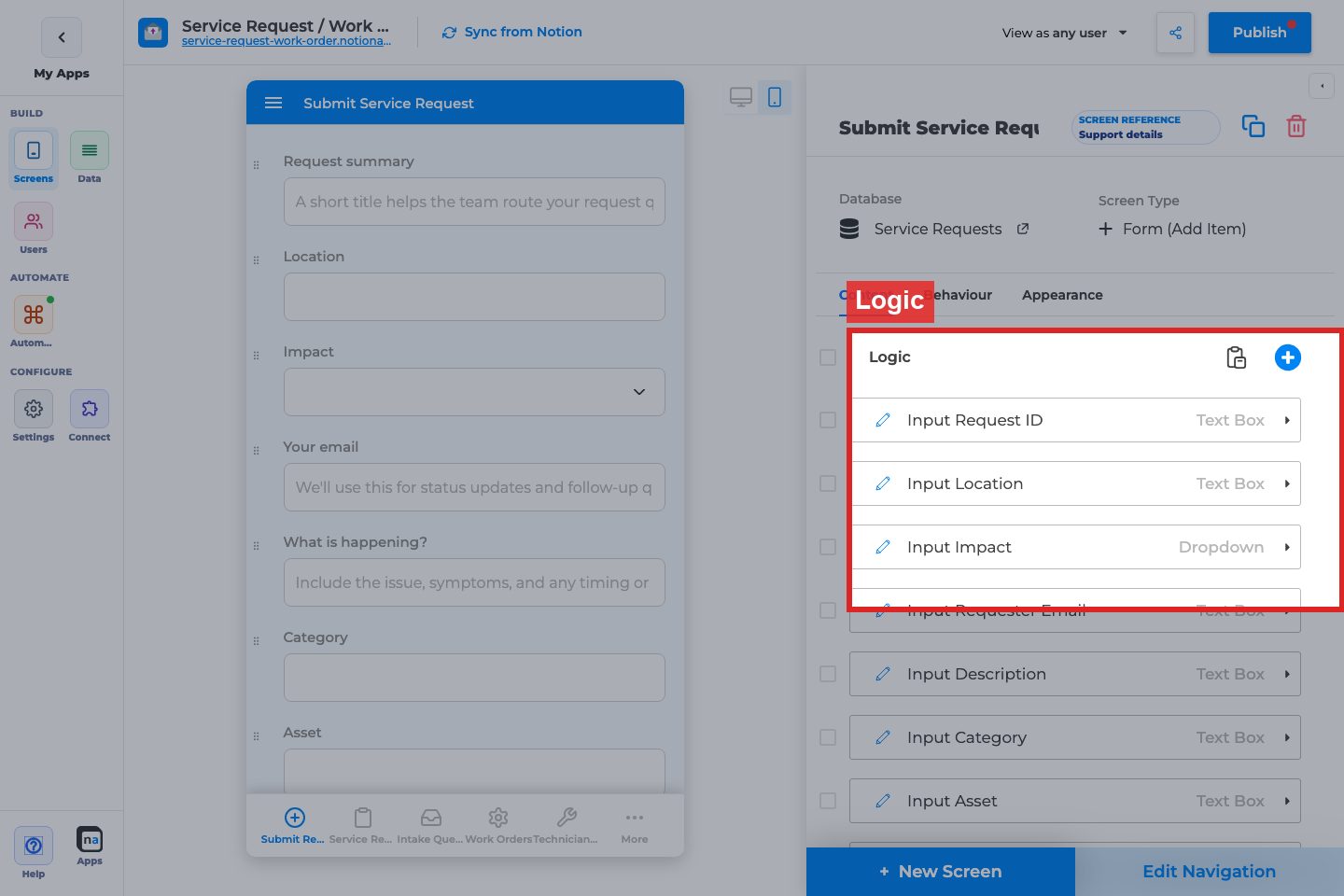
- In the Logic list (right panel), select the field (or click it in the preview).
- Turn Default Value On.
- Set Default value source to From URL parameter.
- Enter the URL parameter name (for example,
namefor?name=Sample). - Optionally leave a Static value as a fallback when that query param is missing.
- Optionally turn on Disable Changes if the prefilled value should be locked.
Example mappings for this form
Section titled “Example mappings for this form”| Form field | Field type | URL parameter | Example in link |
|---|---|---|---|
| Request summary | Text | name |
name=Sample |
| Impact | Dropdown | impact |
impact=Major |
| Priority | Dropdown | priority |
priority=High |
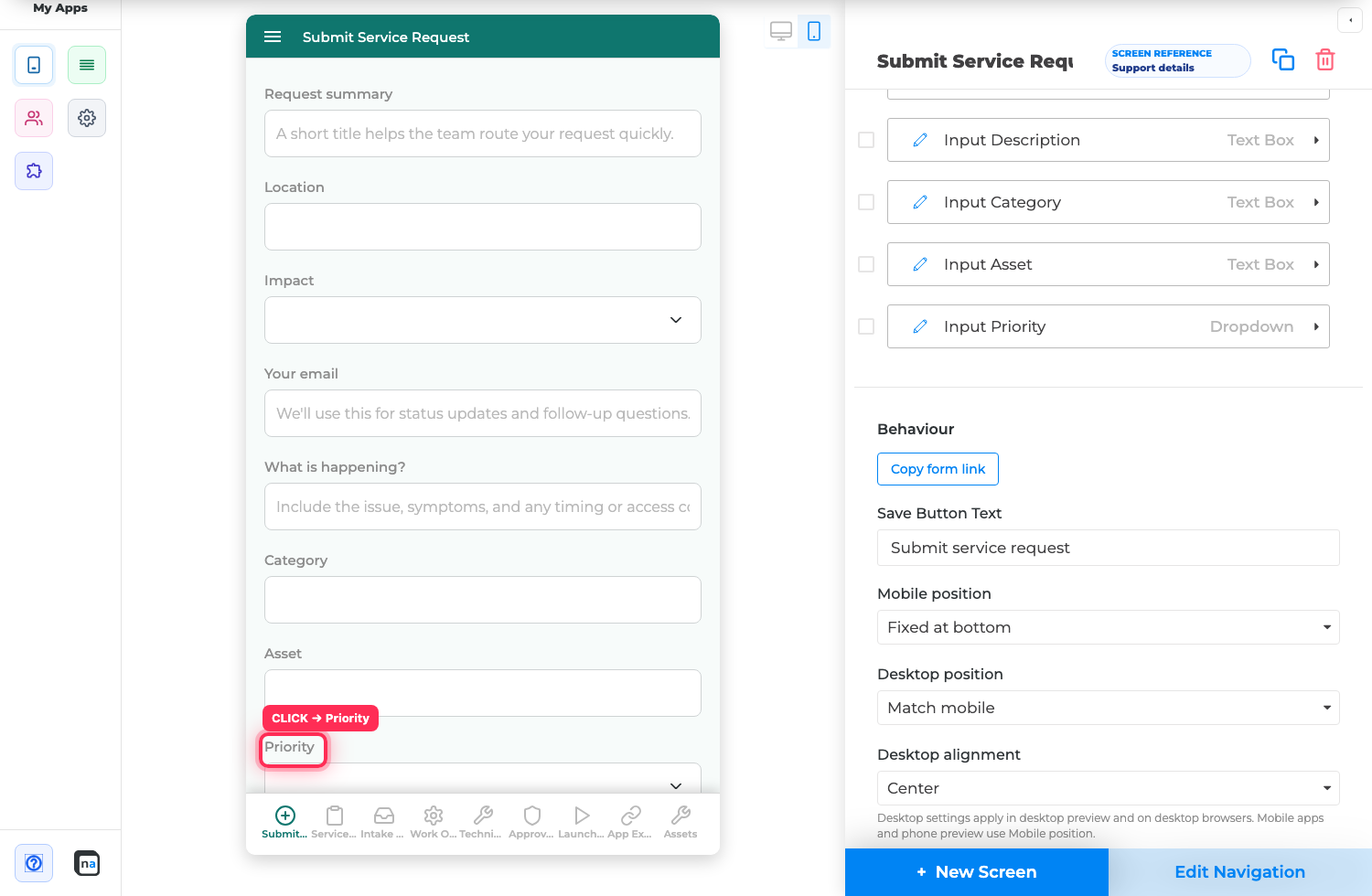
Select the field in the preview or Logic list:

Map additional dropdown fields the same way:

How values are interpreted
Section titled “How values are interpreted”| Field type | Accepted query values | If the value is invalid |
|---|---|---|
| Text / Long text | Any string | Used as-is |
| Number | A finite number (for example 42, 3.5) |
Field keeps static fallback or stays blank |
| Toggle | true / 1 / yes / on (and false equivalents) — case-insensitive |
Field keeps static fallback or stays blank |
| Single-select | Option label (case-insensitive), or option index | Field keeps static fallback or stays blank |
| Date | YYYY-MM-DD, or ISO / YYYY-MM-DDTHH:mm (time used when the field shows time) |
Field keeps static fallback or stays blank |
| Multi-select / People | Comma-separated option labels or values (emails for People) | Unmatched tokens skipped |
| Relation (Page Selector) | Comma-separated related record ids | Invalid ids skipped |
Step 3 — Copy the form link from Behaviour
Section titled “Step 3 — Copy the form link from Behaviour”With the Create Form screen selected (not a single field):
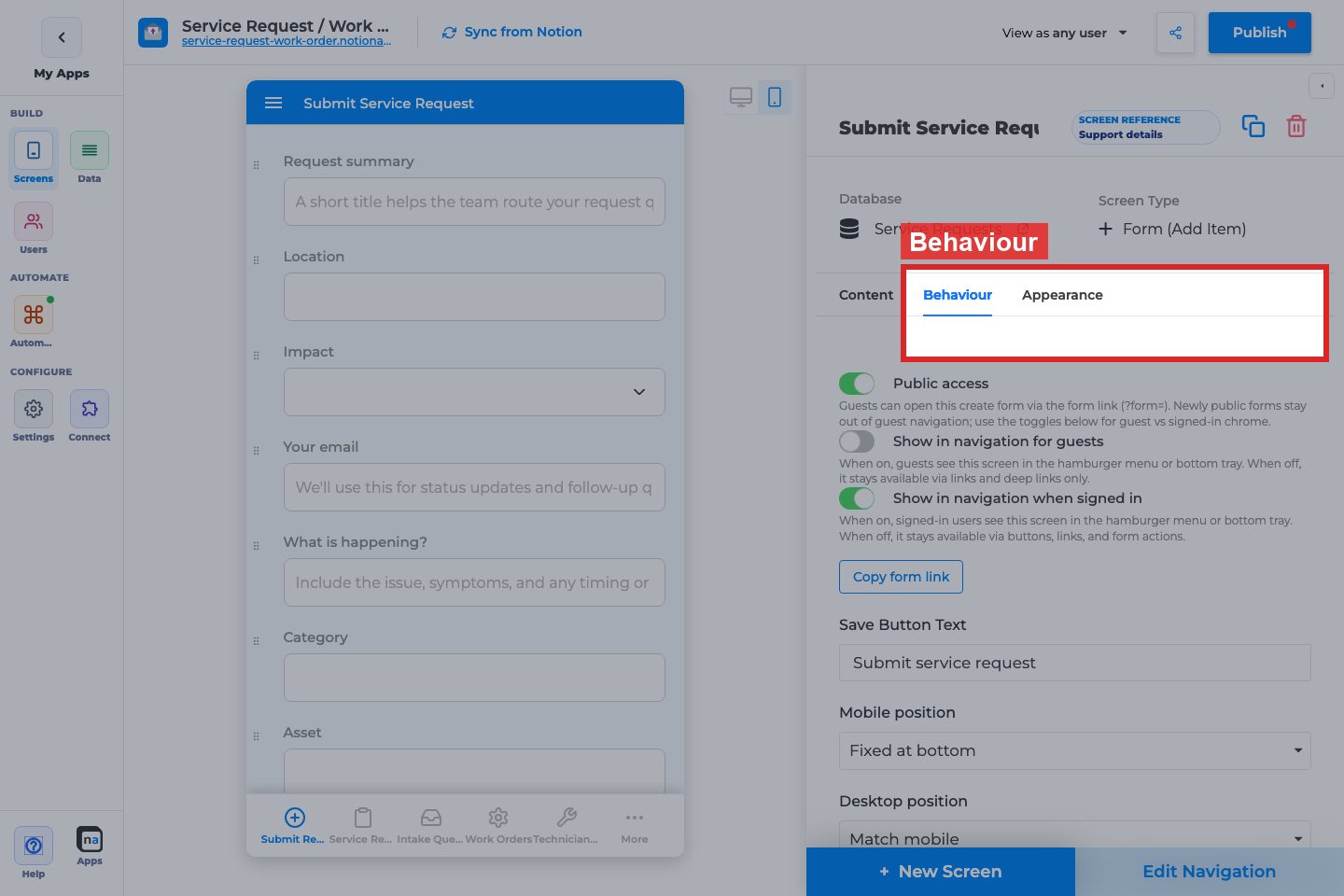
- Scroll the right panel to the Behaviour section.
- Click Copy form link.
- Paste the link somewhere temporary (notes, browser address bar).
The copied link uses your published app origin, the screen-name slug, and empty placeholders for every mapped parameter — ready for you to fill in.

Example shape after copying (parameters empty until you fill them):
https://your-app.notionapps.com/submit-service-request?name=&impact=&priority=Fill in values:
https://your-app.notionapps.com/submit-service-request?name=Sample&impact=Major&priority=HighStep 4 — Publish and test in the live app
Section titled “Step 4 — Publish and test in the live app”- Click Publish in the builder top bar.
- Open the filled link in a private/incognito window (or a different browser).
- Sign in if the app is private.
- Confirm the Create Form opens with the expected fields filled.

In this example:
- Request summary → Sample
- Impact → Major
- Priority → High
- Other fields stay empty (or use their static defaults) because they were not in the URL
URL reference
Section titled “URL reference”Path (open the form)
Section titled “Path (open the form)”| Style | Example | When to use |
|---|---|---|
| Screen-name slug | /submit-service-request?... |
Default; friendly shareable links |
| Explicit form id | /?form=<screenId>&... or /anything?form=<screenId>&... |
Two Create Forms would collide on the same slug |
Query parameters (prefill)
Section titled “Query parameters (prefill)”Only parameters you mapped in the builder are applied. These reserved keys are never used as field values:
formscreenIdrecordIdtitle,showTitle,selectionMode- Live-demo auth keys (
live_demo_email,live_demo_code) - Other navigation keys (
primary,referenceAutoLinkInfo)
Disambiguate with form=
Section titled “Disambiguate with form=”If slug matching is ambiguous or you prefer IDs:
https://your-app.notionapps.com/?form=64f1a2b3c4d5e6f7a8b9c0d1&name=Sample&impact=MajorYou can also pass the slug in form when it uniquely matches:
https://your-app.notionapps.com/?form=submit-service-request&name=SampleEnd-to-end example (makers)
Section titled “End-to-end example (makers)”Goal: Email a vendor a link that opens “Submit Service Request” with summary and impact already set.
- Open the Submit Service Request Create Form.
- Map Request summary → URL parameter
name. - Map Impact → URL parameter
impact. - Click Copy form link, then fill values:
https://your-app.notionapps.com/submit-service-request?name=HVAC%20inspection&impact=Major- Publish.
- Send the link. Recipients land on the Add form with those fields filled; they complete the rest and submit.
Checklist
Section titled “Checklist”- Fields use From URL parameter with clear param names
- Optional static fallbacks set where useful
- Disable Changes set only when the value must stay locked
- Create Form screen name is unique (or you use
?form=) - App is Published after mapping
- Tested on desktop and mobile published shells
- Invalid select/toggle/number values fall back safely (spot-check once)
Troubleshooting
Section titled “Troubleshooting”| Symptom | Likely cause | What to do |
|---|---|---|
| Link opens the app but not the form | Slug does not match any Create Form, or collision | Check screen name slug; use ?form=<screenId> |
| Form opens but fields are empty | Mapping not published, wrong param names, or reserved key used | Re-check param names; publish again; avoid reserved keys |
| Select stays blank | Label in URL does not match an option | Use the exact option label (case-insensitive) or a valid index |
| Private app shows login first | Expected | User signs in, then the same URL should open and prefill |
| Update Form / list not affected | Prefill is Create Form only | Use Create Form. To filter a list from ?store=, see Filter lists with groups and dynamic values |
Related notes for makers
Section titled “Related notes for makers”- Prefill counts like a normal user input for visibility / personalization rules that depend on user input.
- Works on desktop and mobile published apps.
- No custom code is required; do not paste query parsing into Custom JavaScript for this use case.
Related
Section titled “Related”- Organize Create Forms with Sections and an Optional Stepper
- Filter lists with groups and dynamic values — list URL filters, not form prefill
- 20 Jul 2026 Release
- 15 Sep 2026 Release
Annotated builder screenshots
Section titled “Annotated builder screenshots”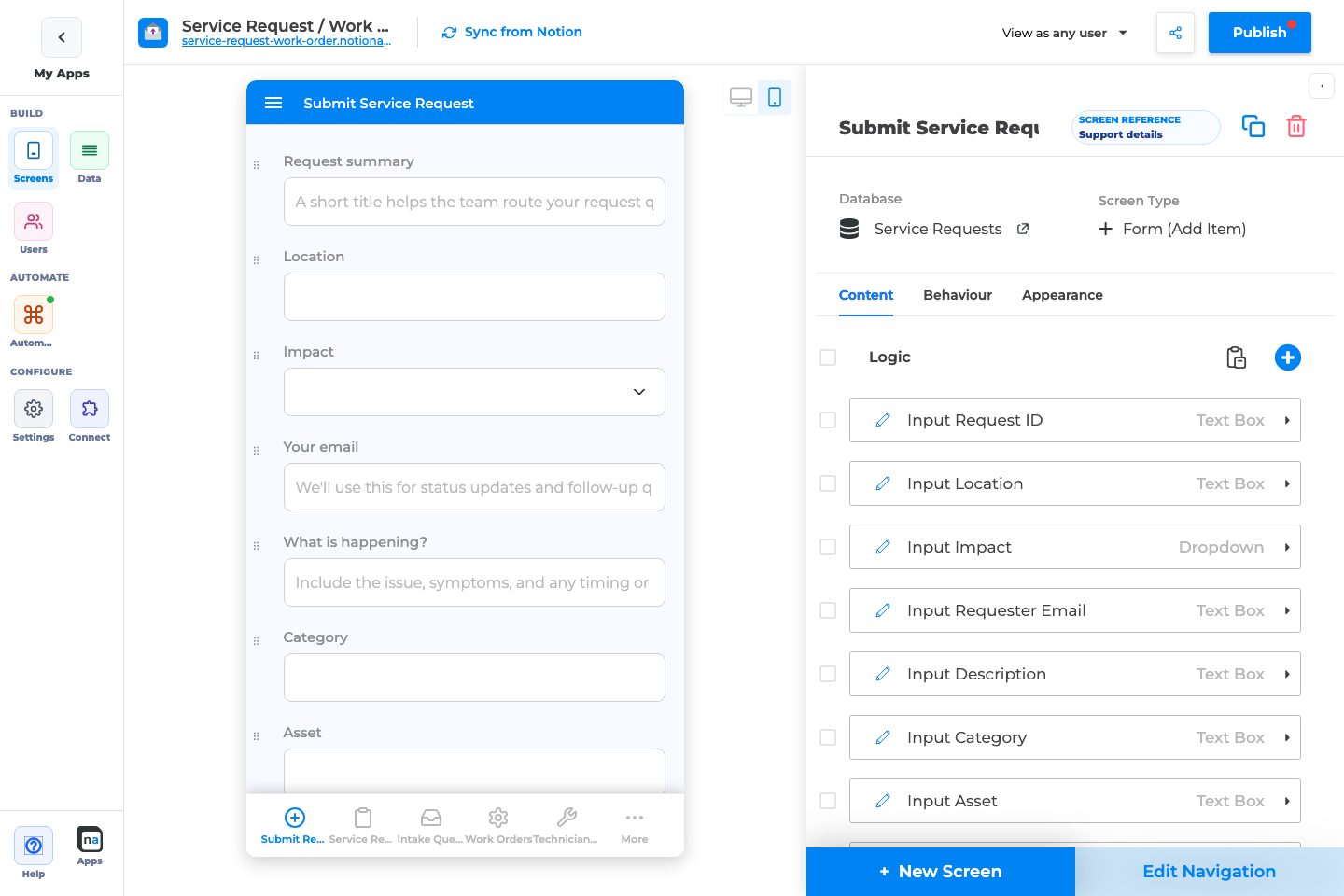
Complete Builder Options Reference
Section titled “Complete Builder Options Reference”These options live on Form (Add Item). Full screen inventory: Form (Add Item).
URL Prefill mapping (field Behaviour / field inspector)
Section titled “URL Prefill mapping (field Behaviour / field inspector)”Prefill from URL / Parameter name
Section titled “Prefill from URL / Parameter name”What it does: Maps a query parameter to this field when the Create Form opens via link.
How to use it: Open the field → set a short parameter name (for example priority). Publish, then share ?priority=High.
Why / recommended default: Use stable lowercase names. Prefer ?form=<screenId> when two forms share a slug.
Supported field types
Section titled “Supported field types”What it does: Limits which fields accept URL values (text, long text, number, toggle, single-select, date, multi-select/people, relation).
How to use it: Only map supported types; unsupported fields ignore the param.
Why / recommended default: Keep mappings to fields users are allowed to edit.
Related Create Form options
Section titled “Related Create Form options”Public access
Section titled “Public access”What it does: Lets guests open the form without signing in.
How to use it: Enable when the prefilled link is for public intake.
Why / recommended default: Off unless guests must submit.
Success Message / Actions
Section titled “Success Message / Actions”What it does: Controls post-submit UX.
How to use it: Keep success copy short; add redirect Actions only when the next screen is intentional.
Why / recommended default: Simple success message; avoid surprising redirects on public forms.