Build Apps with Your Teammates
Learn how to invite teammates to build your NotionApps apps with their own login, accept an invite, switch between accounts, and manage or leave a team.
Until now only the account owner could build apps. Teams shared one login, so nobody could tell who changed what, or a teammate opened a separate account that couldn't see the owner's apps. Now the owner invites teammates by email. Inviting teammates is included on a Pro subscription and above. Each teammate signs in with their own Google or email-and-password login and can build, edit and publish every app on the owner's account. The plan, billing and connected Notion workspaces stay with the owner.
What this feature is for
Section titled “What this feature is for”Use team collaboration when more than one person builds the same apps.
Common uses:
- Build together without sharing a password. Each person signs in as themselves, and the builder shows who saved an app last.
- Bring in a contractor or agency. Invite them for the project, then remove them when it ends. Apps they built stay on your account.
- Work for several clients. A freelancer can be a teammate on many accounts and switch between them and their own account.
Owners and teammates can do the same things in the builder. Only the owner can invite or remove people, manage billing and the plan, and connect or remove Notion workspaces.
Before you start
Section titled “Before you start”- You must be the account owner. A teammate can't invite anyone.
- Inviting teammates is included on a Pro subscription and above. A free plan shows
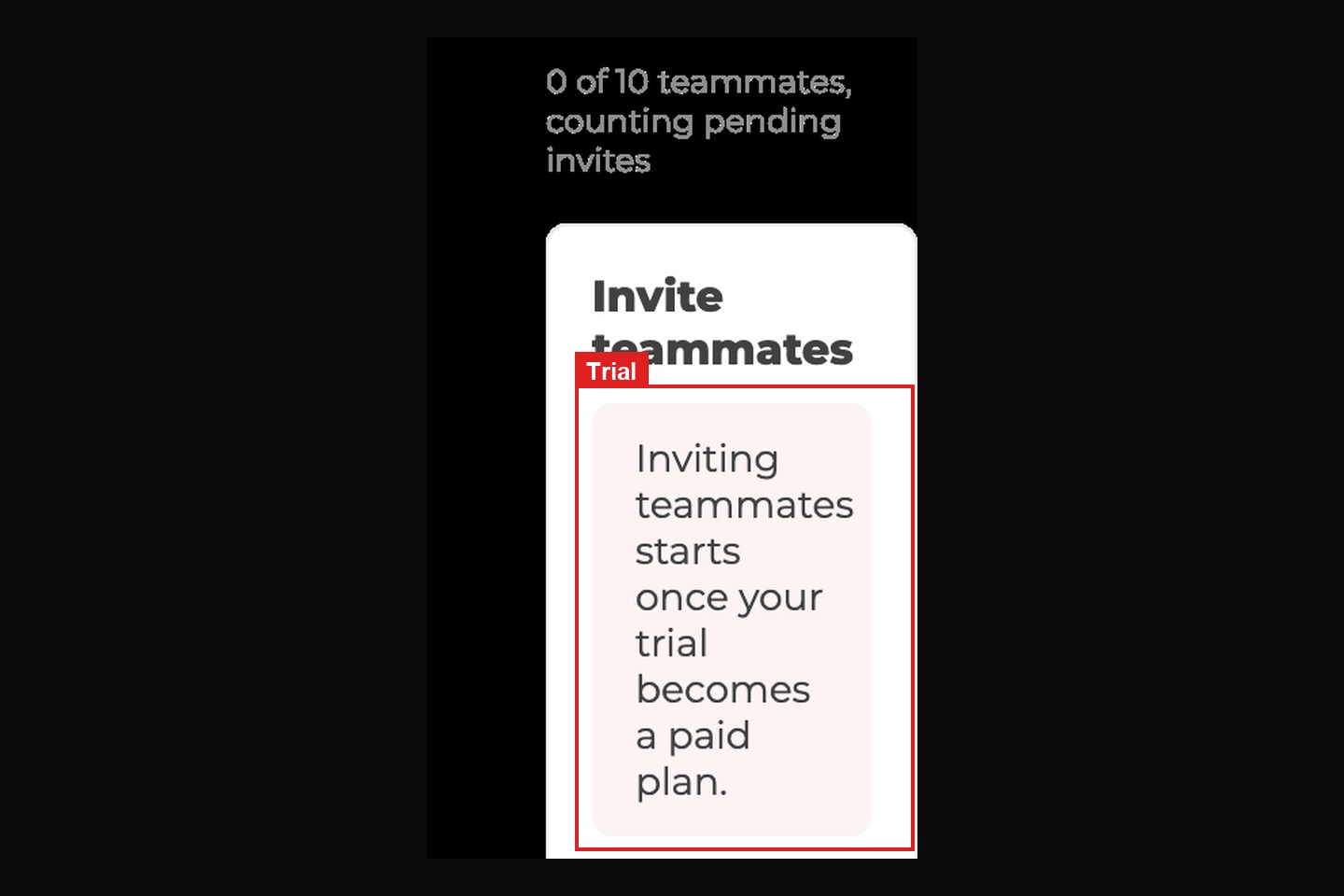
Inviting teammates isn't available on this account yet.A Pro trial showsInviting teammates starts once your trial becomes a paid plan.Subscribe to Pro, or wait until the trial becomes a paid Pro subscription, then invite. - Each account can have up to 10 teammates, counting invites that haven't been accepted yet. Support can raise the limit.
- Use the email address each teammate will sign in with. The invite only works for that exact address.
Step 1: Open the Team page
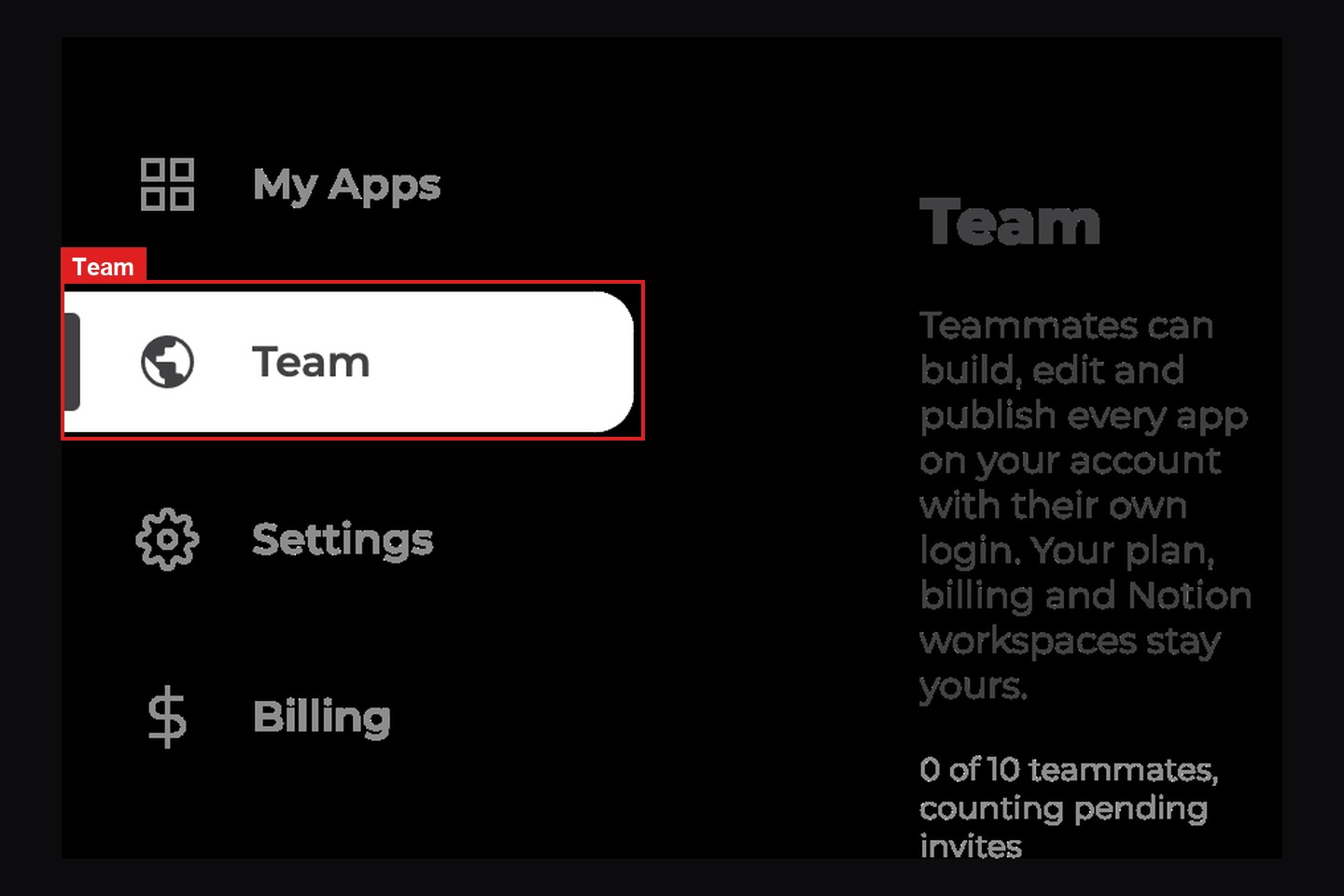
Section titled “Step 1: Open the Team page”On the NotionApps home screen, click Team in the left sidebar, just below My Apps.
The page is titled Team. The owner sees: "Teammates can build, edit and publish every app on your account with their own login. Your plan, billing and Notion workspaces stay yours."
A seat line shows how many people are on the team, for example 0 of 10 teammates, counting pending invites.
Step 2: Invite teammates
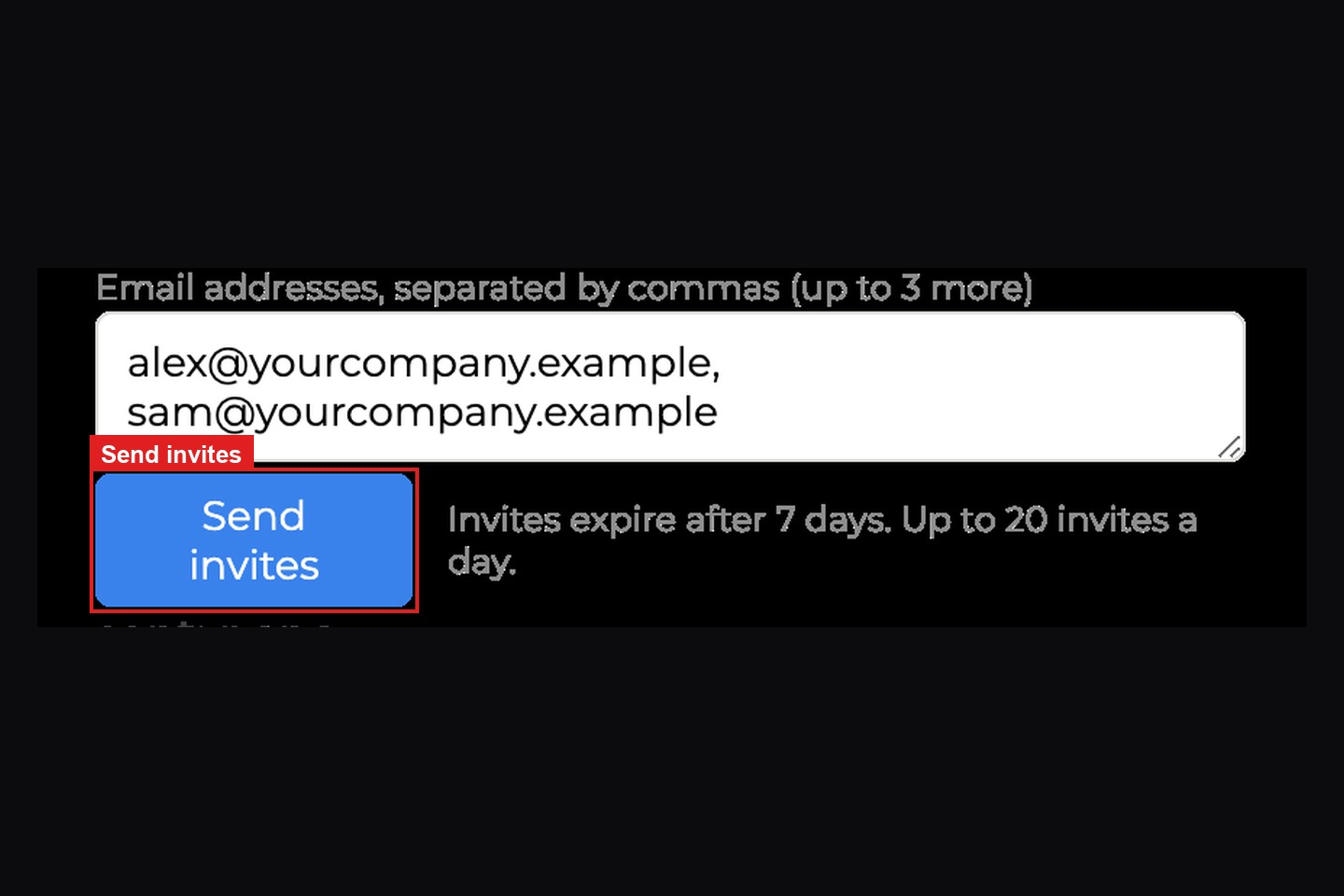
Section titled “Step 2: Invite teammates”In Invite teammates, type one or more email addresses. Separate them with commas, spaces, semicolons, or new lines. You can invite up to 10 people at once.
Click Send invites. The helper under the button says Invites expire after 7 days. Up to 20 invites a day.
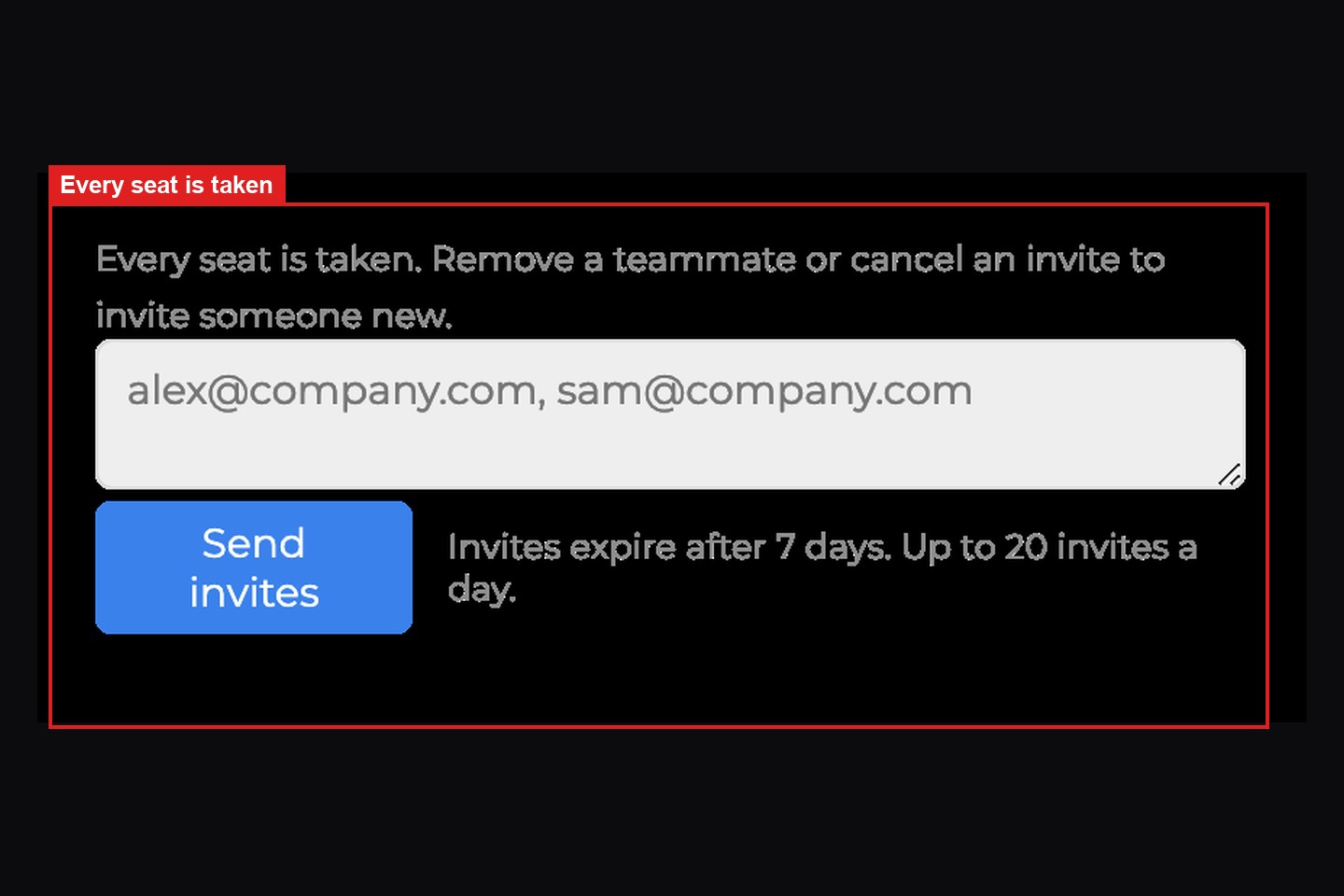
When every seat is taken, the field is disabled and the page says Every seat is taken. Remove a teammate or cancel an invite to invite someone new.
Each person gets an email from NotionApps. The subject is [owner] invited you to build apps on NotionApps. The email heading is You're invited to build apps together, and the button is Accept invite.
Step 3: Track pending invites
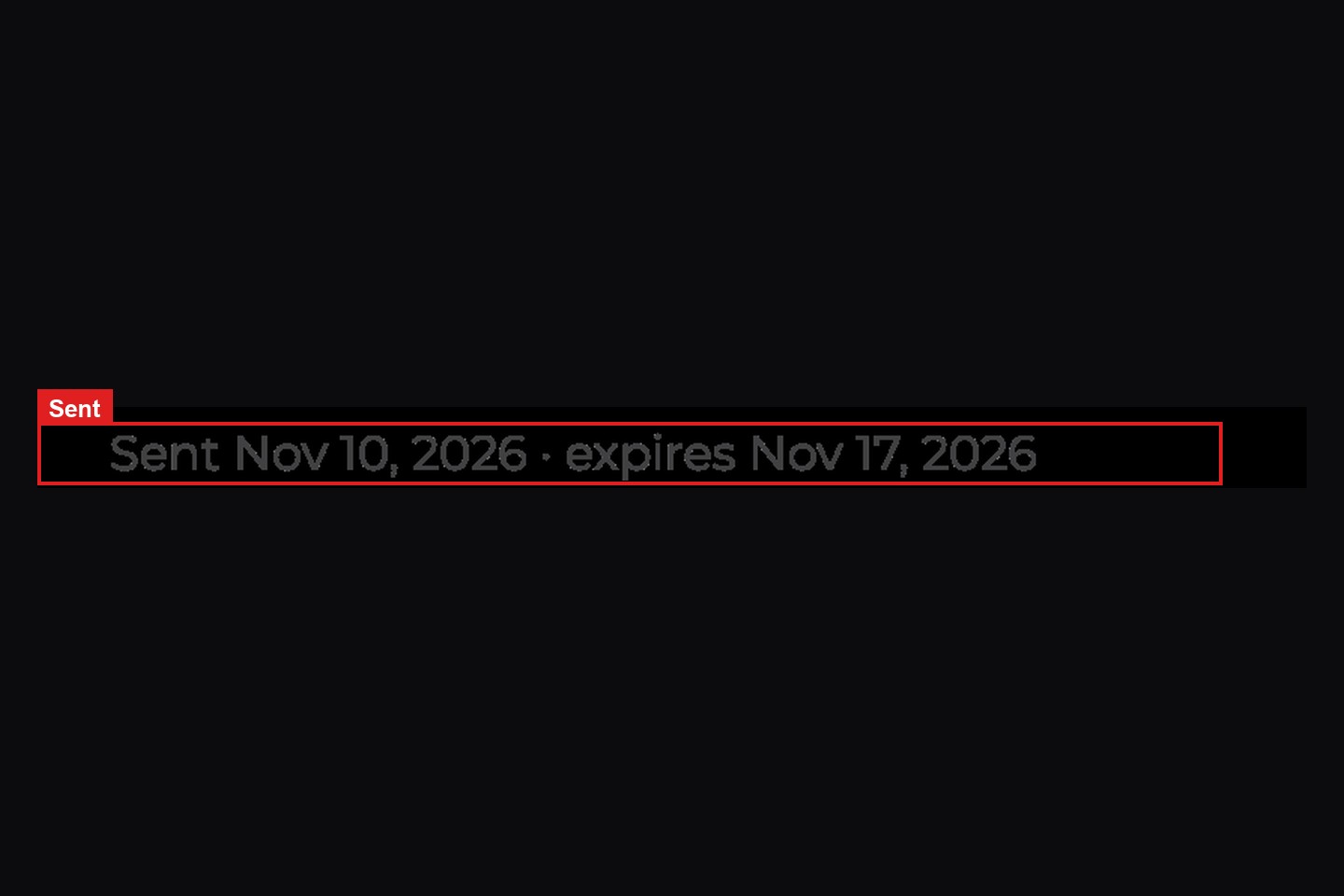
Section titled “Step 3: Track pending invites”Invites that haven't been accepted appear under Pending invites. A pending invite shows when it was sent and when it expires, for example Sent Nov 10, 2026 · expires Nov 17, 2026.
- Resend sends the email again and gives the invite another 7 days. The link stays the same.
- Cancel invite stops the link from working. The confirm line is
Cancel the invite to [email]?, with Keep and Cancel invite.
If an invite runs out, it moves to Expired invites for the last 30 days. Click Invite again to send a fresh one. You also get an email the day before an invite expires.
Other status lines you may see:
Not sent yet · expires Nov 17, 2026Email not delivered · expires Nov 17, 2026
Step 4: Accept an invite (teammate)
Section titled “Step 4: Accept an invite (teammate)”The teammate opens the invite email and clicks Accept invite.
The invite page is titled Join [owner]'s team and shows the email address the invite is for. What happens next depends on the teammate's login:
- No NotionApps login yet: click Create login and sign up with Google or with an email and password, using the invited address. You won't be asked to pick a plan. The page also offers I already have a login.
- Already has a login, and you're signed out: click Sign in to accept. The page says whether that address signs in with Google or with a password.
- Already signed in with that address: click Accept invite. Not now leaves without joining.
After joining, the teammate lands on the owner's My Apps.
Signed in with a different email?
Section titled “Signed in with a different email?”The invite only works for the address it was sent to. If you're signed in as someone else, the page says so. Click Sign out and use [invited email], then sign in with the invited address.
If the link is dead, the page says Invite not available. If NotionApps can't be reached, it says We couldn't reach NotionApps to load your invite. Check your connection and try again. and offers Try again.
Step 5: Build in the owner's account
Section titled “Step 5: Build in the owner's account”A teammate sees all of the owner's apps and can create, edit, save, duplicate, delete and publish them, use templates, Build with AI, integrations, and uploads. The teammate uses the Notion workspaces the owner has connected.
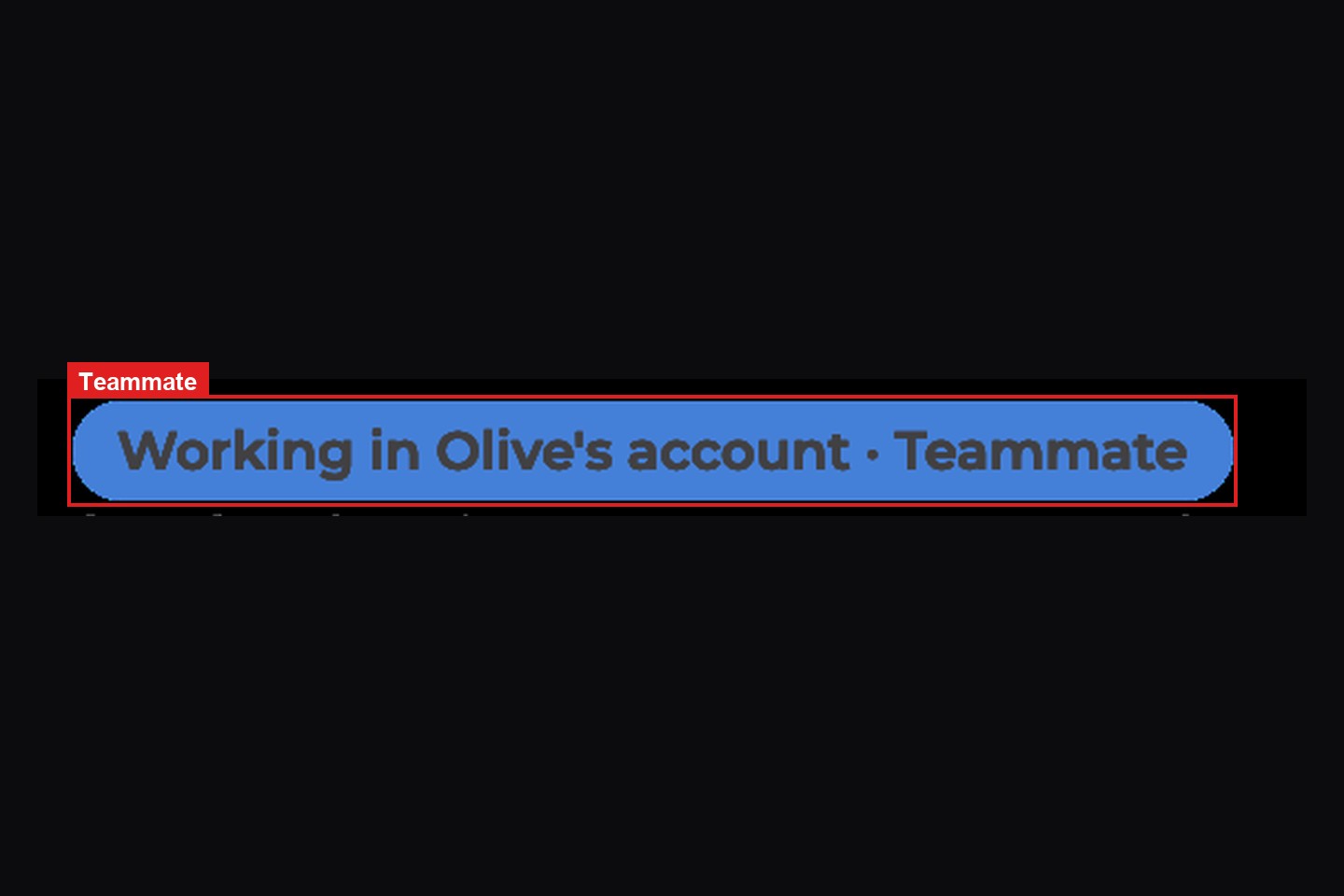
A label at the top of the home screen and the builder shows which account you're in, for example Working in Olive's account · Teammate. The badge is hidden when you're in your own account.
In the builder, the top bar also shows who saved the app last, as Last saved by [email] · [time], or Last saved by you when you saved it.
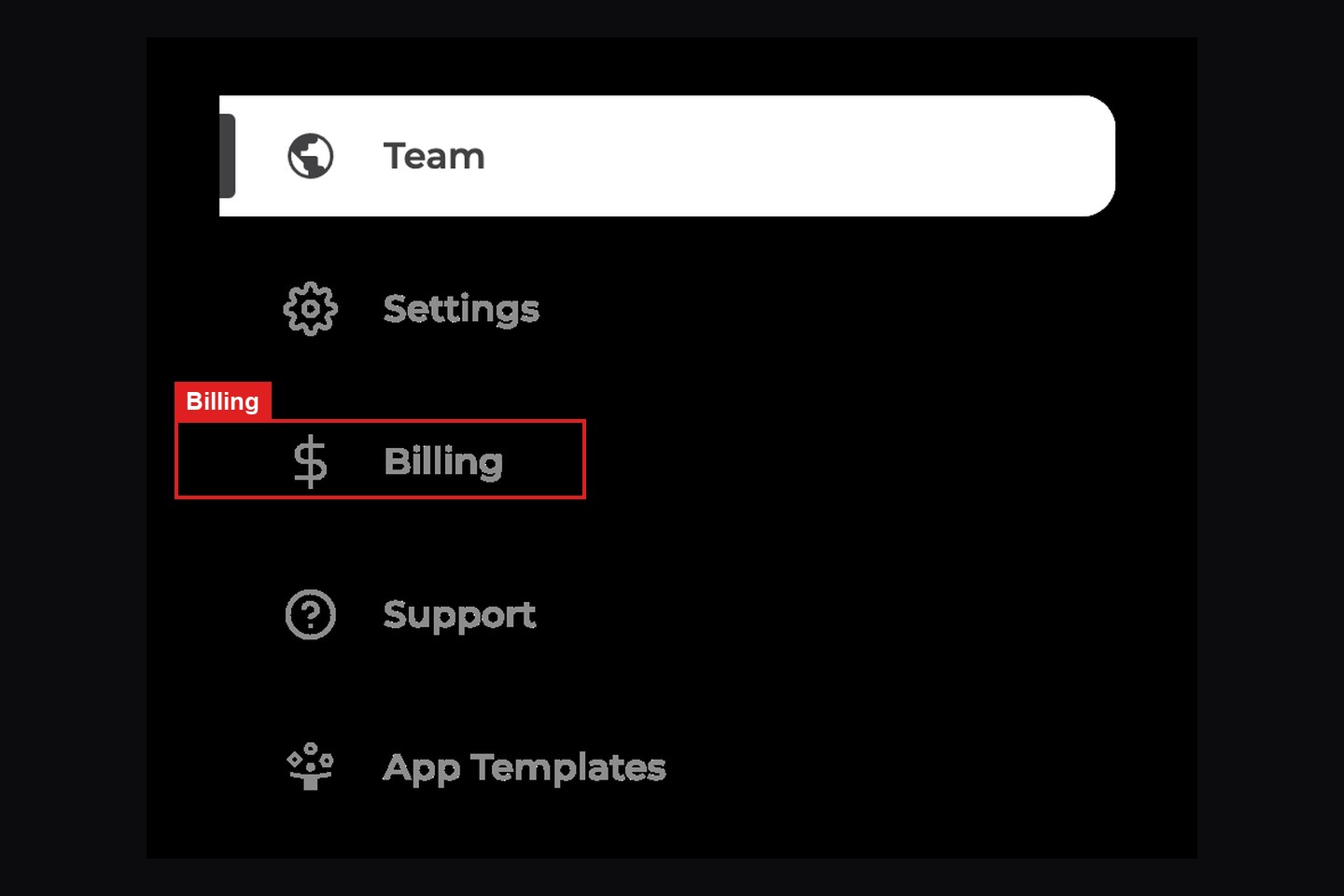
Billing, the plan and upgrade controls, Manage workspaces, Connect new workspace, workspace delete, and Delete account stay with the owner. A teammate's sidebar has Team and does not have Billing.
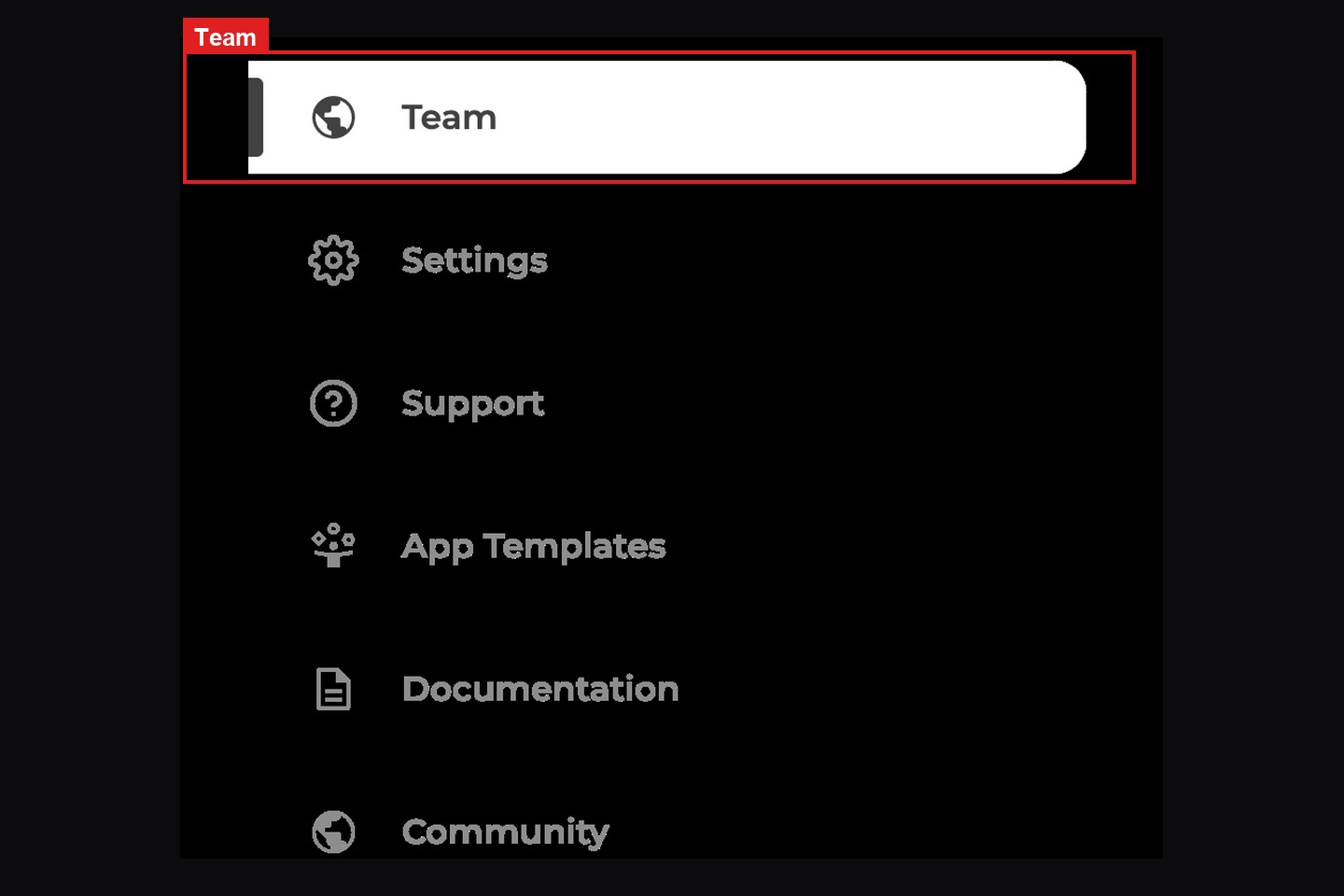
The owner's sidebar still has Billing under Settings.
Step 6: Switch between accounts
Section titled “Step 6: Switch between accounts”If you have your own account and are also a teammate somewhere, open the account menu at the top right of the home screen. Under Switch account, pick Your account or another owner's account. Rows read Owner · [n] apps or Teammate · [email] · [n] apps. Your apps stay on the account where you built them.
The account switcher appears only when you belong to two or more accounts, and only on the home screen. It's different from switching Notion workspaces, which changes the apps shown within one account.
When two people edit the same app
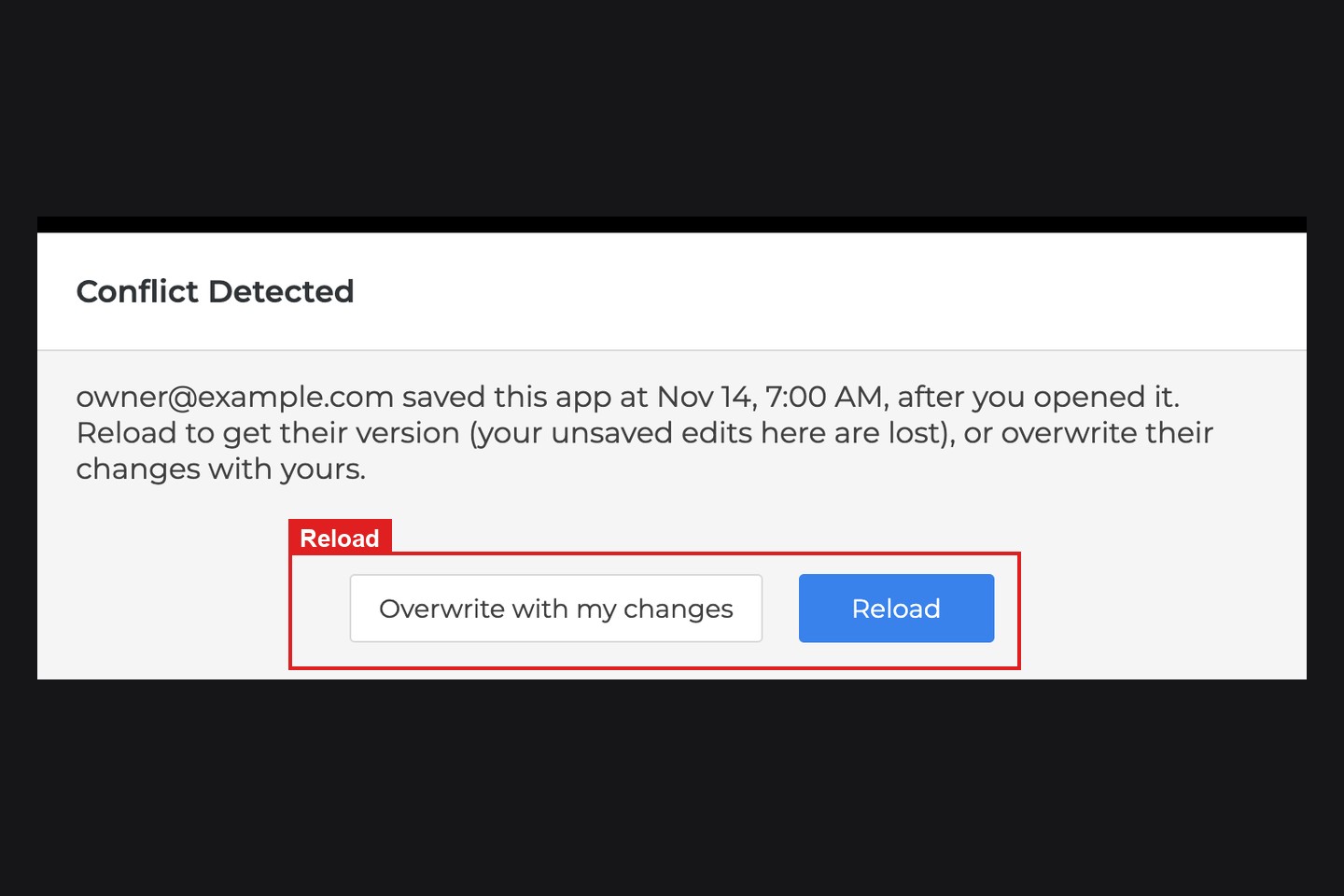
Section titled “When two people edit the same app”Only one version of an app is saved at a time. If someone saves an app after you opened it, your next save shows Conflict Detected with who saved and when. For example: owner@example.com saved this app at Nov 14, 7:00 AM, after you opened it. Reload to get their version (your unsaved edits here are lost), or overwrite their changes with yours.
- Reload loads their version. Your unsaved edits in this tab are lost.
- Overwrite with my changes saves your version over theirs. That button is there when the server returns a version.
There is no live co-editing and no presence indicator. To avoid conflicts, agree who is editing which app, and reload before you start.
Remove a teammate (owner)
Section titled “Remove a teammate (owner)”On the Team page, find the person under Members and click Remove. The confirm line is Remove [email]?, with Keep and Remove. It is inline on the row, not a separate window.
They lose access right away and get an email. Apps they built stay on your account, and their open support tickets move to you.
Leave an account (teammate)
Section titled “Leave an account (teammate)”On the Team page of the account you want to leave, the card is Leave this account. Click Leave account. The confirm line is Leave this account?, with Keep and Leave.
You lose access right away and the owner gets an email. Your own NotionApps account isn't affected.
What happens if you lose access
Section titled “What happens if you lose access”If the owner removes you or closes the account while you have an app open, the builder shows You no longer have access to this account and turns read-only. Click Copy unsaved changes to keep your recent edits, then Go to my account.
Limits
Section titled “Limits”- Inviting teammates is included on a Pro subscription and above. The free plan cannot send invites, and a Pro trial cannot send invites until it becomes a paid Pro subscription.
- There are two roles, owner and teammate. View-only access, per-app access, and more roles aren't available.
- Teammates can't change the plan or billing, delete the account, or connect or remove Notion workspaces.
- Two people can't edit the same app at the same moment. Whoever saves second sees Conflict Detected and chooses whose version to keep.
- Ownership can't be transferred in the app. Contact support.
- Inviting teammates doesn't change who can sign in to your published apps. App users still can't open the builder.
Fix problems
Section titled “Fix problems”| What you see | Why | What to do |
|---|---|---|
Inviting teammates isn't available on this account yet. | The subscription is below Pro | Subscribe to Pro or above, then invite |
Inviting teammates starts once your trial becomes a paid plan. | The account is on a Pro trial | Wait until the trial becomes a paid Pro subscription, then invite |
This account has reached its limit of 10 teammates, counting pending invites. | All seats are used | Remove someone, cancel an invite, or ask support to raise the limit |
You can send up to 20 invites a day. Try again tomorrow. | Daily invite limit reached | Wait 24 hours |
This invite is for … Sign in with that email to accept it. | Signed in with a different address | Sign out and sign in with the invited address |
This invite has expired. | More than 7 days passed | Ask the owner to click Invite again |
This invite was cancelled. | The owner cancelled it | Ask the owner for a new invite |
This invite has already been used. | Someone already accepted it | Sign in with the invited address; you may already be on the team |
| Team isn't in the sidebar | The subscription is below Pro, or the account is on a trial | Subscribe to Pro or above. A trial can still open /home?initialHomePageFeature=team |
You don't have access to this account anymore. | You were removed, or the account was closed | Switch to your own account |