Filtering, Sorting, or Grouping Items
Filtering, sorting, and grouping are powerful tools that help users find and organize data more efficiently.
Filtering allows users to narrow down a list of items based on specific criteria.
Sorting helps users arrange items in a specific order.
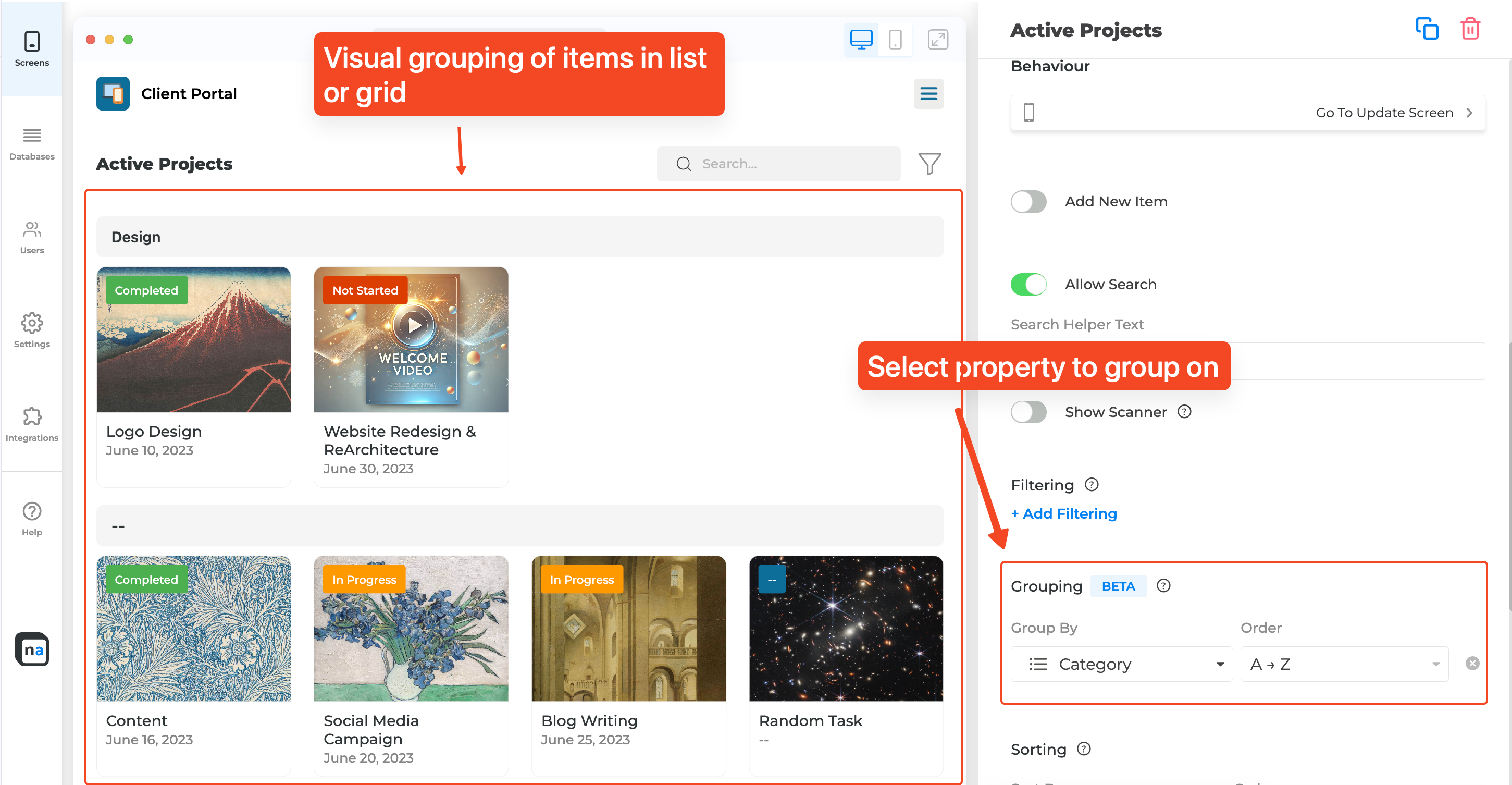
Grouping helps users visually segregate the items based on a particular property.
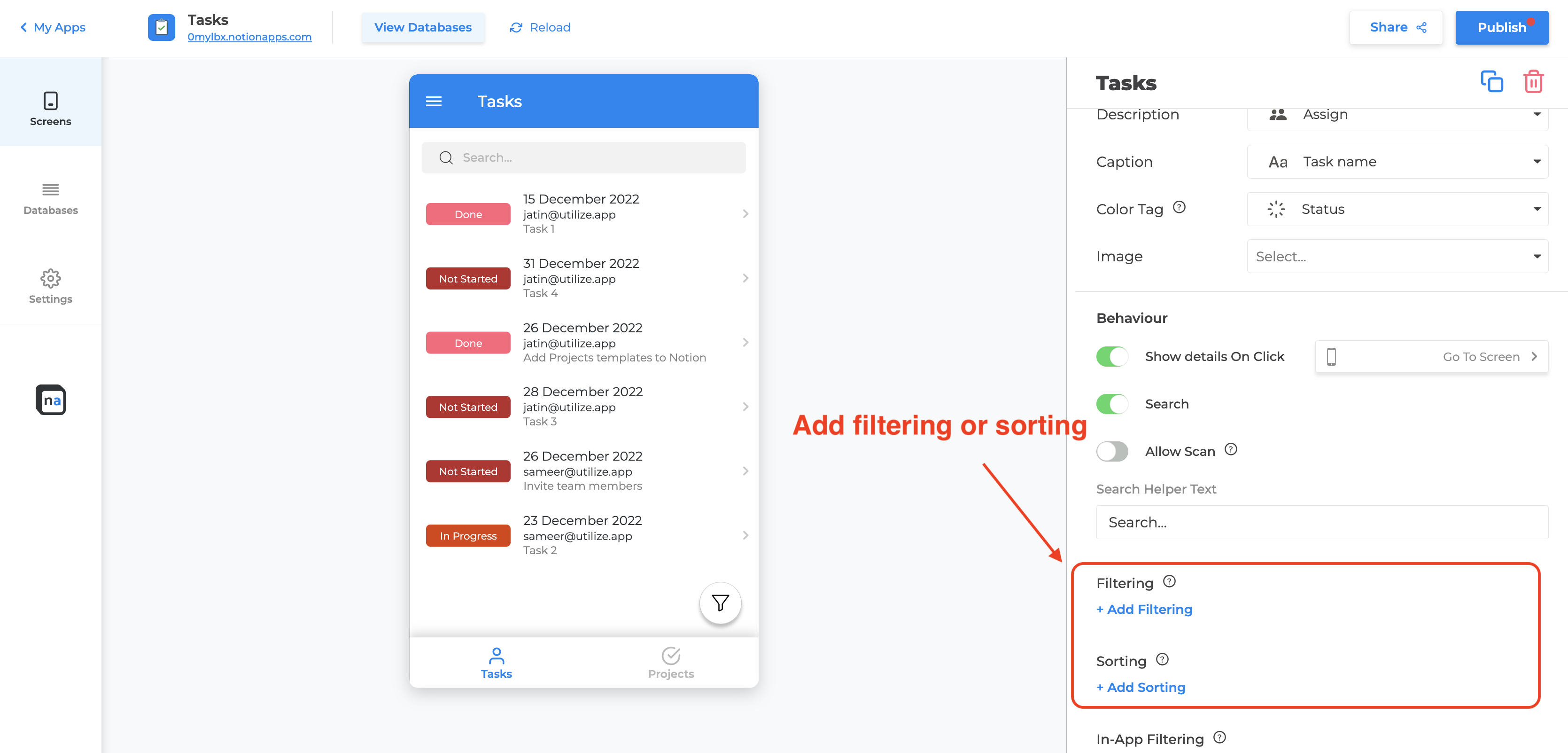
To filter or sort items, open the app builder. Go to the desired screen through the app preview. Click on “+ Add Filtering”, “+ Add Sorting”, “+ Add Grouping” to add filtering or sorting.
Filtering
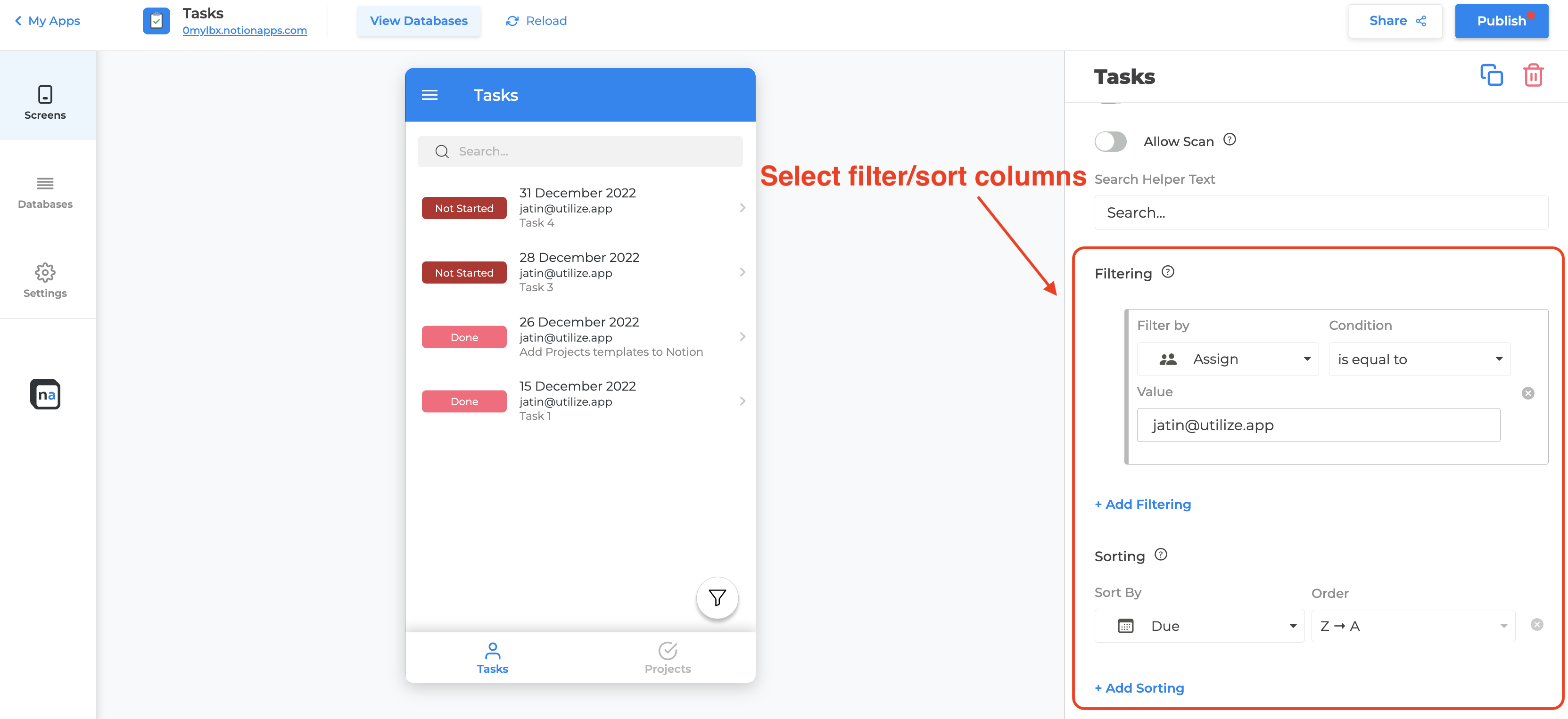
Section titled “Filtering”To add filtering, click on + Add Filtering. This adds a condition you can customize: a database column, an operator, and a value type.
Value types:
| Value type | What it compares against |
|---|---|
| Fixed value | The exact value you pick |
| Logged-in user | The signed-in Users row |
| Logged-in user property | A property on that user (Pro+; turn Allow logged-in user property filters On) |
| Current row / Current row property | The parent record on a related list |
| Today / Now / Start of week / Start of month | Clock tokens in the app timezone |
| URL parameter | A query key on the published URL (for example ?store=north) |
Click + Add group to nest conditions with and, or, or not (up to 3 levels). not inverts one child condition or group.
Maker walkthrough: Filter lists with groups and dynamic values.
Sorting
Section titled “Sorting”To add sorting, click on “+ Add Sorting”. This will add a default sort that you can customize further with the fields/columns to sort by. You can select the order, either ascending (A → Z) or descending (Z → A), for each field.
That’s it! Now can you filter or sort your items to view them in a more efficient way.
Grouping
Section titled “Grouping”To add grouping, click on “+ Add Grouping”. This will add a default group that you can customize further with the column/property to sort by. You can select the sort order, either ascending (A → Z) or descending (Z → A) for the grouping property.