Custom Font Guide
This guide explains how to use the Custom Font feature in NotionApps to apply brand typography to a published app.
Custom Font lets app builders change the typeface used in the rendered end-user app. This is useful for client-facing portals, internal tools, directories, forms, and other apps that need to match a customer or company brand.
Who This Guide Is For
Section titled “Who This Guide Is For”This guide is intended for:
- App builders who want to apply a brand font to a NotionApps app.
- Technical writers documenting app customization workflows.
- Customer success teams helping users create client-facing apps.
- Designers or developers who need the published app to match a brand system.
What the Custom Font Feature Does
Section titled “What the Custom Font Feature Does”The Custom Font feature lets you define the font family that should be used by the end-user app.
Depending on the font, you may also provide a stylesheet URL. The stylesheet URL is commonly used for web fonts from providers such as Google Fonts or for custom hosted font CSS files.
For example, if you want to use Poppins from Google Fonts, you would enter:
Font family:Poppins
Stylesheet URL:https://fonts.googleapis.com/css2?family=Poppins:wght@400;500;600;700&display=swap
When the published app renders, NotionApps loads the stylesheet URL and applies the specified font family to the end-user app.
When to Use Custom Font
Section titled “When to Use Custom Font”Use Custom Font when you want to:
- Match a client’s brand typography.
- Use a Google Font such as Poppins, Inter, Roboto, Lato, or Montserrat.
- Use a custom hosted brand font.
- Improve consistency across headings, labels, buttons, and form fields.
- Make a published app feel more polished and client-ready.
Do not use Custom Font to:
- Hide or change app behavior.
- Replace app permissions or field-level visibility.
- Load untrusted third-party resources.
- Add JavaScript or custom tracking.
Before You Begin
Section titled “Before You Begin”Before configuring a custom font, identify:
- The exact font family name.
- Whether the font is a system font, Google Font, or custom hosted font.
- The stylesheet URL, if the font is not already available on the user’s device.
- The font weights needed by the app, such as 400, 500, 600, or 700.
Add a Custom Font in the Builder
Section titled “Add a Custom Font in the Builder”To add a custom font:
- Open the app in the NotionApps builder.
- Go to the app settings area.
- Find the Custom Font section.
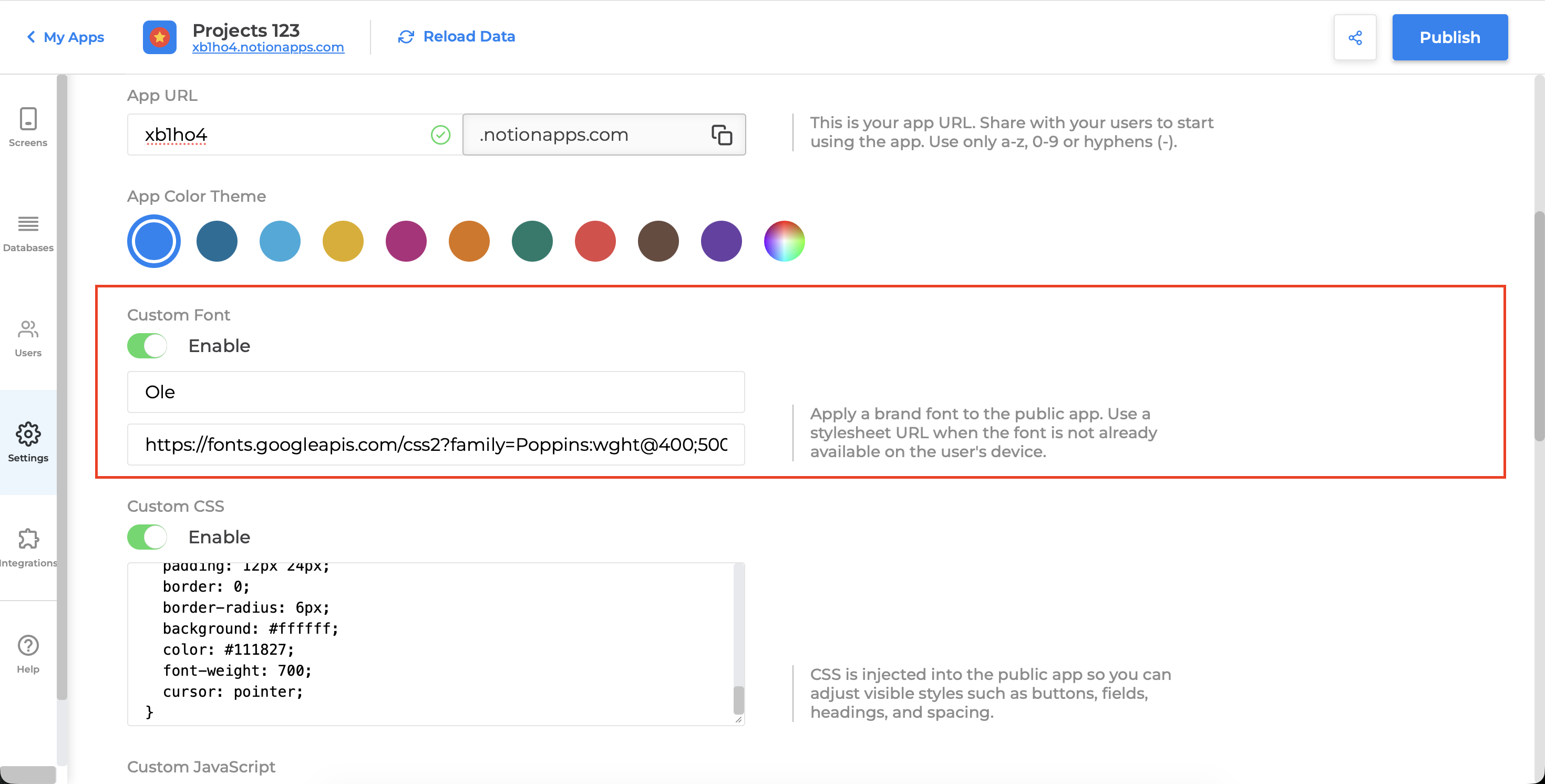
- Enable Custom Font.
- Enter the font family name.
- Enter a stylesheet URL if the font needs one.
- Save the app.
- Publish or re-publish the app.
- Open the published app and verify the font.
Understand the Custom Font Fields
Section titled “Understand the Custom Font Fields”Font Family
Section titled “Font Family”The Font Family field is the CSS font-family name that the published app should use.
Examples:
PoppinsInterArialHelvetica NeueIf the font name contains spaces, enter the normal family name in the field. NotionApps will apply it as a CSS font family.
Stylesheet URL
Section titled “Stylesheet URL”The Stylesheet URL field is optional for system fonts and required for most web fonts.
Use a stylesheet URL when the font must be loaded from the web.
Examples:
https://fonts.googleapis.com/css2?family=Poppins:wght@400;500;600;700&display=swaphttps://fonts.googleapis.com/css2?family=Inter:wght@400;500;600;700&display=swaphttps://example.com/fonts/brand-font.cssExample: Use Poppins from Google Fonts
Section titled “Example: Use Poppins from Google Fonts”Use this setup to apply Poppins throughout the published app.
Font family:Poppins
Stylesheet URL:https://fonts.googleapis.com/css2?family=Poppins:wght@400;500;600;700&display=swap
After saving and publishing, the end-user app should render text using Poppins.
Example: Use Inter from Google Fonts
Section titled “Example: Use Inter from Google Fonts”Use this setup to apply Inter.
Font family:Inter
Stylesheet URL:https://fonts.googleapis.com/css2?family=Inter:wght@400;500;600;700&display=swap
Inter is a good option for clean, modern app interfaces because it is readable at small sizes.
Example: Use Roboto from Google Fonts
Section titled “Example: Use Roboto from Google Fonts”Use this setup to apply Roboto.
Font family:Roboto
Stylesheet URL:https://fonts.googleapis.com/css2?family=Roboto:wght@400;500;700&display=swap
Roboto is a practical choice for operational apps, dashboards, and form-heavy experiences.
Example: Use a System Font
Section titled “Example: Use a System Font”System fonts do not need an external stylesheet URL.
Example:
Font family:Arial
Stylesheet URL:Leave blank
Another example:
Font family:Helvetica Neue
Stylesheet URL:Leave blank
System fonts load quickly because they are already available on the user’s device. However, the exact appearance can vary by operating system.
Example: Use a Custom Hosted Brand Font
Section titled “Example: Use a Custom Hosted Brand Font”If a customer has a brand font hosted in a CSS file, enter the font family and the CSS file URL.
Example:
Font family:Acme Sans
Stylesheet URL:https://assets.example.com/fonts/acme-sans.css
The CSS file should define the font with @font-face.
Example hosted CSS:
@font-face {  font-family: "Acme Sans";  src: url("https://assets.example.com/fonts/acme-sans-regular.woff2") format("woff2");  font-weight: 400;  font-style: normal;  font-display: swap;}
@font-face { font-family: "Acme Sans"; src: url("https://assets.example.com/fonts/acme-sans-semibold.woff2") format("woff2"); font-weight: 600; font-style: normal; font-display: swap;}Choosing Font Weights
Section titled “Choosing Font Weights”Most apps need a small set of font weights:
| Weight | Common Use |
|---|---|
| 400 | Normal body text |
| 500 | Medium emphasis, labels, subtle headings |
| 600 | Buttons, section headings, stronger labels |
| 700 | Strong headings or bold emphasis |
For Google Fonts, include the needed weights in the URL.
Example:
https://fonts.googleapis.com/css2?family=Poppins:wght@400;500;600;700&display=swapAvoid loading too many weights. More weights can increase page load time.
Use Custom Font with Custom CSS
Section titled “Use Custom Font with Custom CSS”The Custom Font feature applies the selected font broadly to the end-user app. If you need more control, combine Custom Font with Custom CSS.
For example, you may want headings to use one font and body text to use another.
Custom Font:
Font family:Inter
Stylesheet URL:https://fonts.googleapis.com/css2?family=Inter:wght@400;500;600;700&display=swap
Custom CSS:
[data-notionapps-end-user-root="true"] {  font-family: "Inter", sans-serif;}
[data-notionapps-end-user-root="true"] h1,[data-notionapps-end-user-root="true"] h2,[data-notionapps-end-user-root="true"] h3 {  font-weight: 700;}
[data-notionapps-end-user-root="true"] button,[data-notionapps-end-user-root="true"] [role="button"] {  font-weight: 600;}
Apply the Font to All Elements with Custom CSS
Section titled “Apply the Font to All Elements with Custom CSS”If some nested elements do not appear to use the custom font, use Custom CSS to reinforce the font family:
[data-notionapps-end-user-root="true"],[data-notionapps-end-user-root="true"] * { font-family: "Poppins", sans-serif !important;}Use this only when needed. In many cases, the Custom Font setting is enough.
Style Headings with the Custom Font
Section titled “Style Headings with the Custom Font”Use Custom CSS if headings should have a specific weight or size:
[data-notionapps-end-user-root="true"] h1,[data-notionapps-end-user-root="true"] h2,[data-notionapps-end-user-root="true"] h3 { font-family: "Poppins", sans-serif; font-weight: 700;}Style Buttons with the Custom Font
Section titled “Style Buttons with the Custom Font”Use Custom CSS to make buttons use a specific weight:
[data-notionapps-end-user-root="true"] button,[data-notionapps-end-user-root="true"] [role="button"] { font-family: "Poppins", sans-serif; font-weight: 600;}Style Inputs with the Custom Font
Section titled “Style Inputs with the Custom Font”Use Custom CSS to make form fields match the selected font:
[data-notionapps-end-user-root="true"] input,[data-notionapps-end-user-root="true"] textarea,[data-notionapps-end-user-root="true"] select { font-family: "Poppins", sans-serif;}Verify That the Font Loaded
Section titled “Verify That the Font Loaded”After saving and publishing, open the published app and check the result.
Visual Check
Section titled “Visual Check”Confirm that headings, labels, buttons, and form fields visually match the selected font.
Browser DevTools Check
Section titled “Browser DevTools Check”Open browser DevTools and inspect a text element.
In the Computed styles panel, look for:
font-familyThe selected custom font should appear in the computed font stack.
Page Head Check
Section titled “Page Head Check”If a stylesheet URL was used, inspect the page head and confirm that a stylesheet link appears.
Example:
<link rel="stylesheet" href="https://fonts.googleapis.com/css2?family=Poppins...">Network Check
Section titled “Network Check”In DevTools, open the Network tab and reload the page.
Look for:
- The stylesheet CSS file.
- Font files such as
.woff2. - Successful status codes, usually
200.
Troubleshooting
Section titled “Troubleshooting”The Font Does Not Change
Section titled “The Font Does Not Change”Check the following:
- Custom Font is enabled.
- The app was saved after editing the font settings.
- The app was re-published.
- The published app was hard-refreshed.
- The font family name is spelled correctly.
- The stylesheet URL is valid.
- The stylesheet URL uses HTTPS.
The Stylesheet URL Loads but the Font Does Not Apply
Section titled “The Stylesheet URL Loads but the Font Does Not Apply”The font family name may not match the font-family defined by the stylesheet.
For example, this Google Fonts URL loads Poppins:
https://fonts.googleapis.com/css2?family=Poppins:wght@400;500;600;700&display=swapThe Font Family field should be:
PoppinsDo not enter a different name such as:
Poppins RegularThe Font Looks Too Thin or Too Bold
Section titled “The Font Looks Too Thin or Too Bold”The needed font weight may not be loaded.
If buttons use weight 600, make sure the URL includes 600.
Example:
https://fonts.googleapis.com/css2?family=Poppins:wght@400;500;600;700&display=swapOnly Some Text Uses the Font
Section titled “Only Some Text Uses the Font”Some components may have more specific styles. Add Custom CSS:
[data-notionapps-end-user-root="true"],[data-notionapps-end-user-root="true"] * { font-family: "Poppins", sans-serif !important;}The Font Works Locally but Not in Production
Section titled “The Font Works Locally but Not in Production”Check whether:
- The font stylesheet is publicly accessible.
- The URL uses HTTPS.
- The font host allows the browser to load the font.
- The stylesheet URL does not require authentication.
- The app has been re-published after the font change.
The Font Works on Desktop but Not Mobile
Section titled “The Font Works on Desktop but Not Mobile”Check the mobile browser’s Network tab if possible. Some issues are caused by blocked font files, slow network loading, or unsupported font formats.
Prefer .woff2 for custom hosted fonts.
Performance Best Practices
Section titled “Performance Best Practices”Fonts affect page load performance. To keep the app fast:
- Load only the weights you need.
- Prefer
.woff2for custom hosted fonts. - Use
font-display: swapin custom@font-facedefinitions. - Avoid loading several unrelated font families.
- Use system fonts when performance matters more than exact branding.
Accessibility Best Practices
Section titled “Accessibility Best Practices”When choosing a custom font:
- Use a readable font for body text.
- Avoid overly decorative fonts for forms, tables, or record lists.
- Make sure text remains legible at small sizes.
- Use adequate color contrast with the selected font.
- Test on mobile and desktop.
Recommended Font Setup Examples
Section titled “Recommended Font Setup Examples”Clean SaaS Style
Section titled “Clean SaaS Style”Font family:Inter
Stylesheet URL:https://fonts.googleapis.com/css2?family=Inter:wght@400;500;600;700&display=swapFriendly Client Portal
Section titled “Friendly Client Portal”Font family:Poppins
Stylesheet URL:https://fonts.googleapis.com/css2?family=Poppins:wght@400;500;600;700&display=swapOperational Internal Tool
Section titled “Operational Internal Tool”Font family:Roboto
Stylesheet URL:https://fonts.googleapis.com/css2?family=Roboto:wght@400;500;700&display=swapFast System Font Setup
Section titled “Fast System Font Setup”Font family:Arial
Stylesheet URL:Leave blankAuthoring Checklist
Section titled “Authoring Checklist”Before publishing, confirm:
- Custom Font is enabled.
- The Font Family value is correct.
- The Stylesheet URL is correct, if required.
- The app has been saved.
- The app has been re-published.
- The published app visually uses the selected font.
- DevTools shows the expected
font-family. - The Network tab shows the stylesheet and font files loading successfully.
Summary
Section titled “Summary”The Custom Font feature helps app builders make published NotionApps apps feel more polished and on-brand. For most web fonts, enter the exact font family name and a valid stylesheet URL. For system fonts, enter the font family and leave the stylesheet URL blank. After saving and publishing, verify the result in the end-user app with a visual check and browser DevTools.
Builder options at a glance
Section titled “Builder options at a glance”This guide teaches a focused maker workflow. For the full screen option inventory (What it does / How to use / Why) and annotated builder screenshots, use the matching Types of Screens guide:
- Data screens: List (View Items), Details, Form (Add Item), Form (Update One Item), List (Update Items), Content
- Everyday chrome / Queue & activity: see the Types of Screens index
- Automation native screens: Native Automation Screens
Recommended defaults
Section titled “Recommended defaults”- Change one option family at a time, then publish and test on phone and desktop.
- Prefer screen-level settings in Content / Behaviour / Appearance before custom CSS/JS.
- Keep public access and navigation visibility intentional on every screen you link from this guide.