Operator Console Screen
Current state: this native screen is part of Automation. It is entitlement-gated, uses NotionApps runtime state instead of ordinary Notion data controls, and should be tested with realistic workflow or messaging activity before a maker relies on it in production.
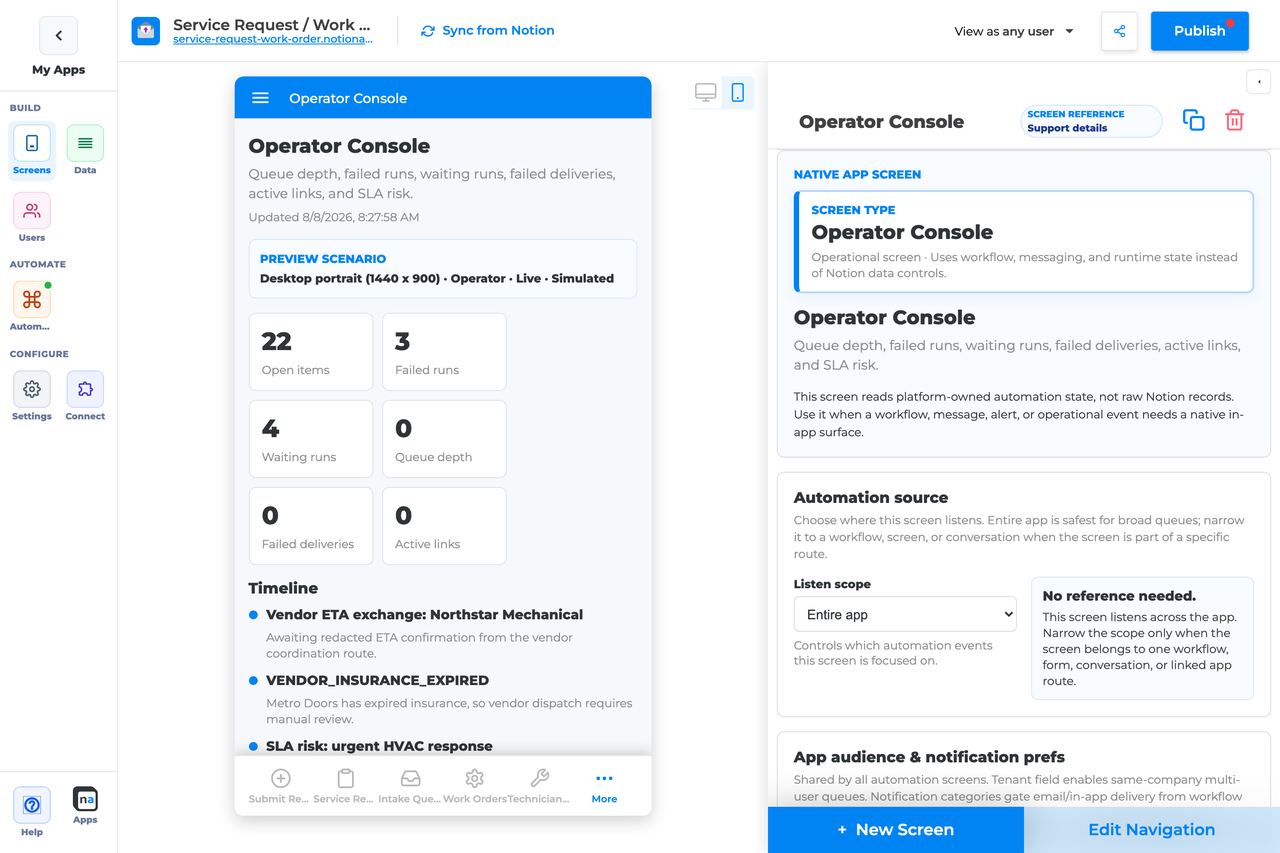
The Operator Console screen is a high-level operational dashboard for runs, queue depth, failures, messages, and audit activity.
Think of this screen as A cockpit for app owners and operators — mostly read-only oversight.
Who This Guide Is For
Section titled “Who This Guide Is For”This guide is for makers configuring an Operator Console screen in the app builder. It lists every builder option available on the screen and explains how to use each one.
Use this guide when:
- Owners need a single place to monitor automation health.
- Support needs queue depth, failures, and recent activity at a glance.
What The Screen Is For
Section titled “What The Screen Is For”Use Operator Console when
Section titled “Use Operator Console when”- Owners need a single place to monitor automation health.
- Support needs queue depth, failures, and recent activity at a glance.
Do not use it when
Section titled “Do not use it when”- Day-to-day claiming of work — use Work Queue.
- Approving items — use Decision.
- Deep run debugging for one process — use Workflow Status / Exception Resolution.
What Users See In The Live App
Section titled “What Users See In The Live App”- Operational summary cards (runs, failures, queue pressure, messaging activity).
- Recent audit / activity when timeline is enabled.
- Read-only by default (no claim/complete/decision buttons).
| Default | Value |
|---|---|
| Default listen scope | Entire app |
| Require claim before action | Off (not used) |
| Default preview persona / state | Operator / Live |
| Empty title | No operations data yet |
| Empty description | Workflow, messaging, and automation activity appears after the app is used. |
Required Foundations
Section titled “Required Foundations”| Requirement | Why it matters |
|---|---|
| Automation screen entitlement | Operator Console appears in the Automation / Operational group. |
| Workflow and Messaging | Primary foundation for this screen’s runtime state. |
| Private app + Users database (recommended) | Role/tenant visibility and audience policy need user fields. |
Complete Builder Options Reference
Section titled “Complete Builder Options Reference”The sections below follow the builder order. Each option is explained in prose so makers can configure an operator-facing oversight surface that stays readable, appropriately restricted, and intentionally read-only.
Header and screen type
Section titled “Header and screen type”This section defines the console at a glance. Operator Console should feel like a high-level monitoring cockpit, not a work queue and not a single-run detail page.
Screen type
Section titled “Screen type”What it does: Sets the native behavior to Operator Console, which renders aggregate operational runtime state instead of ordinary data rows or direct action items.
How to use it: Keep the screen type as Operator Console. Pair it with Workflow Status, Work Queue, or Exception Resolution for the action screens that sit beside it.
Why / recommended default: The console works best as oversight. Trying to turn it into the place where everything also gets done usually makes it harder to monitor anything well.
Category
Section titled “Category”What it does: Places the screen in the native Automation or Operational grouping.
How to use it: Keep the built-in grouping and position the console near the top-level operations navigation.
Why / recommended default: Clear organization helps the console serve as the entry point for operators.
What it does: Sets the user-facing title shown in navigation and on the page.
How to use it: Use names like Operator console, Operations overview, or Automation health.
Why / recommended default: The title should signal oversight and monitoring, not case-by-case work.
Description
Section titled “Description”What it does: Adds helper text beneath the title.
How to use it: Explain that the screen shows overall runs, failures, queue pressure, and recent activity.
Why / recommended default: Good description text helps first-time users understand why they are here before they go deeper elsewhere.
Automation source
Section titled “Automation source”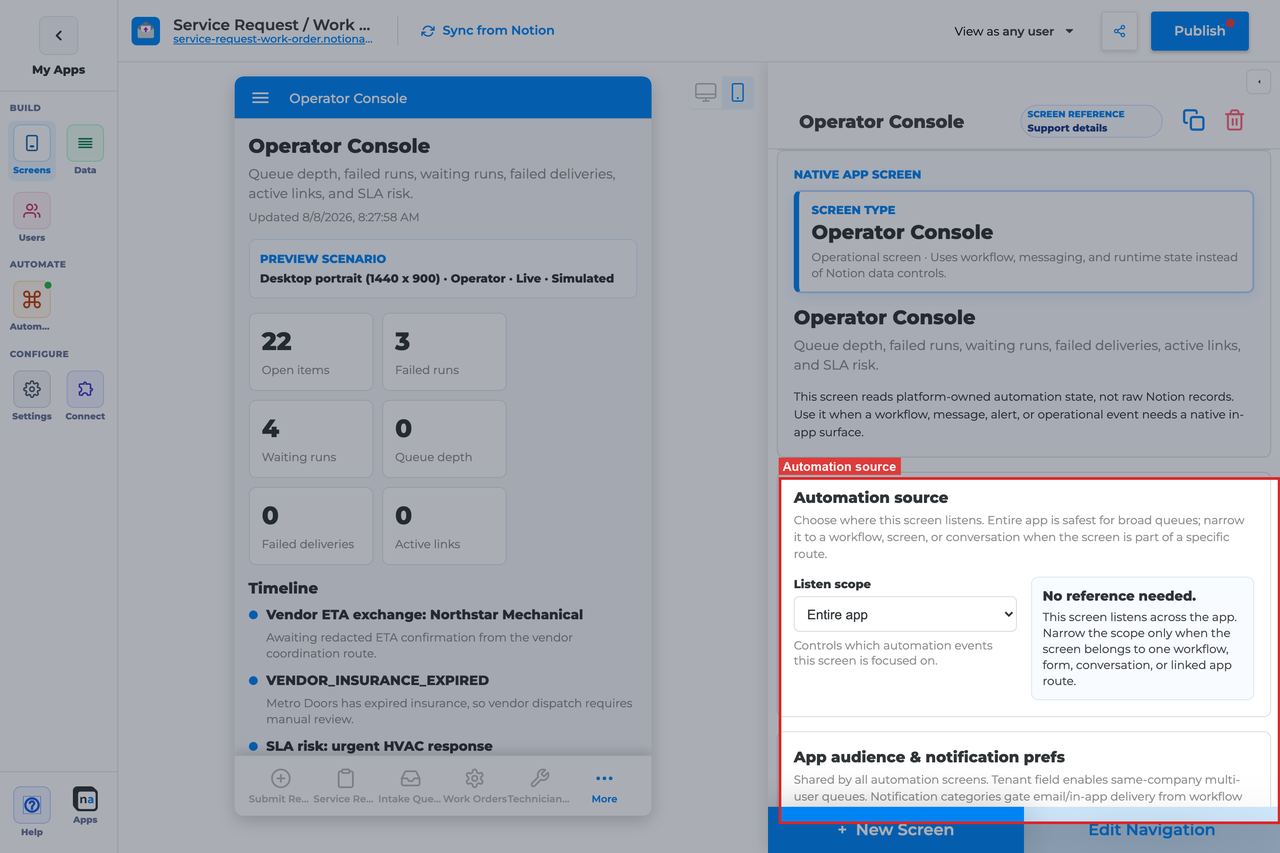
This section decides how broad the console is. Most consoles start broad because they are meant to show app-wide health, but focused consoles also make sense for large apps with several operating teams.
Listen scope
Section titled “Listen scope”What it does: Chooses the high-level runtime source shown in the console.
How to use it: Use Entire app for a true top-level operations console. Use Specific workflow when one team only needs oversight for one process family.
Why / recommended default: Entire app is the usual default because the screen is meant for overview. Narrower scope becomes useful when the app is large enough that one console would otherwise be noisy.
Source screen or form
Section titled “Source screen or form”What it does: Binds the console to one local source surface when that scope is selected.
How to use it: Use this only when one intake area needs its own localized operational view.
Why / recommended default: Most consoles are broader than one intake surface.
Workflow
Section titled “Workflow”What it does: Filters the console to one workflow when Specific workflow is selected.
How to use it: Pick the published workflow the operator team owns.
Why / recommended default: A workflow-specific console can be much easier to read than an app-wide one in large, busy apps.
Messaging channel
Section titled “Messaging channel”What it does: Narrows the messaging-related operational view to one channel.
How to use it: Use it only when operators need to monitor one message stream closely.
Why / recommended default: Channel filtering is optional and should reflect a real operations use case, not habit.
What it does: Narrows message-linked context to one topic.
How to use it: Use it when the operator team only cares about a specific class of events within a channel.
Why / recommended default: Topic filtering can reduce noise, but it can also hide important signals if applied too early.
Conversation or correlation
Section titled “Conversation or correlation”What it does: Limits the console to one case or one thread context.
How to use it: Use this only for embedded oversight inside a case-specific experience.
Why / recommended default: Most operator consoles should remain broad and reusable.
Linked application
Section titled “Linked application”What it does: Binds the console to a linked NotionApps application when ops teams need cross-app oversight.
How to use it: Choose it only when partner-app traffic is a meaningful part of what the console should show.
Why / recommended default: Cross-app scope can be powerful, but it is not the standard starting point.
App audience and notification prefs
Section titled “App audience and notification prefs”These app-level settings matter because the console is often one of the most privileged screens in the app and may still need to respect tenant and role boundaries.
Tenant mode
Section titled “Tenant mode”What it does: Decides whether operational visibility is isolated by tenant relation.
How to use it: Use Relation when delegated operators should only see their own tenant’s activity. Use Off only for truly centralized or single-tenant internal ops.
Why / recommended default: Broad ops visibility is not always appropriate. Tenant-aware consoles are safer in shared portal environments.
Tenant field
Section titled “Tenant field”What it does: Selects the Users-sheet relation that defines tenant membership.
How to use it: Use the same tenant field the rest of the app relies on.
Why / recommended default: Consistency prevents the console from being the one screen that behaves unexpectedly.
Role field
Section titled “Role field”What it does: Tells the platform which field stores a user’s role when it is not named Role.
How to use it: Set it only for custom user schemas.
Why / recommended default: Role-driven console access depends on this being correct.
Notification categories
Section titled “Notification categories”What it does: Maps categories to user preference fields for the wider app-level notice system.
How to use it: Configure only the categories that really matter to the operations audience.
Why / recommended default: Clean policy keeps the broader operational experience easier to reason about.
Add notification category
Section titled “Add notification category”What it does: Adds another category row.
How to use it: Add one only when a real notification pathway exists.
Why / recommended default: Unused categories increase policy complexity without adding value.
Save audience policy
Section titled “Save audience policy”What it does: Saves tenant and category policy at the app level.
How to use it: Save before retesting console visibility as another persona.
Why / recommended default: Unsaved policy can make a healthy console look broken.
Template setup state
Section titled “Template setup state”This diagnostic section is especially helpful after templates are cloned or demo apps are repaired.
Setup state indicator
Section titled “Setup state indicator”What it does: Reports whether the native screen bindings are provisioned, need review, or have no setup report.
How to use it: Treat Needs review as a prompt to re-check the broad operational bindings before trusting the console.
Why / recommended default: A console with broken bindings can look deceptively calm because “nothing is happening” is also a valid quiet state.
Related context
Section titled “Related context”This read-only panel helps you find the screens and workflows operators may need when they leave the console to investigate.
Related context panel
Section titled “Related context panel”What it does: Shows discovery counts and related runtime objects.
How to use it: Use it to locate Workflow Status, Exception Resolution, Work Queue, and messaging surfaces that belong with the console.
Why / recommended default: Strong operational navigation starts with knowing what related surfaces already exist.
Visibility and access
Section titled “Visibility and access”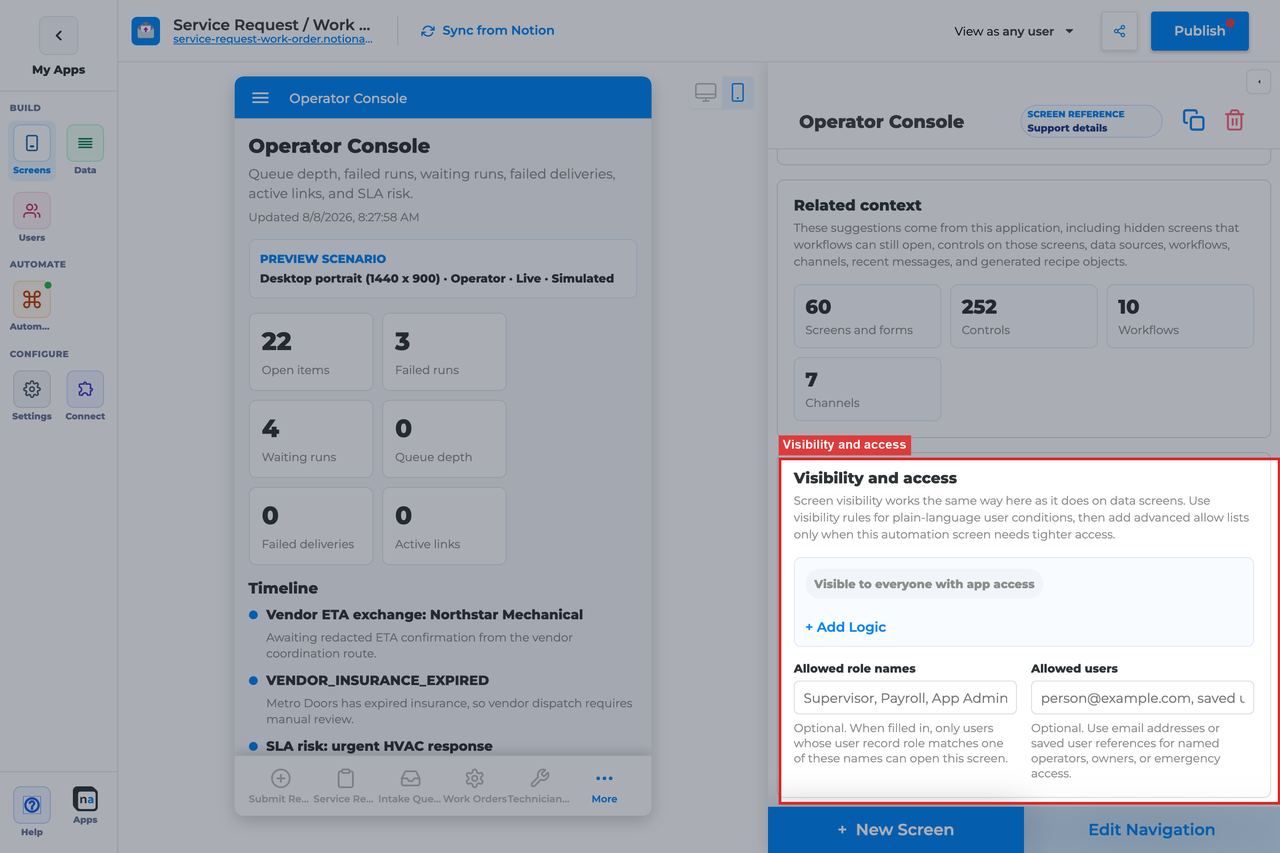
Operator Console should usually be restricted to admins and operators. It is a broad operational window into the app.
Visibility rules
Section titled “Visibility rules”What it does: Applies condition-based screen visibility.
How to use it: Restrict the screen with role, tenant, or team-based conditions so only the right operators can open it.
Why / recommended default: Broad visibility here can reveal more operational detail than many teams realize.
Allowed role names
Section titled “Allowed role names”What it does: Adds a direct role allow list.
How to use it: Use focused roles like Operator, Admin, Support Lead.
Why / recommended default: A short role list is usually the clearest access model for a console.
Allowed users
Section titled “Allowed users”What it does: Grants access to specific named people.
How to use it: Use for pilots or named operational owners, not as the long-term primary access model.
Why / recommended default: Individual exceptions are best kept rare and deliberate.
Display and action policy
Section titled “Display and action policy”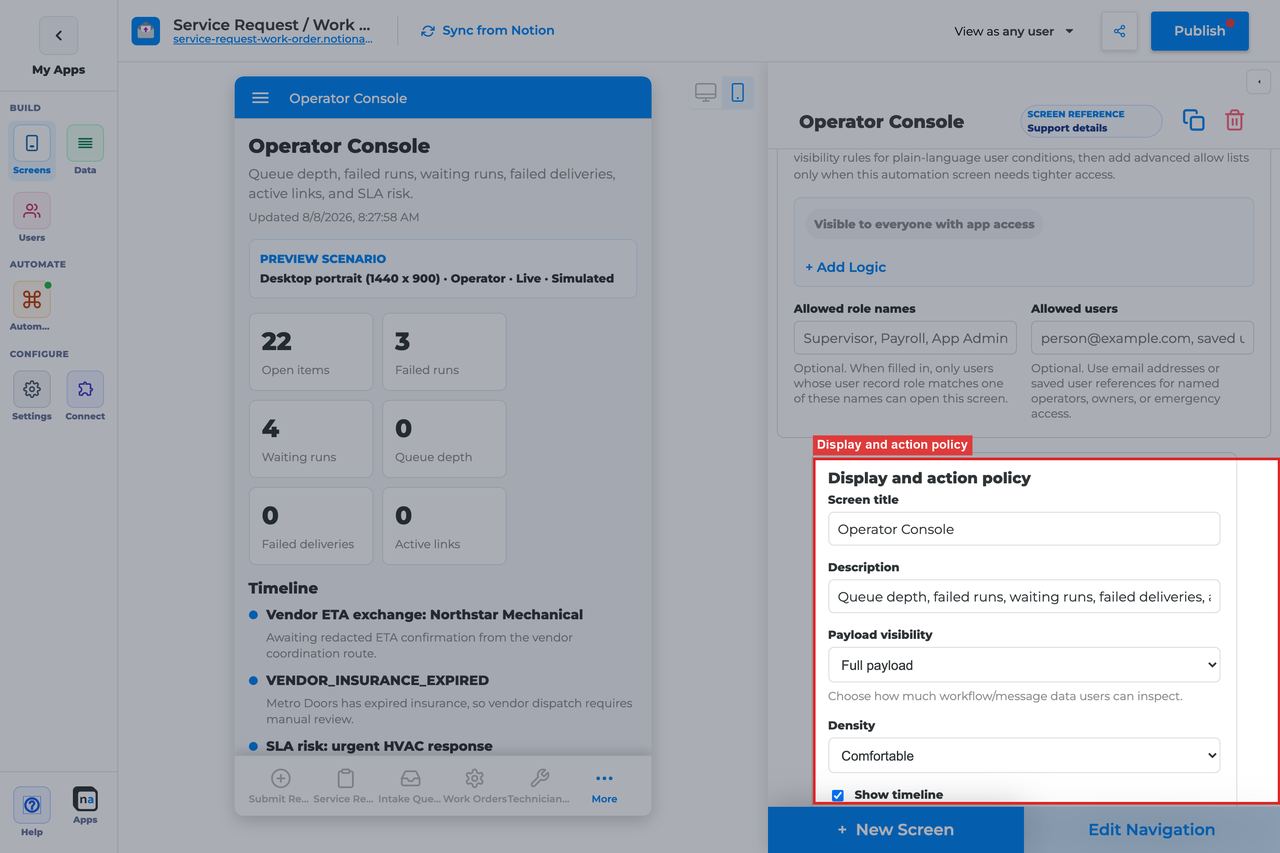
This is one of the most important sections on the screen because the console’s value depends on seeing the right level of detail without overwhelming the operator.
Screen title override
Section titled “Screen title override”What it does: Refines the live title.
How to use it: Use language that signals a top-level operations view, not a case or queue view.
Why / recommended default: The title should set the user’s mental model before they start drilling into details elsewhere.
Description
Section titled “Description”What it does: Sets the helper text beneath the title.
How to use it: Explain that the screen provides high-level health, activity, and audit visibility.
Why / recommended default: This helps users understand that the console is primarily for monitoring.
Payload visibility
Section titled “Payload visibility”What it does: Controls whether the console shows metadata only, a redacted preview, or fuller payload detail.
How to use it: Use Redacted preview for most internal consoles and Full payload only when a trusted operator team truly needs that depth. Use Metadata only if the audience is broader or more executive-facing.
Why / recommended default: Payload detail drives the difference between a safe overview and an overexposed ops screen. Conservative defaults age better.
Density
Section titled “Density”What it does: Chooses comfortable or compact spacing for the console.
How to use it: Use Compact for dense operator monitoring and Comfortable when the audience is broader or less technical.
Why / recommended default: Compact is often a strong choice here because operators usually value more information on screen, but only if readability stays intact.
Show timeline
Section titled “Show timeline”What it does: Shows recent activity and audit history in the console.
How to use it: Leave On when you want the console to show recent operational movement instead of only static summary tiles.
Why / recommended default: Timeline visibility is often what turns the console from a passive dashboard into a useful triage surface.
Require claim before action
Section titled “Require claim before action”What it does: Exists in the shared policy section, but Operator Console does not use claim behavior in its default model.
How to use it: Leave it Off.
Why / recommended default: The console is read-only by default, so claim settings do not normally change behavior.
Available actions
Section titled “Available actions”Operator Console is read-only by default. That is the expected setup for most maker-built consoles.
Default action set
Section titled “Default action set”What it does: Ships with no claim, complete, or decision actions in the standard registry setup.
How to use it: Keep the console read-only and use navigation to direct operators into the right action screens when they need to go deeper.
Why / recommended default: Read-only design is what lets the console safely summarize a lot of information for a trusted audience.
After-action screen
Section titled “After-action screen”What it does: Exists only if you later add custom actions.
How to use it: Most makers leave it unused. If you add actions later, route users into a more focused operational screen such as Workflow Status or Exception Resolution.
Why / recommended default: Blank is the normal default because the console is not primarily an action surface.
Target workflow
Section titled “Target workflow”What it does: Supplies a workflow binding for custom actions if you add them later.
How to use it: Leave it empty on the standard read-only console.
Why / recommended default: Unused bindings add maintenance overhead without improving the screen.
Preview scenario
Section titled “Preview scenario”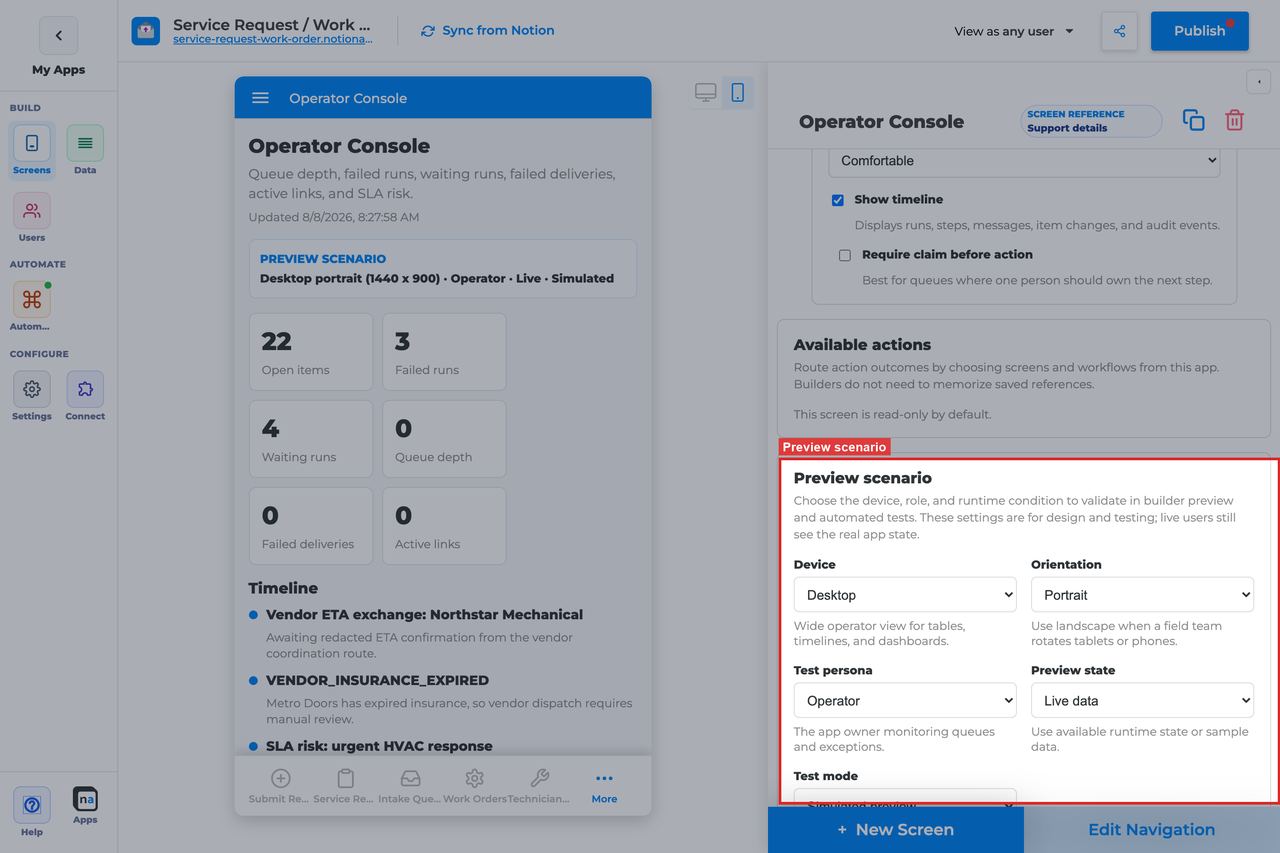
Preview controls help you validate the console’s readability and make sure the empty state does not masquerade as healthy operations.
Device and orientation
Section titled “Device and orientation”What it does: Changes the preview frame across desktop, tablet, and mobile sizes.
How to use it: Check the main operator device first, then validate mobile if leadership or support may glance at the console on phones.
Why / recommended default: Dense overview screens are especially sensitive to smaller layouts.
Test persona
Section titled “Test persona”What it does: Simulates the viewer role.
How to use it: Test as the real operator or admin role that will use the console.
Why / recommended default: Persona testing catches access and visibility issues before publish.
Preview state
Section titled “Preview state”What it does: Simulates states such as Live, Empty, Loading, and Error.
How to use it: Check Live for information density and Empty to make sure a quiet system still reads clearly.
Why / recommended default: The default preview state is Live, but quiet periods are normal on some consoles, so the empty state deserves equal attention.
Test mode
Section titled “Test mode”What it does: Switches between simulated preview and live runtime testing.
How to use it: Use live testing with real automation activity before publish so you can verify that the console is not silently too narrow.
Why / recommended default: Only a live test confirms that the data volume and scope feel right.
Empty state and sample data
Section titled “Empty state and sample data”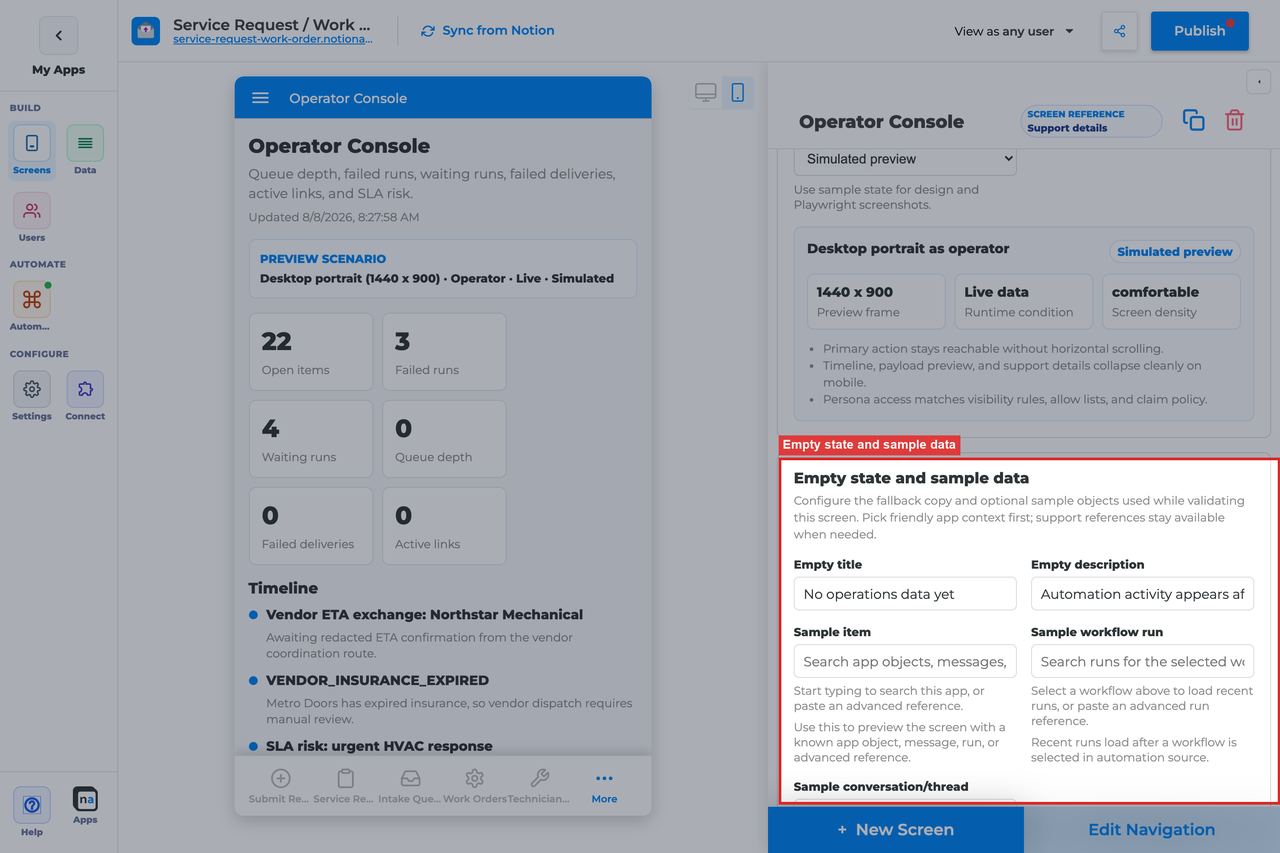
A broad console can be quiet when an app is new or traffic is low. The empty state should make that calm understandable.
Empty title
Section titled “Empty title”What it does: Sets the headline shown when no operational data matches.
How to use it: Keep the default No operations data yet unless your team uses more specific operational wording.
Why / recommended default: The default clearly signals low or absent activity, not a rendering failure.
Empty description
Section titled “Empty description”What it does: Explains when data will begin to appear.
How to use it: Keep or adapt the default Workflow, messaging, and automation activity appears after the app is used.
Why / recommended default: This copy helps new operators understand that an empty console can be expected in fresh apps.
Sample item, run, or conversation
Section titled “Sample item, run, or conversation”What it does: Provides builder-only sample references for preview and QA.
How to use it: Use samples with a mix of success, backlog, and failure signals so you can judge whether the console is actually useful.
Why / recommended default: Thin sample data can make any console look good. Realistic samples show whether the overview still works once the app gets busy.
Recommended Default Setup
Section titled “Recommended Default Setup”| Setting | Recommended value |
|---|---|
| Listen scope | Entire app |
| Visibility | Admin / Operator only |
| Payload visibility | Redacted preview |
| Show timeline | On |
| Density | Compact for dense ops views |
| Actions | None |
Common Configuration Patterns
Section titled “Common Configuration Patterns”Owner morning console
Section titled “Owner morning console”Entire app, Admin/Operator, compact, timeline on.
Support triage hub
Section titled “Support triage hub”Pair with Exception Resolution and Work Queue links in navigation.
Testing Checklist
Section titled “Testing Checklist”- Generate workflow, queue, and notification activity and confirm console populates.
- Confirm non-operators cannot open the screen.
- Confirm empty state before first activity.
Troubleshooting
Section titled “Troubleshooting”Always empty
Section titled “Always empty”App has no automation traffic yet, or visibility restricts the viewer.
Too noisy
Section titled “Too noisy”Narrow listen scope or reduce payload visibility.
Best Practices
Section titled “Best Practices”- Configure Operator Console for one clear user job.
- Prefer the narrowest listen scope that still shows the right work.
- Keep payload visibility conservative for broad audiences.
- Test as an allowed user and a blocked user before publish.
- Pair related screens (Decision + Conversation + Workflow Status + Notification Center) instead of overloading one screen.