Media Gallery
Media Gallery
Section titled “Media Gallery”Media Gallery
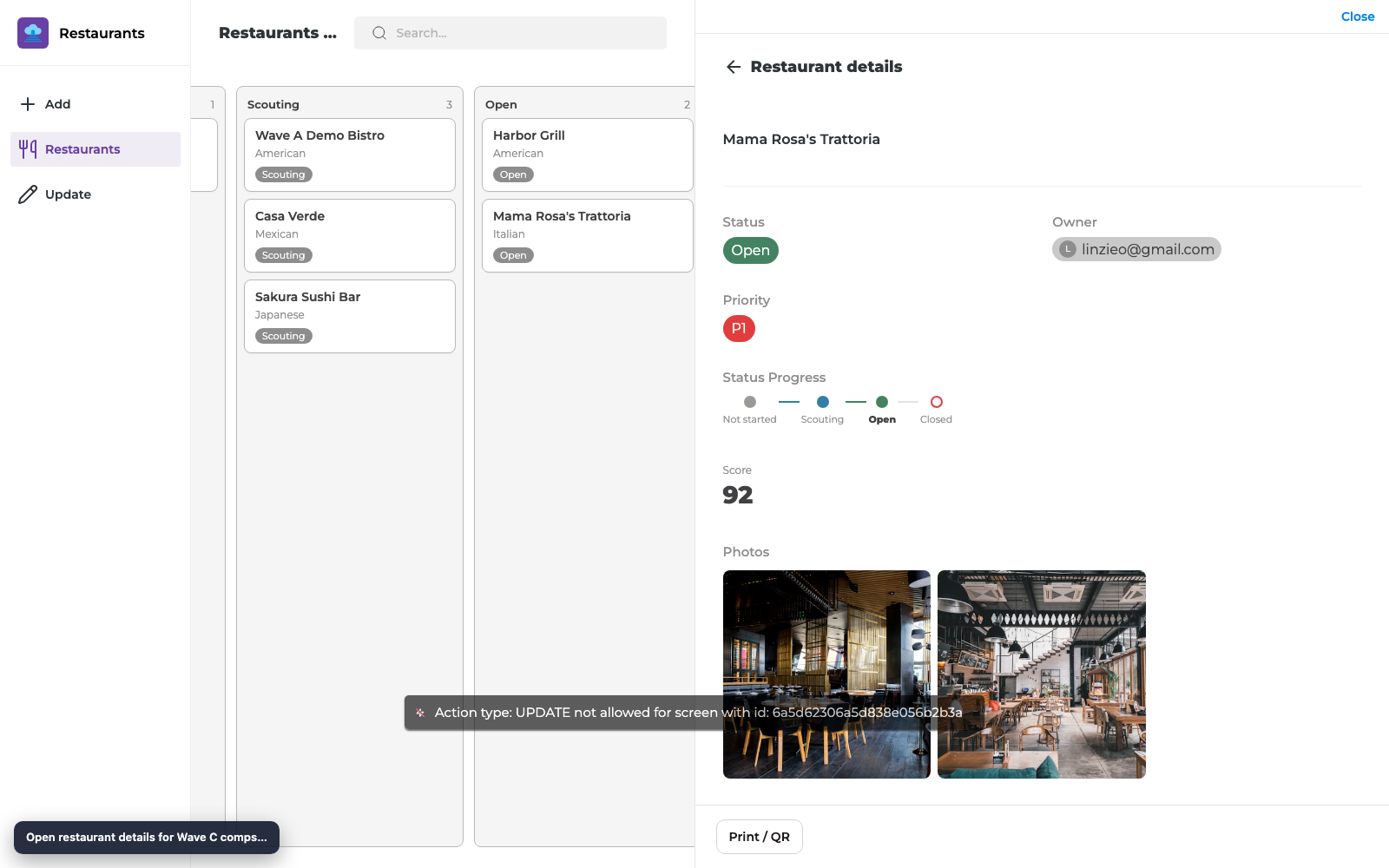
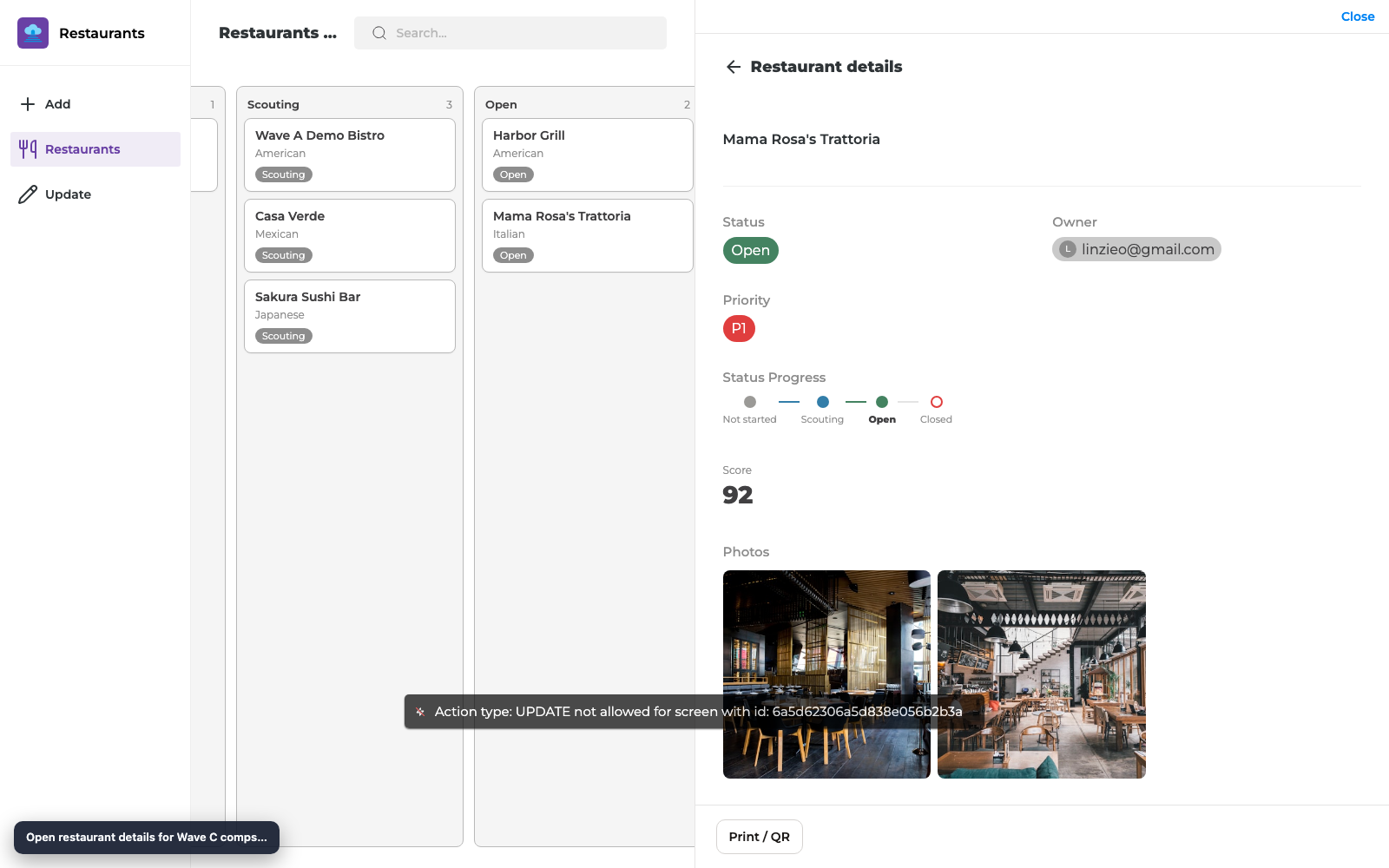
Section titled “Media Gallery”Display Notion Files & media as a thumbnail Media Gallery on Details — tap a thumb to open a larger lightbox view.
What you get
Section titled “What you get”| Capability | Maker setup | End-user result |
|---|---|---|
| Thumbnail grid | Add Media Gallery, bind files field | Row/grid of image thumbs |
| Lightbox | Automatic | Tap a thumb for a larger view |
| Multi-file | Notion files property with multiple items | All images shown when present |
Before you start
Section titled “Before you start”- A Notion Files & media property with at least one image on a sample page
- A Details screen for that database
- Reload Data if the property was just added
Step 1 — Add Media Gallery
Section titled “Step 1 — Add Media Gallery”- Open the Details screen.
- Add component → Media Gallery.
- Bind it to the files/media property (for example Photos).
- Place it where you want media to appear (often near the top of Details).
Step 2 — Preview with real files
Section titled “Step 2 — Preview with real files”- Select a record that has images attached in Notion.
- Confirm thumbnails appear in builder preview.
- Tap a thumbnail (where supported in preview) to confirm lightbox behavior.
- Publish and verify on the live app.
Checklist
Section titled “Checklist”- Media Gallery bound to a files property
- Sample record has images in Notion
- Thumbnails show in preview and published app
- Non-image files degrade gracefully (no crash)
Troubleshooting
Section titled “Troubleshooting”| Symptom | Likely cause | Fix |
|---|---|---|
| Empty gallery | No files on the page / wrong field | Attach files in Notion; re-bind field |
| Broken thumb | Expired Notion file URL | Reload Data / reopen record |
| Cannot upload here | By design | Use Create/Update file or image components |
Related reading
Section titled “Related reading”Builder options at a glance
Section titled “Builder options at a glance”This guide teaches a focused maker workflow. For the full screen option inventory (What it does / How to use / Why) and annotated builder screenshots, use the matching Types of Screens guide:
- Data screens: List (View Items), Details, Form (Add Item), Form (Update One Item), List (Update Items), Content
- Everyday chrome / Queue & activity: see the Types of Screens index
- Automation native screens: Native Automation Screens
Recommended defaults
Section titled “Recommended defaults”- Change one option family at a time, then publish and test on phone and desktop.
- Prefer screen-level settings in Content / Behaviour / Appearance before custom CSS/JS.
- Keep public access and navigation visibility intentional on every screen you link from this guide.