Form (Update One Item)
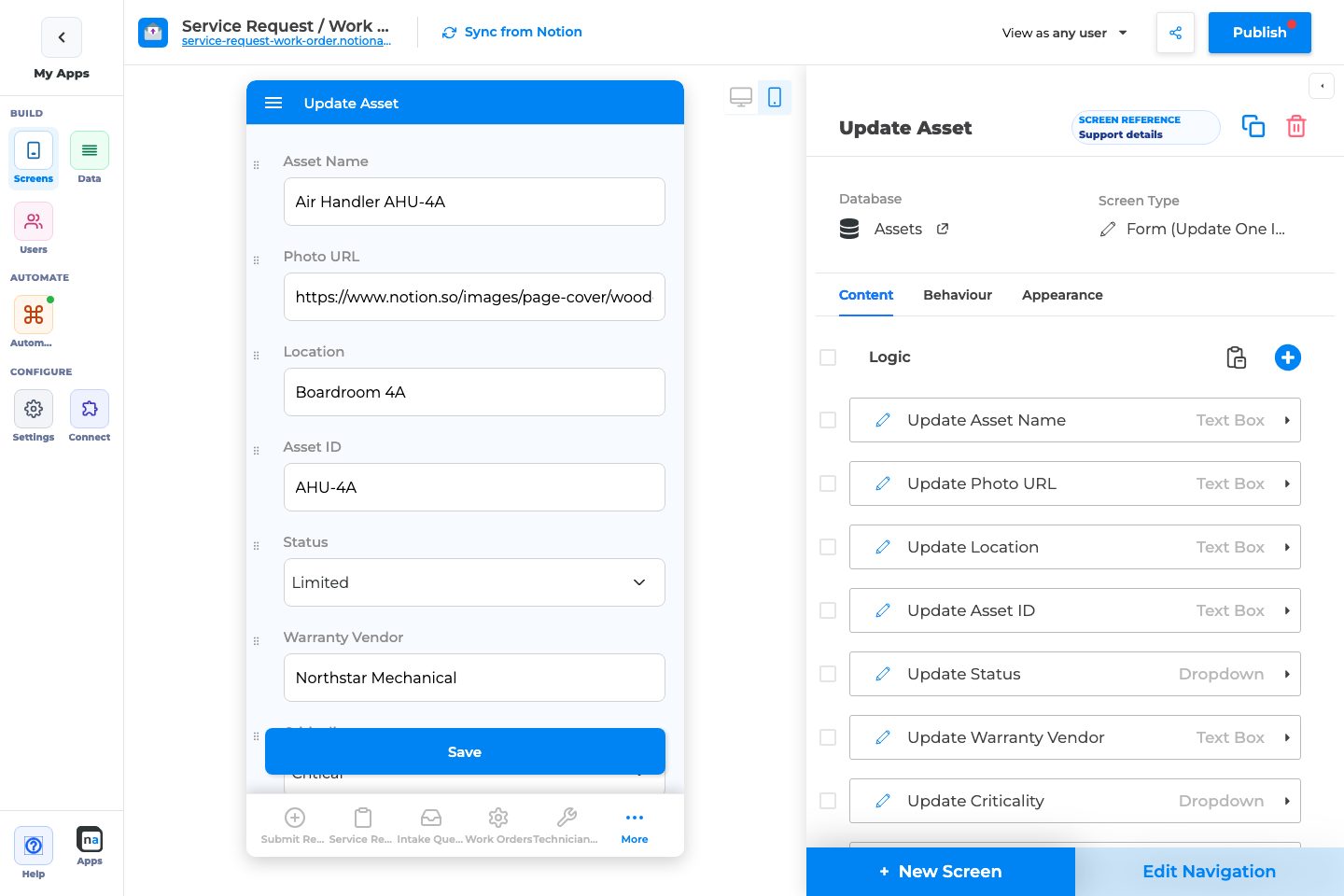
The Form (Update One Item) screen edits an existing Notion record. It is usually opened from Details (Allow Editing) or from List (Update Items).
What the screen is for
Section titled “What the screen is for”Use Form (Update One Item) when
Section titled “Use Form (Update One Item) when”- Users change fields on an existing record
- Details should stay read-focused while edit lives on a separate form
- You need after-save Actions or delete from the edit surface
Do not use it when
Section titled “Do not use it when”- Users only create records: use Form (Add Item)
- Users only view: use Details
- Guests should submit new intake: use Create Form + Public access (Update Form has no public panel)
What users see in the live app
Section titled “What users see in the live app”- Editable fields for the open record
- Submit button (when editable comps exist) with placement settings
- Optional Delete (non-primary screens)
- Optional after-save Actions
Add Form (Update One Item) in the builder
Section titled “Add Form (Update One Item) in the builder”- Screens → + New Screen → database → Form (Update One Item).
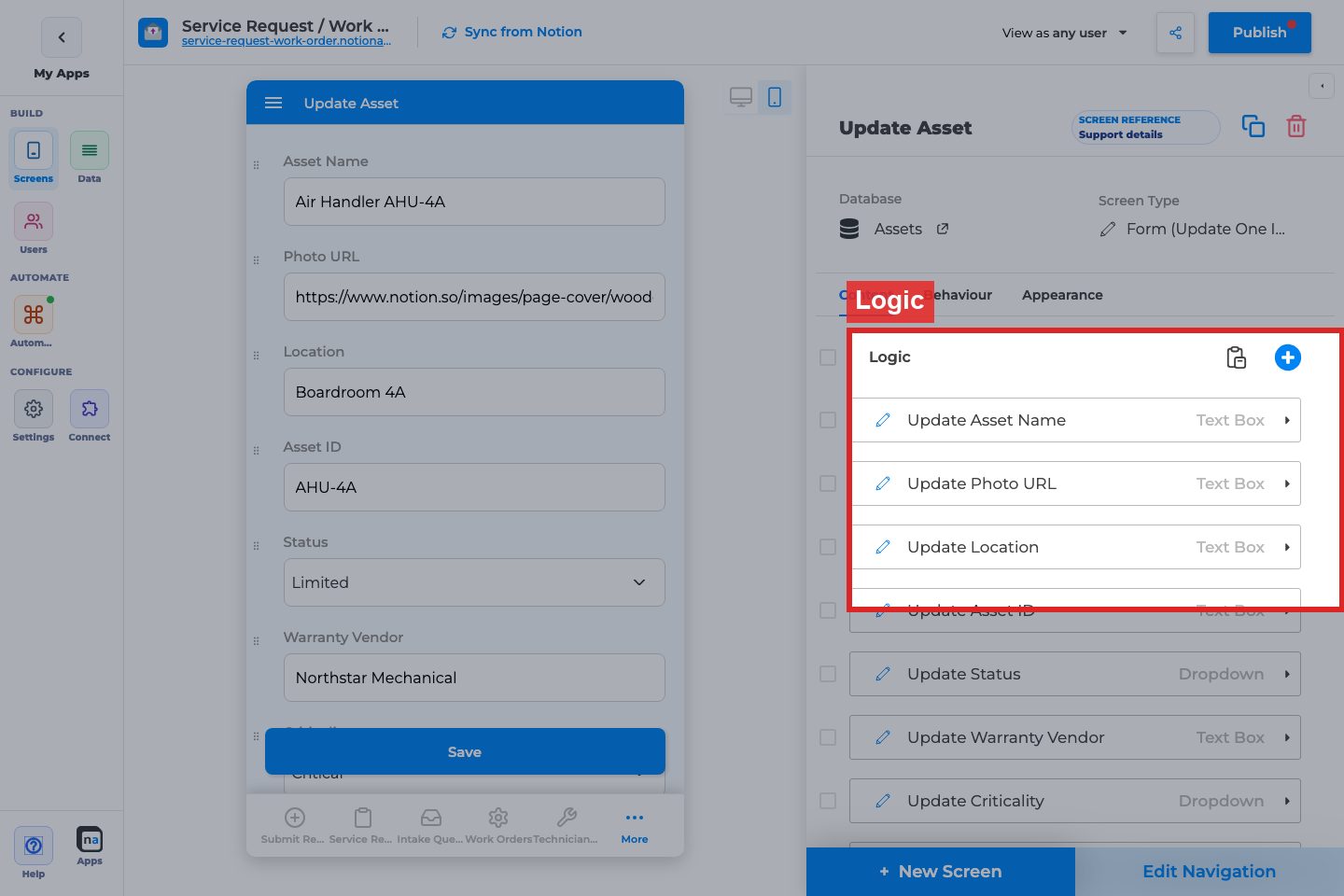
- Add editable fields under Content → Logic.
- On Details, enable Allow Editing → Go to Update Screen pointing here.
- Configure Save Button Text, Success Message, and Actions.
- Publish and test edit→save→Notion sync.
Complete Builder Options Reference
Section titled “Complete Builder Options Reference”Content tab
Section titled “Content tab”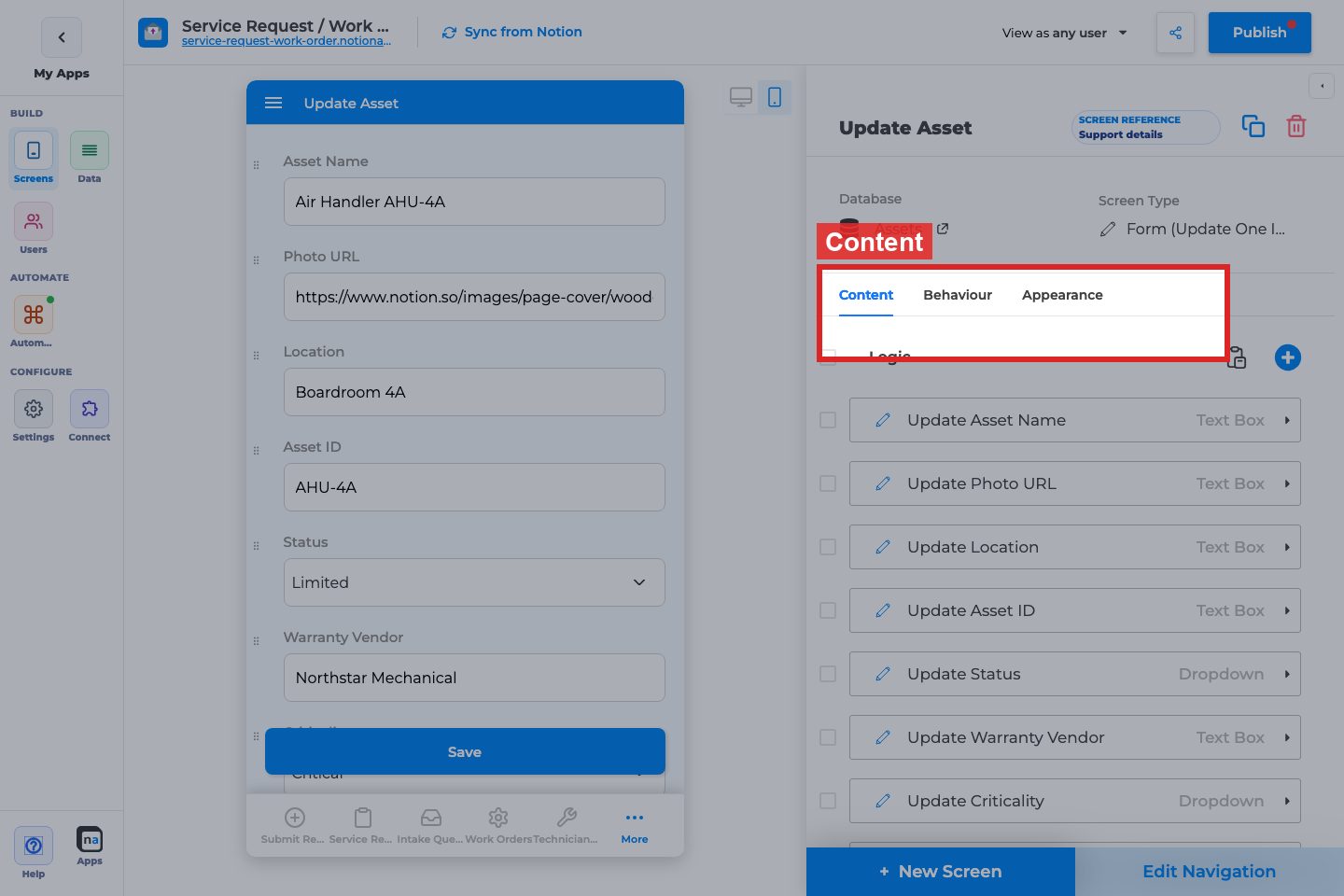
Field / component list
What it does:
Defines which properties users can edit (and read-only comps if included).
How to use it:
Include fields users actually change. Hide system fields. Use visibility logic for role-specific edits.
Why / recommended default:
Keep edit forms tighter than Details. A common mistake is allowing edits to fields that workflows own.
Filtering (primary only)
Section titled “Filtering (primary only)”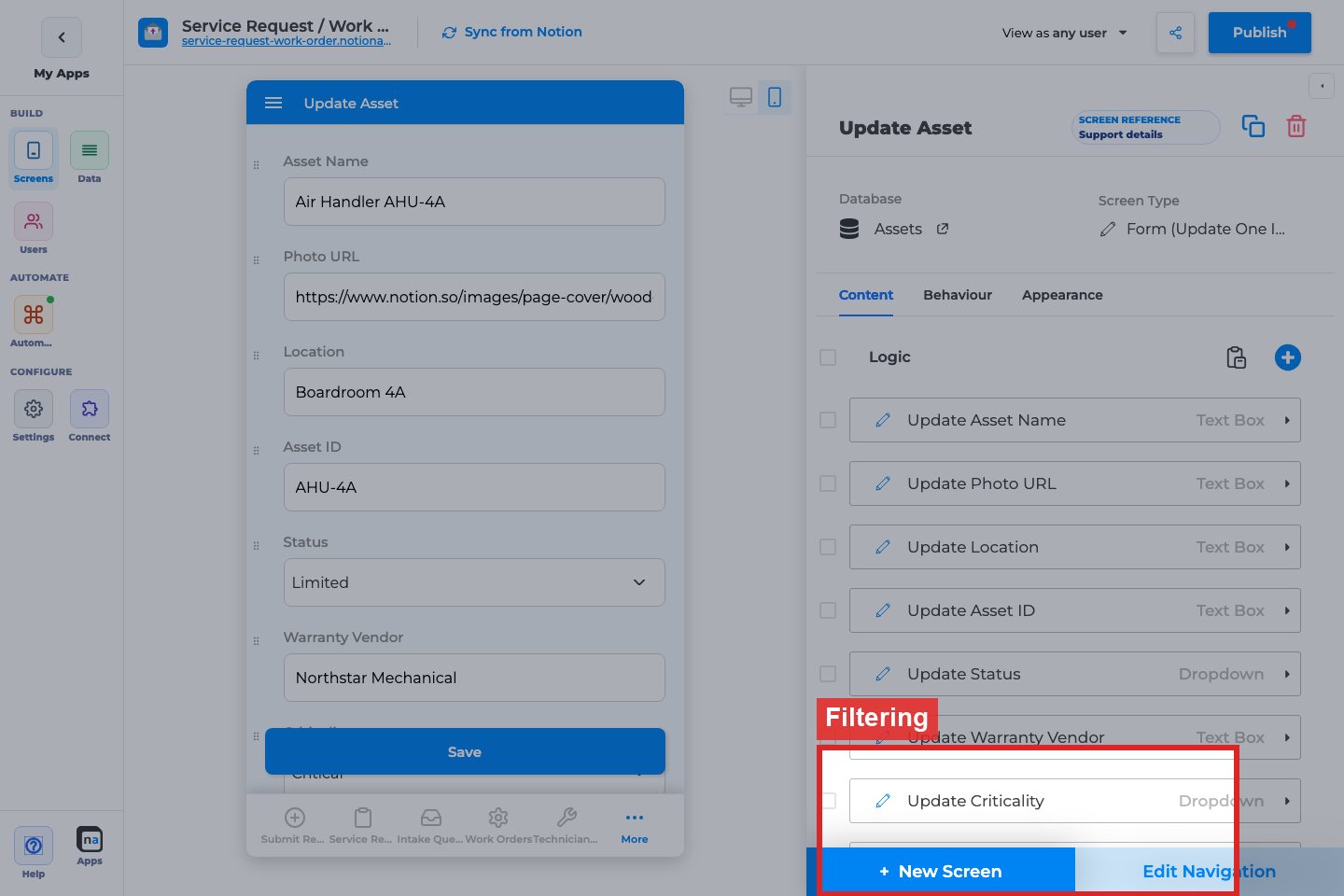
Filter rows
What it does:
Scopes records when this Update Form is used as a primary screen.
How to use it:
Usually empty when opened from Details/List with context. Use when Update Form is a primary gated editor.
Why / recommended default:
Empty for secondary edit forms.
Behaviour tab
Section titled “Behaviour tab”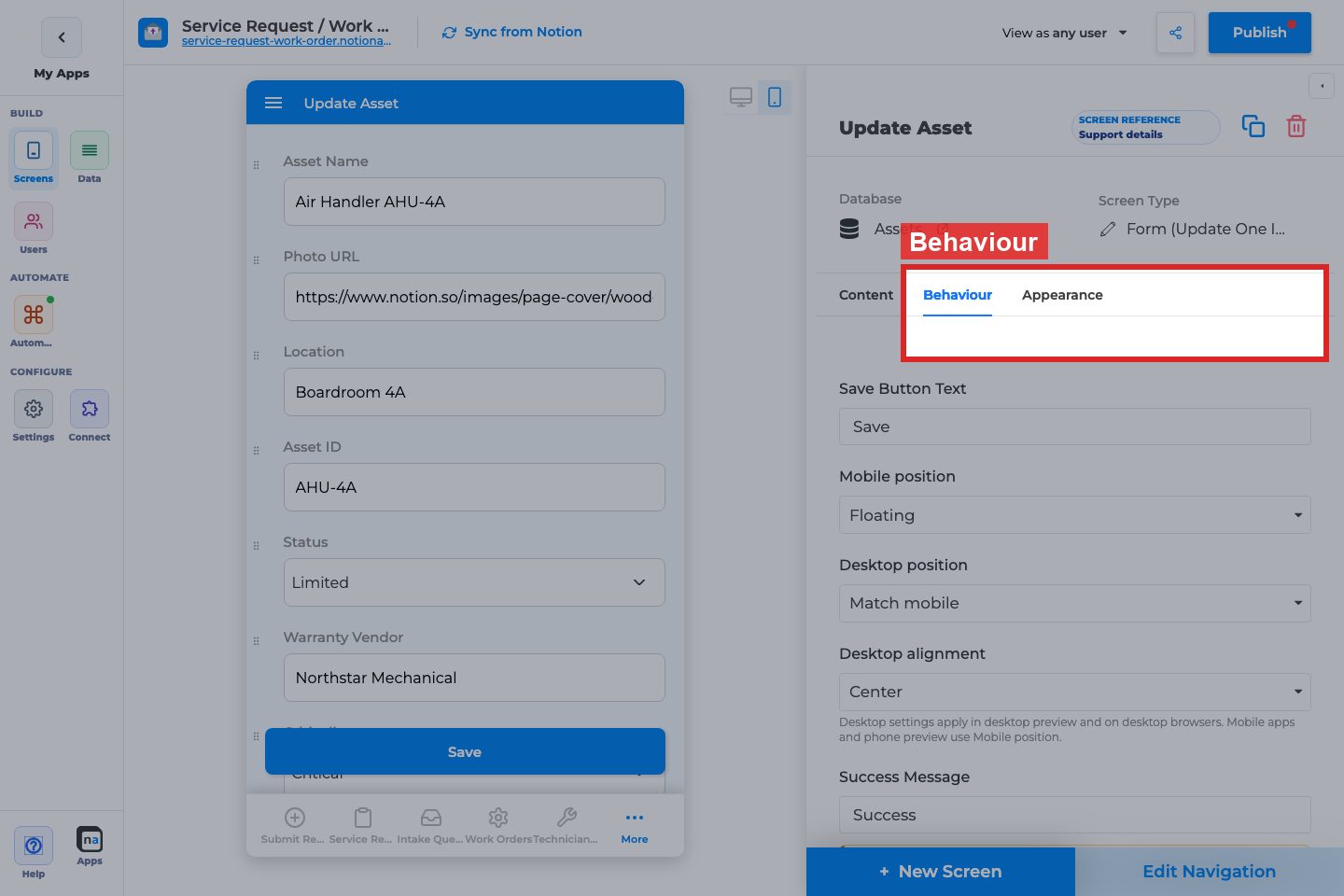
Save Button Text / positions / Success Message
Section titled “Save Button Text / positions / Success Message”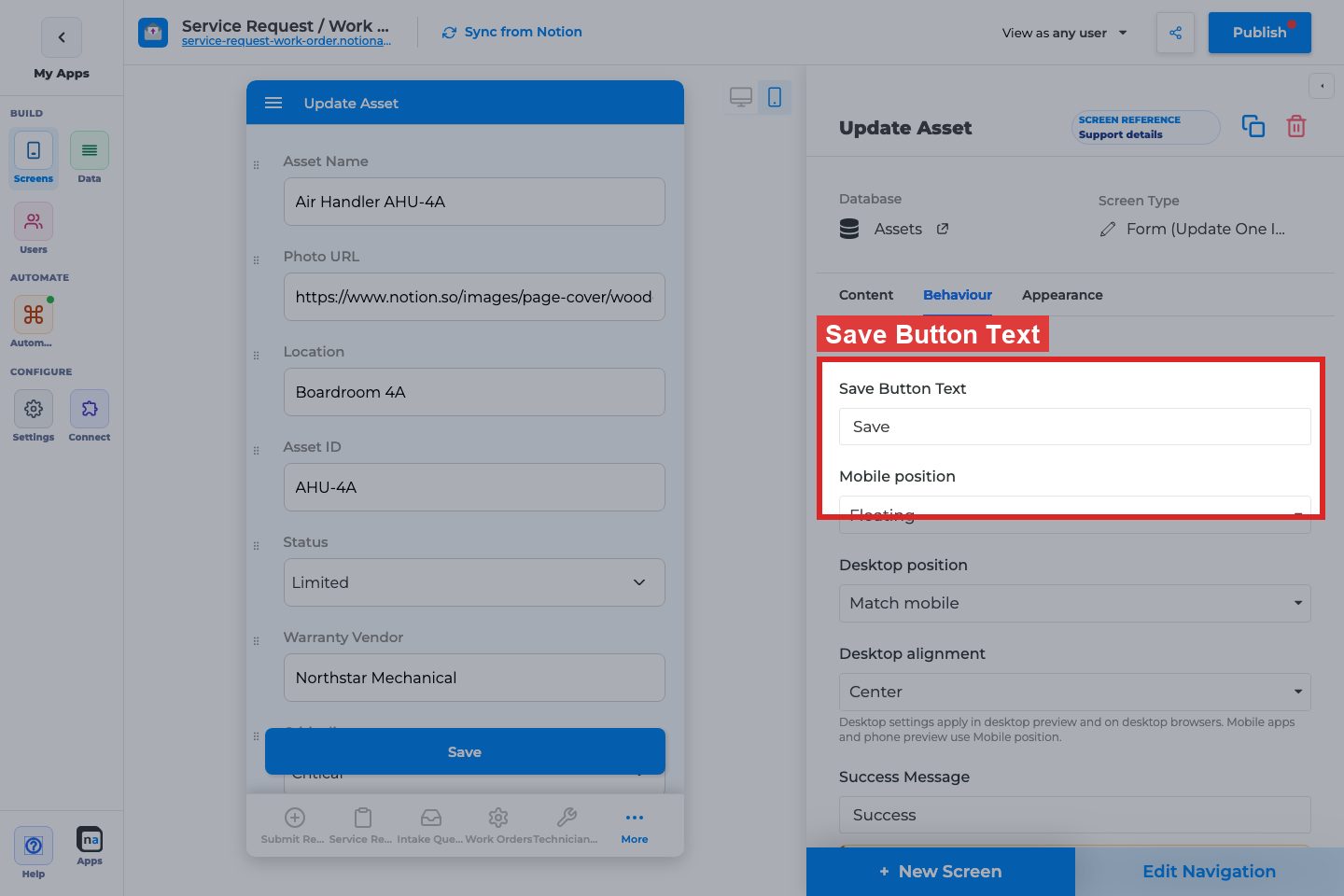
What it does:
Submit chrome for saving changes. Hidden if the layout has no explicit editable comps.
How to use it:
Label as “Save changes”. Match mobile/desktop placement to Create Form patterns your users already know.
Why / recommended default:
Always provide a clear save label and success message.
Actions
Section titled “Actions”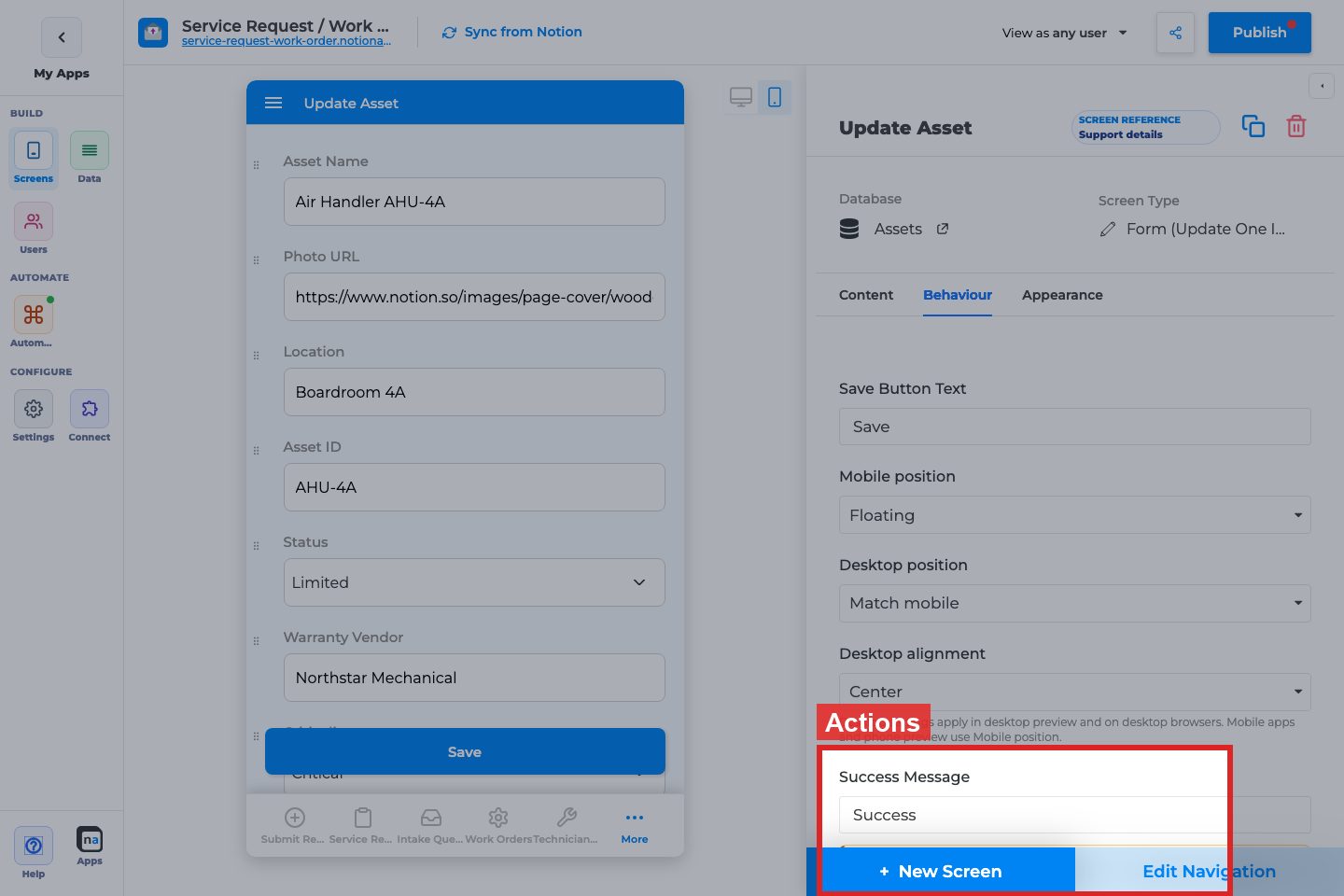
Action Type / + Add Action
What it does:
After-save Change Data / Go to Screen / Open Link.
How to use it:
Often Go to Screen back to Details or List after save.
Why / recommended default:
Return users to the record they edited.
Allow Delete (non-primary)
Section titled “Allow Delete (non-primary)”
What it does:
Delete the current record from the edit form (with confirmation options).
How to use it:
Enable only for trusted editors. Prefer confirmation on.
Why / recommended default:
Off unless delete is a real product requirement.
Screen Visibility Logic (primary)
Section titled “Screen Visibility Logic (primary)”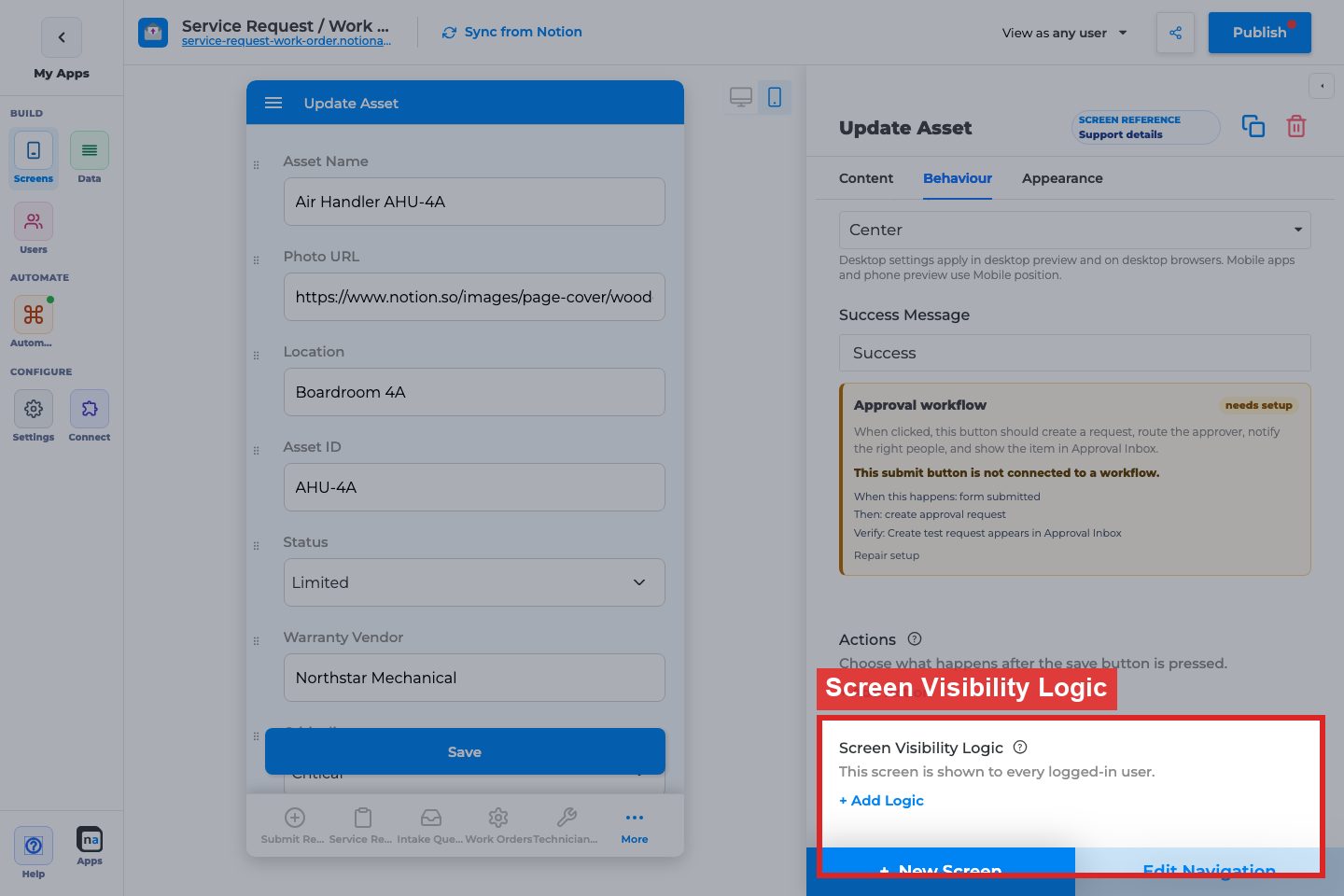
What it does:
Who can open the Update Form when it is primary.
How to use it:
Restrict to roles that may edit. Secondary edit forms usually inherit access via Details navigation.
Why / recommended default:
Unrestricted secondary; restrict if primary.
Appearance tab
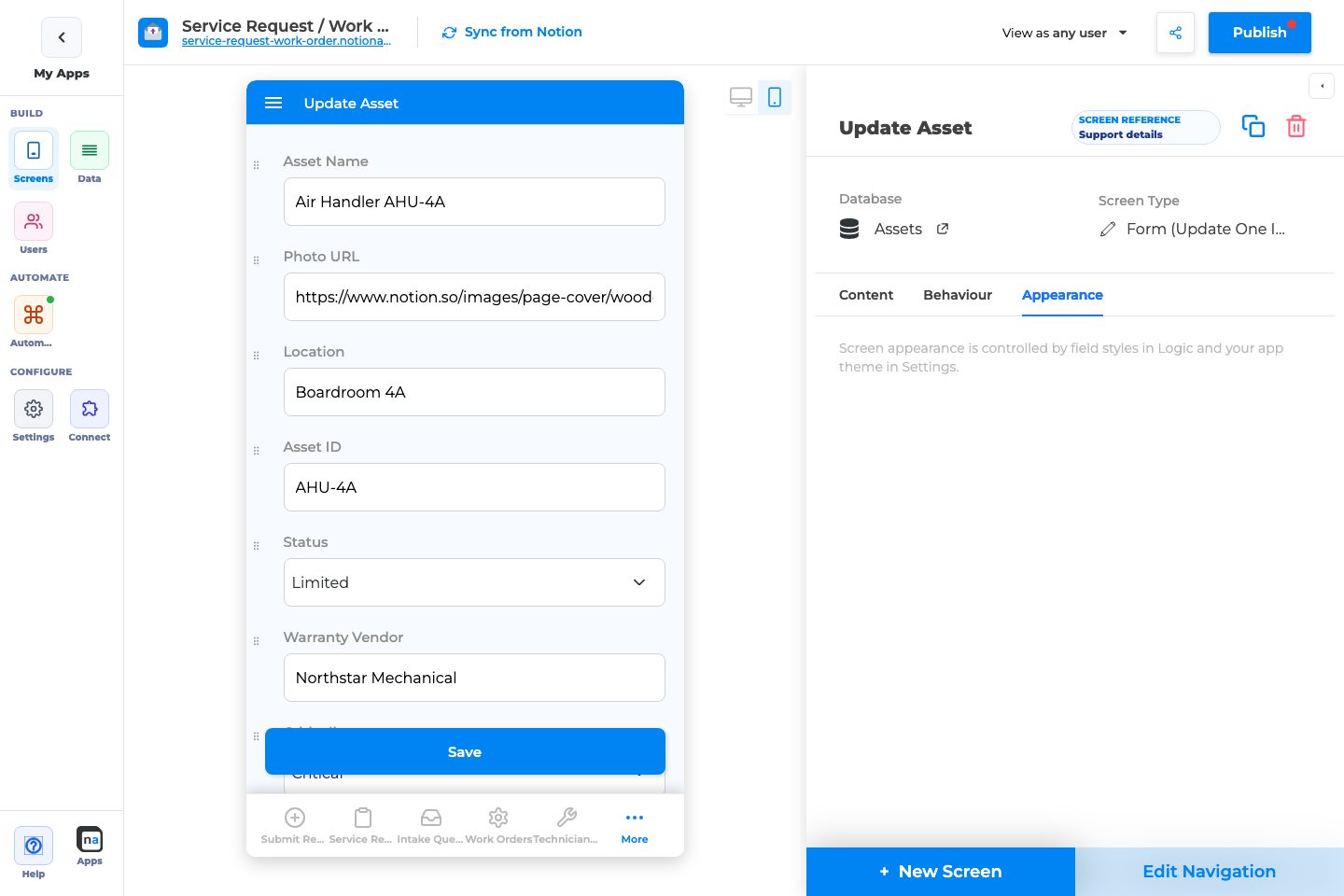
Section titled “Appearance tab”Empty — use field inspector + app theme.
Differences from Create Form
Section titled “Differences from Create Form”| Option | Create Form | Update Form |
|---|---|---|
| Public access / Copy form link | Yes | No |
| Use sections as steps | Yes | No |
| Filtering | Never | Primary only |
| Delete | No | Non-primary yes |
| URL default prefills | Common | Less common; still available per field |
Field inspector highlights
Section titled “Field inspector highlights”- Is Required, Validate input
- Disable Changes (lock fields)
- Visibility When: current row vs user inputs
- Default Value (use carefully on updates)
Recommended default setup
Section titled “Recommended default setup”| Setting | Recommended value |
|---|---|
| Opened from | Details Allow Editing |
| Fields | Editable subset only |
| Success Message | “Changes saved” |
| Actions | Return to Details |
| Delete | Off |
Testing checklist
Section titled “Testing checklist”- Details Edit opens this form with the same record
- Save writes to Notion
- Required/validation rules work
- Actions return to the expected screen
- Delete (if on) confirms correctly
- Role visibility works with
View as user
Troubleshooting
Section titled “Troubleshooting”| Symptom | Likely cause | What to check |
|---|---|---|
| No submit button | No editable comps | Logic fields |
| Opens blank | Missing record context | Navigation from Details/List |
| Public link expected | Wrong screen type | Use Create Form for guest intake |
Best practices
Section titled “Best practices”- Keep Update Form focused on mutable fields.
- Let workflows own status fields when automation sets them.
- Always provide a return path after save.