Organize Create Forms with Sections and an Optional Stepper
Split long Add Item forms into labeled sections, optionally walk users through them one step at a time, and keep URL prefill working across every section.
What you get
Section titled “What you get”| Capability | What makers configure | What end users see |
|---|---|---|
| Section components | Title + helper text that group fields | Clear visual groups (Basics, Details, …) |
| Section stepper (optional) | Toggle on the Create Form Behaviour | One section per step with Next / Back / Submit |
| Progress | Automatic from section order | “Step X of Y” plus the current section name |
| Prefill across steps | URL parameter mappings on fields | Values appear even when the field’s section is not the first step |
Before you start
Section titled “Before you start”You need:
- A Create Form (Add Item) screen
- At least two logical groups of fields (for example Basics vs Details)
- Permission to Publish
Step 1 — Add Section components
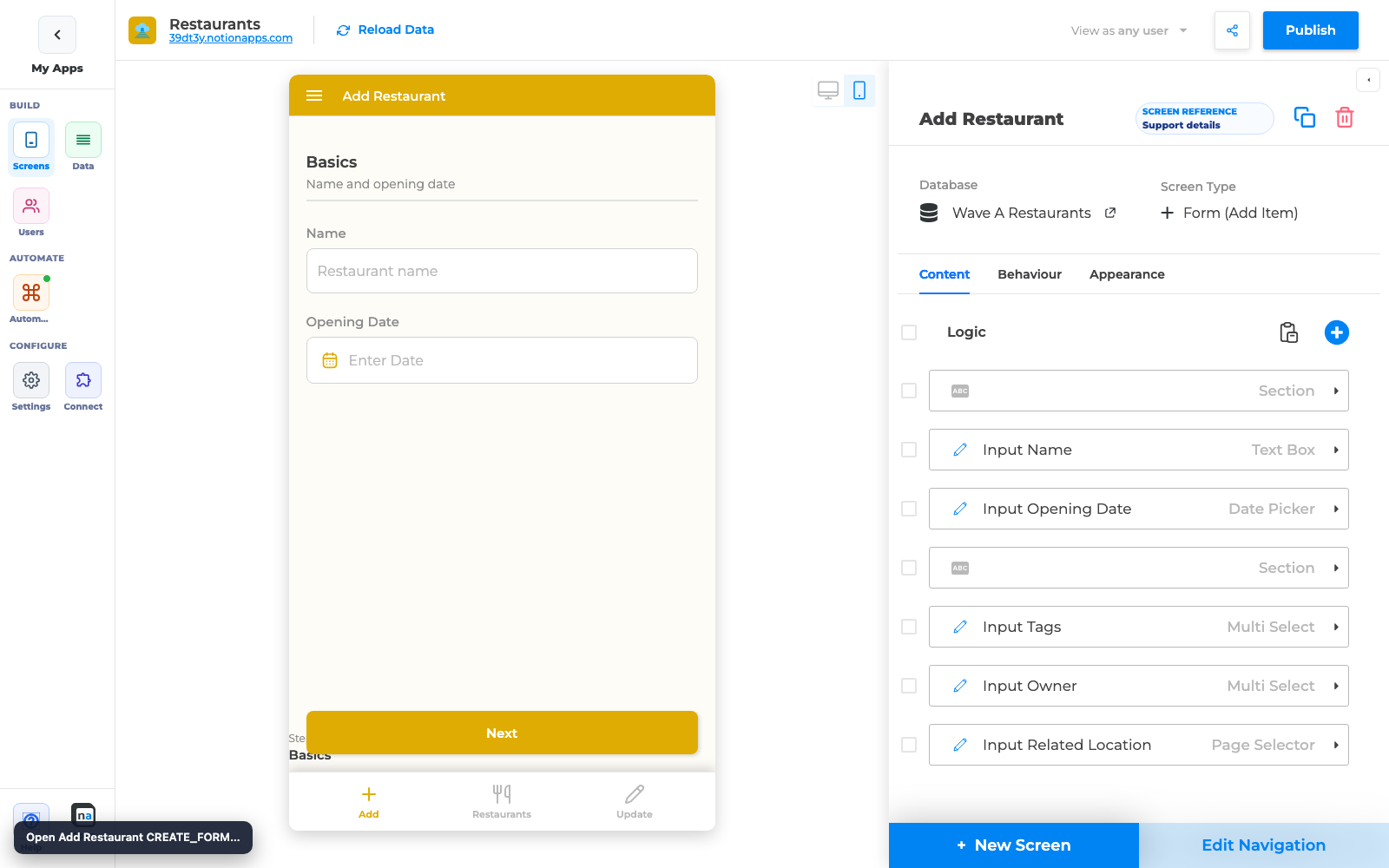
Section titled “Step 1 — Add Section components”- Open the Create Form in the builder.
- From Add component, insert a Section where a new group should begin.
- Set the Section title (for example,
Basics) and optional helper text (for example,Name and opening date). - Move or add fields under that section so the preview shows them in the group.
- Repeat for the next group (for example,
Details—Tags, owner, and location).
Step 2 — Turn on the section stepper (optional)
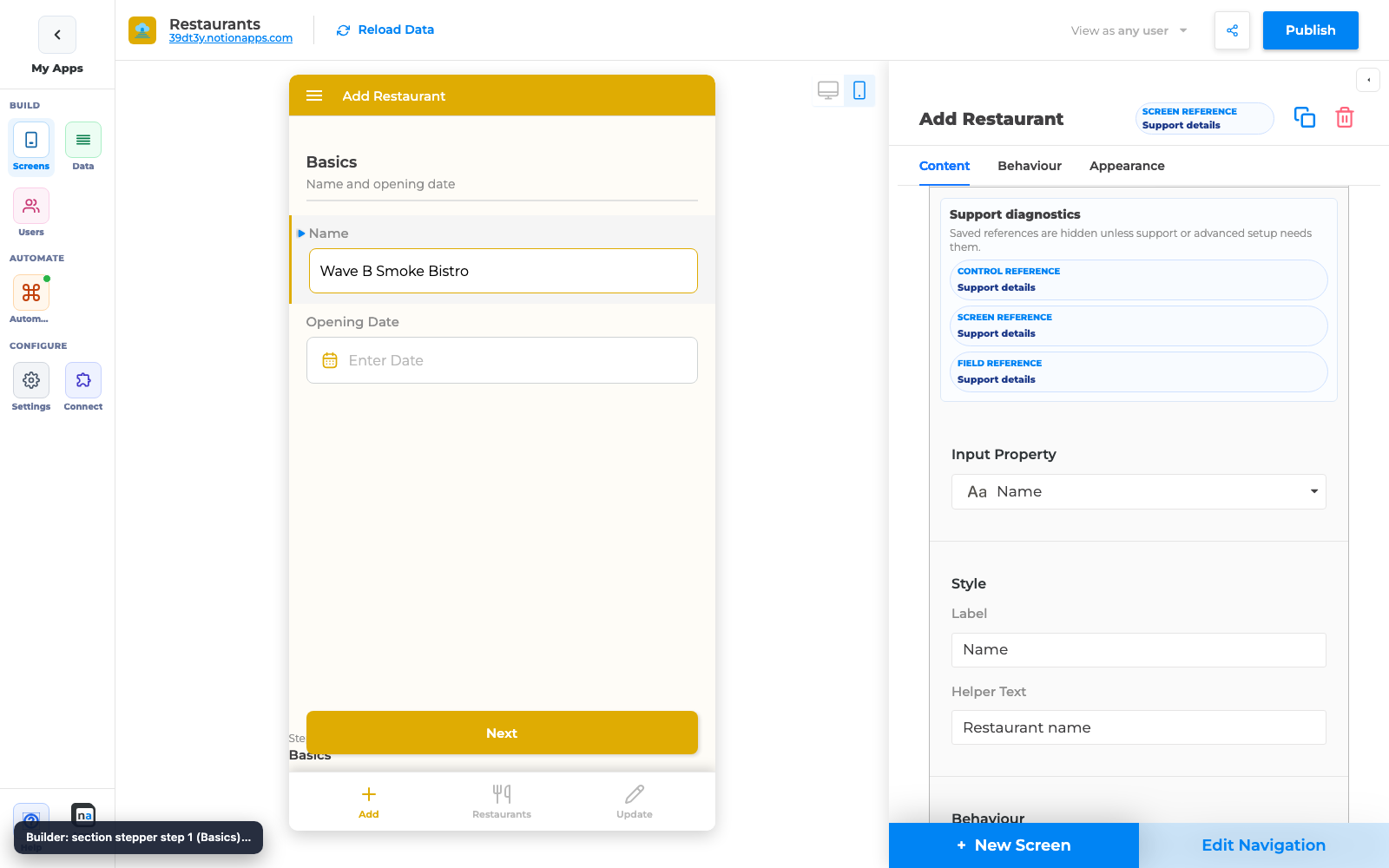
Section titled “Step 2 — Turn on the section stepper (optional)”- With the Create Form screen selected (not a single field), open Behaviour.
- Enable Section stepper / section stepper enabled.
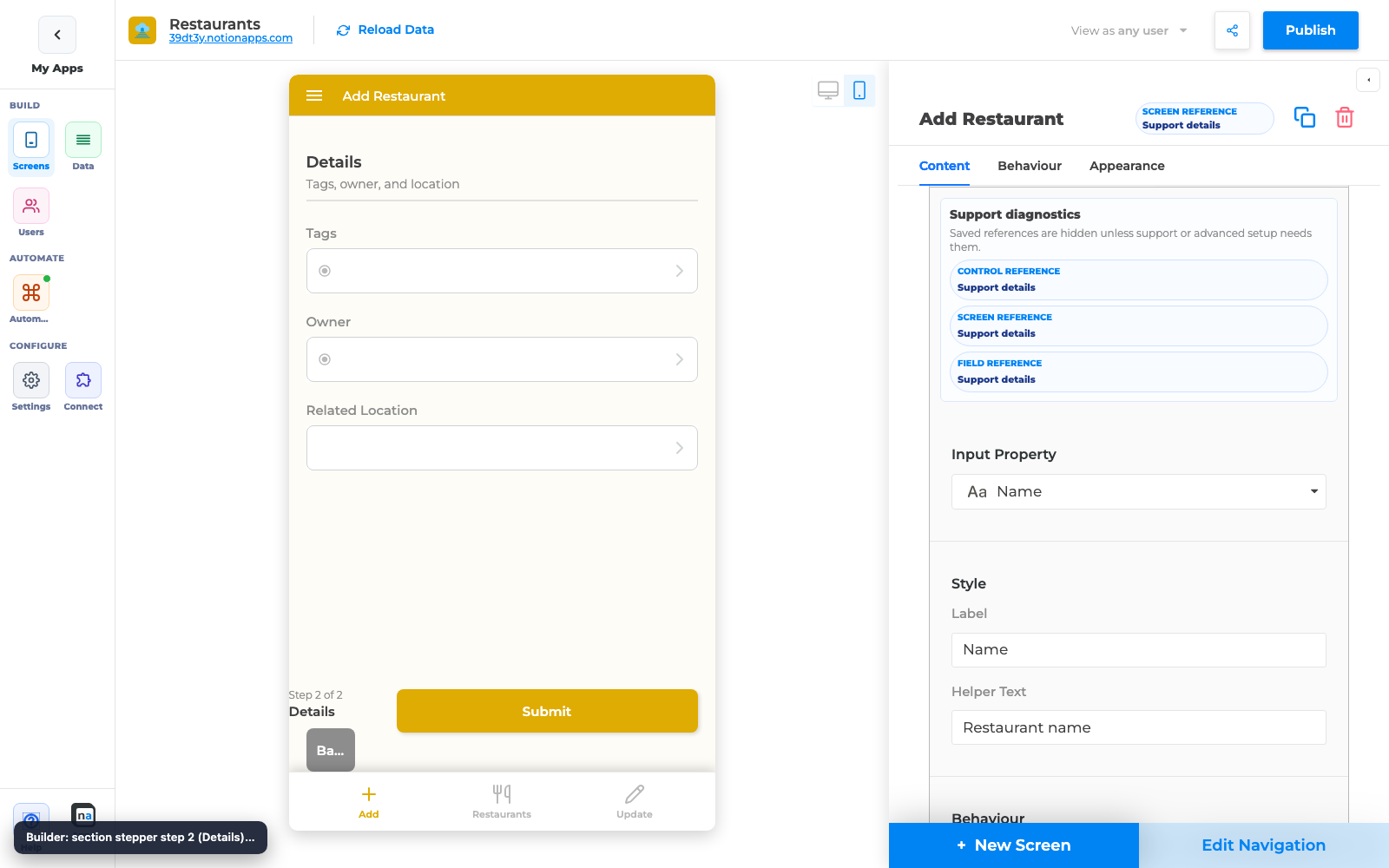
- Preview on phone and desktop:
- Step 1 shows only the first section’s fields
- Next advances to the next section
- Back returns without wiping values
- The last step shows Submit
Step 3 — Publish and test the live stepper
Section titled “Step 3 — Publish and test the live stepper”- Publish the app.
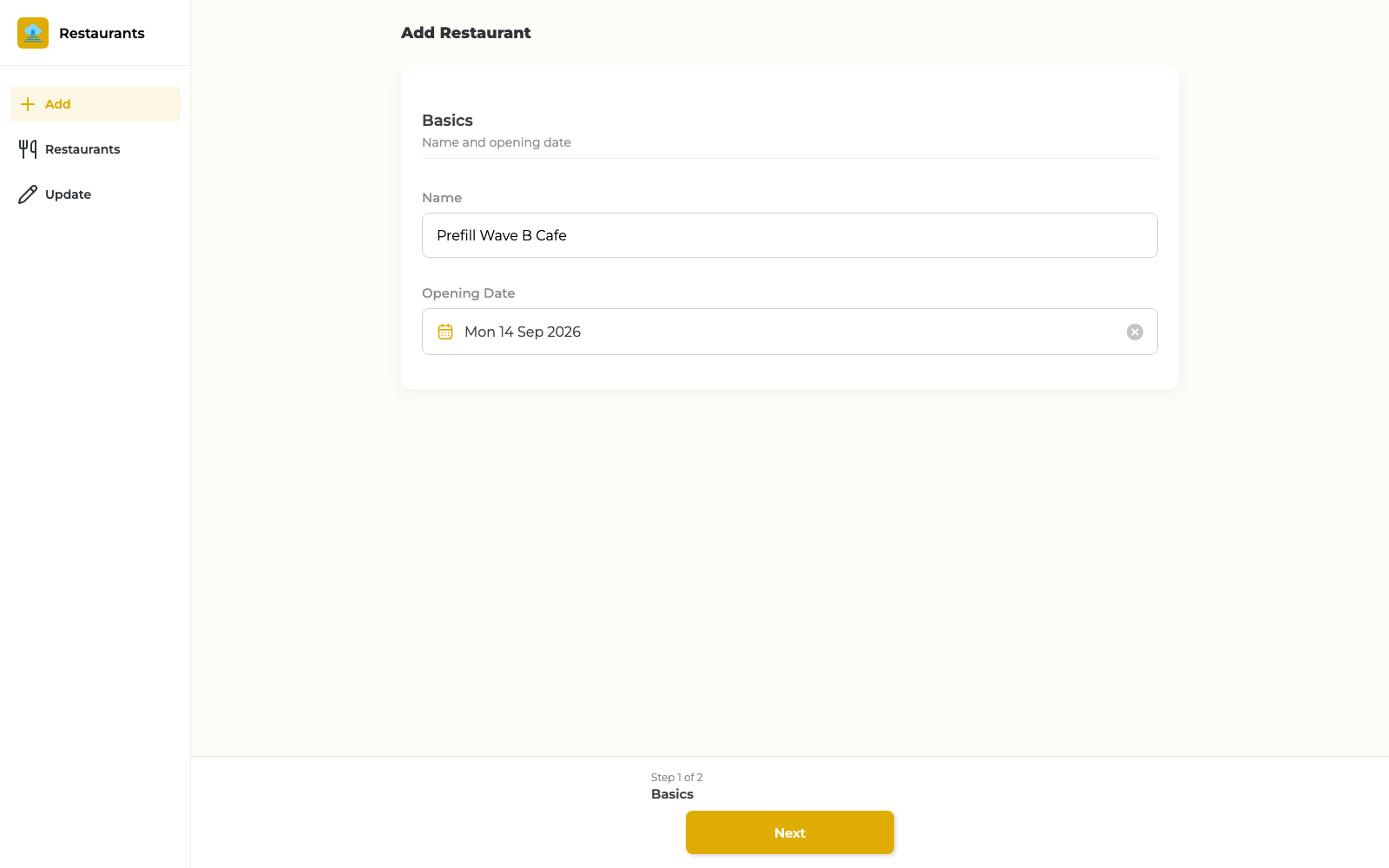
- Open the Create Form in the published app (phone and desktop).
- Confirm:
- Only the current section’s fields are editable
- Progress text matches the section (for example, Step 1 of 2 · Basics)
- Back restores the previous section with values intact
- Submit only appears on the final step (or per your submit placement settings)
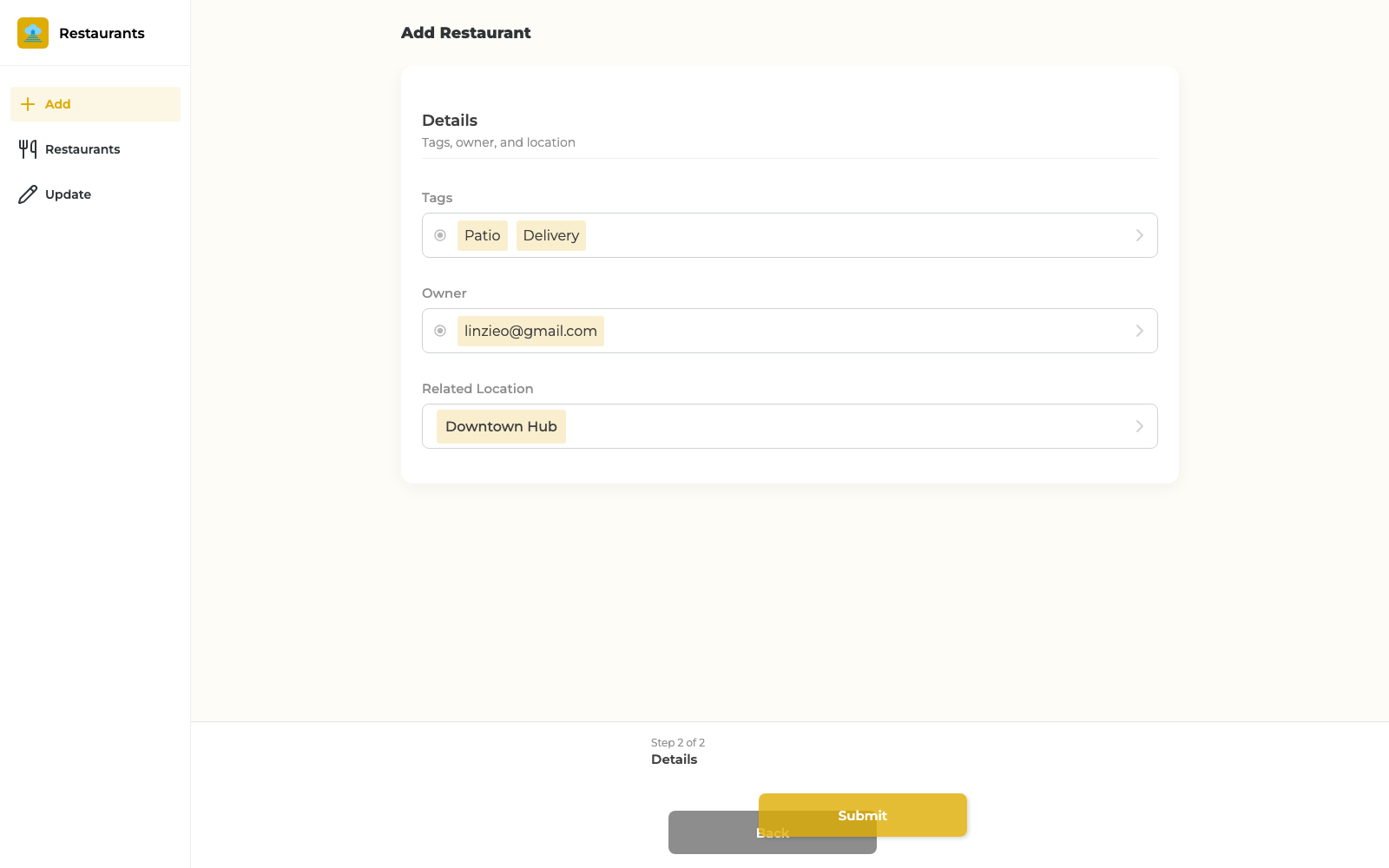
Step 4 — Prefill still works with sections
Section titled “Step 4 — Prefill still works with sections”URL prefill fills mapped fields even when they live in a later section. Users can advance with Next and see Tags, Owner, or Relation already filled.
Example link shape:
https://your-app.notionapps.com/add-restaurant?name=Prefill%20Wave%20B%20Cafe&opening_date=2026-09-15&tags=Patio,Delivery&owner=user@example.com&location=<recordId>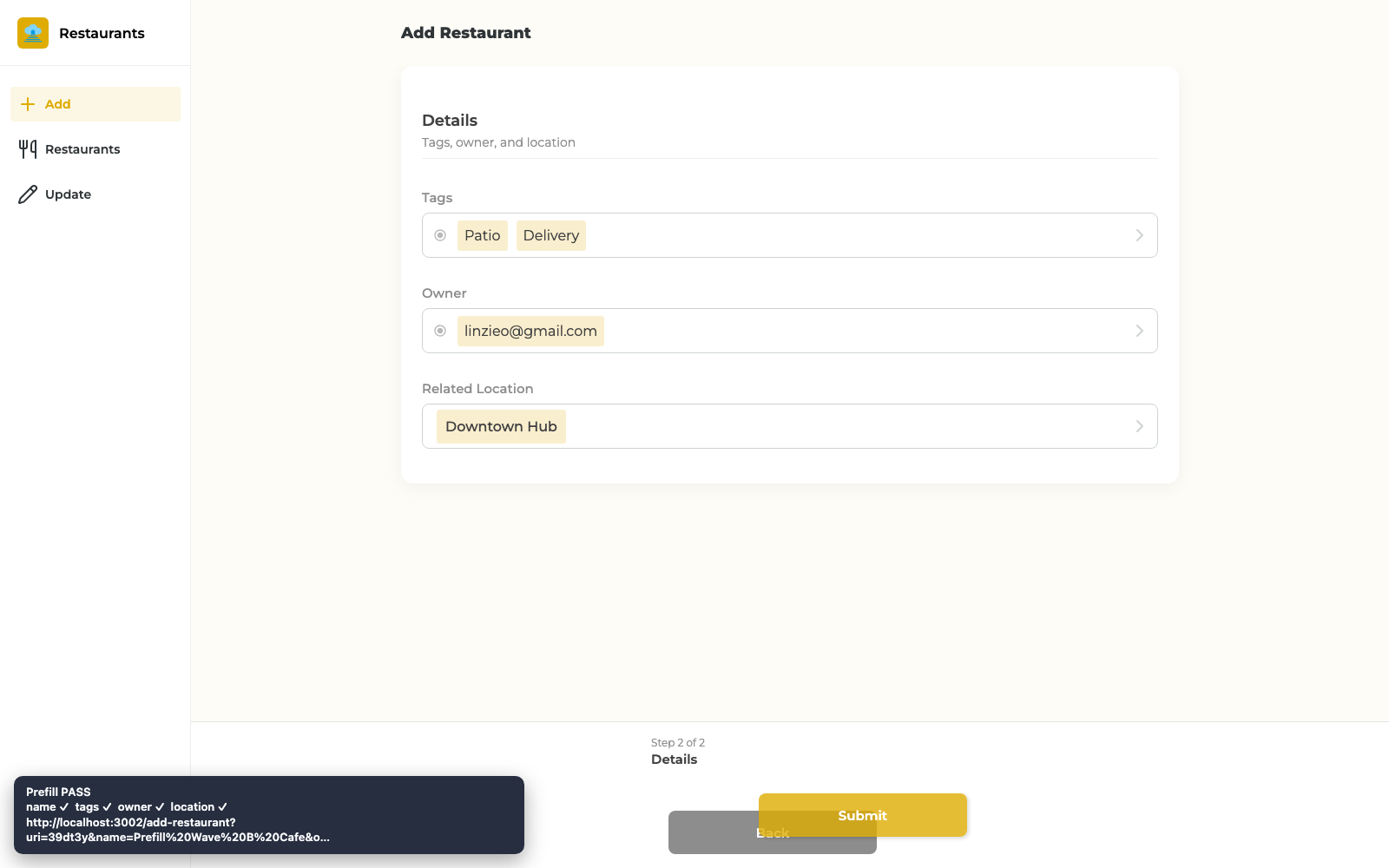
Full mapping instructions: Prefill Create Forms from a URL.
When to use the stepper vs static sections
Section titled “When to use the stepper vs static sections”| Use static sections only | Use the section stepper |
|---|---|
| Short forms (under ~8 fields) | Long onboarding / intake forms |
| Users need to see everything at once | You want a guided, mobile-friendly path |
| Desktop-heavy data entry | Phone users who scroll past the fold |
Checklist
Section titled “Checklist”- Each Section has a clear title (and helper text when useful)
- Field order under sections matches the story you want users to follow
- Section stepper tested with Next, Back, and Submit
- Required fields appear before optional ones when possible
- Prefill mappings still work after Publish
- Phone and desktop previews checked for overlapping footer controls
Troubleshooting
Section titled “Troubleshooting”| Symptom | Likely cause | What to do |
|---|---|---|
| All fields still show on one page | Stepper not enabled or not published | Enable Section stepper, Publish, hard-refresh the live app |
| Next does nothing | Only one Section exists | Add a second Section with fields beneath it |
| Back loses values | Unexpected client cache | Retest after Publish; confirm you used the form Back control, not browser Back |
| Prefill empty on step 2 fields | Mapping not published / wrong param names | Re-check URL parameter names; Publish again |
| Back / Submit cover fields on phone | Older client | Ensure the latest published frontend; shorten long section titles |
Related reading
Section titled “Related reading”- Prefill Create Forms from a URL
- Control Desktop Form Submit Placement
- Form (Add Item)
- 20 Jul 2026 Release
Annotated builder screenshots
Section titled “Annotated builder screenshots”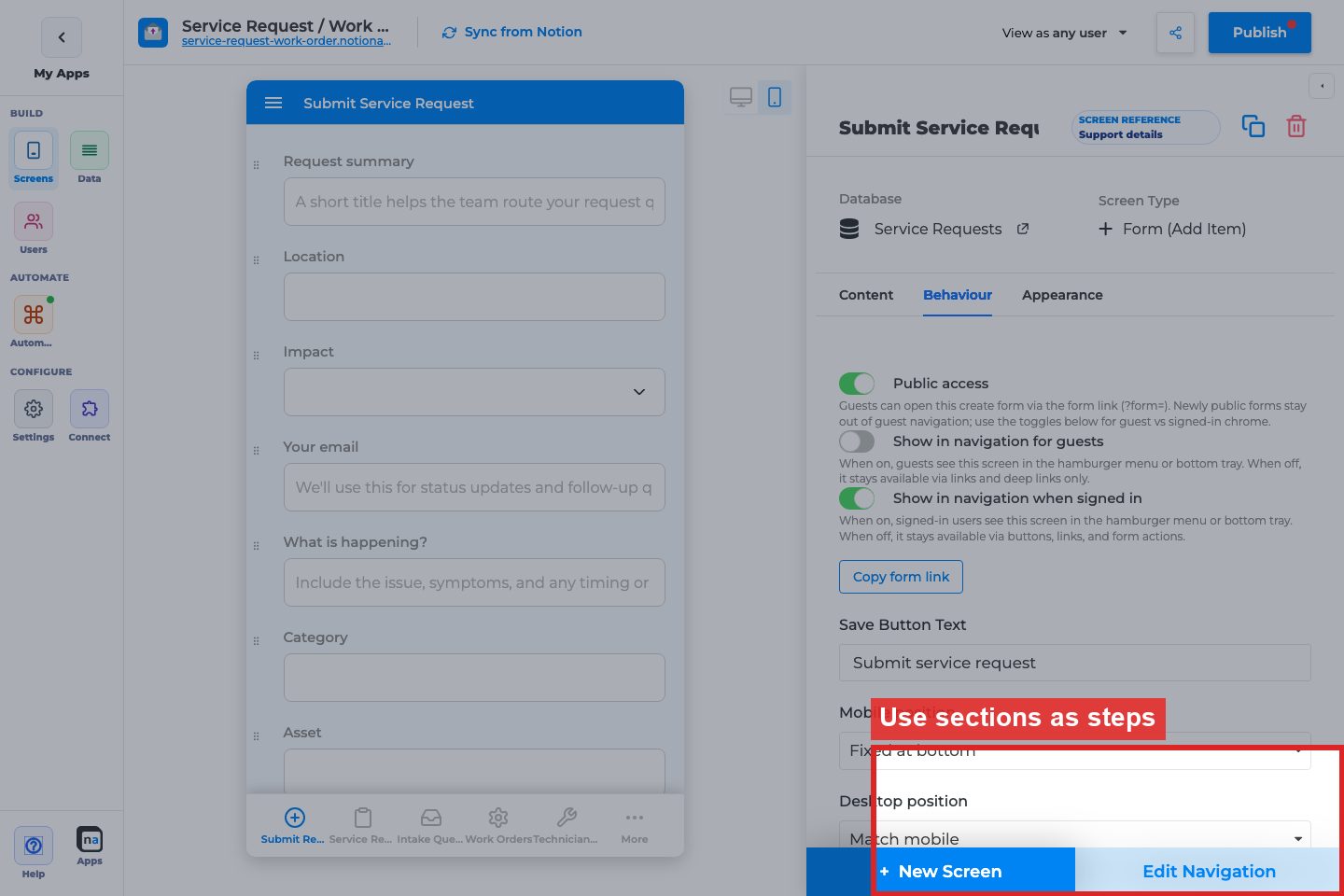
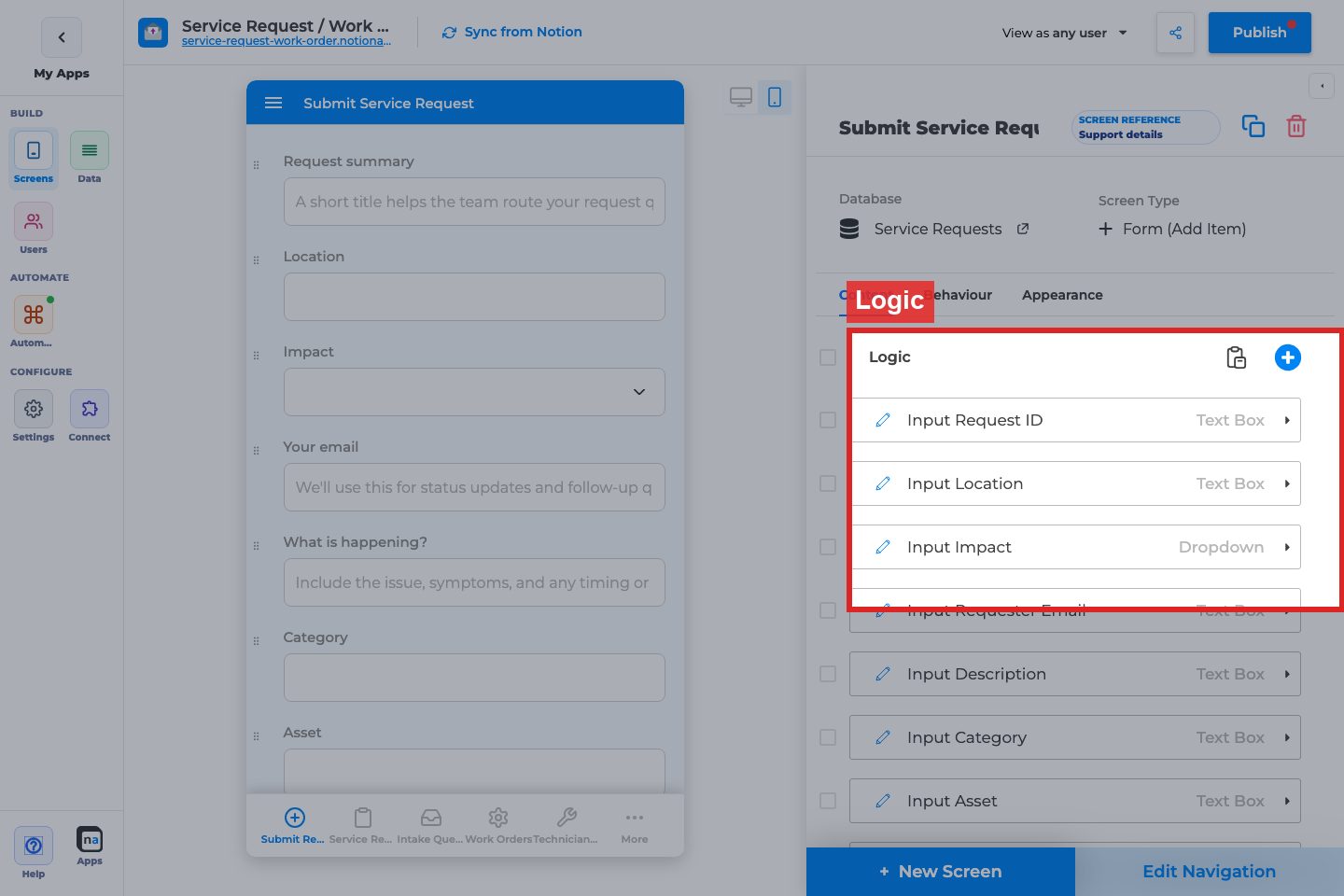
Complete Builder Options Reference
Section titled “Complete Builder Options Reference”Form Behaviour
Section titled “Form Behaviour”Use sections as steps
Section titled “Use sections as steps”What it does: Turns form sections into a stepper flow instead of one long page.
How to use it: Organize fields into sections first, then enable the toggle.
Why / recommended default: On for long intake forms; off for short 3–5 field forms.
Field / section canvas options
Section titled “Field / section canvas options”Section title
Section titled “Section title”What it does: Labels each step or section heading.
How to use it: Name the user job (“Contact”, “Details”, “Review”), not internal DB names.
Why / recommended default: Short titles that still make sense as stepper labels.
Full Create Form options: Form (Add Item).