Show or Hide a Divider with Visibility Logic
Learn how to show or hide a divider with Visibility Logic, base the rule on the current row, the form inputs or the logged-in user, and copy a rule from one component to another.
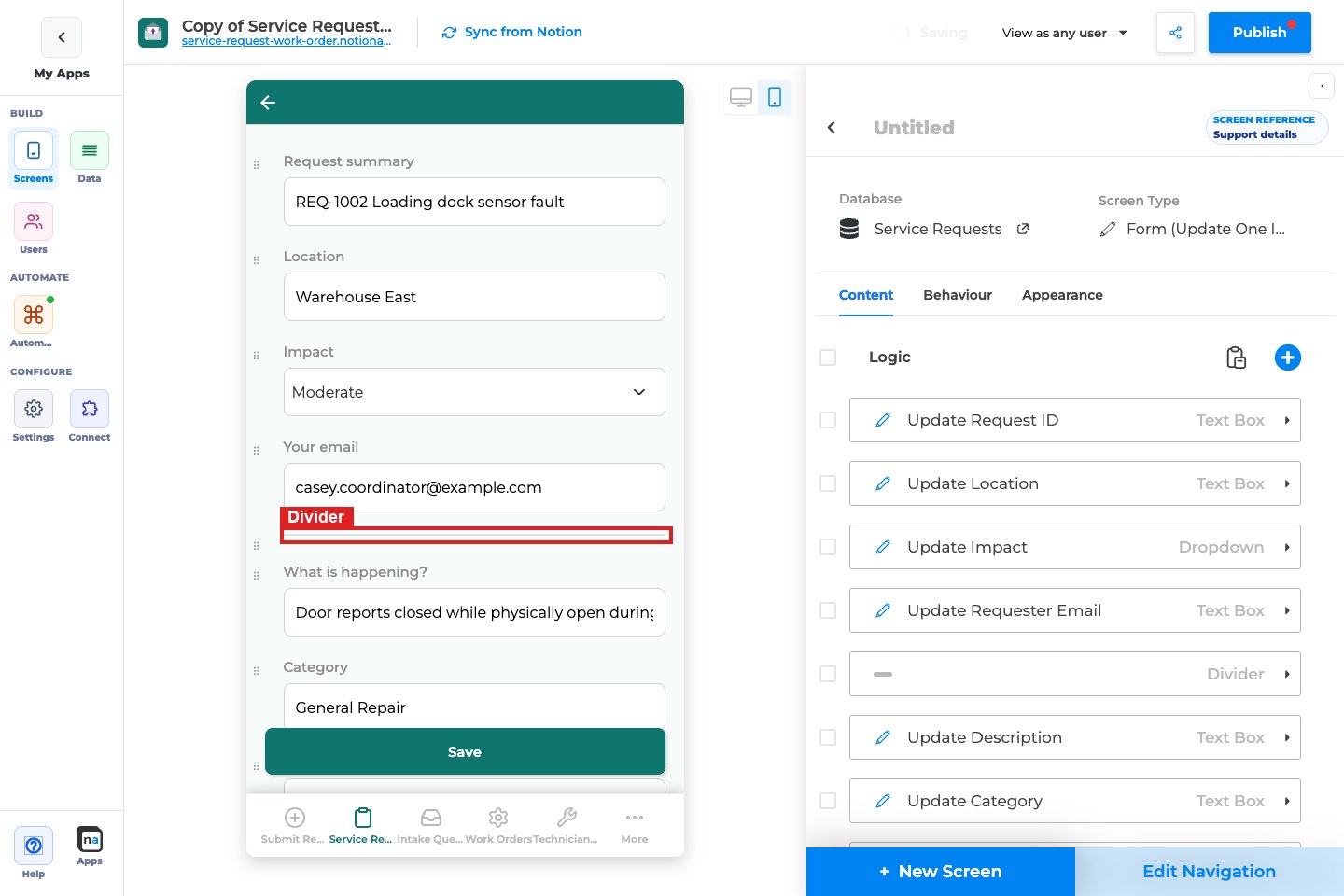
A divider draws a line between sections of a screen. Until now a divider was always shown, even when the section next to it was hidden, so users could see two lines touching or a line with nothing under it. Dividers now take the same Visibility Logic as every other component. You decide when the divider shows. When its rule doesn't match, the divider is removed and the space closes up.
What this feature is for
Section titled “What this feature is for”Use Visibility Logic on a divider when the line should only appear together with the content it separates.
Common uses:
- Hide the line above an empty section. A description only shows when that column has text, so its divider should only show then too.
- Show a staff-only section with its divider. Internal fields are shown only to signed-in users whose Role matches. Everyone else sees neither the fields nor the line above them.
- Follow a form choice. On a form, a details section appears only after the user picks a value. The divider above it appears at the same moment.
- Reuse a rule you already built. Copy the rule from the block the divider belongs to and paste it onto the divider, so both always show and hide together.
A divider with no rule keeps showing, exactly as before. Existing screens don't change until you add a rule.
Before you start
Section titled “Before you start”- Open the app in the NotionApps builder and go to the screen that has the divider. If the screen doesn't have one yet, add a Divider component.
- Know which property should drive the rule. It must be synced from Notion.
- To base a rule on the logged-in user, the app needs a Users database (Users in the builder rail). The property you compare, such as Role or Team, must be in that Users database.
Step 1: Open the divider's details
Section titled “Step 1: Open the divider's details”In the component list on the right, click the divider to expand it. Dividers now open like any other component and show a Behaviour section.
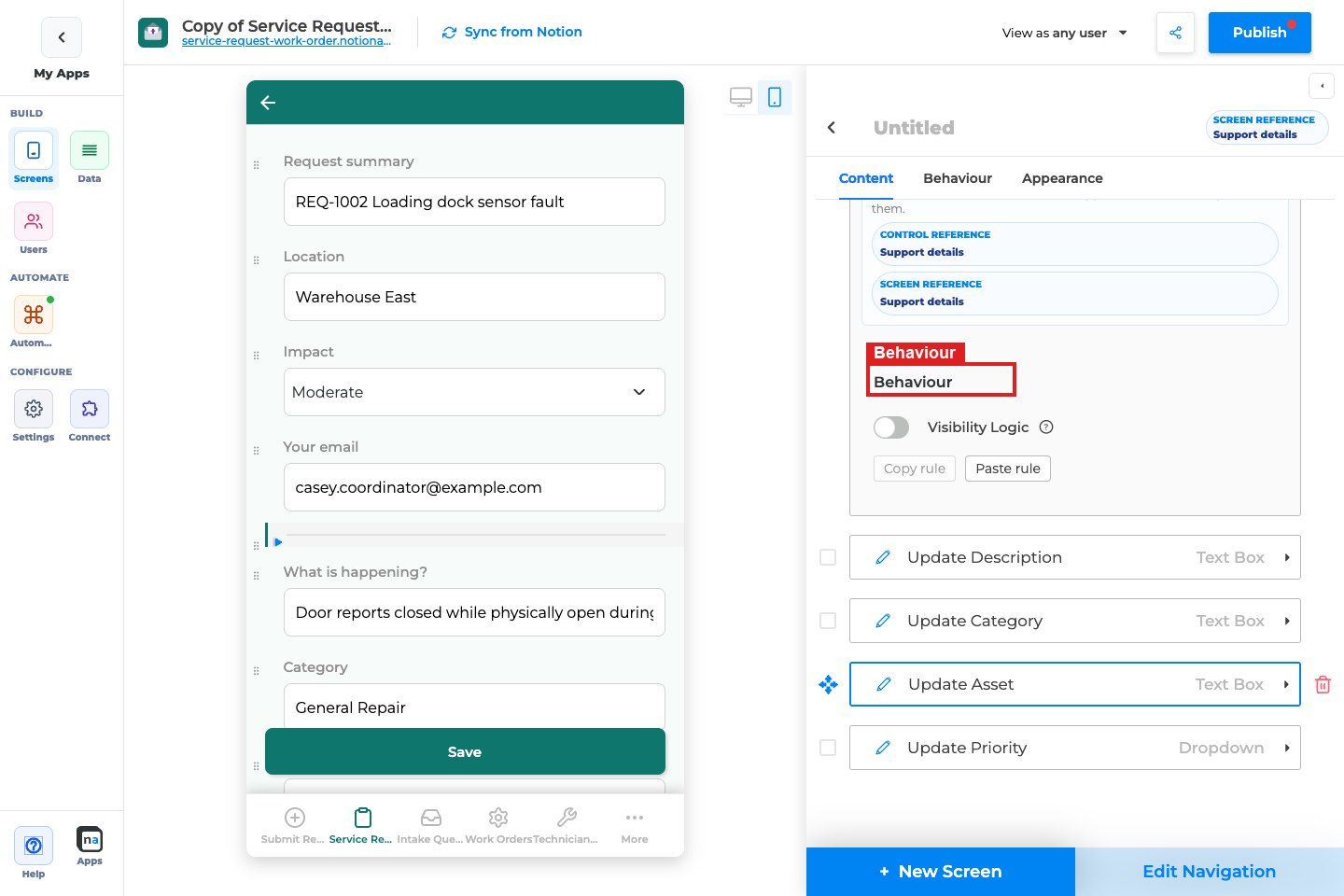
Step 2: Turn on Visibility Logic
Section titled “Step 2: Turn on Visibility Logic”In Behaviour, turn on Visibility Logic.
The rule starts with a source that suits the screen: current row on a row (details) page, user inputs on a form. Turning Visibility Logic on doesn't hide anything yet; the divider hides only once a condition fails.
Step 3: Choose what the rule reads
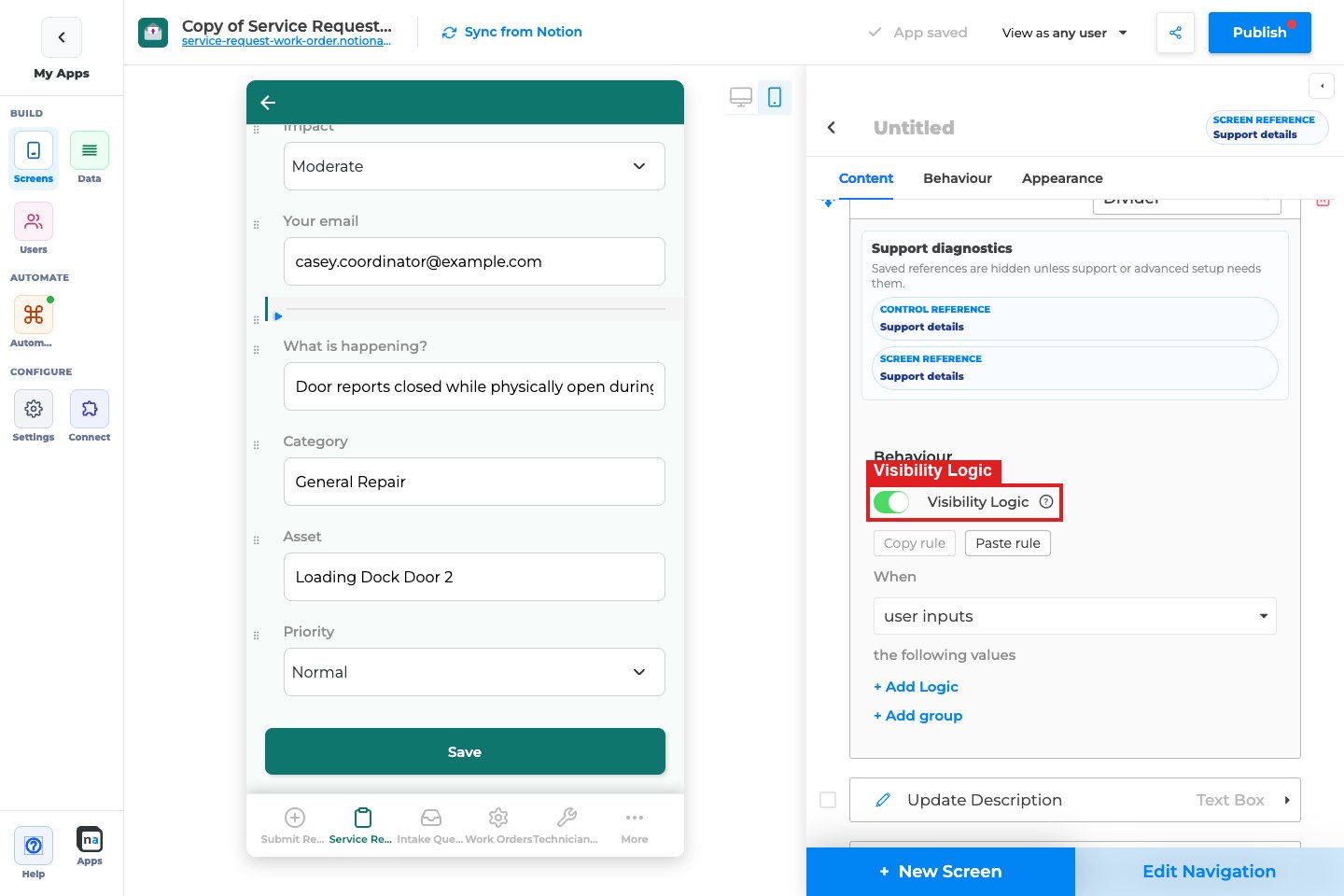
Section titled “Step 3: Choose what the rule reads”Use When to choose where the values come from:
| Source | Reads | Use it when |
|---|---|---|
| current row | The saved Notion values of the record on this screen | The line depends on the record, for example "Description is not empty" |
| user inputs | What the user has entered on the form so far | The line depends on a choice the user is making on a create or update form |
| logged-in user | The signed-in user's row in your Users database | The line depends on who is looking, for example "Role is equal to Auditor" |
Which sources you see depends on the screen:
| Screen type | Sources offered |
|---|---|
| Row (details) page | current row, logged-in user |
| Update form | current row, user inputs, logged-in user |
| Create form | user inputs, logged-in user |
| List screen (update multiple rows) | user inputs, logged-in user |
logged-in user only appears when the app has a Users database. If When shows a single source, there is nothing to choose and the sentence under the toggle tells you which source the rule uses.
Switching between logged-in user and another source clears the conditions, because they point at a different database. Switching between current row and user inputs keeps them.
Step 4: Add a condition
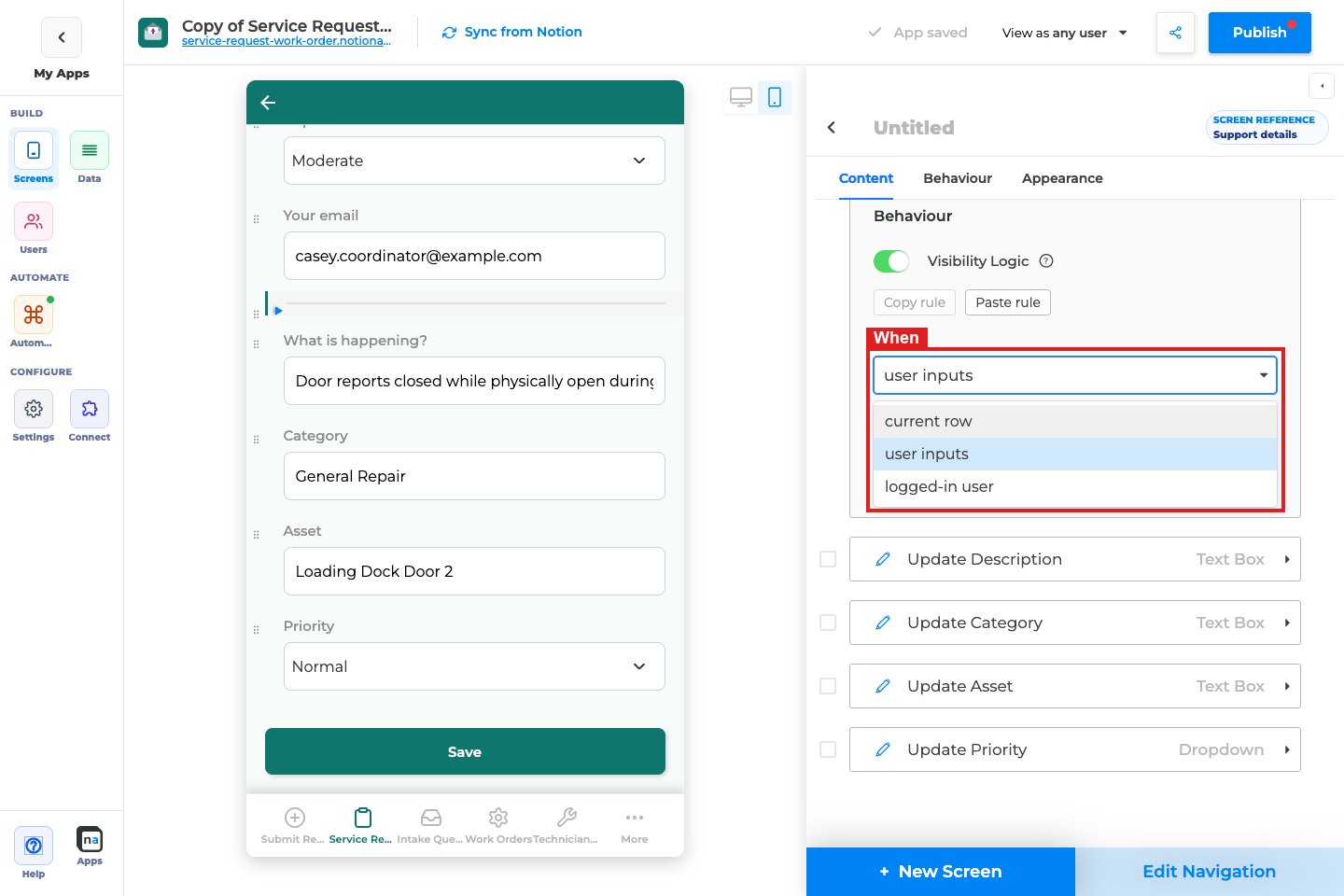
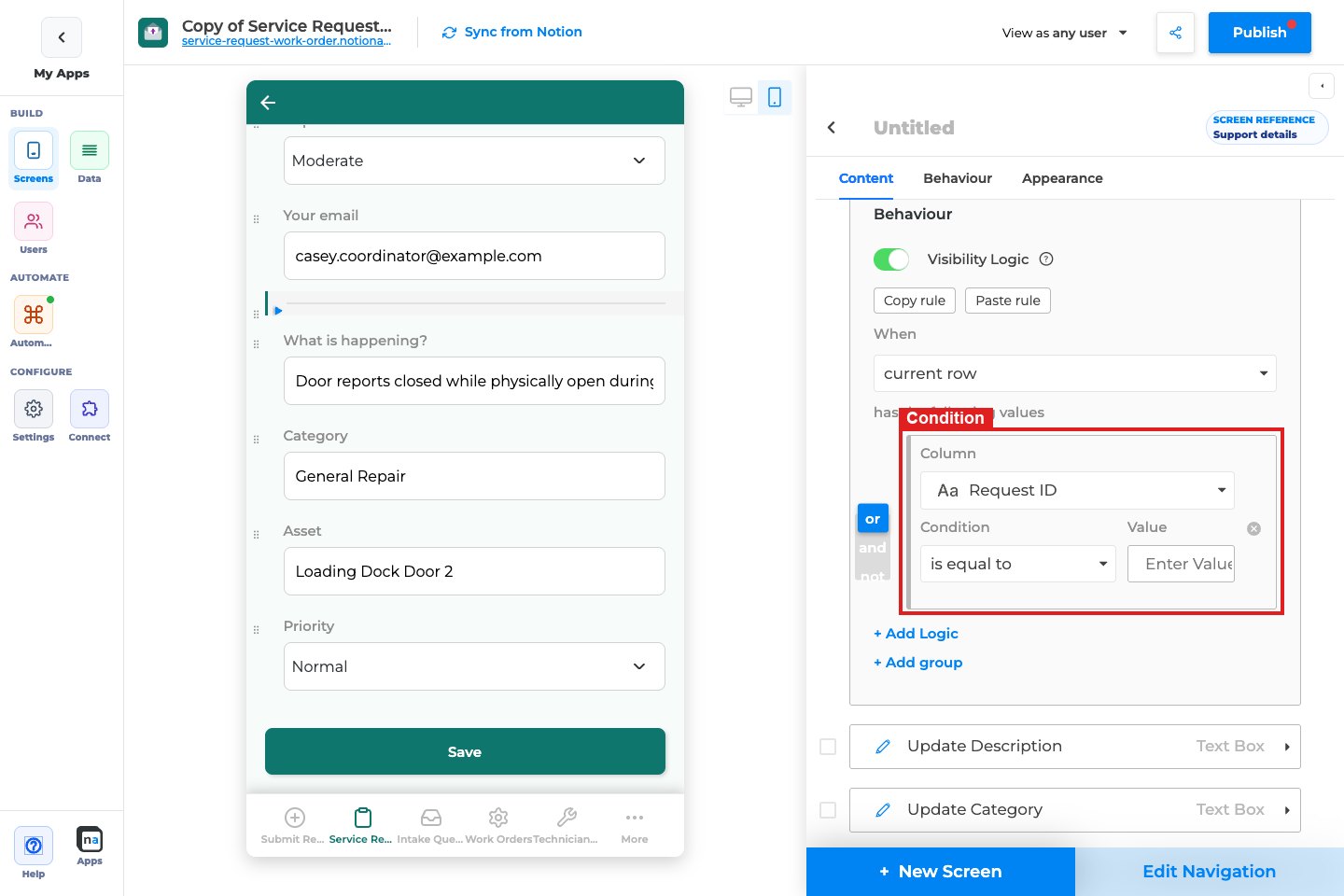
Section titled “Step 4: Add a condition”Click + Add Logic. Each condition has three parts:
- Column: the property to check. With logged-in user, the list shows your Users database properties. With the other sources, it shows the screen's database properties.
- Operator: such as is equal to, is not empty or consists of. The operators offered depend on the property type.
- Value: what to compare against, when the operator needs one.
The divider shows when the condition is true and hides when it is false.
Step 5: Combine conditions with and / or
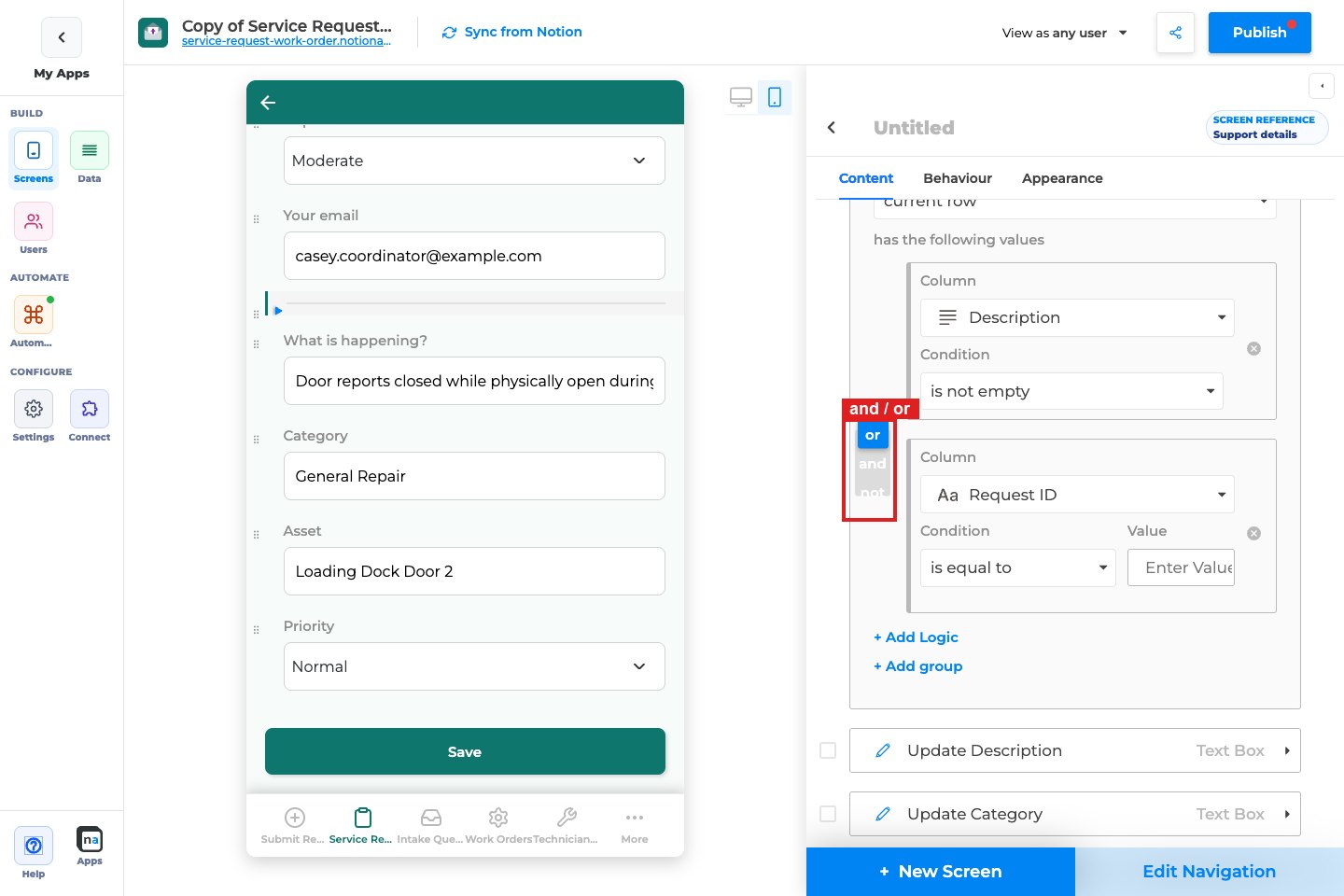
Section titled “Step 5: Combine conditions with and / or”Add more conditions with + Add Logic, then choose how they combine:
- and: the divider shows only when every condition is true.
- or: the divider shows when at least one condition is true.
Example 1: Hide the divider above an empty section
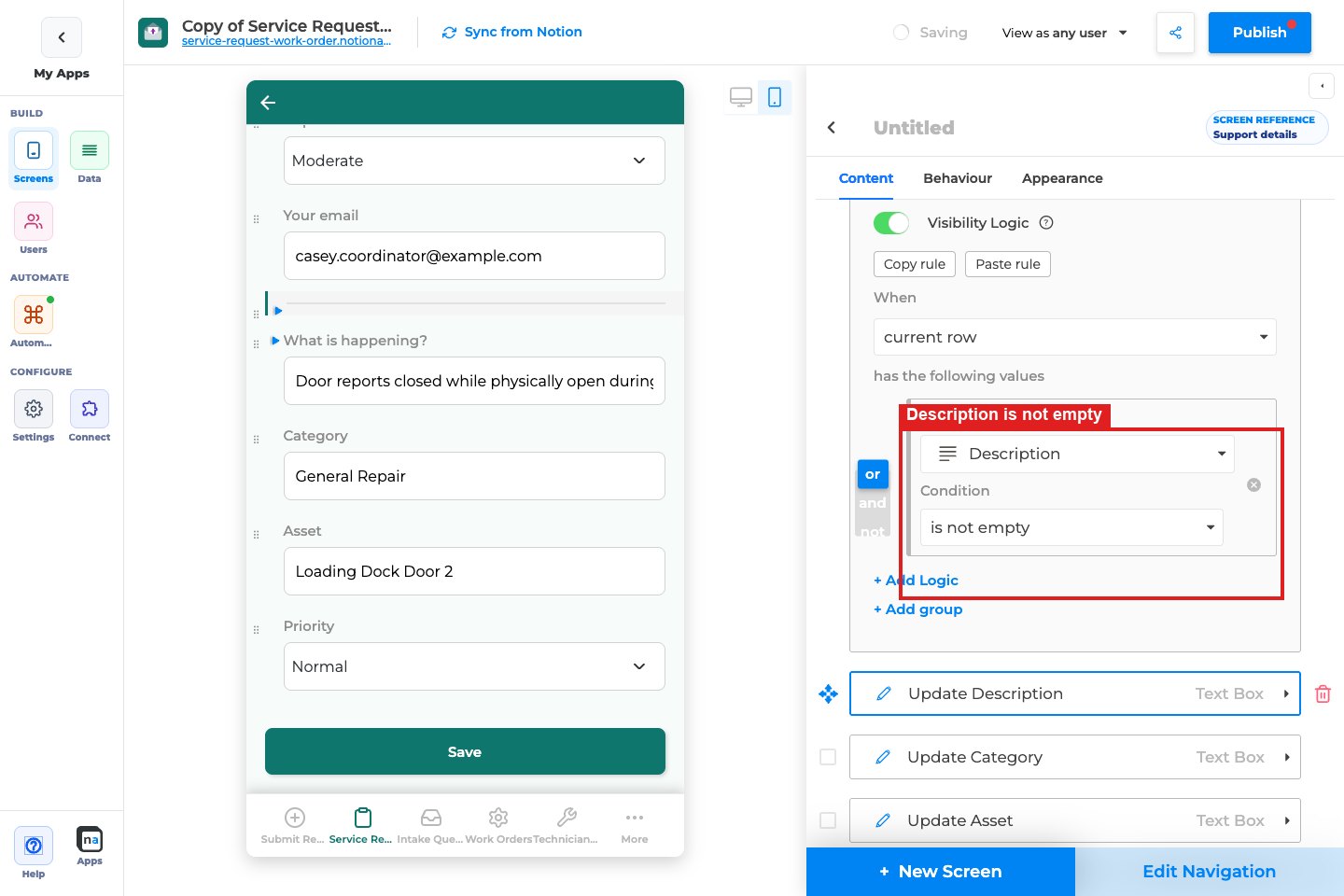
Section titled “Example 1: Hide the divider above an empty section”On the service request update form, the field labeled What is happening? is the Description column. Give the divider above it this rule:
- Select the divider and turn on Visibility Logic.
- Set When to current row.
- Click + Add Logic and choose Description, is not empty.
When Description has text, the divider shows between Your email and What is happening?. When Description is empty, the divider is removed and the next field moves up. There's no stray line and no empty gap.
Example 2: Show a staff-only section and its divider
Section titled “Example 2: Show a staff-only section and its divider”The screenshots use Role, a property on the Service Users database:
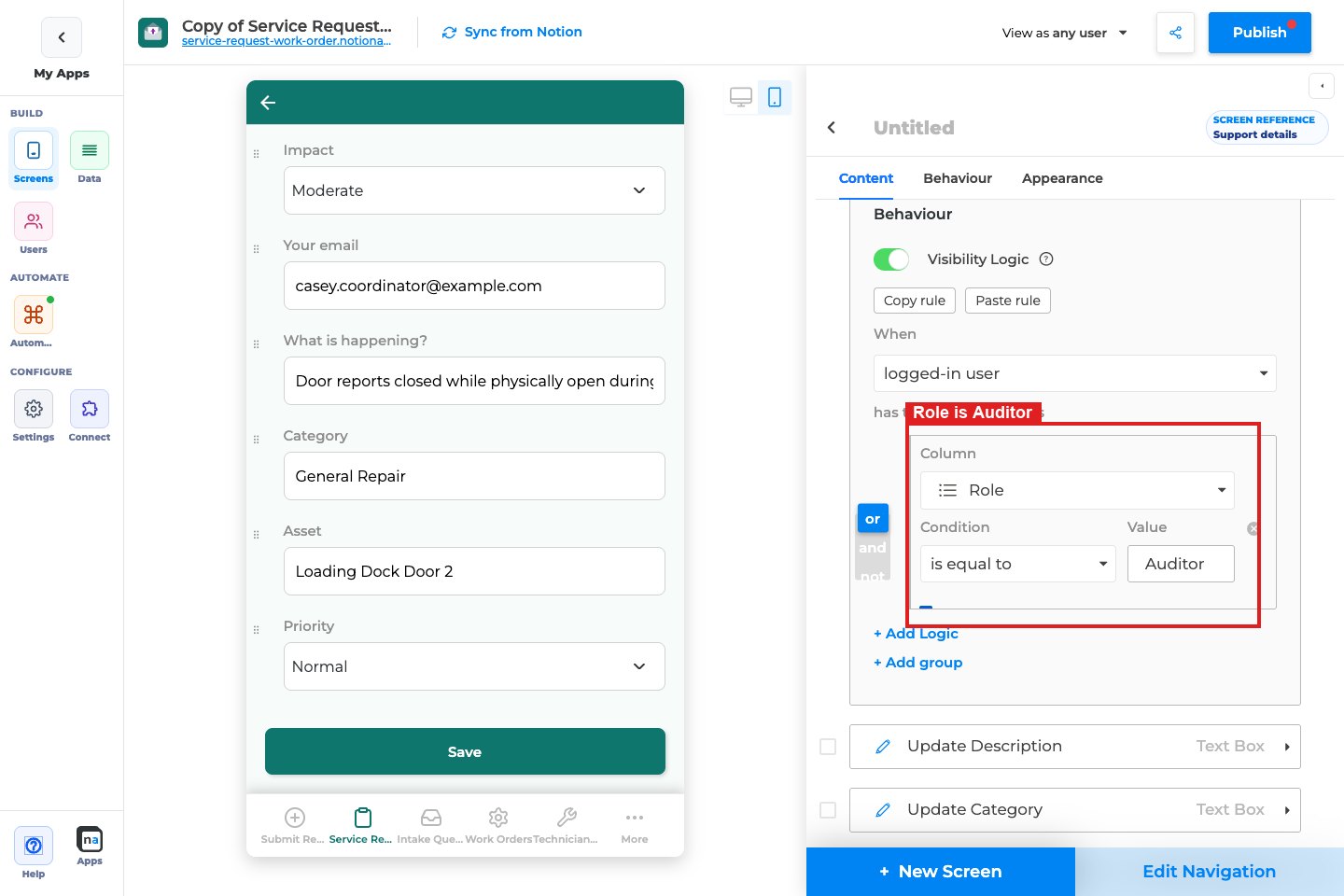
- Select the divider and turn on Visibility Logic.
- Set When to logged-in user.
- Click + Add Logic and choose Role, is equal to, Auditor.
- Give the fields that belong with the divider the same rule. The quickest way is to copy it, as shown in the next section. In the preview below, Your email and What is happening? use this rule as well as the divider.
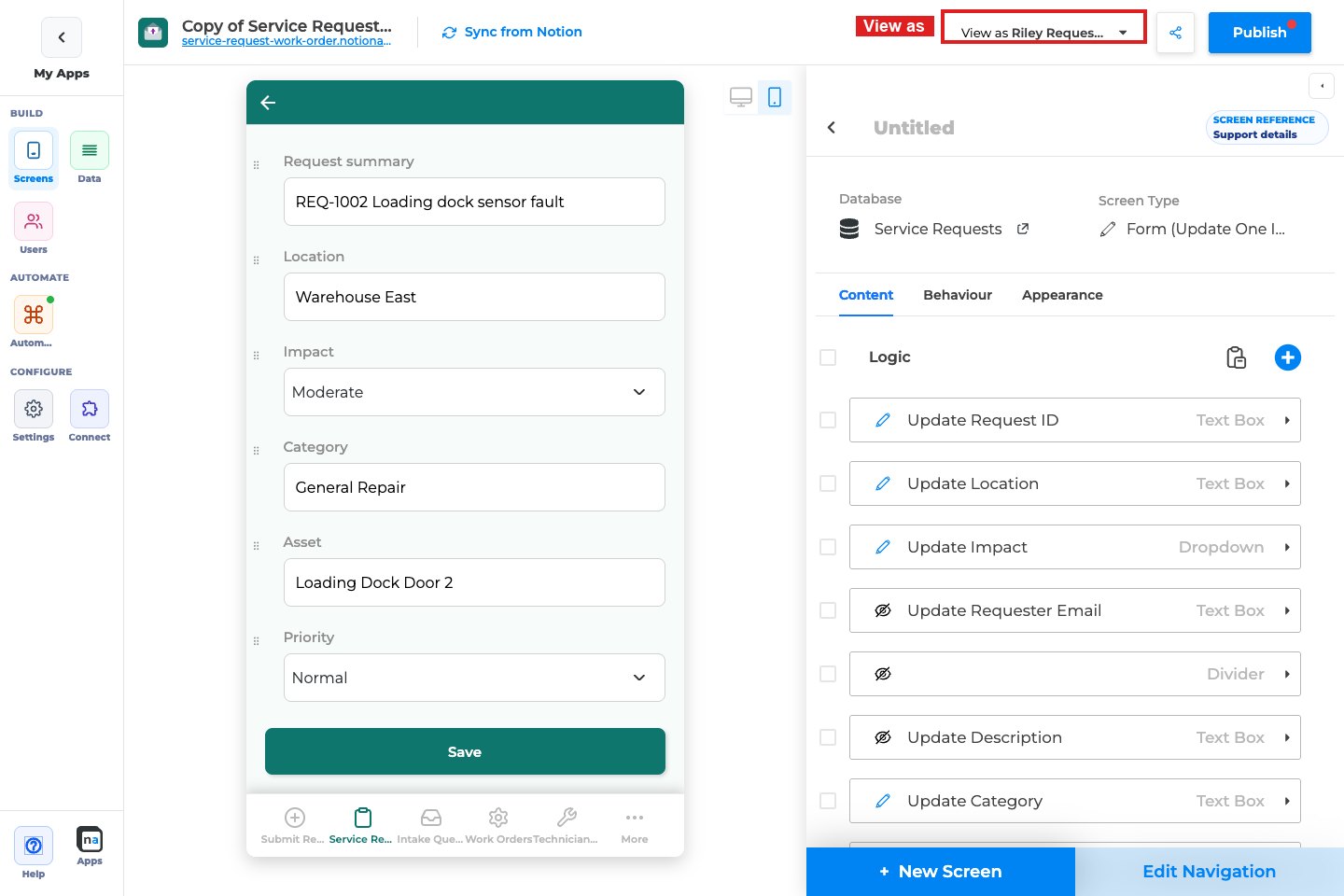
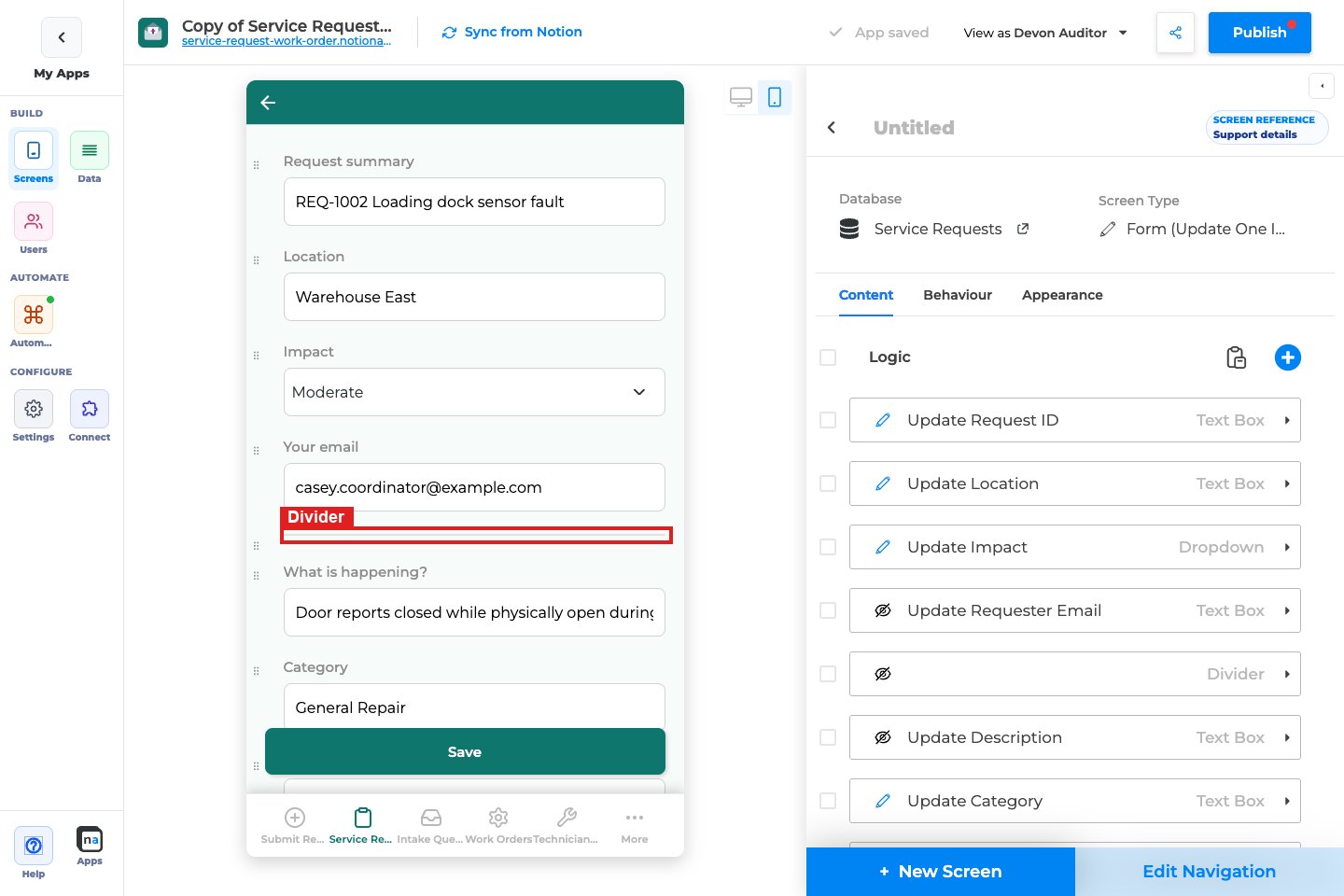
Devon Auditor sees the divider and those fields. Riley Requester sees neither, and Category sits directly under Impact. Visitors who aren't signed in (guests) have no user row, so a logged-in user rule always hides the component for them.
Copy a rule from one component to another
Section titled “Copy a rule from one component to another”Every component's Visibility Logic section has Copy rule and Paste rule. Use them to give a divider the same rule as the block it belongs to, or the other way round.
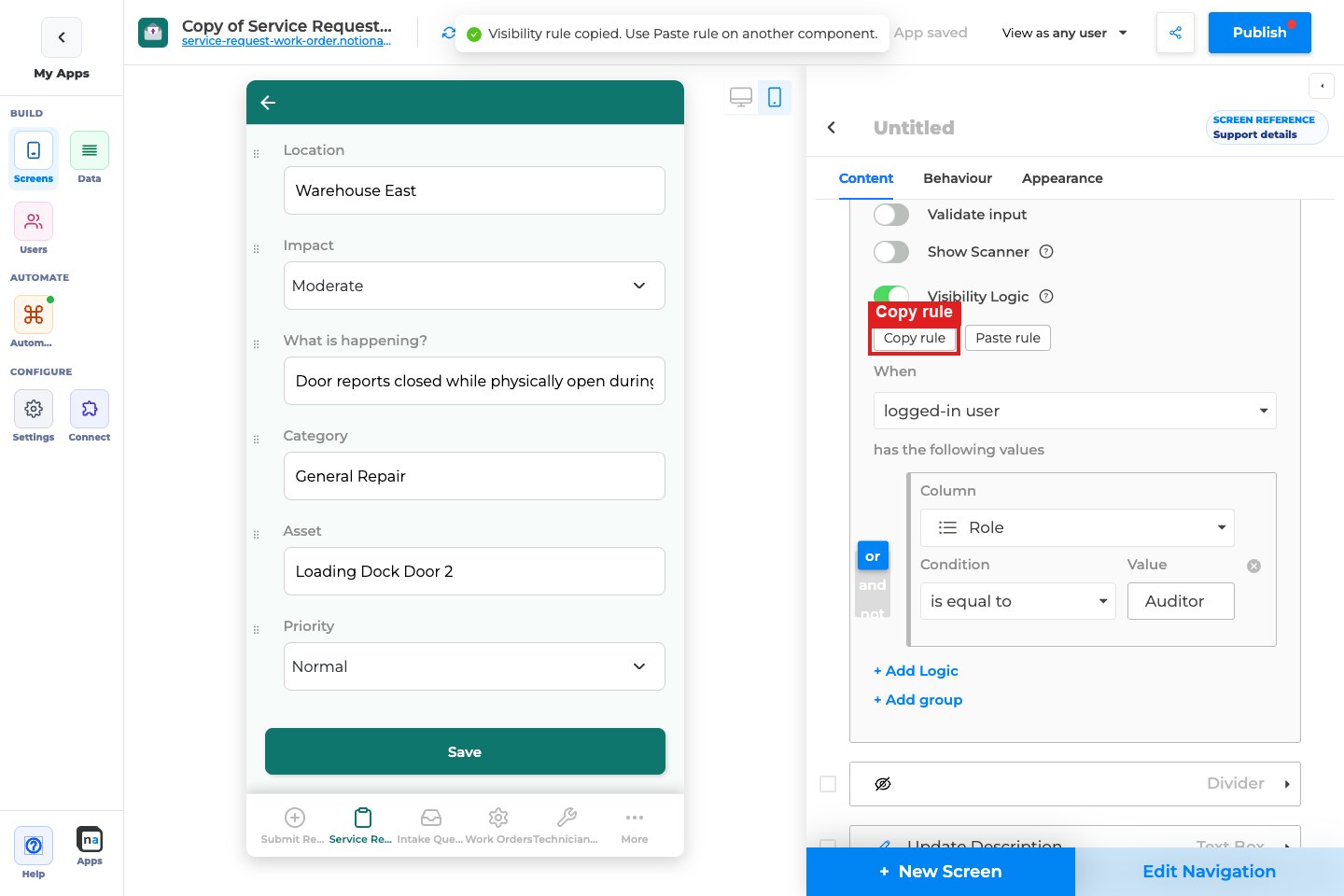
- On the component that already has the rule, click Copy rule. You'll see Visibility rule copied. Use Paste rule on another component.
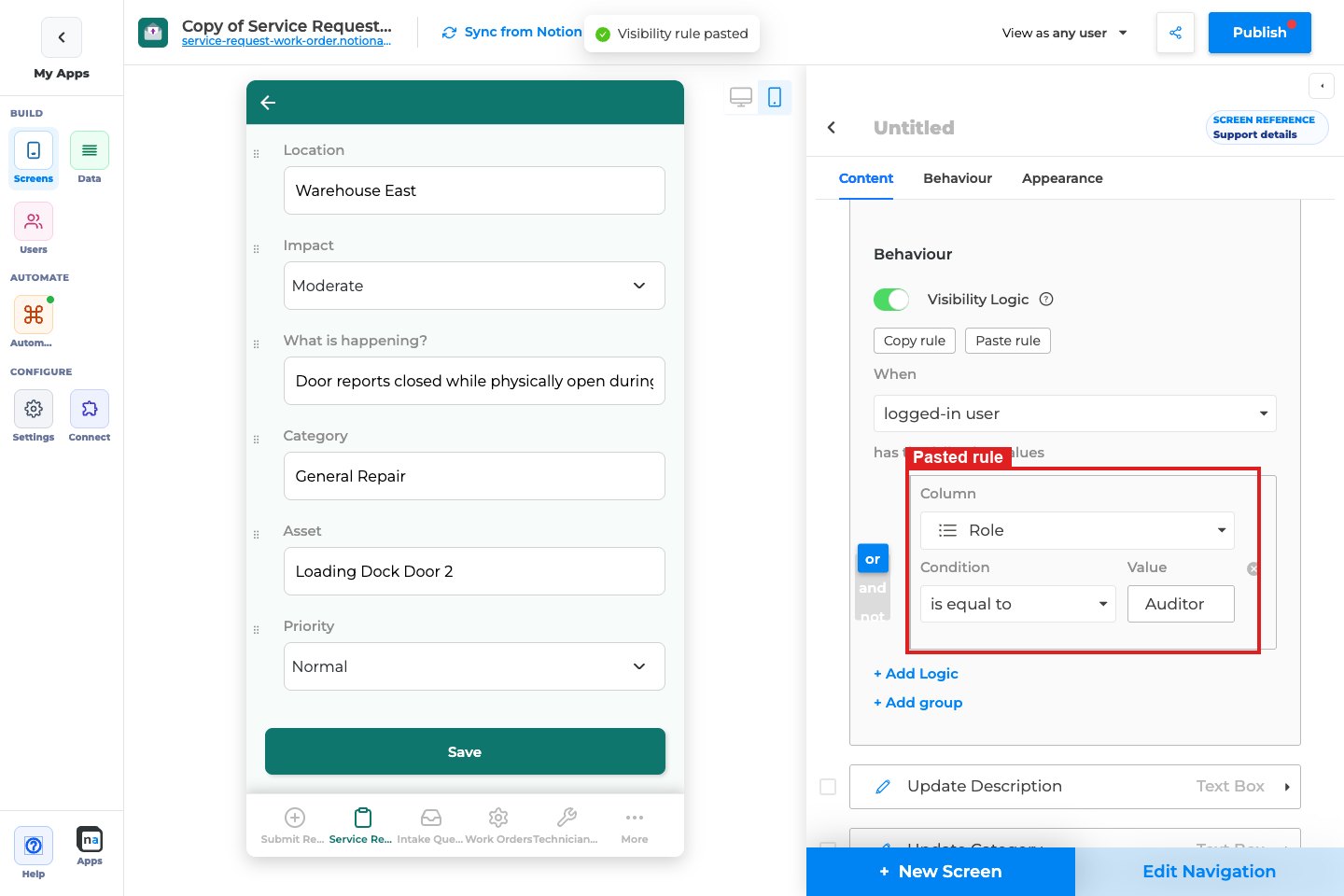
- Open the component that should get the rule (a divider, a field, a label, a button, anything) and click Paste rule. You'll see Visibility rule pasted.
Paste replaces the target's rule with the copied one, including its source, conditions, and/or choice and any groups, and turns Visibility Logic on. Copy rule is greyed out until the component has at least one condition.
A rule pastes onto another screen too:
- logged-in user rules paste onto any screen in the same app, because they read the Users database.
- current row and user inputs rules paste onto screens that use the same database.
- If the target screen doesn't offer the copied source, the rule switches to the closest one, as pasting a whole component does. A current row rule pasted onto a create form becomes a user inputs rule; a user inputs rule pasted onto a row page becomes a current row rule.
Check it before you publish
Section titled “Check it before you publish”Use View as at the top of the builder to preview the screen as different users. Choose Devon Auditor and the divider shows. Choose Riley Requester and the divider, Your email, and What is happening? are gone, with Category closing up under Impact. Check the phone and desktop previews; the rule works the same on both.
What users see
Section titled “What users see”- When the rule matches, the divider draws its line as usual.
- When it doesn't, the divider is removed from the screen, not just made invisible. It takes no space, so the content below moves up.
- Each component keeps its own rule. Hiding a divider doesn't hide the blocks around it, so give those blocks their own rules (or paste the same one).
- The rule is checked again when the record changes, when the user edits the form, and when a different user signs in.
Limits
Section titled “Limits”- One rule reads one source. You can't mix current row and logged-in user conditions in the same rule.
- logged-in user needs a Users database. Guests always fail a logged-in user rule.
- user inputs only has values on forms. On a row page, use current row.
- Visibility Logic controls what is shown. It isn't a security setting. To keep records away from some users, use Data Restriction.
Fix problems
Section titled “Fix problems”| Symptom | Likely cause | What to do |
|---|---|---|
| The divider never shows | The condition is never true for this record or user | Check the column, operator and value. With and, every condition must be true. |
| logged-in user isn't in When | The app has no Users database | Add one under Users in the builder rail. |
| The divider shows for a user who shouldn't see it | The user's Role (or other property) in the Users database isn't what you expect | Open their row in the Users database, or preview with View as that user. |
| The conditions disappeared | When was switched to or from logged-in user | Add the conditions again for the new source. |
| Paste failed. The copied rule reads a different database than this screen. | You copied a current row or user inputs rule from a screen on another database | Copy a rule from a screen on the same database, or build the rule here. |
| Paste failed. The copied rule uses the logged-in user, and this app has a different or no Users database. | The rule came from another app | Build the rule in this app. |
| Paste failed. A column the rule uses no longer exists. | A property was deleted from Notion after you copied | Copy the rule again, or fix the rule on the source component first. |
| Paste failed. The column types are different. | A property's type changed in Notion after you copied | Refresh the app, copy the rule again and paste. |
| Nothing to paste. Copy a visibility rule first. | The clipboard holds something else, such as copied components | Click Copy rule on the source component first. |
| NotionApps needs pasteboard permission… | The browser blocked clipboard access | Allow clipboard access for the builder and reload the page. |
| It works in the builder but not in the live app | The app hasn't been published | Click Publish. |