Send Phone Notifications, Including on a Schedule
Learn how to send a short notification to people's phones from a NotionApps workflow, right when something happens or on a schedule, and how the people who use your app turn those notifications on or off.
A message inside the app or an email only helps when someone happens to check. A phone notification shows in the phone's notification list even when the app is closed. You write a title and a message, choose who gets it and which screen it opens, and choose when it goes out: when something happens in the app, on a date, or on a repeat such as every Monday or the first day of each month.
What this feature is for
Section titled “What this feature is for”Use phone notifications when people should hear about something without opening the app first.
Common uses:
- Tell someone about a change. A request is approved, a status changes, a new row is assigned to them.
- Send a reminder on a date. A deadline reminder that goes out by itself on the day you pick.
- Send a reminder that repeats. Rent is due on the first of the month, timesheets are due every Friday.
Each person chooses whether to get them. Nobody receives a phone notification until they tap Turn on in your app, and they can turn them off at any time.
Before you start
Section titled “Before you start”- If the setting shows
Phone notifications are not included in this app's plan., contact support. - Your app needs sign-in. A public app has no signed-in person to notify, so the switch is not shown to its visitors.
- On Android, notifications work in Chrome, in a browser tab or in the installed app.
- On iPhone and iPad, the person must first add the app to the Home Screen (iOS 16.4 or later) and open it from there.
- A notification reaches a person only after they have opened the app and turned notifications on. It does not reach someone who has never opened the app.
Step 1: Turn on Phone notifications for the app
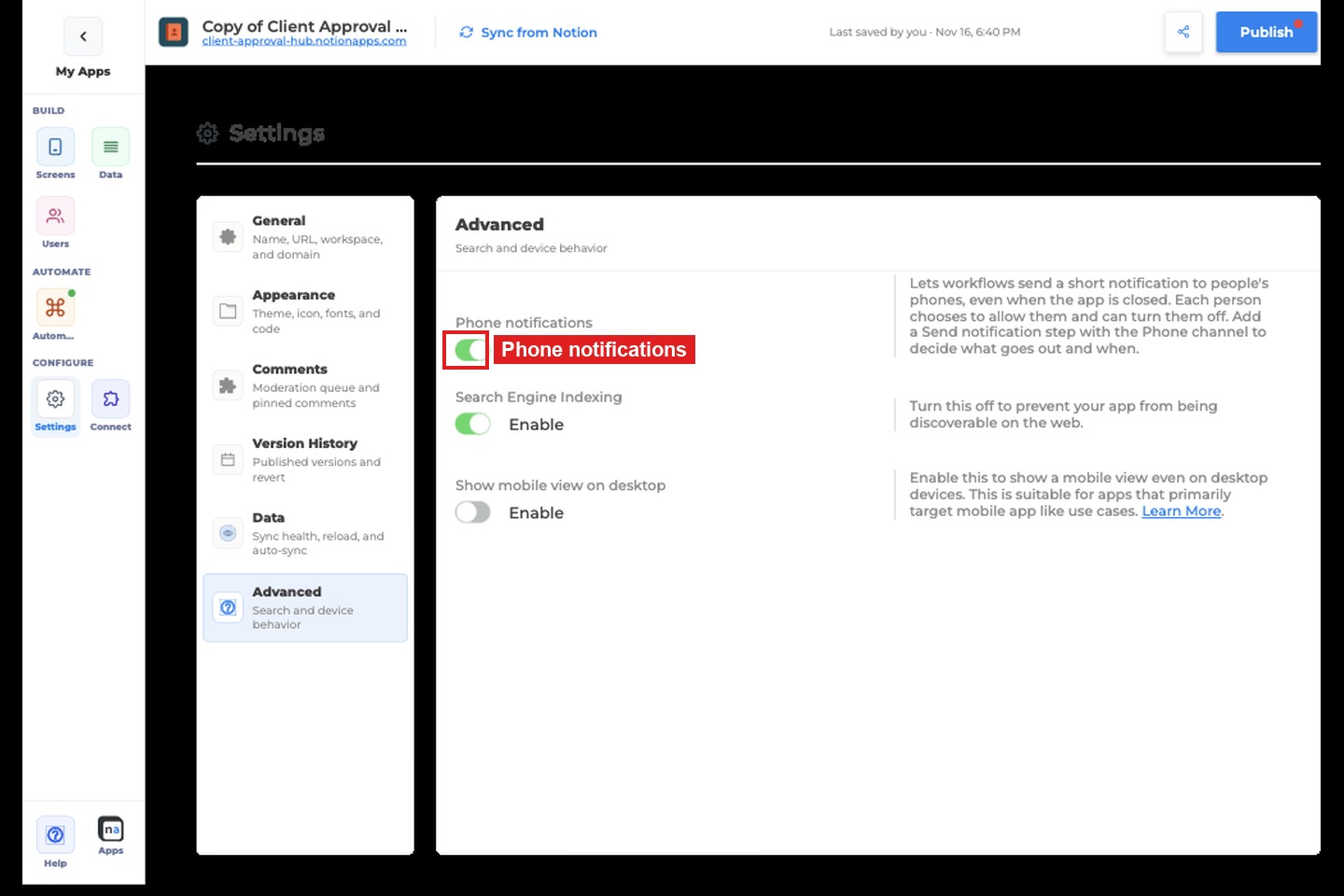
Section titled “Step 1: Turn on Phone notifications for the app”Open the app in the builder. In the left sidebar, click Settings, then Advanced. Find Phone notifications and turn Enable on.
The description reads: Lets workflows send a short notification to people's phones, even when the app is closed. Each person chooses to allow them and can turn them off. Add a Send notification step with the Phone channel to decide what goes out and when.
This only allows the app to send them. Nothing goes out until a workflow sends a notification, and each person still chooses for themselves.
Step 2: Open Workflows
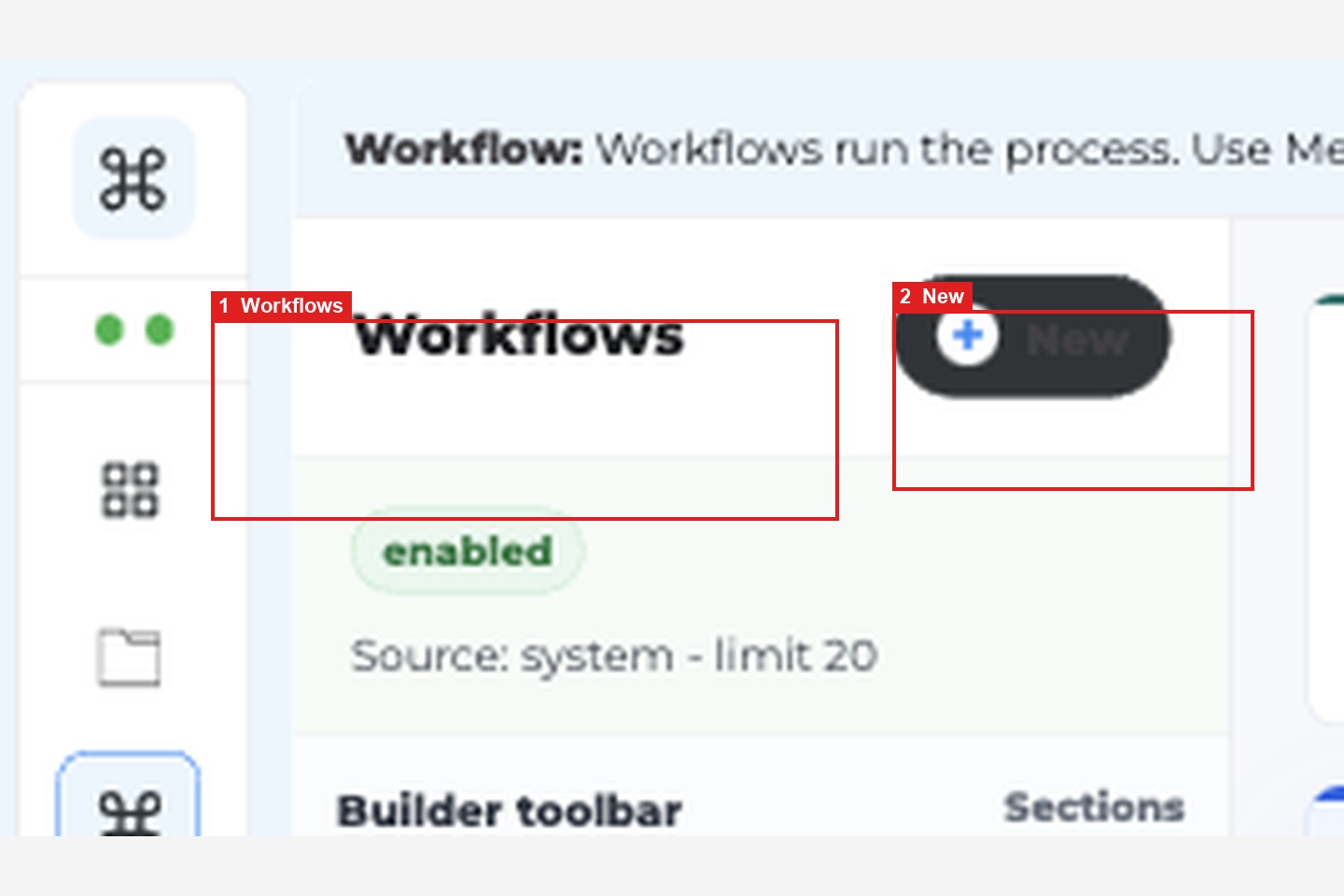
Section titled “Step 2: Open Workflows”In the left sidebar, under Automate, click Workflows. Click New, and give the workflow a name that says what it does, for example Rent reminder.
Step 3: Choose when it goes out
Section titled “Step 3: Choose when it goes out”A workflow starts with a trigger. Pick the one that matches when the notification should go out.
- When something happens in the app: choose a trigger such as a new row or a status change. The notification goes out at that moment.
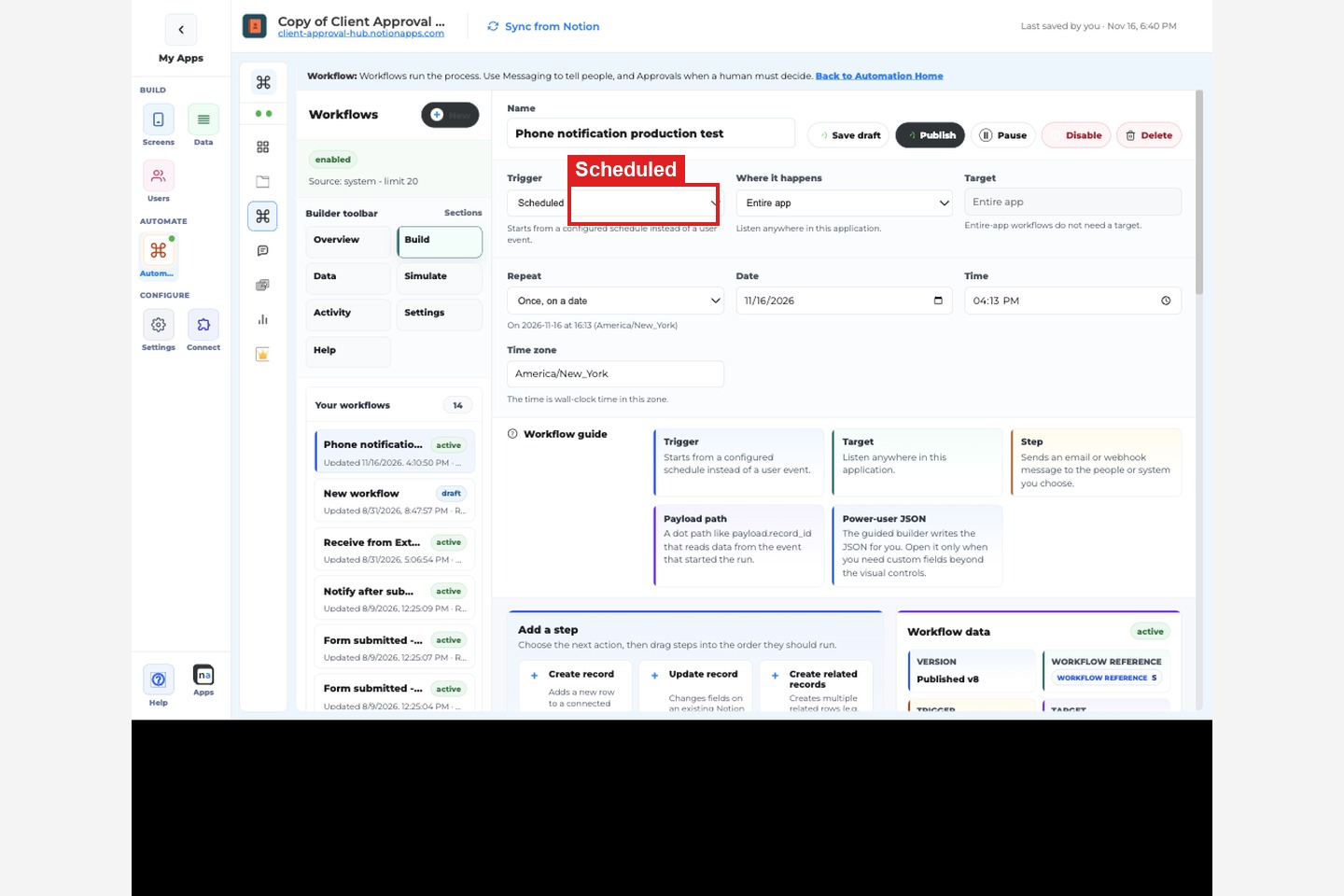
- On a date, or on a repeat: choose the Scheduled trigger, then set Repeat:
- Once, on a date
- Every day
- Every week (pick the days)
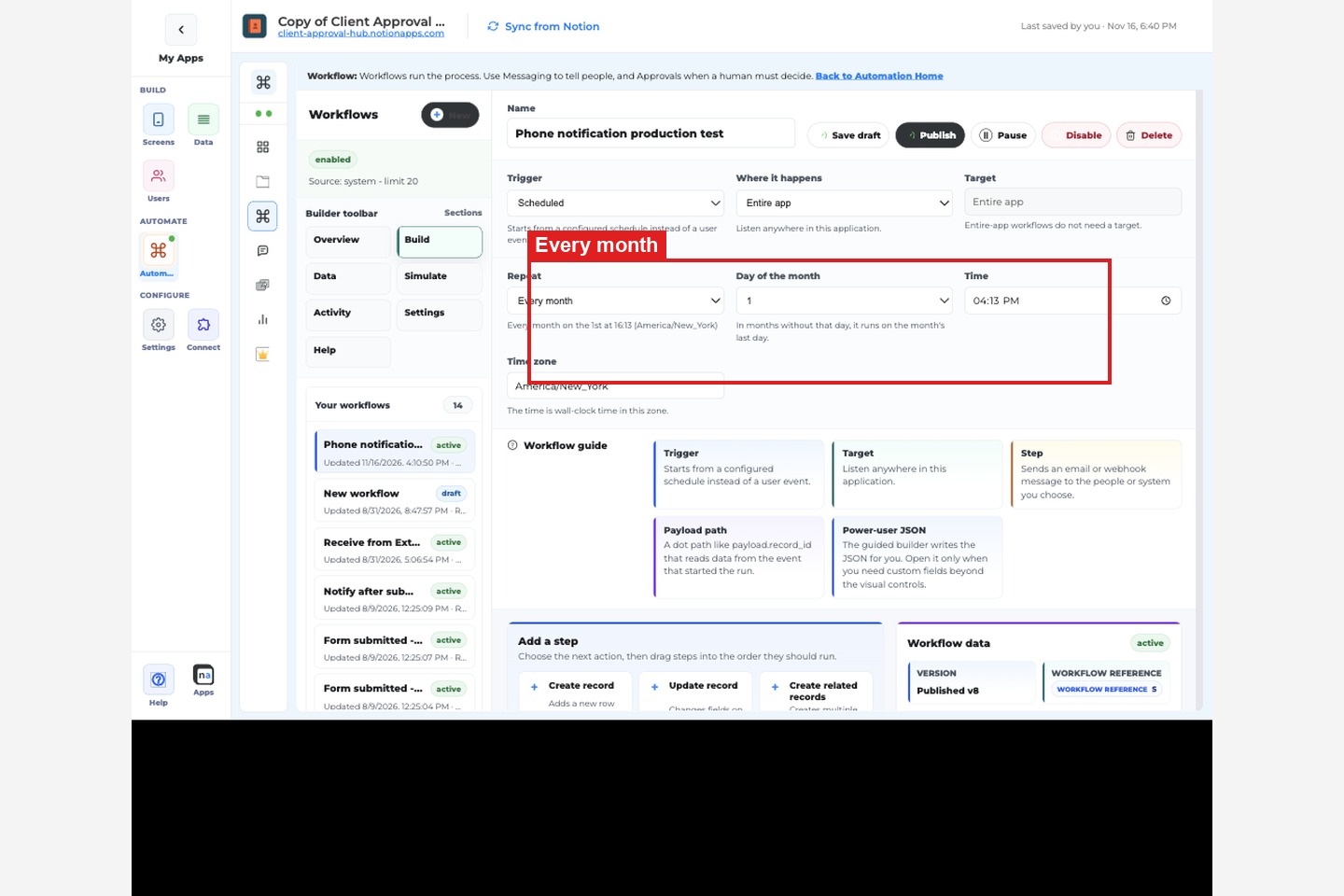
- Every month (pick the day of the month)
- Fixed interval runs again after a set amount of time.
Set the Date or Day of the month, the Time, and the Time zone. The hint under the time zone says The time is wall-clock time in this zone., so 16:13 in America/New_York is 4:13 in the afternoon in New York all year. For a day of the month, the field accepts 1 through 31 and Last day. The note under it says In months without that day, it runs on the month's last day.
The line under Repeat reads the schedule back to you, for example On 2026-11-16 at 16:13 (America/New_York) or Every month on the 1st at 16:13 (America/New_York).
Step 4: Add a Notify step
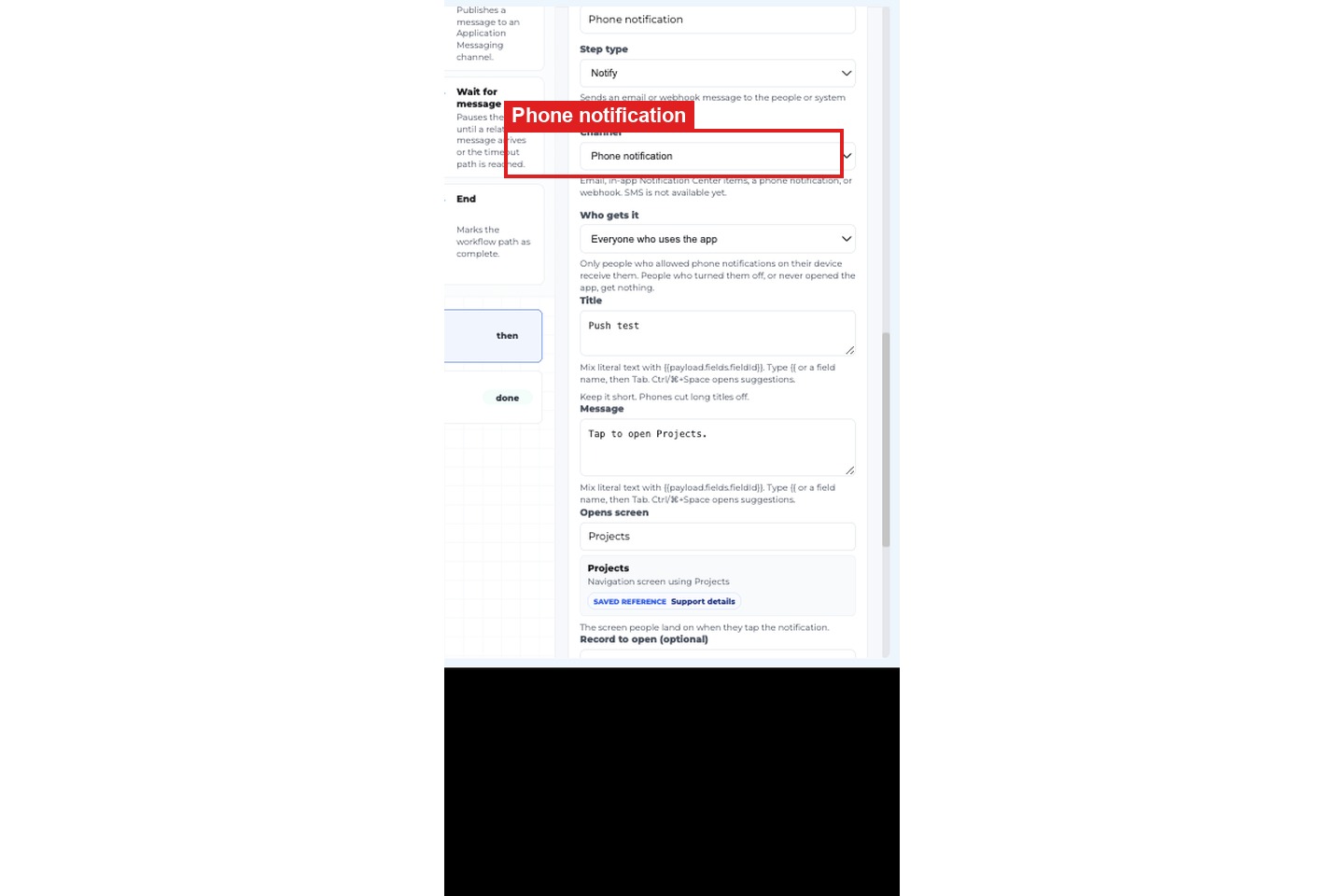
Section titled “Step 4: Add a Notify step”Add a step and set Step type to Notify. Under Channel, choose Phone notification.
Step 5: Choose who gets it
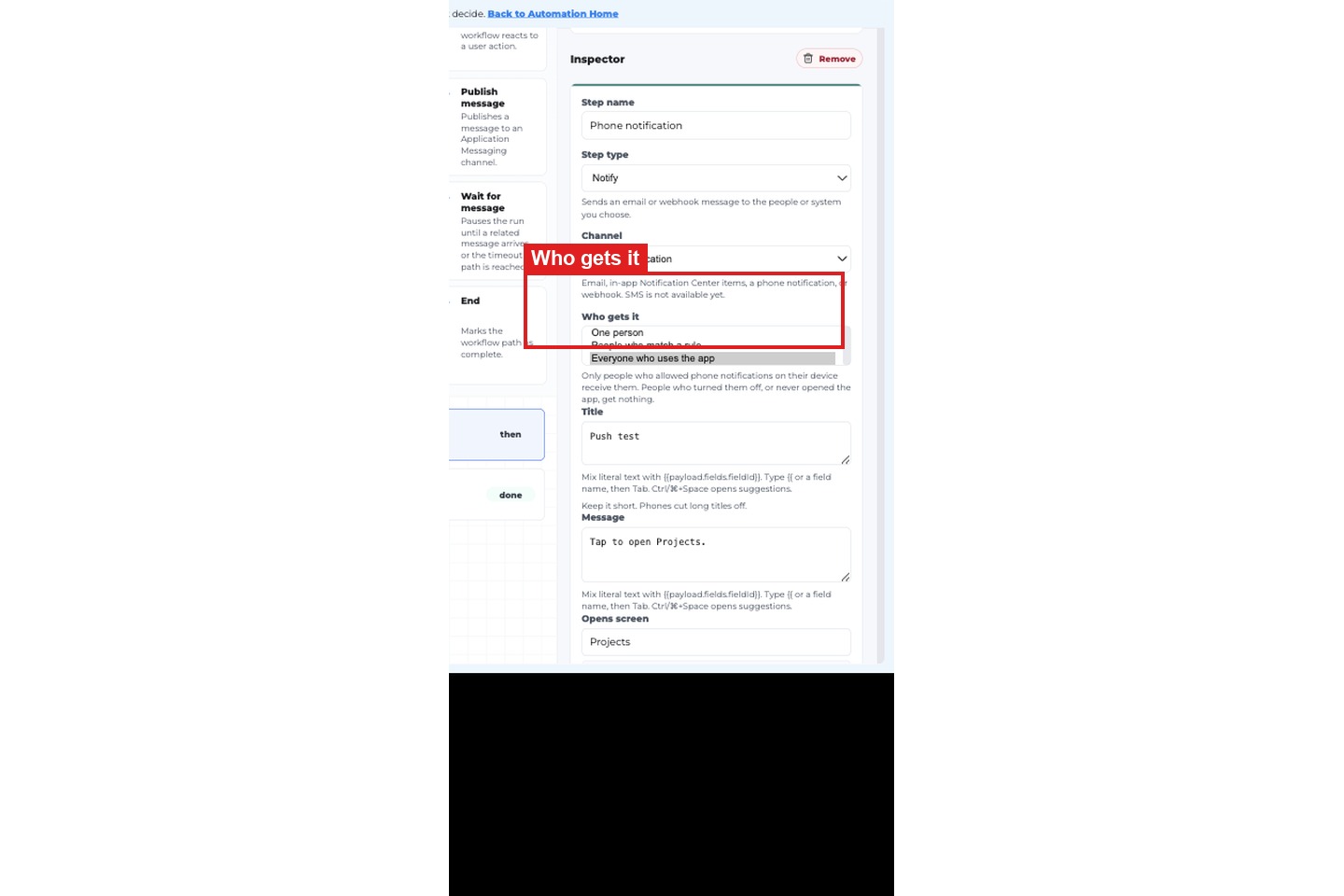
Section titled “Step 5: Choose who gets it”Under Who gets it, pick one:
- One person: type their sign-in email, or use a field from the row that holds it.
- People who match a rule: pick a field, a comparison and a value, for example Role is
Manager. - Everyone who uses the app: every person who has turned phone notifications on.
The helper under the list says: Only people who allowed phone notifications on their device receive them. People who turned them off, or never opened the app, get nothing.
Nothing is chosen for you. Until you pick, the step shows Choose who gets it. and the workflow can't be published.
Step 6: Write the title and message, and choose the screen
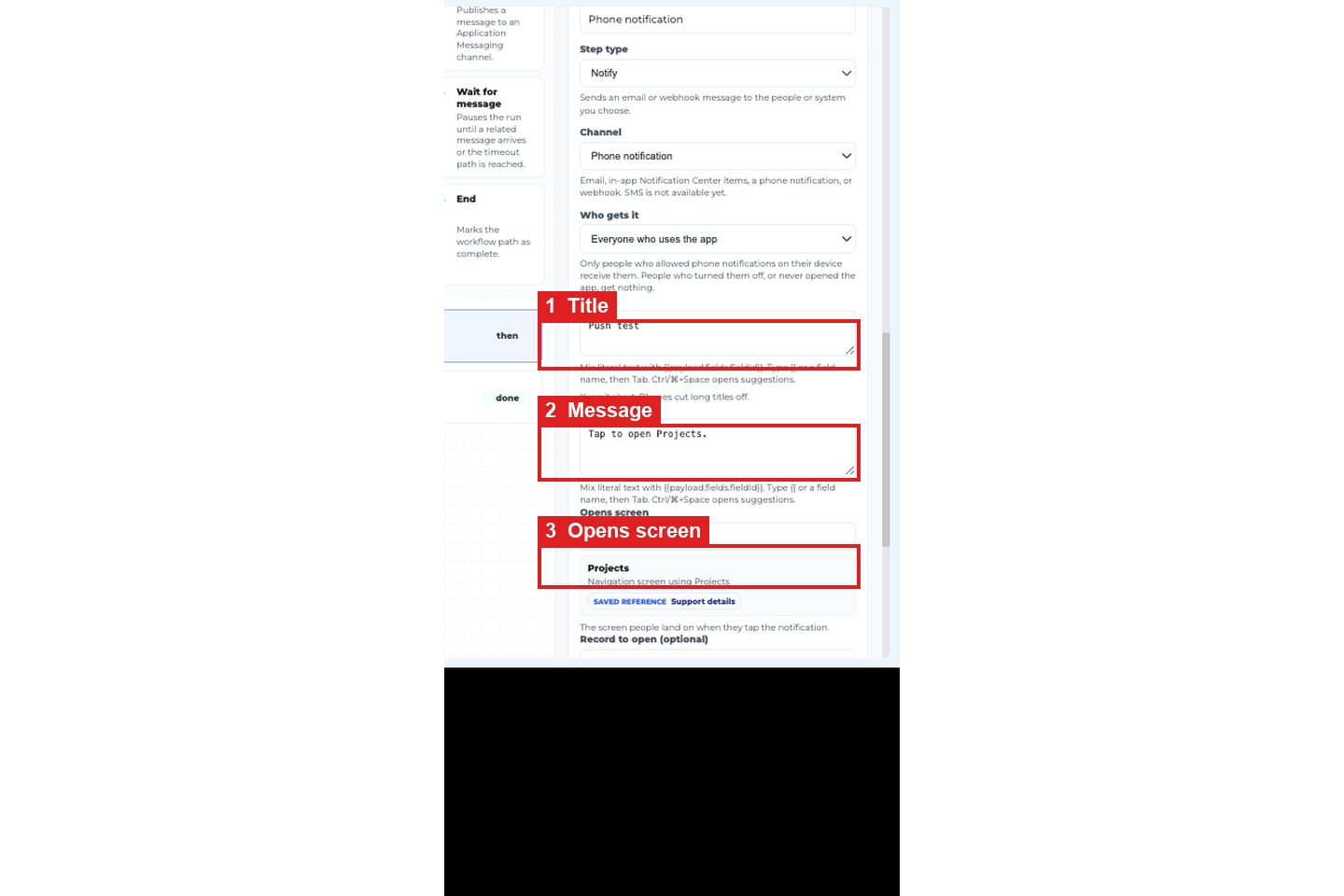
Section titled “Step 6: Write the title and message, and choose the screen”- Title: keep it short. The hint says
Keep it short. Phones cut long titles off. - Message: one or two short sentences.
- Opens screen: the screen people land on when they tap the notification. The hint says
The screen people land on when they tap the notification. - Record to open (optional): for a details or edit screen, the record to show.
You can put a value from the row into the title or message, so each person sees their own details.
Step 7: Publish the workflow
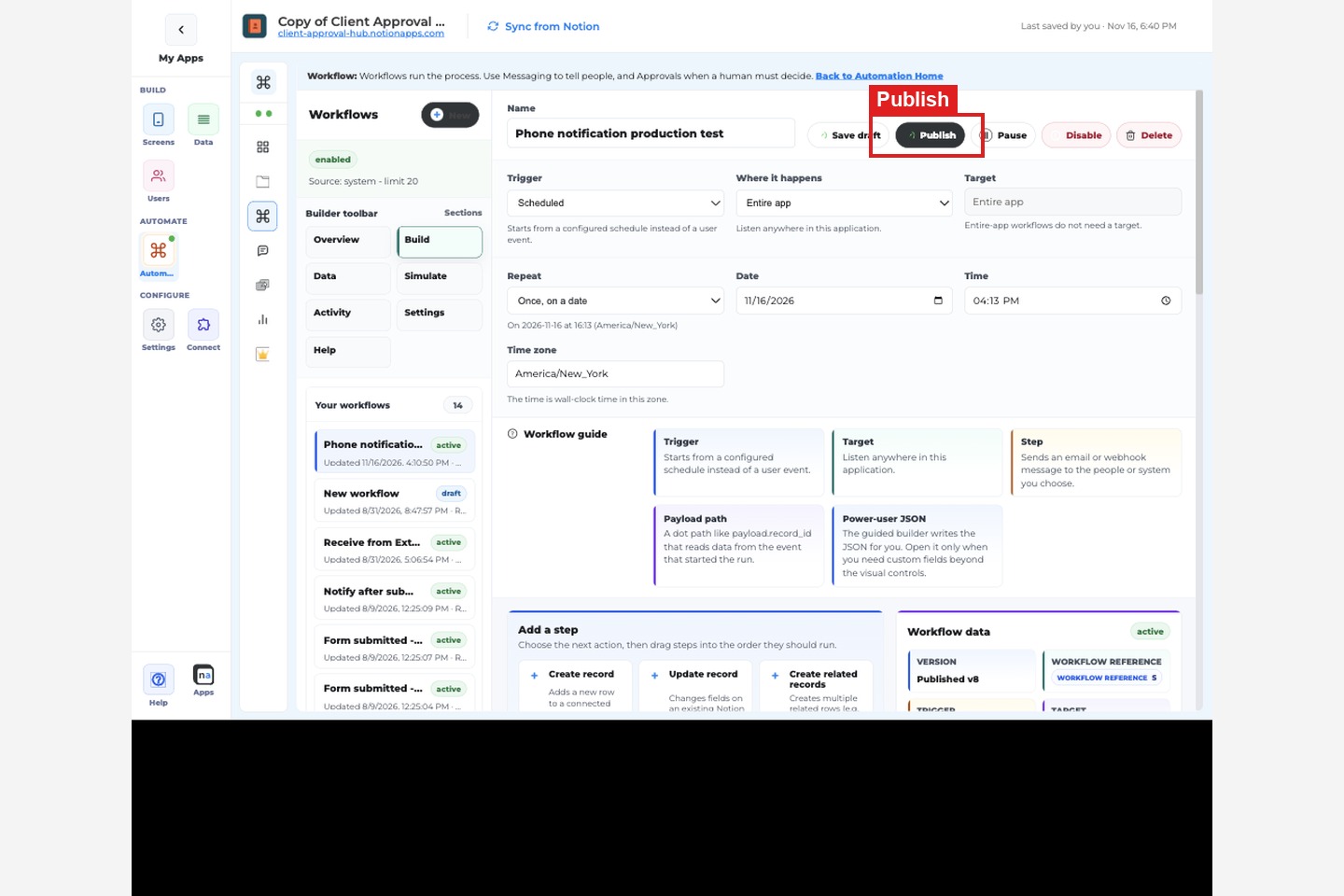
Section titled “Step 7: Publish the workflow”Click Save draft, then Publish. You see Workflow published. The workflow shows a Published badge, for example Published v8.
A scheduled workflow now waits for its time. A workflow that starts from something happening runs the next time that happens.
What people see in your app
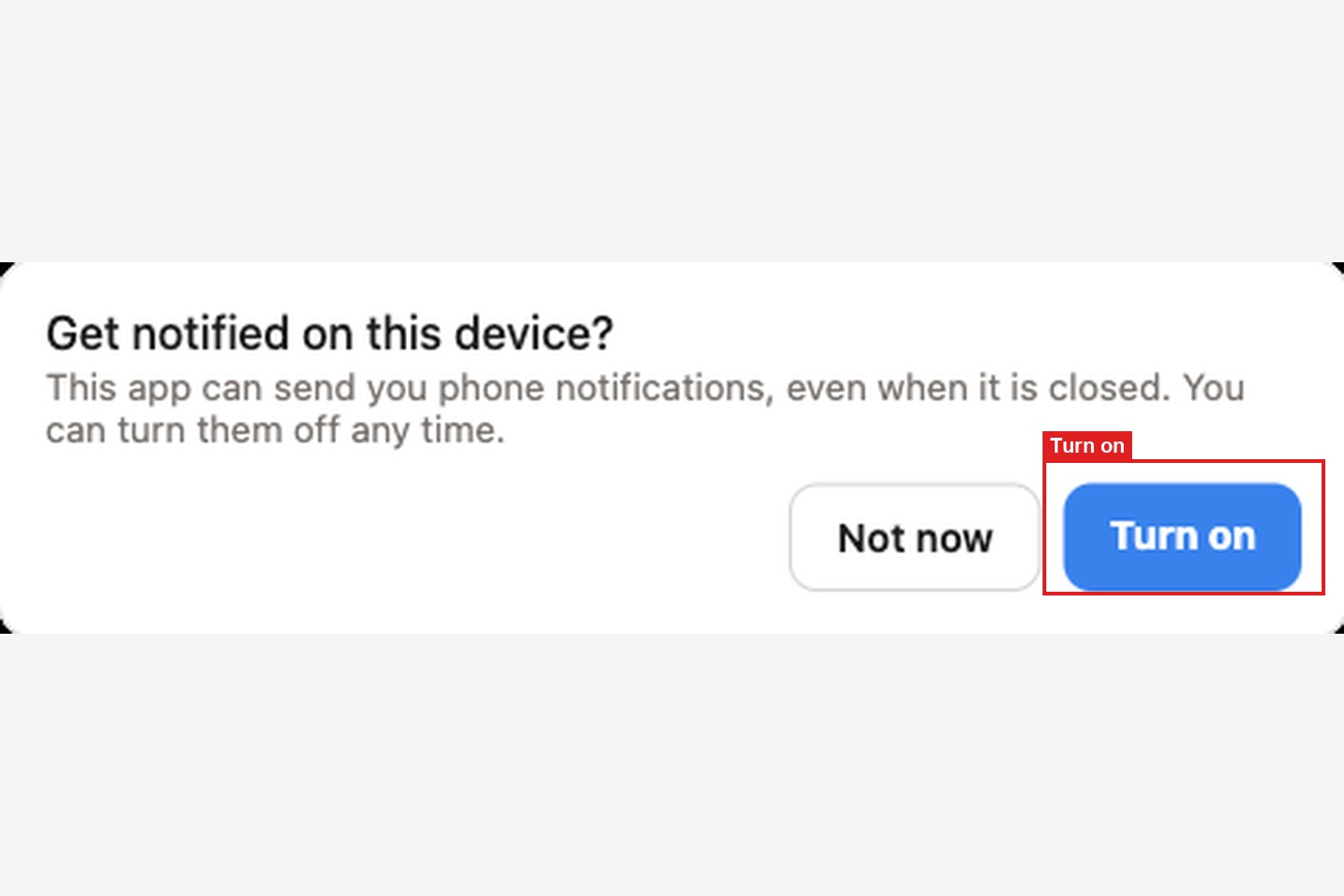
Section titled “What people see in your app”The first time a person opens the app after you publish, they are asked Get notified on this device?
The prompt says: This app can send you phone notifications, even when it is closed. You can turn them off any time.
- Turn on: the phone asks for permission once. After they allow it, they get your notifications on that phone.
- Not now: nothing is sent to that phone. They can turn it on later.
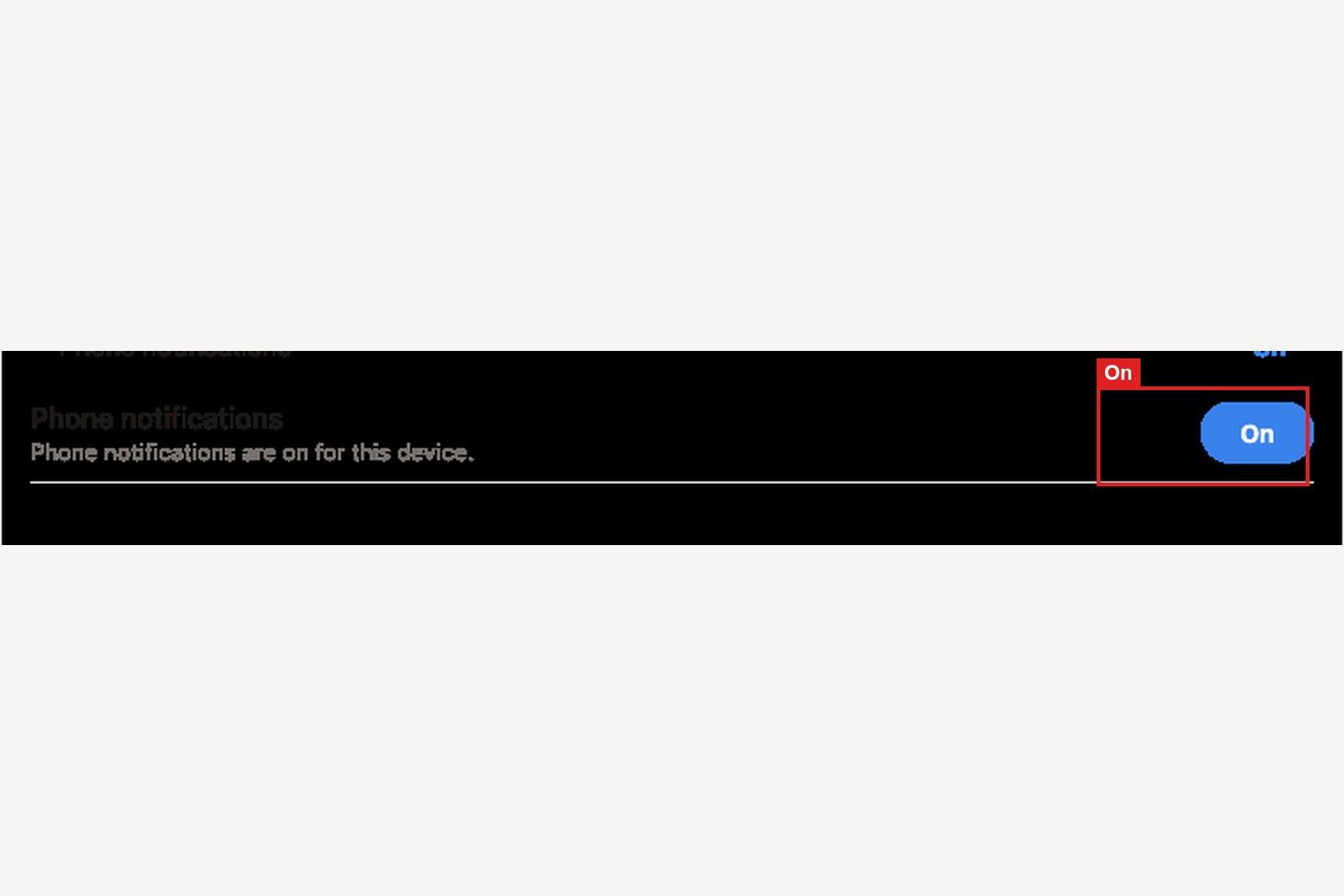
People can change their mind at any time with the Phone notifications switch. It is in the app menu and on the Profile screen, and it reads On or Off. When it is on, the line under it says Phone notifications are on for this device.
When a notification arrives, it shows in the phone's notification list with your title and message, even if the app is closed. Tapping it opens the app on the screen you chose.
Check that it was sent
Section titled “Check that it was sent”Open the workflow and click Activity. Run history lists each time the workflow ran. Click a run to see the Step timeline. The Notify step shows how it went, for example Phone notification sent to 1 person.
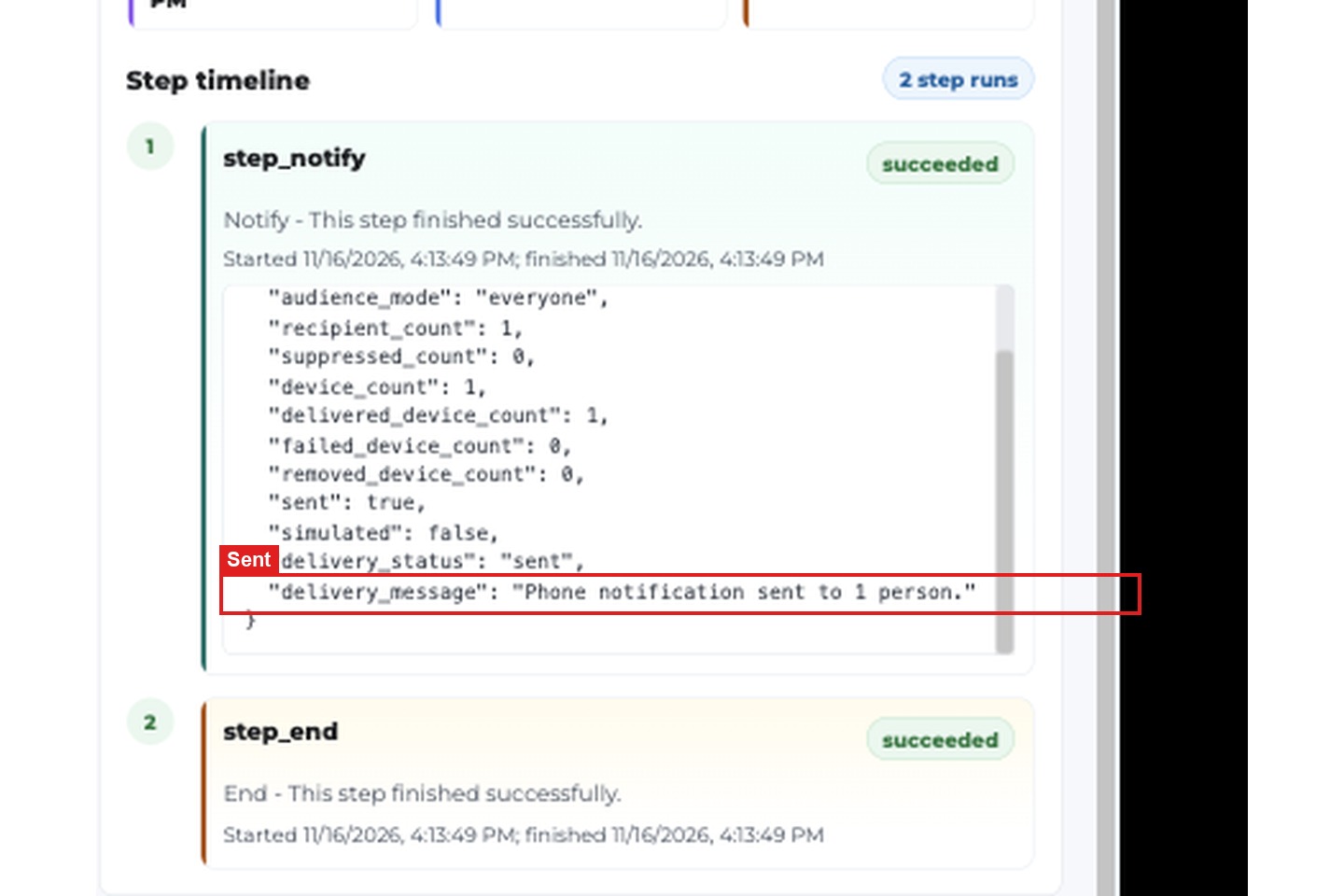
If the step says Nobody in this audience has allowed phone notifications., the workflow ran correctly, but none of the people you chose has turned notifications on yet.
Limits
Section titled “Limits”- A person must open the app and turn notifications on before they can receive one.
- iPhone and iPad need the app on the Home Screen, on iOS 16.4 or later.
- A public app (no sign-in) cannot send phone notifications to its visitors.
- People cannot reply from the notification. Tapping it opens the app.
- A phone that stays off or offline for more than a day may not show a notification sent during that time.
- This does not list your app in the App Store or the Play Store, and it does not replace email or messages inside the app.
Fix problems
Section titled “Fix problems”| What you see | What it means | What to do |
|---|---|---|
Phone notifications are not included in this app's plan. | The app's plan does not include phone notifications. | Contact support. |
Phone notifications are not included in this app's plan, so this step sends nothing. | The workflow step is set up, but the plan does not include phone notifications. | Contact support. The rest of the workflow still runs. |
Choose who gets it. | The step has no audience yet. | Pick One person, People who match a rule or Everyone who uses the app. |
Choose the screen the notification opens. | No screen is chosen. | Pick a screen under Opens screen. |
Nobody in this audience has allowed phone notifications. | The workflow ran, but nobody it was meant for has turned notifications on. | Ask people to open the app and tap Turn on. |
The push service refused this phone notification on every device. | The phones that were signed up are no longer signed up. | Each person opens the app and turns the Phone notifications switch on again. |
Notifications are blocked for this app in your browser or phone settings. | The person blocked notifications for the app on that phone. | Allow notifications for the app in the phone or browser settings, then turn the switch on. |
To get phone notifications on iPhone or iPad, tap Share, then Add to Home Screen, and open the app from there. | The app is open in a Safari tab. | Add the app to the Home Screen and open it from there. |
| The notification arrives late on a Samsung phone | The phone put the browser to sleep to save battery. | In the phone's settings, set Chrome's battery usage to Unrestricted. |